
If you advertise in ChatGPT with OpenAI Ads, connecting your OpenAI Pixel ID to TripWorks lets OpenAI see which bookings your ads produced. Once it's on, TripWorks reports every completed online booking to OpenAI as an Order created conversion, with the booking total, so you can measure your campaigns and let OpenAI optimize them. Setup is one field and one switch. There is no code to install on your website.
In this article
- What TripWorks reports to OpenAI
- Step 1: Find your Pixel ID in OpenAI Ads Manager
- Step 2: Add your Pixel ID in TripWorks
- Step 3: Set up the conversion in Ads Manager
- Check that it's working
- How OpenAI counts your conversions
- Troubleshooting: conversions aren't showing
- Examples
- Frequently asked questions
Learn how to manage permission groups
What TripWorks reports to OpenAI
When the integration is on, your booking widget reports one event to OpenAI for each completed online booking:
- Order created, sent on the confirmation page. It includes the booking's total, the currency, the experiences booked, and the booking's confirmation code. OpenAI uses the confirmation code to recognize a booking it has already counted.
TripWorks also saves OpenAI's click ID on the booking when the guest arrived from an OpenAI ad. You can see it in the OpenAI Click ID column in Sales, where it's hidden until you add it to your columns. It's also available through the REST API and Zapier.
TripWorks sends Order created only. OpenAI's pixel can also receive other steps in a booking, such as items added or checkout started, but TripWorks doesn't send them.
Step 1: Find your Pixel ID in OpenAI Ads Manager
- Sign in to OpenAI Ads Manager and open Conversions.
- Select the Data Source tab. If you don't have a data source for your website yet, create one here.
- Copy the Pixel ID shown under your pixel's name.
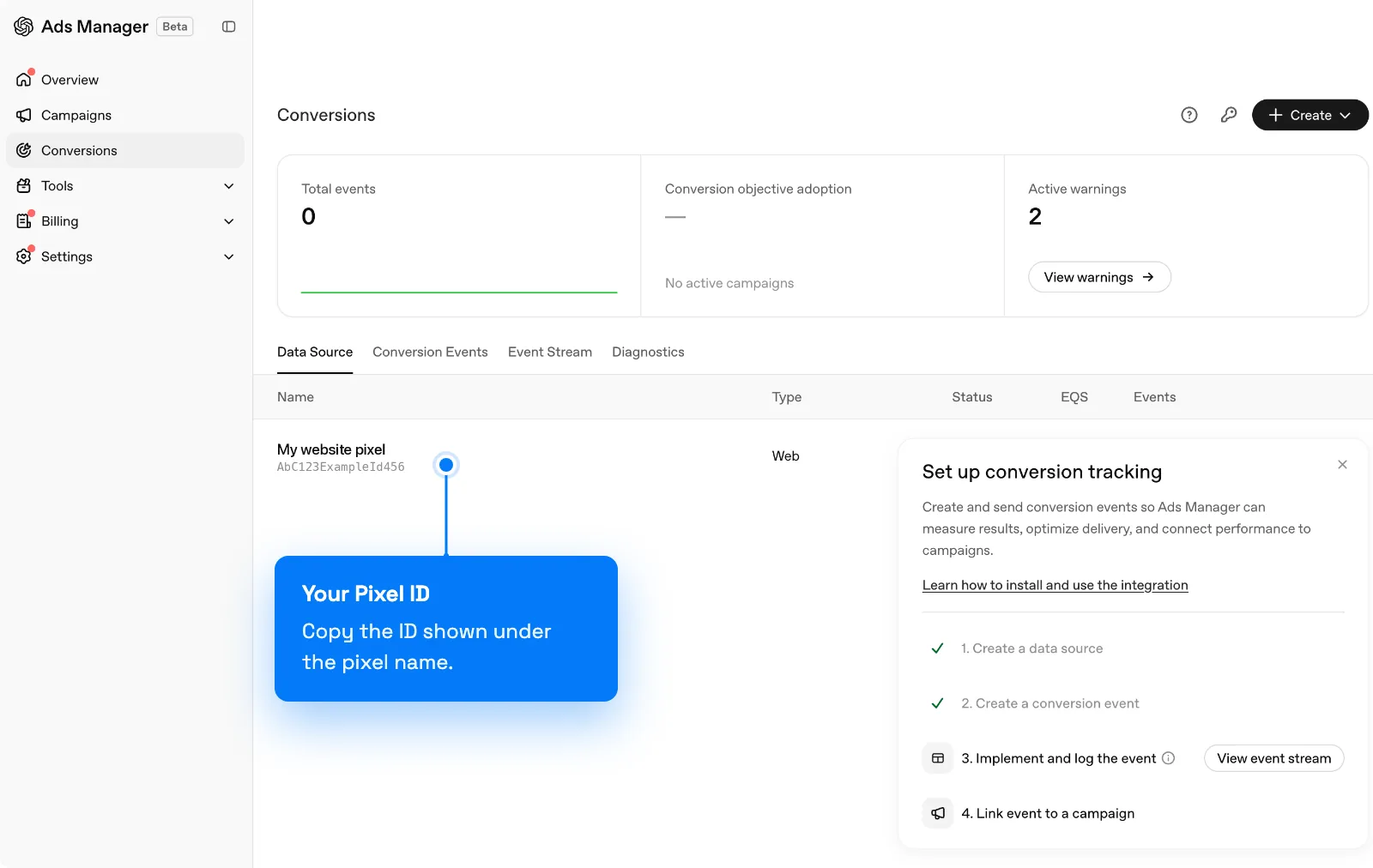
OpenAI Ads Manager → Conversions → Data Source: your Pixel ID is listed under the pixel's name.
Use the Pixel ID, not your ad account ID or a campaign ID. Those look similar but won't work.
Step 2: Add your Pixel ID in TripWorks
- Go to Setup Integrations and select Connect on the OpenAI Ads card.
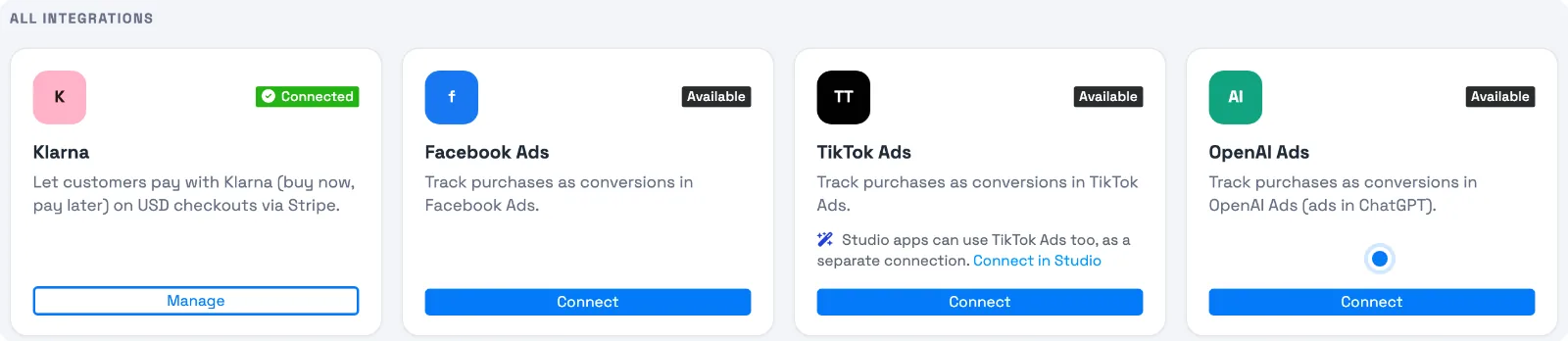
The OpenAI Ads card sits with your other advertising integrations. - Paste your OpenAI Pixel ID.
- Turn on Send purchases to OpenAI Ads.
- Select Save.
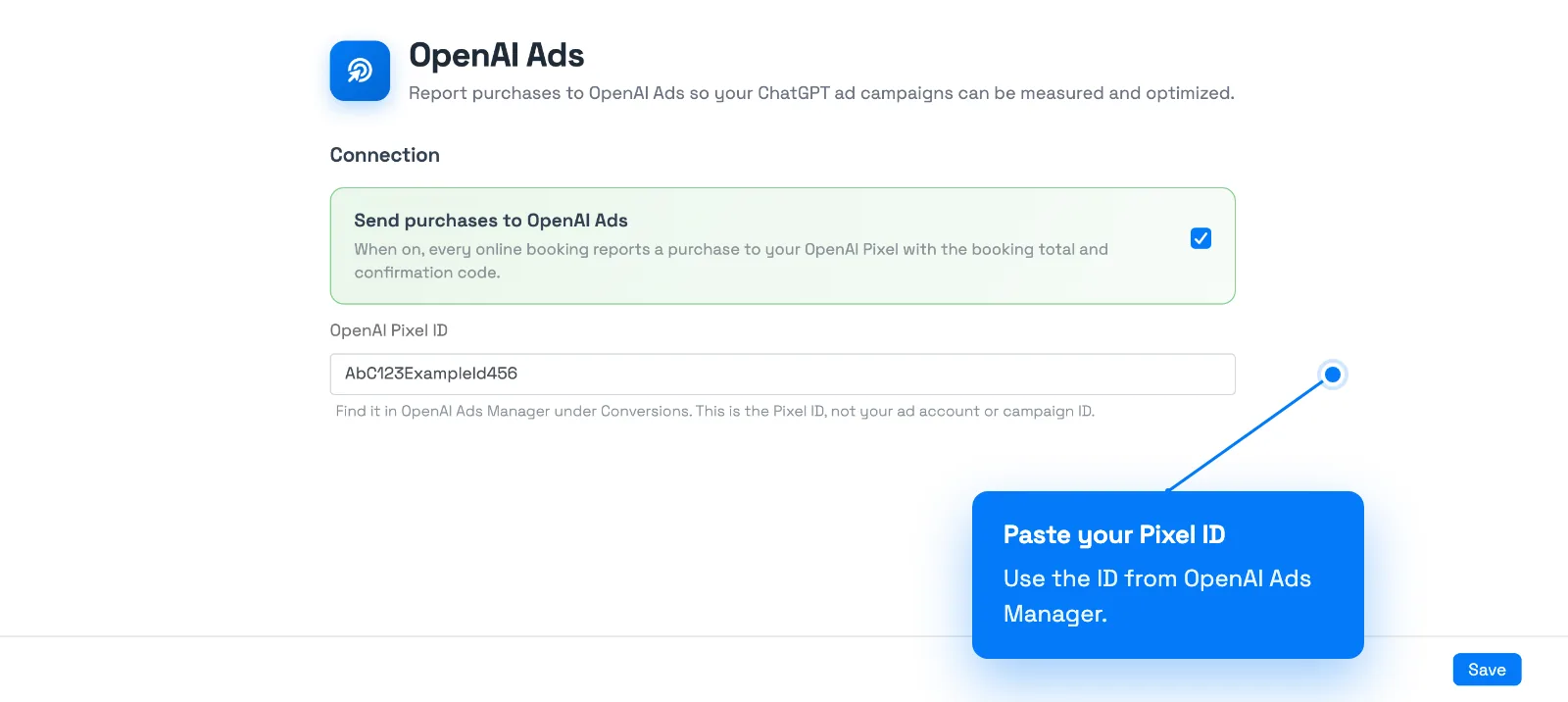
Setup → Integrations → OpenAI Ads: paste your Pixel ID and turn on Send purchases to OpenAI Ads.
Both are required. Tracking only runs when the Pixel ID is entered and the switch is on. TripWorks won't let you turn the switch on without a Pixel ID.
Step 3: Set up the conversion in Ads Manager
OpenAI counts a conversion only after you tell Ads Manager which event matters and which campaigns to measure it for.
- In Ads Manager, open the Conversion Events tab and select Create.
- Choose your data source and the base event Order created.
- Link that conversion to the campaign you want to measure.
Check that it's working
Events from a booking show up in Ads Manager's Event Stream tab, which lists only recent events, so check it right after your test.
- Open your live booking page in an incognito window, so you're not logged in to TripWorks.
- If a cookie banner appears, answer it the way a guest would.
- Complete a test booking, then cancel it afterward.
- In Ads Manager, open Conversions, select the Event Stream tab, and leave polling on. An order_created row for your pixel should appear.
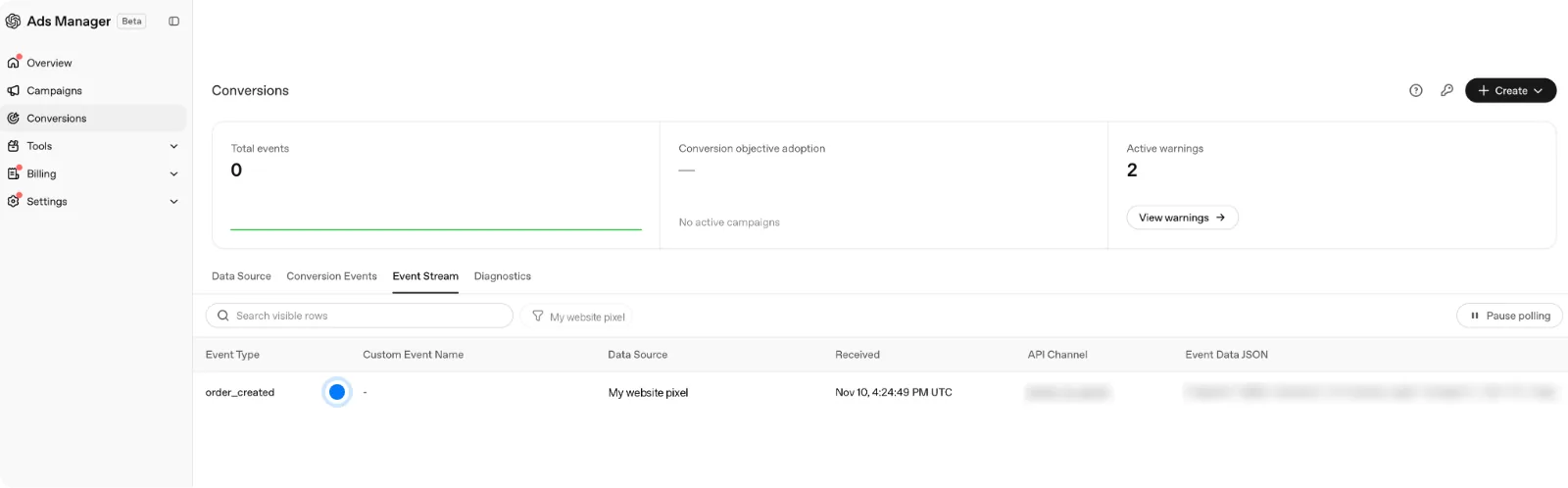
Conversions → Event Stream: a test booking appears as an order_created row.
The Event Stream is the quickest place to confirm. The Total events count and your conversion reports can take longer to update, so a count of zero right after a test doesn't mean it failed.
How OpenAI counts your conversions
- Click-through conversions are bookings from guests who clicked your ad. They appear under Conversions in Ads Manager.
- View-through conversions are bookings that follow an ad view within one day. OpenAI reports them separately at the campaign level, and they aren't included in the Conversions total.
That's why OpenAI's numbers can differ from the bookings you see in TripWorks. Bookings from guests who found you some other way never appear in OpenAI at all. For ChatGPT visits that weren't from an ad, see Bookings from AI assistants.
Troubleshooting: conversions aren't showing
Work through these in order:
- Confirm the integration is on. In Setup → Integrations → OpenAI Ads, check that the Pixel ID is correct and Send purchases to OpenAI Ads is on.
- Test as a guest, not while logged in. Bookings made while you're logged in to TripWorks are never reported. Use an incognito window on your live booking page.
- Check your cookie consent setup. The OpenAI pixel follows the same consent handling as your other advertising pixels. See Consent, CMP & privacy for how TripWorks handles cookie consent.
- Check the Event Stream right after the booking. Older events drop off the list. If the row is there, the connection works.
- Confirm the conversion is set up in Ads Manager. The Order created conversion must exist and be linked to your campaign (Step 3).
- Look for a second OpenAI pixel. If your own website or tag manager also reports an Order created event for the same booking, OpenAI can count it twice. Keep only one.
Examples
- Check a day pass for a water park. Book a test ticket from your live booking page in an incognito window, answer the cookie banner if one appears, and watch the Event Stream for the order_created row.
- Find the bookings that came from a ChatGPT ad. Add the OpenAI Click ID column to Sales and look for rows that have a value.
- Compare a zoo's ad results with its sales. Match the conversions in Ads Manager against Sales for the same dates, and remember view-through conversions are reported separately.
- Stop a double count for a rafting company. If the web developer also added OpenAI's pixel to the checkout page, ask them to remove its Order created event.
Frequently asked questions
Do I need to add any code to my website?
No. Enter your Pixel ID and turn the integration on, and TripWorks loads OpenAI's pixel on your booking widget and reports the booking for you. Tracking on the other pages of your own website is separate and still up to you.
Is the Pixel ID the same as my ad account ID?
No. The Pixel ID identifies the data source that receives your conversions. You find it under Conversions on the Data Source tab in Ads Manager. Your ad account ID and campaign IDs won't work in its place.
Which bookings are reported?
Bookings a guest completes on your live online booking widget, once each. Bookings that staff enter while logged in, and bookings that come through resellers, OTAs, or imports, are not reported.
Does the OpenAI pixel follow my cookie consent settings?
It uses the same consent handling as TripWorks's other advertising pixels, such as Facebook and TikTok. See Consent, CMP & privacy for how consent works in TripWorks and what to set up on your own site.
Why don't I see my test booking in Ads Manager?
Start with the Event Stream tab right after the booking, with polling on. It lists only recent events and is the quickest place to confirm. The Total events count and conversion reports can take longer, so zero there doesn't mean the booking was missed. If the stream stays empty, work through the troubleshooting steps above.
Why do OpenAI's numbers differ from my bookings in TripWorks?
OpenAI counts click-through conversions under Conversions and reports view-through conversions separately, so the totals won't line up one to one with your bookings. Bookings made by staff and bookings that didn't come from your OpenAI ads are also left out.
Does this work if my booking widget is embedded on my own website?
Yes for most guests. Desktop Safari blocks tracking for booking windows embedded on another site by default, so some of those bookings may not be reported.
Does TripWorks send other steps, like checkout started?
No. OpenAI's pixel supports more steps, such as items added and checkout started, but TripWorks reports Order created only.
What is automatic advanced matching?
It's an OpenAI setting that, when it's on, lets the pixel read customer details it finds on the page, scramble them (hash them) in the guest's browser, and send only the hashed values. It helps OpenAI match a conversion to an ad when no click ID is available. You control it with OpenAI, not in TripWorks.
Which cookies does the OpenAI pixel set?
The pixel sets two first-party cookies. __oppref remembers the OpenAI ad click for 30 days. __obref is a random browser reference that lasts up to 365 days. Browsers can shorten both. Mention them in your cookie policy so it stays accurate.
Related
- Add conversion pixels: Meta, TikTok & more
- Set up Facebook (Meta) conversion tracking
- Bookings from AI assistants
- Marketing attribution and URL tracking
- Consent, CMP & privacy
Built for attractions, tours & activities
Turn ad clicks into tracked bookings
See how attractions, tours, and activities measure their ad spend against real bookings on TripWorks. Book a demo and make the switch.