
When circumstances change — bad weather, vehicle maintenance, low bookings, or a private buyout — you'll open, close, or change the status of a timeslot. TripWorks gives you four ways to do it, so you can pick the fastest for how many timeslots you're changing and across how many dates.
In this article
Four ways to change a status
- Calendar — best for one or two timeslots on a single date. Open the Calendar, select the date and time block, and change its status.
- Manifest — best for a single timeslot on the date you're viewing. Open the Manifest and change the timeslot's status there.
- Bulk Availability Editor — best for many timeslots across multiple dates or activities at once. See Create booking availabilities.
- Activity Editor — best for multiple timeslots across multiple dates for a single activity (and for creating new timeslots). Open the activity's Dates & Times.
Closing a timeslot stops new bookings from coming in; opening it makes it bookable again.
Who can change a timeslot's status
Changing a status needs the Manage availabilities on experiences permission. Team members who can view the Calendar or Manifest but don't have it can see each timeslot's status but can't change it. Changing many timeslots at once from the Calendar's Status tab also needs Manage activities or experiences. See the User permissions reference.
What each status means
- Open: bookable by your team, and online until your online booking cutoff.
- Open (no cutoff): bookable by your team, and online right up until it's full, ignoring the online cutoff.
- Private: bookable only by your team, for example for walk-ups, phone bookings, or a private group.
- Closed: no new bookings.
In the By Date report under Reports, open spots on Open timeslots count as Online Availability and open spots on Private timeslots count as Direct Availability. See Reports overview.
Change many statuses at once on the Calendar
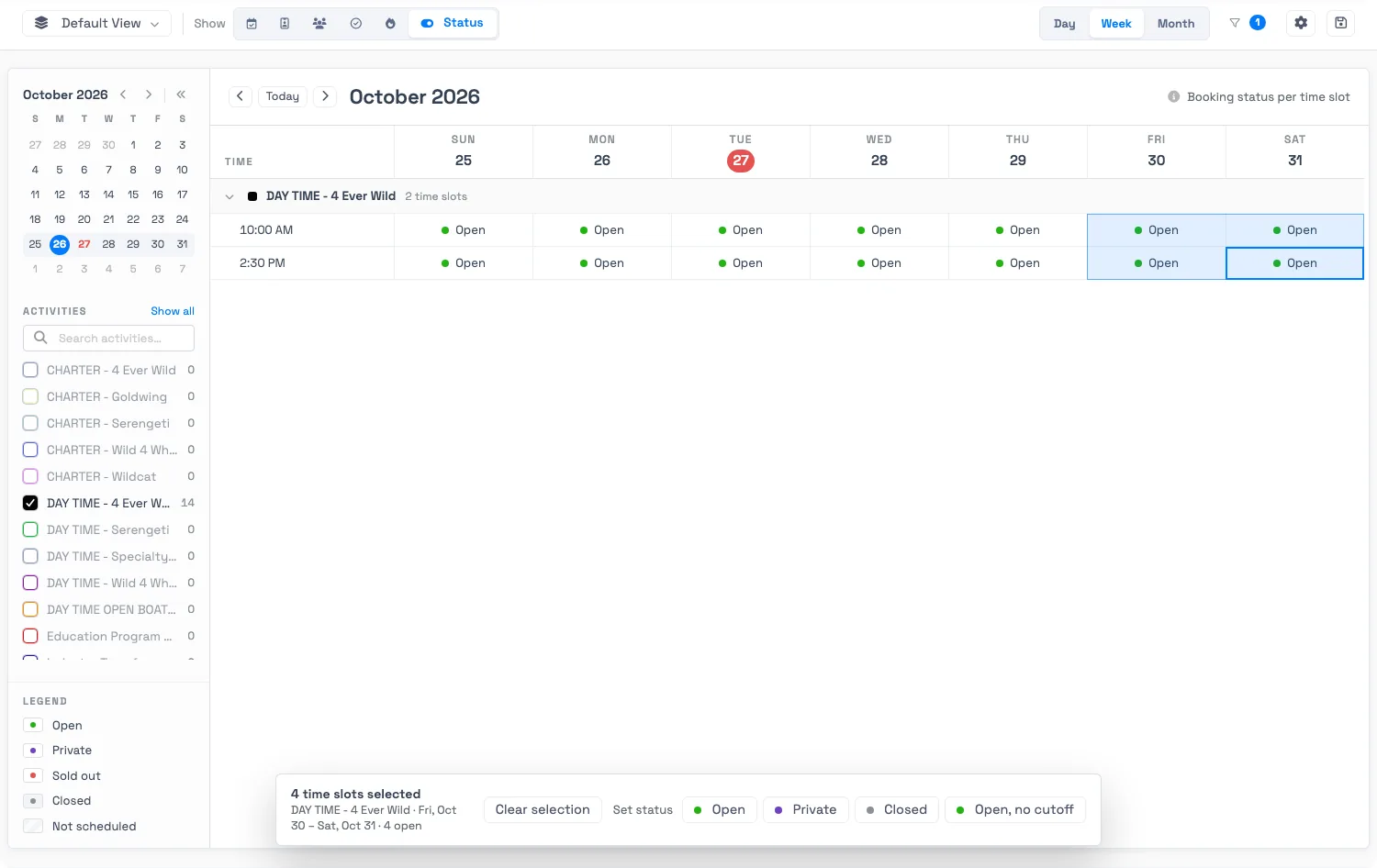
On the Calendar's Status tab, each cell shows a timeslot's status: Open, Private, Sold out, Closed, or Not scheduled. Drag across the cells you want to change, then pick a status in the bar at the bottom: Open, Private, Closed, or Open, no cutoff. The bar tells you how many timeslots are selected before you apply it.
Reopen a cancelled timeslot
When you bulk-cancel all guests from the Manifest, TripWorks automatically sets the timeslot to Cancelled so no new bookings arrive — usually what you want. If plans change and you want to take bookings again:
- Select More Activity Catalog and open the activity.
- Select Dates & Times in the sidebar.
- Check the box next to the Cancelled timeslot.
- Select Change Status… and choose Open.
The timeslot reopens for bookings immediately.
See who opened or closed a timeslot
Every change is recorded in the audit log, so you can see which team member opened or closed availability. Check an individual activity's audit log, a specific user's history, or the account-wide audit log for all changes.
Frequently asked questions
What's the fastest way to close many dates at once?
The Bulk Availability Editor — it changes the status of timeslots across multiple dates and activities in one action. See Create booking availabilities.
Why is a timeslot showing as Cancelled?
Bulk-canceling all guests from the Manifest sets the timeslot to Cancelled so no new bookings arrive. Reopen it from the activity's Dates & Times by changing its status back to Open.
Why can't a team member open or close timeslots from the calendar?
Changing a timeslot's status needs the Manage availabilities on experiences permission in their permission group. Viewing the calendar isn't enough. To change many statuses at once from the Calendar's Status tab, they also need Manage activities or experiences. An admin can add these under Setup, Your team, Permission Groups.
What's the difference between Private and Closed?
A Private timeslot is hidden from online booking but your team can still book it, which suits walk-ups, phone bookings, and private groups. A Closed timeslot takes no new bookings from anyone. In reports, open spots on Private timeslots show as Direct Availability, and Closed timeslots aren't counted.
Related
Built for attractions, tours & activities
Close a weather day in one move
See how attractions, tours, and activities manage their schedule on TripWorks. Book a demo and make the switch.