
Add-ons let guests customize their experience — and lift your average order in the process. Unlike products (physical items), add-ons are optional enhancements or upgrades chosen during booking: VIP seating, a skip-the-line pass, a photo package, a drink upgrade.
In this article
Create an add-on
- Go to Setup Build what you sell Activity Settings and open the activity.
- Under Pricing, select Add-ons & Upsells.
- In the group that matches how the add-on is sold (below), select New add-on.
- Enter an Internal name (what staff see on manifests), a Public title (what shoppers see at checkout), and a description.
- Add one or more Choices. Each choice has a label and a price behavior: Increase, Decrease, Set to, or No charge.
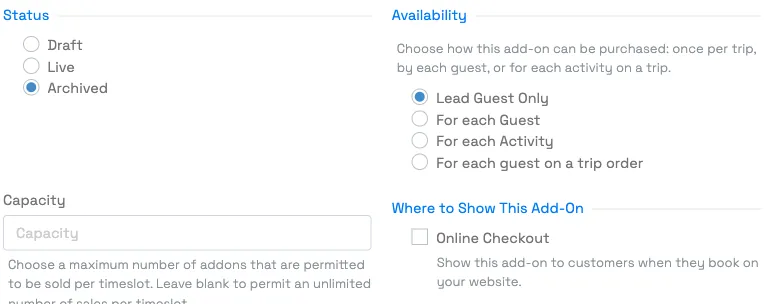
- Under Availability, set the Requirement (Optional or Required) and the Status. Under Where it shows & limits, choose Online checkout, Direct booking, or both, and set an optional Capacity per timeslot (below).
Once it's Live, the add-on appears during booking, so guests can opt in without any extra work from your team.
Optional or required
- Optional lets the guest skip the add-on.
- Required means the guest must pick one of its choices before booking. Use this when every booking must carry a charge or a selection, such as a mandatory equipment fee or a choice of meal. A required add-on with a single priced choice works as a fee the guest has to accept.
Custom fields can't carry a price, so when a question needs to add a charge, set it up as an add-on.
Choose how the add-on is sold
Add-ons are grouped by how they're sold, and each group has its own section on the page. The names use your account's own words for guests and activities.
- Once for the activity — a single flat charge for the whole party on this activity, regardless of headcount. Good for a per-booking extra, like a private-charter upgrade.
- Each guest chooses — every guest decides for themselves whether to add it, and each guest who opts in is charged. Good for a per-person upgrade like a VIP seat or a meal.
- Per guest, chosen once — selected one time for the whole booking, then charged at full price for every eligible guest. You can limit it to certain ticket types, for example a fee that applies to adults only.
To change how an add-on is sold, drag its card into a different group.
Limit how many can be sold (or leave it unlimited)
Use the Capacity per timeslot field to cap how many of the add-on can be sold per timeslot (for example, only 10 photo packages per departure). Leave it blank to allow unlimited sales per timeslot.
How the limit works:
- It's one shared pool for the whole timeslot. Every booking on that departure draws from the same count. If the cap is 10 and one party takes 6, there are 4 left for everyone else on that timeslot. Each timeslot starts with its own full count.
- Every unit counts. A per-guest add-on uses one unit for each guest who gets it, so a party of four taking a VIP seat uses 4. An add-on sold by quantity uses one unit per item. An add-on charged once for the booking uses 1.
- Units are used when the booking is reserved, not while it's sitting in a cart. Cancelling the booking or removing the add-on returns the units. Rescheduling moves them to the new timeslot.
- The maximum is 255. Entering 0 is treated the same as blank (unlimited), so 0 doesn't stop sales. To stop selling an add-on, switch it off for online checkout or change its status instead.
What happens when it sells out:
- Online, the add-on stays visible but can't be selected. Guests see it with a Sold Out badge. When 3 or fewer are left, it shows a "3 left"-style badge so guests know it's going fast.
- Your team sees the same badge when booking in the dashboard. Adding it past the limit is blocked with a message, unless the activity allows manual overbooking, in which case a team member can choose to override.
If you lower the capacity after some are sold, existing bookings keep their add-ons and the remaining count drops to match (never below zero). If you add a cap to an add-on that was unlimited, sales made while it was unlimited don't count toward the new cap.
This is a per-timeslot inventory cap, not a per-booking limit. Within a single booking, a per-guest add-on can be added up to once per guest.
Reorder your add-ons
On the activity's Add-ons & Upsells page, drag the add-on cards into the order you want, then select Save changes. You reorder within each group; dragging a card into a different group changes how that add-on is sold.
The order guests see at checkout
The order inside each group is yours to set, but the order of the groups is fixed. On the add-on step of online checkout, guests see:
- Each guest chooses add-ons, listed under each guest's name (or ticket type).
- Pickup, if the activity offers pickup.
- Once for the activity and Per guest, chosen once add-ons, last.
So whole-booking questions always come after the per-guest ones, and you can't move an add-on from one group ahead of another group. If an add-on has to come first, put it in the group that matches that position, as long as that group still charges the way you want.
Make them convert
Add-ons earn the most when guests see them at the right moment. Pair them with suggested products and add-ons at checkout so the upgrade is offered exactly when a guest is ready to buy.
Frequently asked questions
What's the difference between an add-on and a product?
Add-ons are optional upgrades to the experience (like VIP seating). Products are physical items. Both can be sold alongside a booking.
Where do guests choose add-ons?
During the booking flow. You can also surface them as suggestions at checkout to boost take-up.
How do I allow an unlimited number of an add-on?
Leave the Capacity field blank. Capacity caps how many can be sold per timeslot; blank means unlimited. (Within one booking, a per-guest add-on can still only be added up to once per guest.)
What does Capacity per timeslot do on add-ons and upsells?
It caps how many of that add-on can be sold on each timeslot of the activity. The count is shared by every booking on the timeslot, so if the cap is 10 and one party takes 6, only 4 are left for other bookings on that departure. A per-guest add-on uses one unit per guest who gets it, and an add-on sold by quantity uses one per item. Units are used when a booking is reserved and come back if it's cancelled or the add-on is removed. Leave the field blank for unlimited.
Is add-on capacity per booking or per timeslot?
Per timeslot. Capacity per timeslot is a shared inventory count for each departure, not a limit on how many one booking can buy. Separately, within one booking a per-guest add-on can be added once per guest.
What do guests see when an add-on sells out?
The add-on stays on the page with a Sold Out badge and can't be selected online. When 3 or fewer are left, it shows how many remain (for example, "2 left"). Team members booking in the dashboard see the same badge and can't add it past the limit, unless the activity allows manual overbooking and they choose to override.
What do "Once for the activity," "Each guest chooses," and "Per guest, chosen once" mean?
Once for the activity is one flat charge for the whole party, whatever its size. Each guest chooses lets every guest opt in or out on their own, and each guest who adds it is charged. Per guest, chosen once is selected a single time for the booking and then charged for every eligible guest, and it can be limited to certain ticket types.
Can I make an add-on mandatory, like a required fee?
Yes. Edit the add-on and set its Requirement to Required, and the guest must pick one of its choices before booking. For a fee everyone pays, give the add-on a single choice priced at the fee. Choose Once for the activity for a flat fee per booking, or Per guest, chosen once for a fee charged for every guest.
Can I show the whole-booking add-ons before the per-guest ones at checkout?
No. The order of the groups is fixed: Each guest chooses add-ons come first, listed under each guest, then pickup, then Once for the activity and Per guest, chosen once add-ons. You control the order within each group by dragging the cards on the Add-ons & Upsells page and selecting Save changes.
Can I change the order add-ons appear in?
Yes, within each group. On the activity's Add-ons & Upsells page, drag the cards into the order you want and select Save changes. The groups themselves always appear in the same order at checkout: Each guest chooses first, then pickup, then Once for the activity and Per guest, chosen once. Dragging a card into a different group changes how that add-on is sold.
Does an add-on reserve a resource, or extend how long a resource is used?
No. Add-ons don't have any resource or duration settings of their own — they're just an optional line item a guest adds to their booking. Resource reservations and usage duration (how long each resource is tied up per booking) come entirely from the ticket type, set separately as a resource requirement on the activity. So an add-on that implies extra resource time in real life — say, a longer boat rental add-on — doesn't automatically extend the resource's reserved duration; if you need the resource held longer when that add-on is selected, set that on the ticket type's resource requirement instead, or use a separate ticket type/activity variant that reflects the longer duration.
Related
- Create & publish an activity
- Suggested products and add-ons at checkout
- Resources and resource groups
- Require gratuity on a booking
Built for attractions, tours & activities
Raise every order with a click
See how attractions, tours, and activities grow order value on TripWorks. Book a demo and make the switch.