
Connecting Viator lets Viator check your availability and send its bookings straight into your TripWorks calendar. You set it up once with your Viator Supplier ID and API Key, pick the activities Viator can sell, and Viator bookings arrive as ordinary trips attributed to your Viator reseller.
In this article
- How the connection works
- Before you begin
- Step 1: Connect your Viator account
- Step 2: Choose which activities Viator can sell
- Match your ticket types
- How pricing works
- How the money flows
- When a guest changes a booking on Viator
- When a guest cancels on Viator
- When you cancel or edit a Viator trip in TripWorks
- Refunds
- Connect more than one Viator account
- Examples
- Frequently asked questions
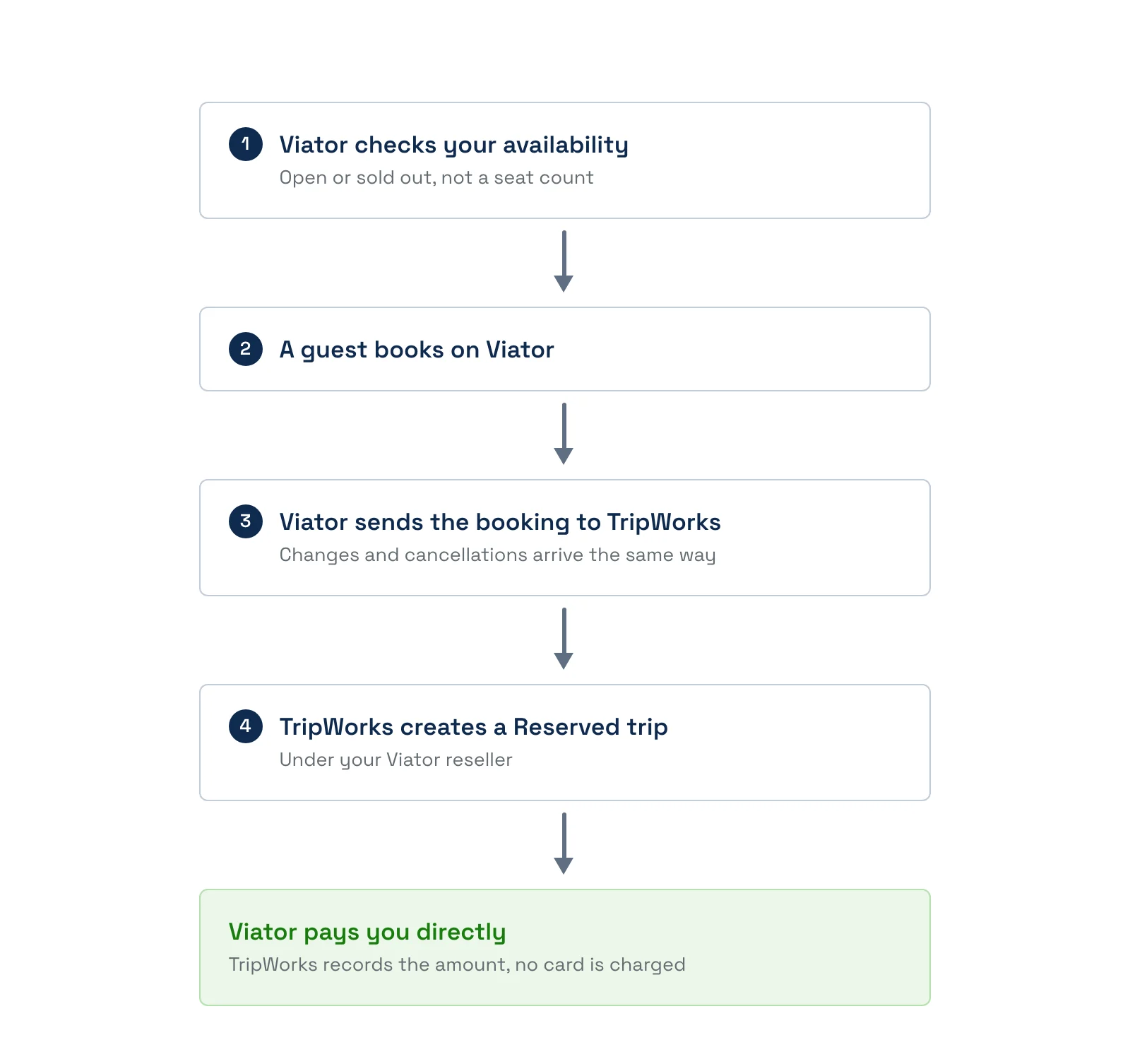
How the connection works
- Your availability is live. There's nothing to push or sync. Each time Viator needs to know, it asks TripWorks, and TripWorks answers from your current availability. A timeslot that is sold out, blocked out, or past its booking cutoff shows as unavailable. Viator sees open or unavailable, not a seat count.
- Bookings, changes, and cancellations come to you. When a guest books, changes, or cancels on Viator, Viator sends it to TripWorks and the trip is created or updated for you.
- Viator pays you, not the guest's card. TripWorks records the amount Viator reports and never charges a card for a Viator booking.
Before you begin
- A Viator supplier account, with TripWorks available as your reservation system.
- A Viator reseller profile in TripWorks. If you don't have one, choose More → Resellers, then New, and pick Viator.
- Ticket types on each activity that match Viator's traveler types. See Match your ticket types.
Step 1: Connect your Viator account
In the Viator supplier portal:
- Sign in at supplier.viator.com.
- Select your company name, then Account → Connectivity, then Edit.
- Choose TripWorks as your reservation system.
- Copy the API Key and the Supplier ID, then save in Viator.
In TripWorks:
- Go to More → Resellers and open your Viator reseller.
- Open Settings, then the General tab, and scroll to API Information.
- Turn on Connect Availability API.
- Paste in the Viator Supplier ID and Viator API Key, then select Update.
Not sure where to find the ID? See Where do I find my Viator Supplier ID?.
Step 2: Choose which activities Viator can sell
- On your Viator reseller, open Settings and the tab named for your activities.
- Check the activities you want to sell on Viator, then select Update.
- In Viator, go to Products, select Manage next to the product, then Product Connection, choose Connect, and pick the matching activity.
Saving sets up the matching Viator needs for each selected activity that has upcoming timeslots. If you add timeslots later, save the reseller again.
Only the activities you check here are offered to Viator.
Match your ticket types
Viator tells TripWorks how many travelers of each type are booking, such as Adult or Child. TripWorks matches each one to a ticket type on the activity by name.
- The names need to match. Use the same names in TripWorks that you use in Viator.
- A mismatch doesn't stop the booking. The booking still arrives, but TripWorks puts those travelers on the activity's default ticket type, which can give the wrong price.
- How to check: open a new Viator booking and confirm the ticket types look right.
How pricing works
TripWorks prices a Viator booking from your own rates, not from what Viator charged the guest. It looks up the price for that activity, date, timeslot, and ticket type, including any rate sheets or seasonal pricing that apply to your Viator reseller.
- Viator's amount is recorded, not used as the price. It's the net amount Viator reports. TripWorks uses it only to work out commission when Auto calculate commission rate is on.
- Guest Payment Amount decides how commission affects the total. With Wholesale, which is the default for Viator, commission is subtracted from the trip total. With Retail, it isn't.
- With Auto calculate commission rate on, TripWorks derives the commission from Viator's net amount, so the trip total lands close to what Viator pays you plus taxes. If Viator's net is higher than your TripWorks price, commission is zero and the total stays at your TripWorks price.
- With it off, TripWorks uses the commission rate or fixed amount you set on the reseller and ignores Viator's amount.
- Taxes apply to Viator bookings when the tax is set to apply to OTAs. See Set up taxes & surcharges.
If your TripWorks price and the price on Viator differ, TripWorks keeps its own and doesn't warn you. Keep the two in step.
How the money flows
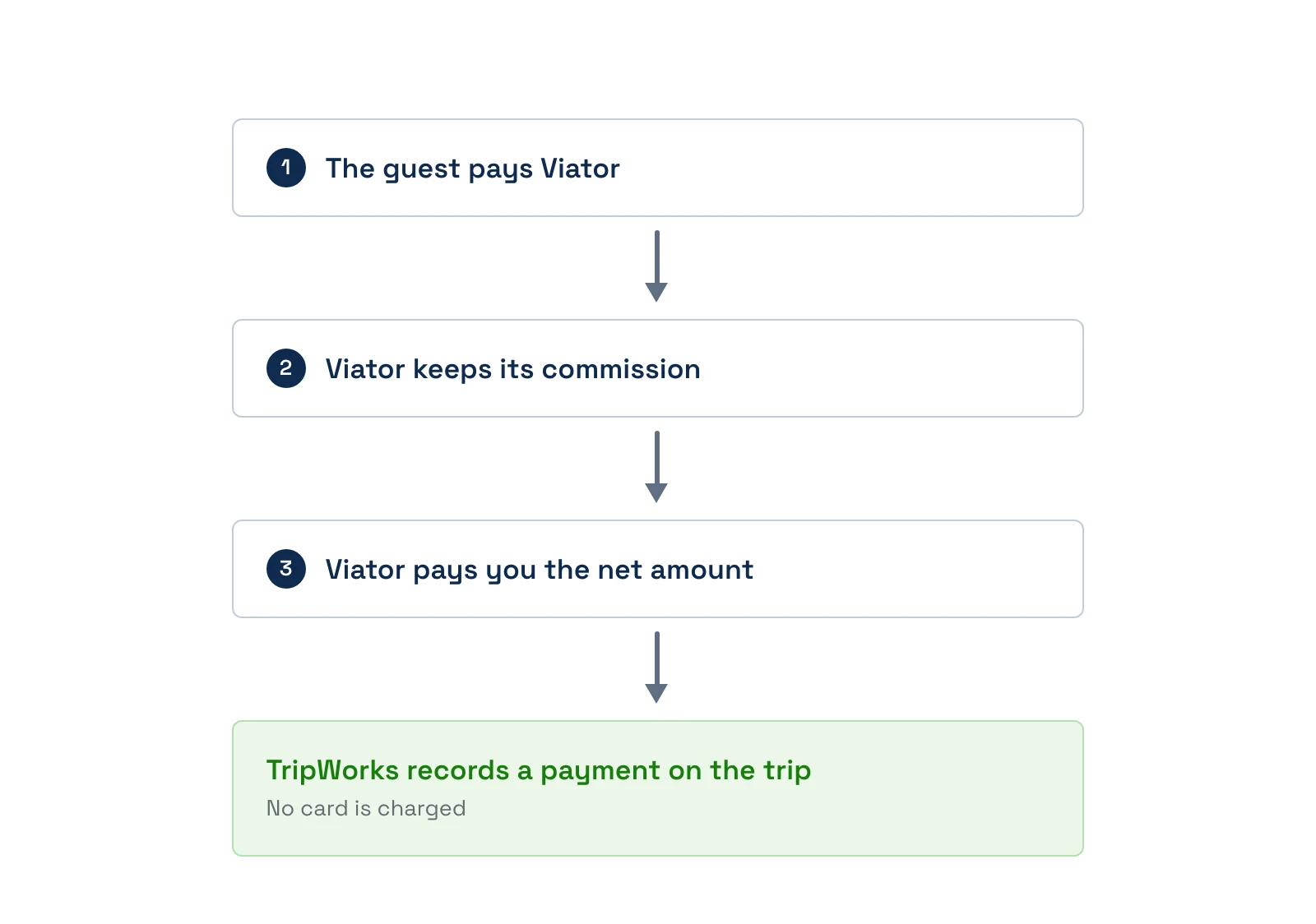
- Viator holds the money. It collects from the guest, keeps its commission, and pays you the net. TripWorks never holds the funds or charges a card.
- The trip shows as paid. When the booking arrives, TripWorks adds a wire payment to the trip for the trip total, so there's no balance due. If you've set the Viator reseller to invoice instead, the payment stays outstanding until you apply it.
- Products you add later aren't covered. If you add a product or add-on to a Viator trip in TripWorks, the payment record doesn't grow, and the extra shows as a balance due.
- Reports. Viator bookings show in your reseller reports. Net Sale is revenue after commission, and Commission is what Viator keeps. See Report on reseller revenue & commission.
When a guest changes a booking on Viator
A guest can change the date, time, or number of travelers on Viator, and the change arrives in TripWorks automatically.
- TripWorks rebuilds the booking to match. Edits you made to that booking in TripWorks are replaced, and the new booking is priced at your current rates.
- The payment record is resized to the new trip total, which also absorbs any products you added.
- A change to a different activity isn't accepted.
- A change can bring a cancelled booking back.
When a guest cancels on Viator
The cancellation arrives in TripWorks automatically, so you don't need to cancel the trip yourself.
- The trip is cancelled and its spots are released.
- The payment record is removed, so the balance goes to zero, and commission is zeroed too. The record stays if the trip is on an invoice that has been sent or paid.
- Messages scheduled for the guest are cancelled.
- TripWorks doesn't email the guest. Viator communicates with them, and confirmations from TripWorks are off by default for Viator.
- Team members subscribed to cancellation alerts are notified.
When you cancel or edit a Viator trip in TripWorks
- Nothing is sent to Viator. Cancelling in TripWorks doesn't cancel the booking on Viator or refund the guest. Cancel in the Viator supplier portal as well.
- The payment record stays. A trip you cancel in TripWorks shows as cancelled but still carries the payment.
- Rescheduling works as usual. The payment record carries over. If the price changes, you're asked whether to keep the original price or use the new one.
- Guests can't reschedule or cancel Viator bookings through your customer portal.
Refunds
Viator refunds the guest, not TripWorks. To cancel and refund a guest, use the Viator supplier portal. The cancellation then arrives in TripWorks and corrects your record on its own.
Don't issue a refund in TripWorks for a Viator booking. TripWorks holds none of the money, so a refund there changes only your records and the guest isn't paid.
Connect more than one Viator account
If you run separate brands, locations, or franchises with their own Viator accounts, connect each one to the same TripWorks account.
- Create a separate Viator reseller for each Viator account, with its own Supplier ID and API Key.
- On each one, check the activities that account should sell.
- Give each reseller its own commission rate and payment method.
Viator bookings are routed by Supplier ID, so each booking lands under the right reseller and shows up separately in your reseller reports. A Supplier ID can only be used on one reseller, and the ID and API Key must be entered together.
Examples
- Find out why a Viator booking has the wrong price. Check that the ticket type names on the activity match Viator's traveler types, such as Adult and Child.
- Stop selling one activity on Viator. Uncheck it on the Viator reseller and select Update.
- Handle a guest who cancels. Cancel and refund them in the Viator supplier portal. The trip cancels in TripWorks on its own.
- Work out why a trip total is lower than Viator's amount. Check whether Auto calculate commission rate is on. If Viator's net is above your TripWorks price, the total stays at your price.
- Chase a balance due on a Viator trip. Look for a product or add-on added after the booking, since the payment record doesn't grow to cover it.
- Run two brands. Create two Viator resellers and give each one its own Supplier ID, API Key, and activities.
Frequently asked questions
Is my availability live on Viator?
Yes. There's nothing to push or sync. Viator asks TripWorks for your availability whenever it needs it, and TripWorks answers from your current availability, so a sold-out or blocked-out timeslot is reported as unavailable. Viator sees whether a timeslot is open or unavailable, not a seat count. If a booking arrives for a timeslot that has just sold out, TripWorks declines it, so you can't be oversold.
What if the ticket types don't match?
The booking still arrives, but those travelers land on the activity's default ticket type, which can price the booking wrong. Rename the ticket types in TripWorks to match Viator's traveler types, then check a new booking.
If I cancel a Viator booking in TripWorks, does Viator know?
No. TripWorks doesn't send cancellations to Viator. Cancel the booking in the Viator supplier portal as well.
Will my edits survive if the guest changes the booking on Viator?
No. When Viator sends a change, TripWorks rebuilds the booking from it, so edits you made in TripWorks to that booking are replaced. Make changes to a Viator booking in Viator where you can.
Does TripWorks charge the guest for a Viator booking?
No. Viator collects payment and pays you. TripWorks records the net amount as a payment on the trip and never charges a card.
Why isn't one of my activities showing on Viator?
Check that it's selected on your Viator reseller and connected to a product in Viator under Products, then Product Connection. An activity with no upcoming timeslots can't be matched until you add some, then save the reseller again.
Can I connect more than one Viator account?
Yes. Create a Viator reseller for each account, each with its own Supplier ID and API Key. A Supplier ID can only be used on one reseller.
Do I need to turn on Connect Availability API?
Yes. It lets Viator find your reseller and is required for Viator to check availability and send bookings. Without it, Viator can't reach your account.
Can a guest's booking move to a different activity on Viator?
No. A change can move the date, time, or traveler count, but a change to a different activity isn't accepted.
Which price does a Viator booking use?
Your TripWorks price for that activity, date, timeslot, and ticket type, not the amount Viator charged the guest. Viator's net amount is recorded and used only for commission when Auto calculate commission rate is on.
Where do I refund a guest who booked on Viator?
In the Viator supplier portal. Viator collected the payment, so Viator refunds the guest. The cancellation then arrives in TripWorks and your record updates itself. Don't refund in TripWorks, because that doesn't pay the guest.
Does the guest get an email from TripWorks for a Viator booking?
Not by default. Confirmations, reminders, and follow-ups from TripWorks are off for Viator resellers, because Viator communicates with the guest. TripWorks also doesn't email the guest when Viator cancels.
Why does a Viator trip show a balance due?
Usually because a product or add-on was added in TripWorks after the booking arrived. The payment record covers the trip total at booking time and doesn't grow when you add items.
Related
- Where do I find my Viator Supplier ID?
- How OTA & reseller bookings connect to TripWorks
- Report on reseller revenue & commission
- Set up ticket types
Built for attractions, tours & activities
Viator bookings, without the re-keying
See how attractions, tours, and activities take Viator bookings straight into one calendar on TripWorks. Book a demo and make the switch.