
Team members are the people who can sign in to your TripWorks account — your staff, your guides, and outside partners like a bookkeeper or marketing agency. This article covers how to invite them, control what each person can access, set how they're notified, and suspend or remove them safely. Nothing here affects your customers; it only shapes what your team sees when they sign in.
In this article
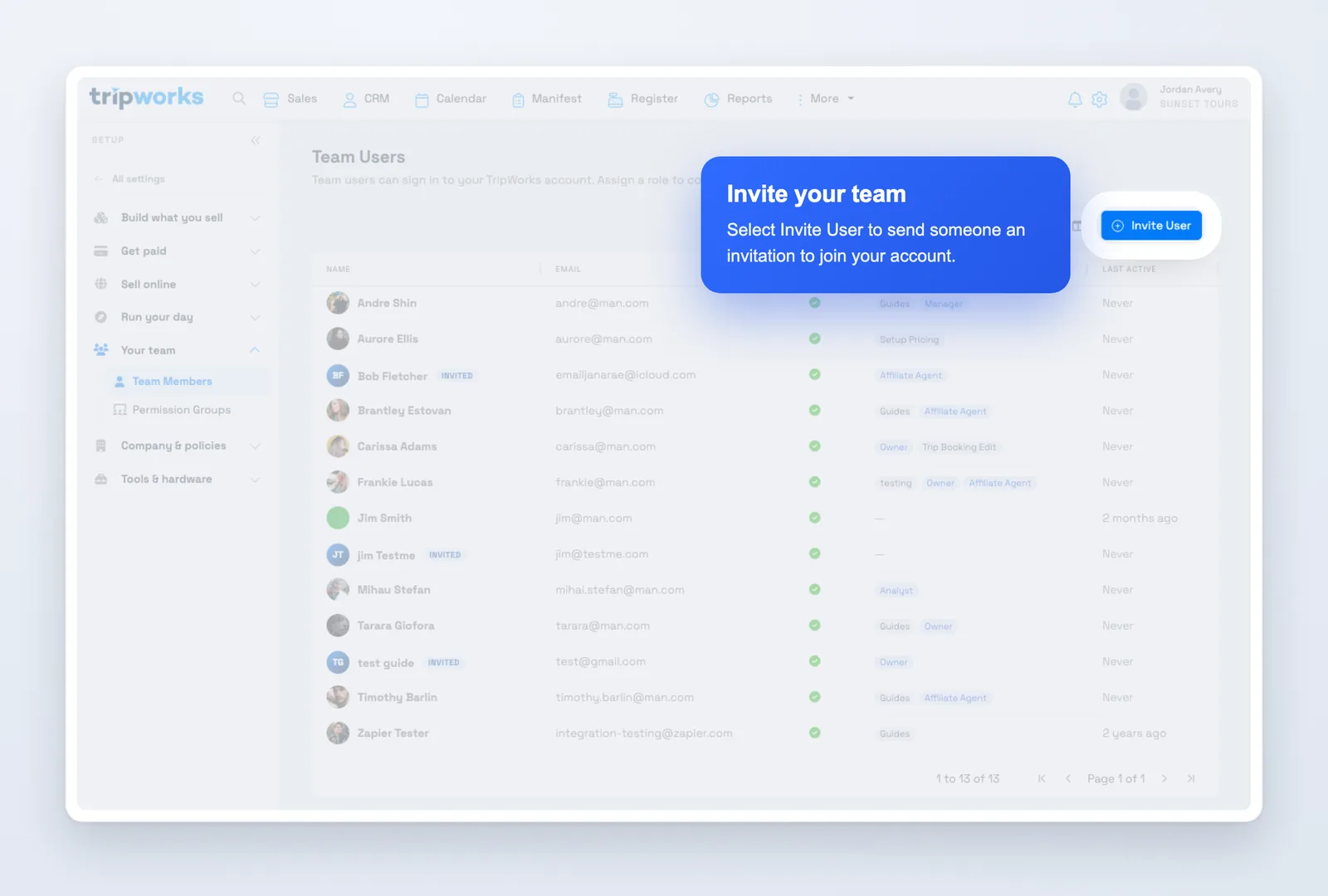
You'll find everything under Your team Team Members, which lists everyone on your account along with their access and when they were last active.
Before you begin: managing team members requires administrator access to your TripWorks account (the built-in Owner group, or a custom group that includes team-management permission). Each person you add needs their own email address — team members can't share a login.
Invite someone to your account
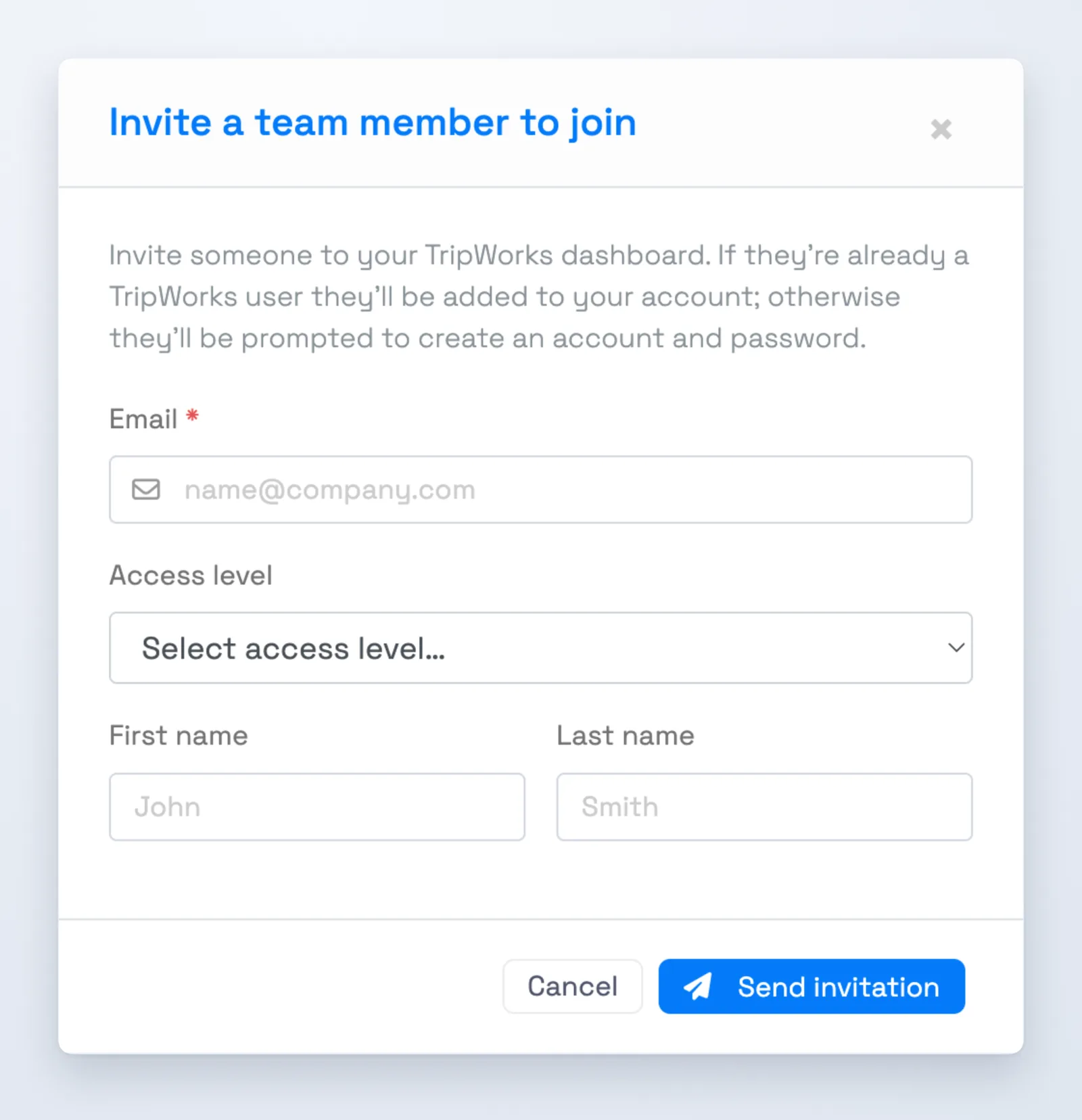
To add a team member, open Team Members, select Invite User, and fill in the invitation:
- Open Team Members and select Invite User.
- Enter the person's email address — this is the only required field.
- Optionally choose an Access level (permission group) and enter their first and last name.
- Select Send invitation.
Choosing an access level up front is a good habit, because a member with no permission group can sign in but can't do anything until you give them one.
What the invitation does next depends on the person:
- If they're new to TripWorks, they receive an email inviting them to create a password and join your account.
- If they already use TripWorks (for example, they work with another operator who also uses it), they're granted access to your account with their existing login — one login can belong to several accounts.
Until the person accepts, they show an Invited badge in the list. If the email gets lost, open the member and select Resend invite. The badge clears automatically once they finish setting up their login. For a step-by-step version of just the invitation flow, see Invite users to your account.
An email address can belong to a team member or to an affiliate/reseller agent, but not both. If the address is already in use as an agent, the invitation is declined — use a different email for their team-member login.
Control access with permission groups
Access is granted through permission groups — named bundles of permissions that decide what a person can see and do. A team member can belong to more than one group, and their access is the combination of everything those groups allow. There are two kinds:
| Group type | Applies to | Editable? | Use it for |
|---|---|---|---|
| Built-in (Owner, Manager, Analyst) | Every account | No | Standard roles that behave the same everywhere |
| Custom | Just your account | Yes | Roles tailored to how your team is organized |
You can only assign or remove a permission group whose permissions you hold yourself. Groups that grant more than your own account can are shown locked — this keeps someone from handing out access they don't have. If a group looks like you can't change it, ask an Owner or an administrator with broader access to make the change.
For the full guide to creating and managing groups, see Permission groups.
Set up a member's profile and access
Select anyone in the list to open their profile, where you'll find their details and the switches that shape their day-to-day experience. Alongside name, email, title, phone, and photo, the Access section holds four switches.
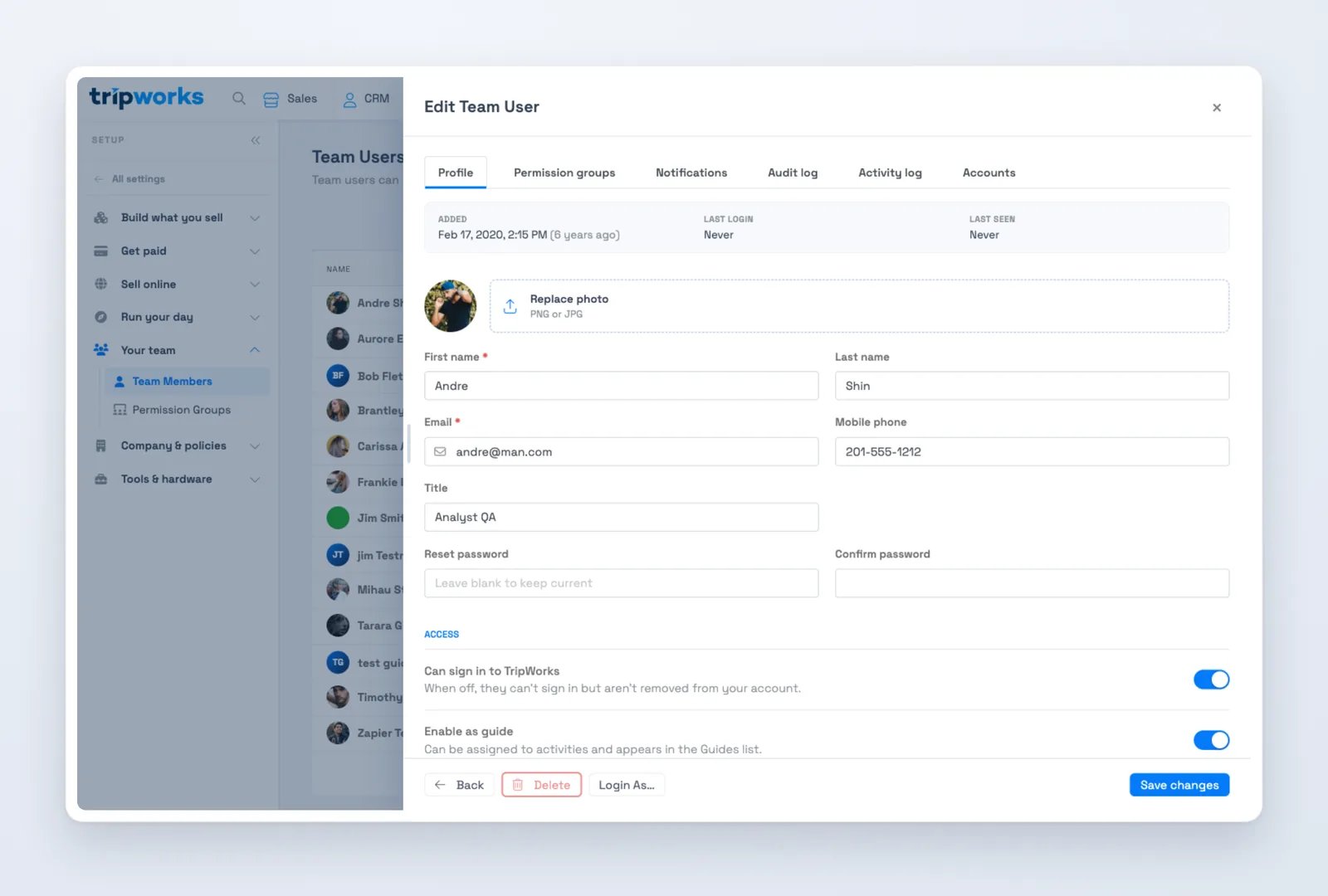
- Can sign in to TripWorks — turn this off to suspend someone's access without removing them. They keep their profile and history and can be switched back on anytime, which makes this the right choice for a seasonal employee between seasons. See Disable a user's login.
- Enable as guide — mark someone as a guide so you can assign them to activities. Guides appear in the Guides list and on the guide calendar, can subscribe to a personal calendar feed of their assignments, and can receive guide-specific notifications. Turning this switch off (or suspending the person's sign-in) immediately ends their calendar-feed access. For the full setup, see Set up team members as guides.
- Eligible to receive tips — controls whether the person is included when tips are distributed. This switch is on by default for new members, so turn it off for anyone who shouldn't receive tips.
- Opted out of email notifications — when on, TripWorks sends the person no emails.
"Opted out of email" is usually turned on automatically when a person's email address bounces or marks TripWorks as spam — so if a team member says they've stopped getting emails, check this switch first. Fix the underlying email problem, then turn the switch off to resume their messages.
Choose how each person is notified
The Notifications tab controls which alerts each team member receives and on which channel. It's a grid of events down the side and channels — Email, SMS, and App — across the top; switch on the combinations that fit each person's role.
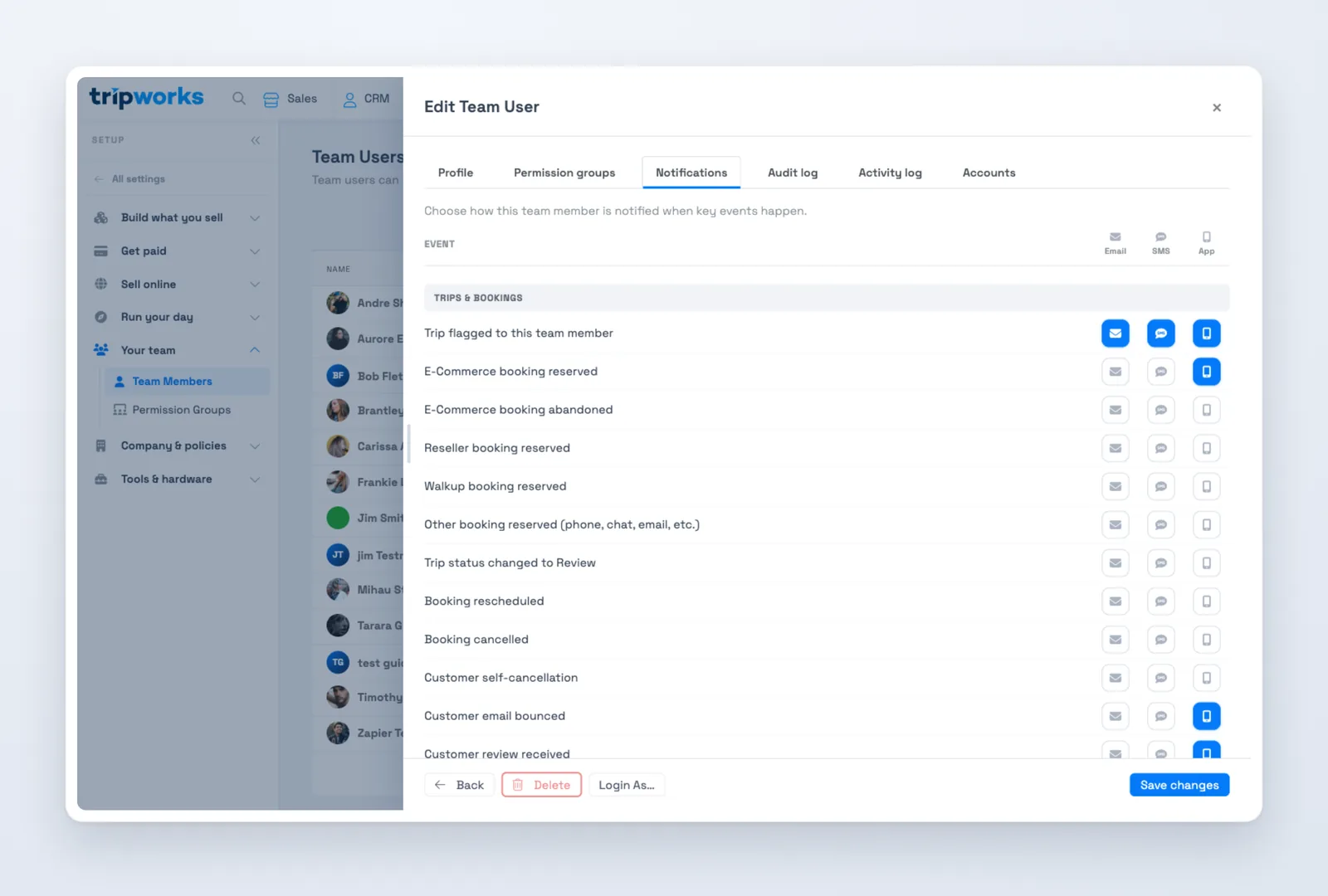
For example, you might send a booking-cancelled alert to a manager by both email and app, while a guide only gets an app notification when they're assigned to a trip. Not every event supports every channel, so some cells are intentionally unavailable. A few events — the account summaries and scheduled reports — are only available to members whose permission groups include access to reports; those rows stay locked until the person has that access.
New members start with all notifications off, so set these up when you add someone — otherwise they won't hear about the bookings and trips they're responsible for.
Review what changed, and by whom
Each member's profile includes two history tabs so you can answer "who changed this?" The Audit log records changes made to that person — who changed a permission or a switch, and when. The Activity log records what that person did across your account. Both are useful for reviewing a permission change or confirming what a team member has been working on.
Suspend or remove a team member
When someone leaves or changes roles, you can either suspend their access or remove them — and the two are different in an important way.
- Suspend keeps the person on your account but blocks sign-in: turn off Can sign in to TripWorks. Their history stays attributed to their name, and you can re-enable them later. See Disable a user's login.
- Remove takes away their access to this account entirely; if their login also belongs to other accounts, those aren't affected. See Remove a team member.
If a team member has created records — trips, notes, or payments — TripWorks can't fully delete them, because their name is attached to that history. Their access is suspended instead, and you'll see how many items they own. This is expected: it keeps your records intact.
Take care when removing your own access — nothing stops you from suspending or deleting yourself, and doing so can lock you out. If you need to step back from an account, have another Owner make the change.
Frequently asked questions
How do I resend an invitation?
Open the invited person from the Team Members list and select Resend invite. This sends the invitation email again and refreshes their pending status. The Invited badge clears once they finish creating their login.
What's the difference between disabling and deleting a team member?
Disabling turns off Can sign in to TripWorks: the person stays on your account and keeps their history, and you can switch them back on anytime. Deleting removes their access to the account entirely. Use disable for someone who may return (like seasonal staff) and delete for someone who has left for good.
Why can't I delete a team member?
If the person has created records — trips, notes, or payments — TripWorks suspends their access instead of deleting them, because their name is attached to that history. This is expected and keeps your records intact. The person can no longer sign in either way.
A team member says they aren't getting emails. Why?
Check the Opted out of email notifications switch on their profile. It's usually turned on automatically when their email address bounces or marks TripWorks as spam. Fix the underlying email issue, then turn the switch off to resume their messages.
Can one person work across multiple TripWorks accounts?
Yes. A single login can belong to several accounts, so if you invite someone who already uses TripWorks, they're added to your account with their existing login rather than creating a new one.
Built for attractions, tours & activities
Give your team the right access — and get your time back
See how attractions, tours, and activities run bookings, staff, and payments in one place on TripWorks. Book a demo and make the switch.