
You can make a guest complimentary, undo it, or change a ticket's price at any point, straight from the trip. Comping makes the guest free. Repricing changes only the ticket price.
In this article
- Comp. Make a guest's booking fully free. The ticket goes to $0 and any products or add-ons on that booking are free too.
- Uncomp. Undo a comp, and the guest goes back to their previous price.
- Reprice. Change the ticket price itself and leave products and add-ons alone. Use it for a manual discount or a negotiated rate.
Learn how to manage permission groups
These actions are for activity bookings, and they aren't available on a locked trip.
Find the trip
Open the trip any of these ways:
- Select Sales and choose the sale.
- Select Manifest and choose the guest's name or confirmation code.
- Use the search bar.
Comp a guest
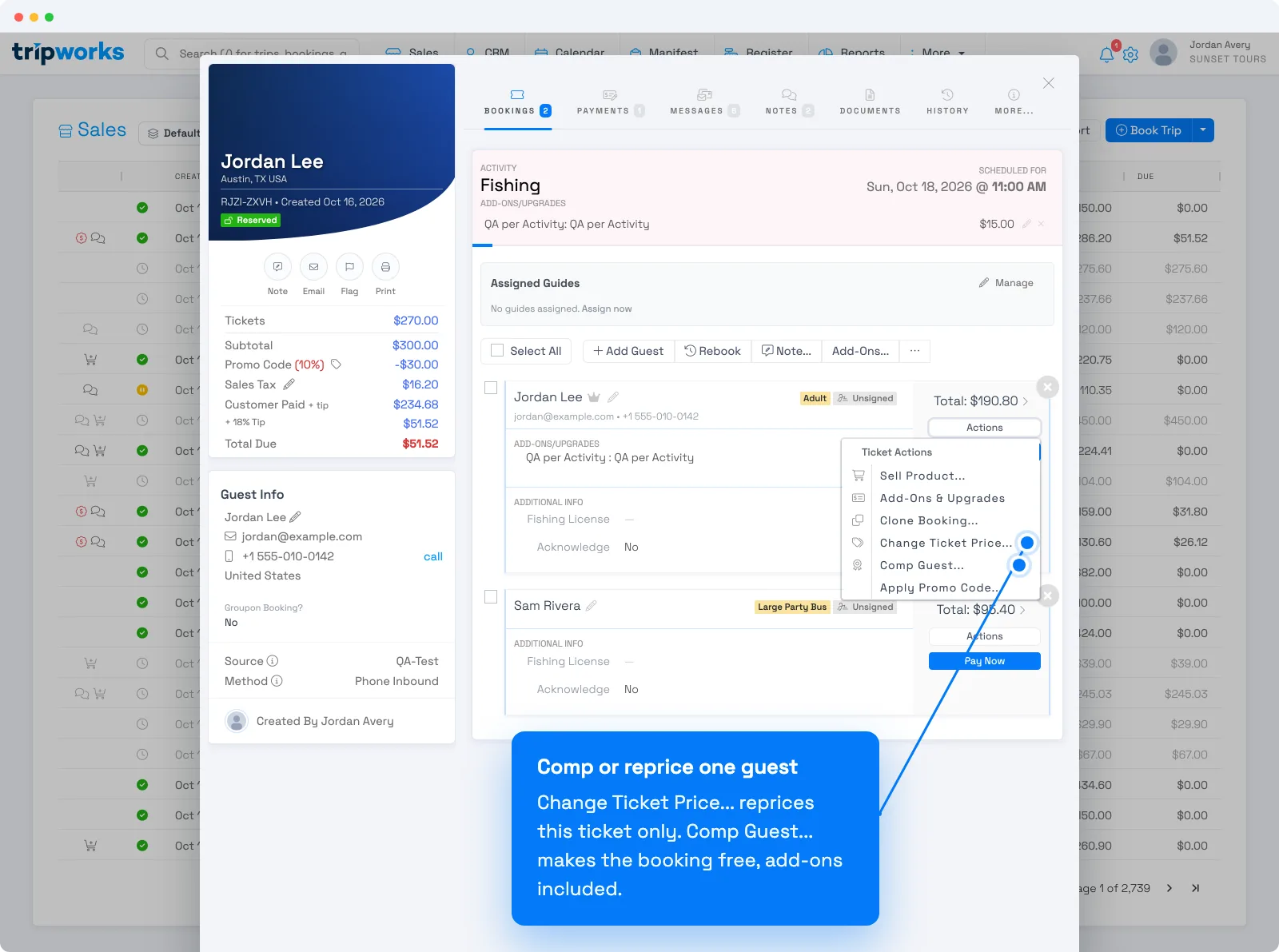
- In the trip, open the Actions menu for the guest.
- Choose Comp Guest....
- Read the prompt, which says all experiences, products, and add-ons on the booking will be free, then select Confirm.
The guest's ticket shows $0.00 and a Comp label. Other guests on the trip keep their prices.
Uncomp a guest
Select the x on the guest's Comp label. The booking converts back to a paid booking and the ticket returns to its previous price.
Reprice one ticket
- Open the Actions menu for the guest.
- Choose Change Ticket Price....
- Enter the new price and select Change Price.
Only that ticket changes. Other guests keep their prices, and products and add-ons keep their cost.
Reprice selected tickets
This is built for large groups where different ticket types get different rates, such as students at one price and chaperones at another.
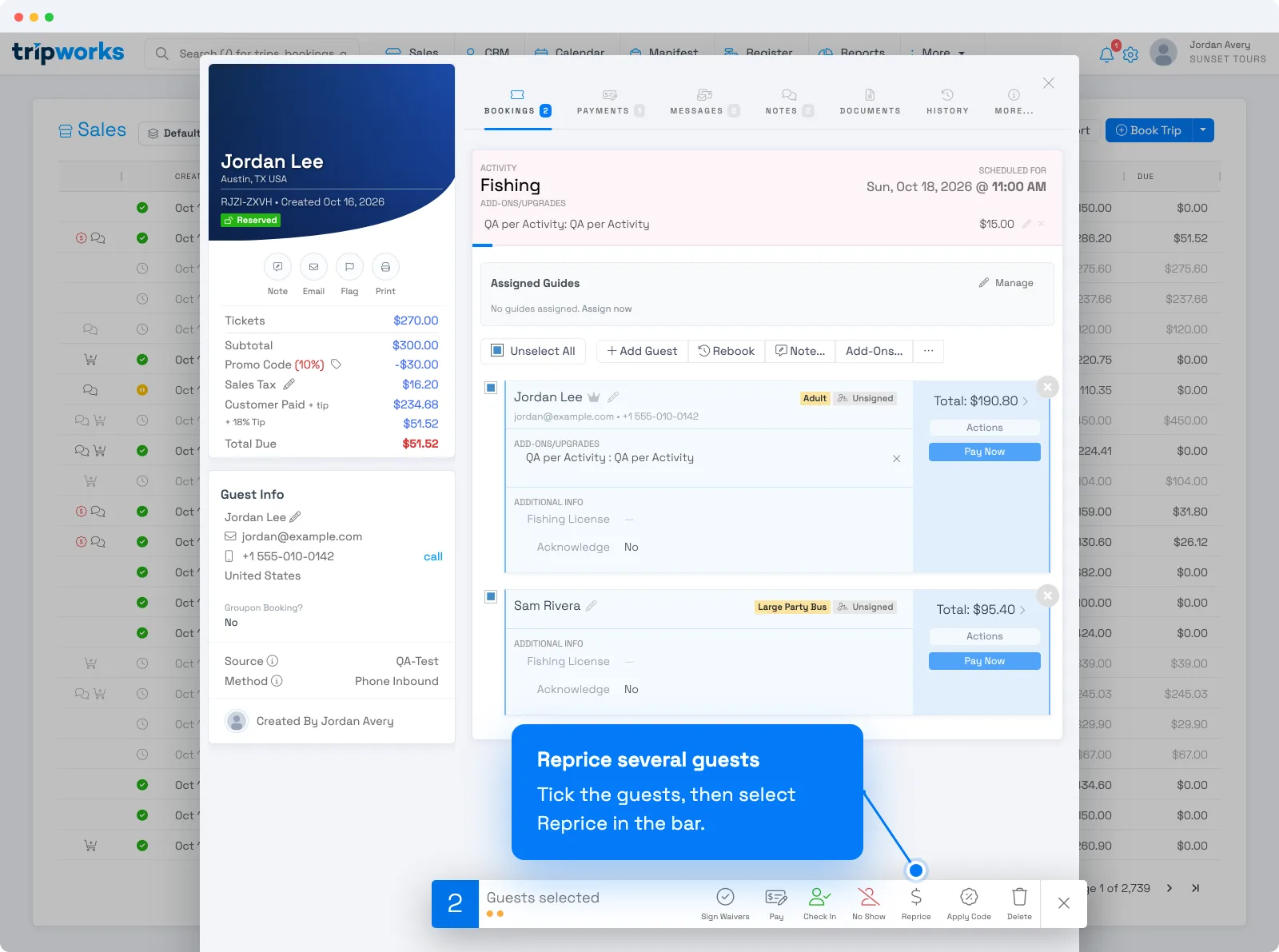
- Tick the checkbox next to each guest you want to change.
- Select Reprice in the action bar, next to actions like Pay and Check-in.
- Enter the new price and select Change Price.
The price applies to the guests you ticked and nobody else.
Reprice every ticket on an activity
When a booking has several guests on the same activity, you can set one price for all of them.
- Open the activity's menu on the trip.
- Choose Change price for N tickets..., or Change Group Price... for a group ticket.
- Enter the price and select Change Price.
Every ticket takes the new price, except tickets that are already comped or have their own price set. Those keep what they have.
If a price didn't update
A bulk change skips any ticket with its own manual setting. Check that ticket for:
- A Comp label. Select the x to uncomp it.
- A manual price. Open Actions → Change Ticket Price... and select Remove Override if it's there. The ticket then follows the standard price again.
Which action should I use?
- Make a guest free: Comp Guest.
- Discount one guest: Change Ticket Price.
- Different rates within one group: tick the guests, then Reprice.
- One rate for everyone on an activity: Change price for N tickets.
- Discount by a code or percentage: see Apply a promo code to a booking.
Examples
- Give a free ticket to a guest's child. Comp Guest on the child's booking.
- Charge a school trip two rates. Tick the students and reprice them, then tick the chaperones and reprice them.
- Honor a negotiated corporate rate. Use Change price for N tickets on the activity.
- Undo a comp you made by mistake. Select the x on the Comp label.
- Find out why one guest still has the old price. Look for a Comp label or Remove Override on that ticket.
Frequently asked questions
What's the difference between comping and repricing a ticket?
Comping makes the whole booking free, including products and add-ons. Repricing changes only the ticket price, so products and add-ons still cost what they did.
How do I undo a comp?
Select the x on the guest's Comp label. The ticket goes back to its previous price.
Why didn't a ticket change when I repriced the whole booking?
That ticket is comped or has its own manual price, and bulk changes skip those. Uncomp it, or use Remove Override on its Change Ticket Price window, and it follows the new price.
Can I set different prices for different guests in one booking?
Yes. Tick the guests who should share a price, select Reprice, and enter it. Repeat for the next group of guests.
How do I put a ticket back on the standard price?
Open Actions, then Change Ticket Price, and select Remove Override. It only appears when the ticket has its own price.
Why can't I see Comp Guest or Change Ticket Price?
Usually a permission or a locked trip. Comping needs the permission to add complimentary bookings, and repricing needs the permission to override individual prices. Neither works on a locked trip.
Does comping a guest change what I owe or collect?
The guest's total drops to zero, so there's nothing left to collect for them. If they already paid, you can refund the payment. See Refund a payment.
Related
- The pricing breakdown on a trip
- Add a guest to an existing trip
- Apply a manual discount to a booking
- Refund a payment
Built for attractions, tours & activities
Give every group the right price
See how attractions, tours, and activities comp guests and set custom prices without rebuilding a booking. Book a demo and make the switch.