
Note (Aaron): This feature no longer works and is being deprecated/removed. Do not use this article to support customers until it's updated or retired.
Guests entering a promo code themselves at online checkout is the usual path. But for a phone or walk-up booking, you can apply a promo code to the trip yourself — and remove one that was added by mistake.
Apply a code
- Open the trip and go to the Payments tab.
- Select Promo to open the Apply Promo Code window.
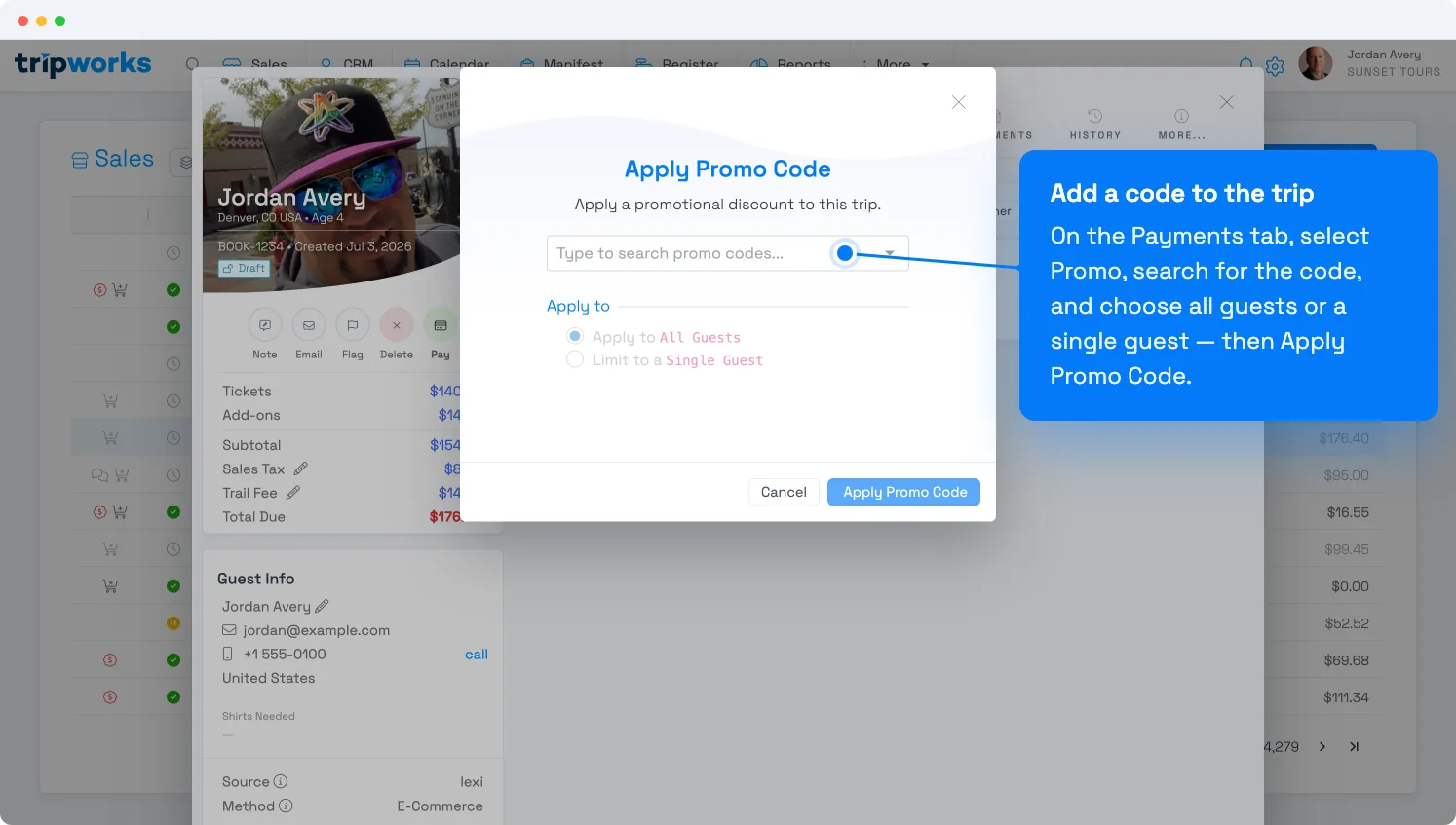
Search for the code, then choose whether it applies to all guests or one. - Type to search for the code and select it (codes aren't case-sensitive, but spelling counts).
- Choose Apply to All Guests or Apply to Specific Guests. For specific guests, tick one or more guests in the list. Then select Apply Promo Code.
The discount appears on the order — the code, its public description, and the amount taken off. A trip takes one promo code at a time for each scope; once one is applied, the Promo button is disabled (to swap a code on one guest, choose Replace when TripWorks asks) (see why the promo field is greyed out). The code's discount and rules are configured under Promo codes.
Guests can also enter a promo code themselves at online checkout — this back-office flow is for phone, walk-up, and staff-applied bookings.
Choose who gets the discount
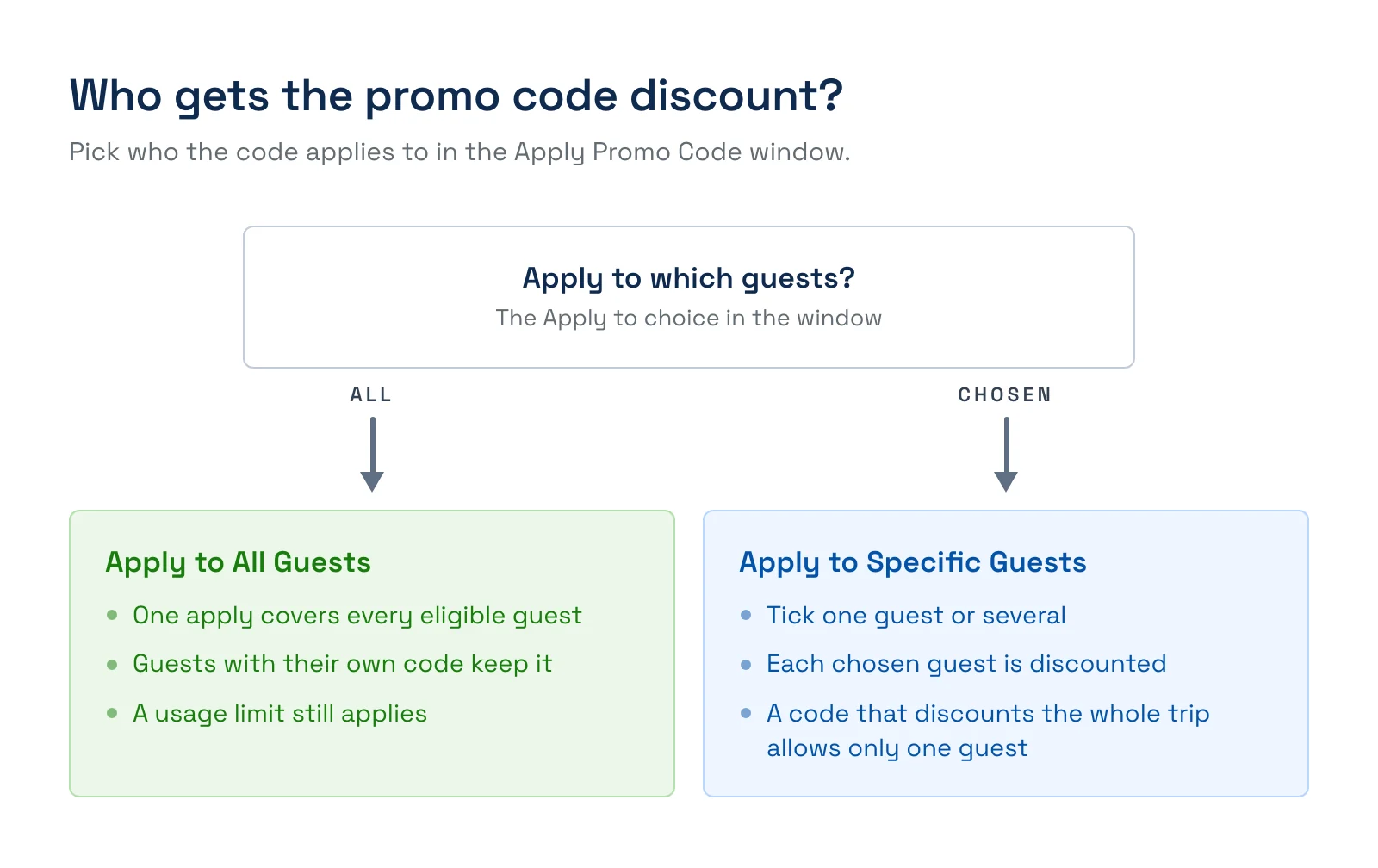
Apply to All Guests covers every eligible guest in one step and respects the code's usage limit. A guest who already has a promo code of their own keeps it, and the new code covers whatever isn't already discounted, so the trip total can change even though that guest isn't charged less.
Apply to Specific Guests discounts only the guests you tick. You can choose one guest or several. TripWorks applies the code to each chosen guest in turn. If some guests can't take it, the window stays open and lists who got the code and who didn't, with the reason for each. A guest who already has a different code shows a Replace link so you can swap it. Choosing guests this way ignores the code's usage limit.
A code that discounts the whole trip can go to only one guest at a time. That means a Set Price code, or a flat-amount code set to once per trip. Pick a single guest for these, or use All Guests to apply the code once across the trip. If you open the window from a single guest's row, that guest is already selected.
Apply a code after the trip is paid
A guest forgets their code, pays in full, then calls to ask about it. You can apply the code to a trip that is already settled, without cancelling and rebuilding the booking.
- Open the trip and go to the Payments tab.
- Select Promo, search for the code, and apply it exactly as you would on an unpaid trip.
- The discount comes off the total. Because the guest already paid the higher amount, the trip now shows the difference as Overpaid by that amount, which is money owed back to them.
- Return it with a refund for the overpaid amount. See Refund a payment.
The booking, the manifest, and your reporting all stay intact, which is the advantage over cancelling and re-booking to force the price down.
Remove a code
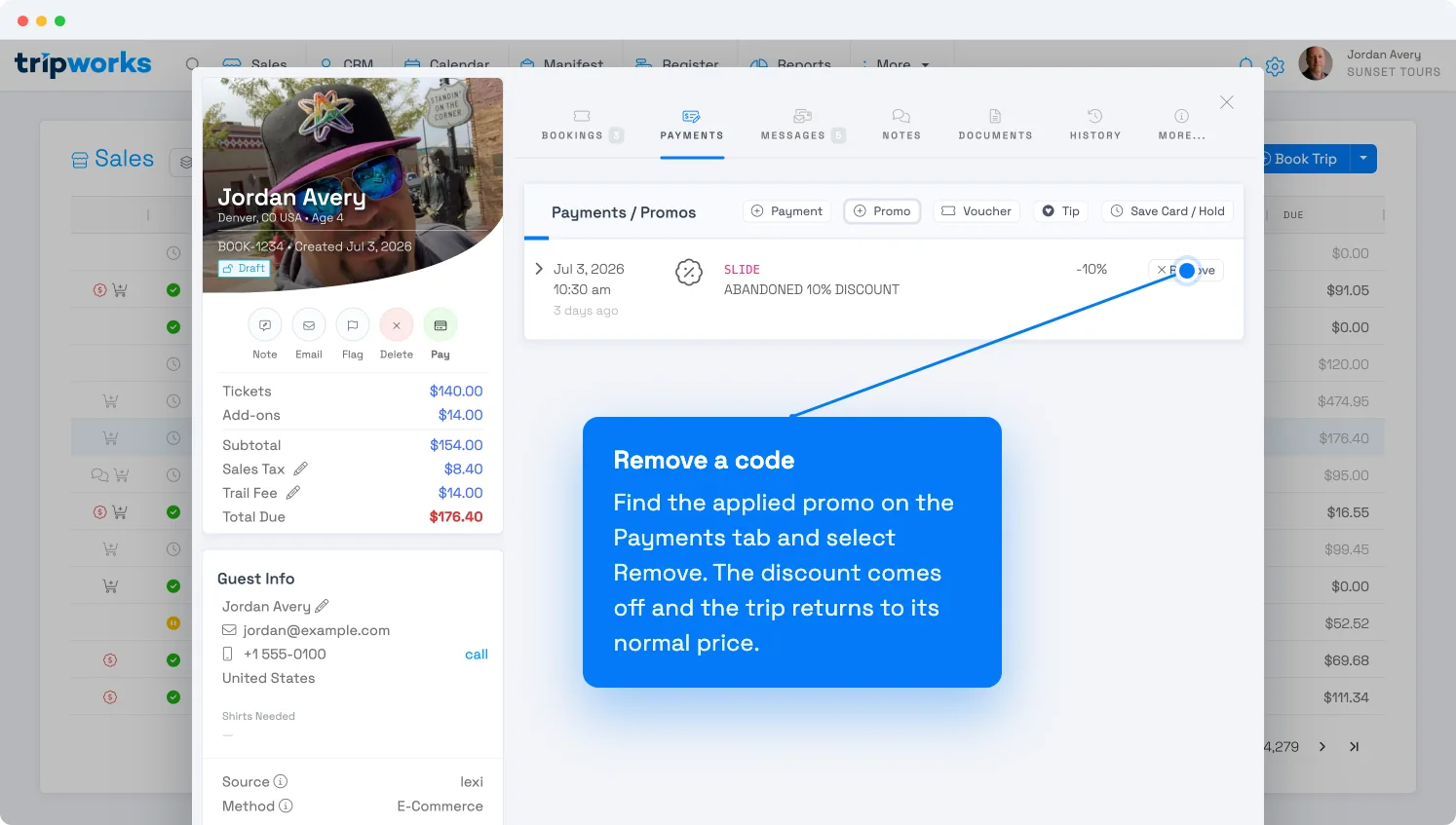
Applied a code by mistake? On the trip's Payments tab, find the promo under Payments / Promos and select Remove. The discount comes off immediately and the trip returns to its normal price.
Frequently asked questions
Why won't my promo code apply?
A code only applies when it's Available (not Inactive), the booking falls inside the code's valid dates, and the trip's experiences and products match what the code is restricted to. Check those on the code under Setup → Sell online → Promo Codes — see Promo codes.
Why is the promo code option greyed out on a trip?
A trip that's deleted won't accept a new discount, and a trip with no eligible tickets has nothing for a code to adjust. A trip that's already paid in full can take a code, and the trip then shows the difference as overpaid for you to refund. Restore or adjust the trip first, then apply the code.
Can I apply a promo code to only some of the guests on a booking?
Yes. In the Apply Promo Code window, choose Apply to Specific Guests and tick the guests who should get the discount. Only those guests are discounted. Each one carries its own removable promo entry on the Payments tab.
Why can't I pick more than one guest for my promo code?
The code discounts the trip as a whole, so it can go to only one guest. This is true of Set Price codes and flat-amount codes set to once per trip. Choose a single guest, or use Apply to All Guests to apply it once across the trip.
Does the discount scale with the number of guests?
It depends on the code's Redemption Frequency: a code set to apply once per booking-guest scales with the guest count, while one set to apply once per trip is a single flat amount. That's configured on the code itself — see Promo codes.
Built for attractions, tours & activities
Give every guest the right price
See how attractions, tours, and activities apply discounts across web, phone, and walk-up bookings — consistently — in one place on TripWorks. Book a demo and make the switch.