
Once you've built a widget, adding it to your site takes a copy and paste. On the Booking Widgets list, select Install on a widget to open Use this Widget, then choose the deployment method that fits your page.
In this article
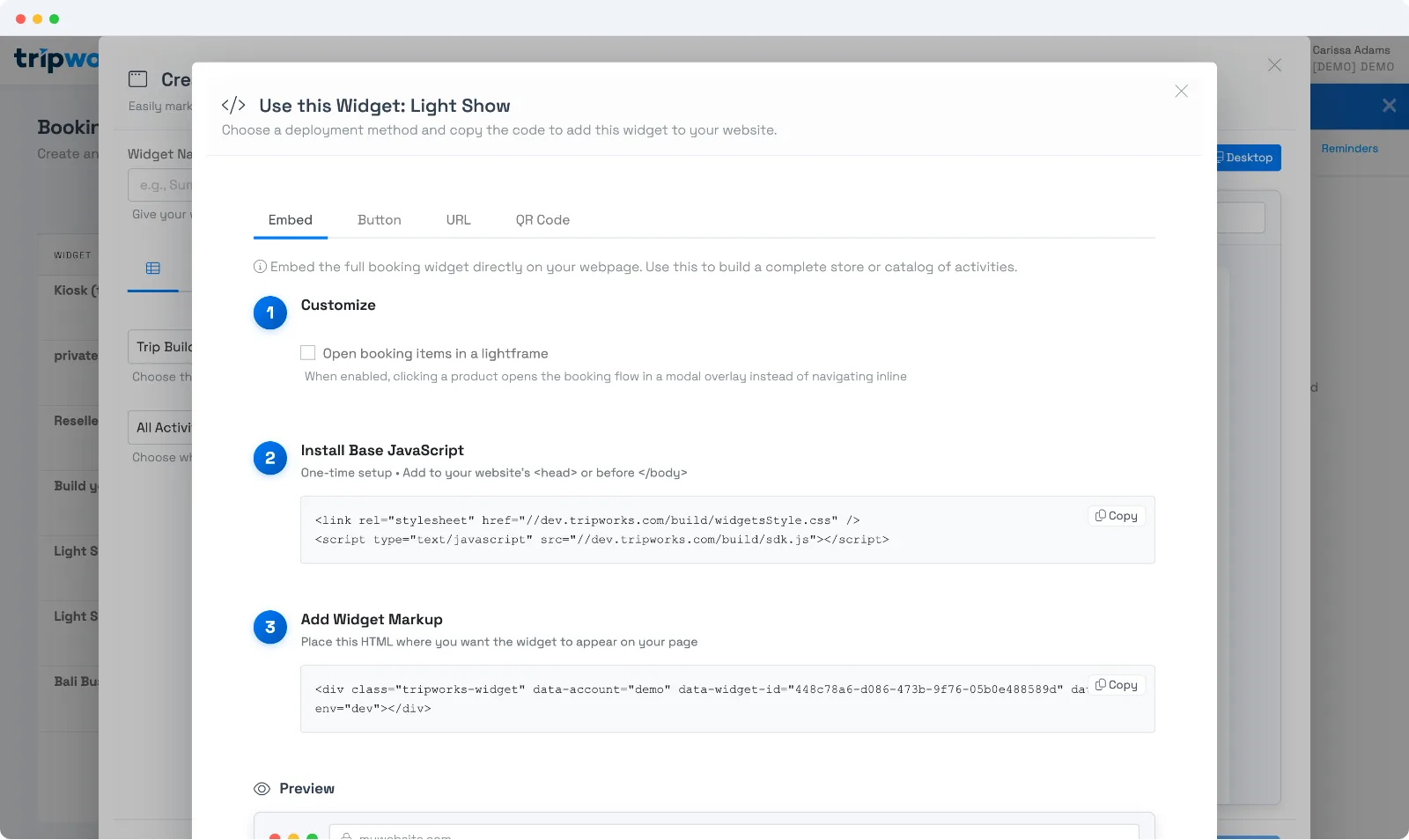
Install the base snippet once
Every method needs the base JavaScript on your site — a small stylesheet + script tag you add to your page's <head> (or just before </body>) one time. After that, add as many widgets as you like without repeating it.
How to create a booking link
Open your widget in the widget builder (Setup → Sell online → Widgets). In the code area, choose the URL tab. Shareable Booking URL is a hosted booking link you can put in an email, a social post, or a "Book" menu item, with no embedding needed. Select Copy to copy it, or Preview to try it.
Choose how it appears
Embed (inline) — the full booking widget renders right on the page. Paste the widget markup (a <div class="tripworks-widget" …>) wherever you want it to appear. Use this to build a complete store or catalog page.
Lightframe (pop-up) — on the Embed tab, tick "Open booking items in a lightframe." Now clicking a product opens the booking flow in a modal overlay on top of your page, instead of navigating inline. Great when you want your own page layout to stay put and booking to happen in a clean overlay.
Book Now button — a button that opens the widget in a pop-up. Customize the text, color, and size, then paste the button snippet. Perfect for a tour page or nav bar.
Shareable URL — a hosted booking link you can put in an email, social post, or "Book" menu item — no embedding needed.
QR code — download a QR that opens the booking link, for print, signage, or in-person.
Frequently asked questions
What's the difference between inline and lightframe?
Inline renders the widget within your page's layout. Lightframe opens the booking flow in a modal overlay on top of your page when a guest picks an item — keeping your surrounding page visible. Toggle it with the "Open booking items in a lightframe" checkbox on the Embed tab.
Do I add the base script on every page?
Add it once per site (in your template's head/footer). Then any widget markup on any page will work. If your site templates every page from one layout, that's a single paste.
I just want a "Book Now" button — which method?
Use the Button tab. Set the label, color, and size, copy the snippet, and paste it where you want the button. It opens your widget in a pop-up.
Related
Built for attractions, tours & activities
Live on your site in minutes
See how attractions, tours, and activities embed commission-free booking on their own websites with TripWorks. Book a demo and make the switch.