
Cometly is marketing attribution software: it tracks which ads, campaigns, and touchpoints actually lead to a sale, so you can see which spend is working and put more budget behind it. Connecting Cometly to TripWorks feeds it accurate booking and conversion data automatically, so your attribution reflects real sales instead of guesswork.
In this article
Learn how to manage permission groups
Connect Cometly
You'll need a Cometly account and your Cometly UID before you start. If you don't have an account yet, sign up at cometly.com.
- Go to Setup Integrations and select Cometly.
- In your Cometly account, find your account's UID and copy it.
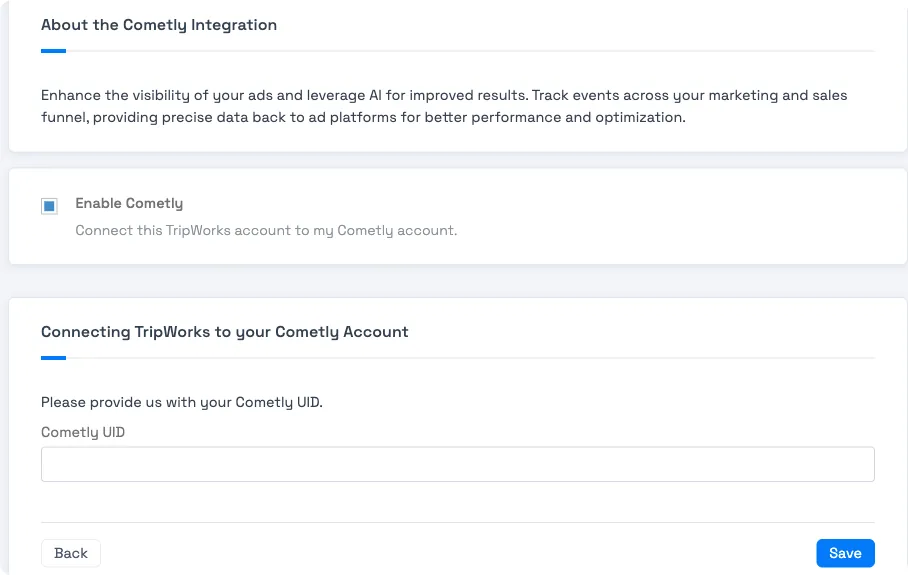
Enable the integration and paste in your Cometly UID. - Paste your Cometly UID into the Cometly UID field.
- Check Enable Cometly, then select Save.
Once saved and active, TripWorks starts sending booking and conversion events to Cometly automatically. There's nothing else to configure on the TripWorks side.
Example: what this looks like in practice
- See which ad actually converted — a guest clicks a Facebook ad, browses, then books three days later from an email link. Cometly's multi-touch attribution credits both touchpoints instead of just the last click.
- Compare campaigns fairly — two campaigns get similar click volume, but Cometly's conversion data shows one drives twice the completed bookings, so you shift budget toward it.
- Feed real numbers back to ad platforms — instead of relying on the ad platform's own (often inflated) conversion tracking, Cometly reports the bookings TripWorks actually completed.
Frequently asked questions
Where do I find my Cometly UID?
It's inside your Cometly account. If you can't locate it, Cometly's support team can point you to it directly.
Do I need to configure anything else in TripWorks?
No. Once you enter your Cometly UID and save, TripWorks handles sending the conversion data automatically.
What data does TripWorks send to Cometly?
Booking and conversion events, so Cometly can attribute completed sales back to the ads and campaigns that drove them.
I don't have a Cometly account yet. Can I still connect it?
Sign up for Cometly first at cometly.com, then come back and enter your UID. You need an active Cometly account before the TripWorks side does anything useful.
Related
Built for attractions, tours & activities
Know which ad actually drove the booking
See how attractions, tours, and activities connect marketing attribution to real bookings on TripWorks. Book a demo and make the switch.