
Need your customer list in a spreadsheet — for a mailing, your accountant, or a backup? You can export it straight from the Customers grid. The same Export button appears on other list views too (bookings, gift cards, resellers), so once you know it here you know it everywhere.
In this article
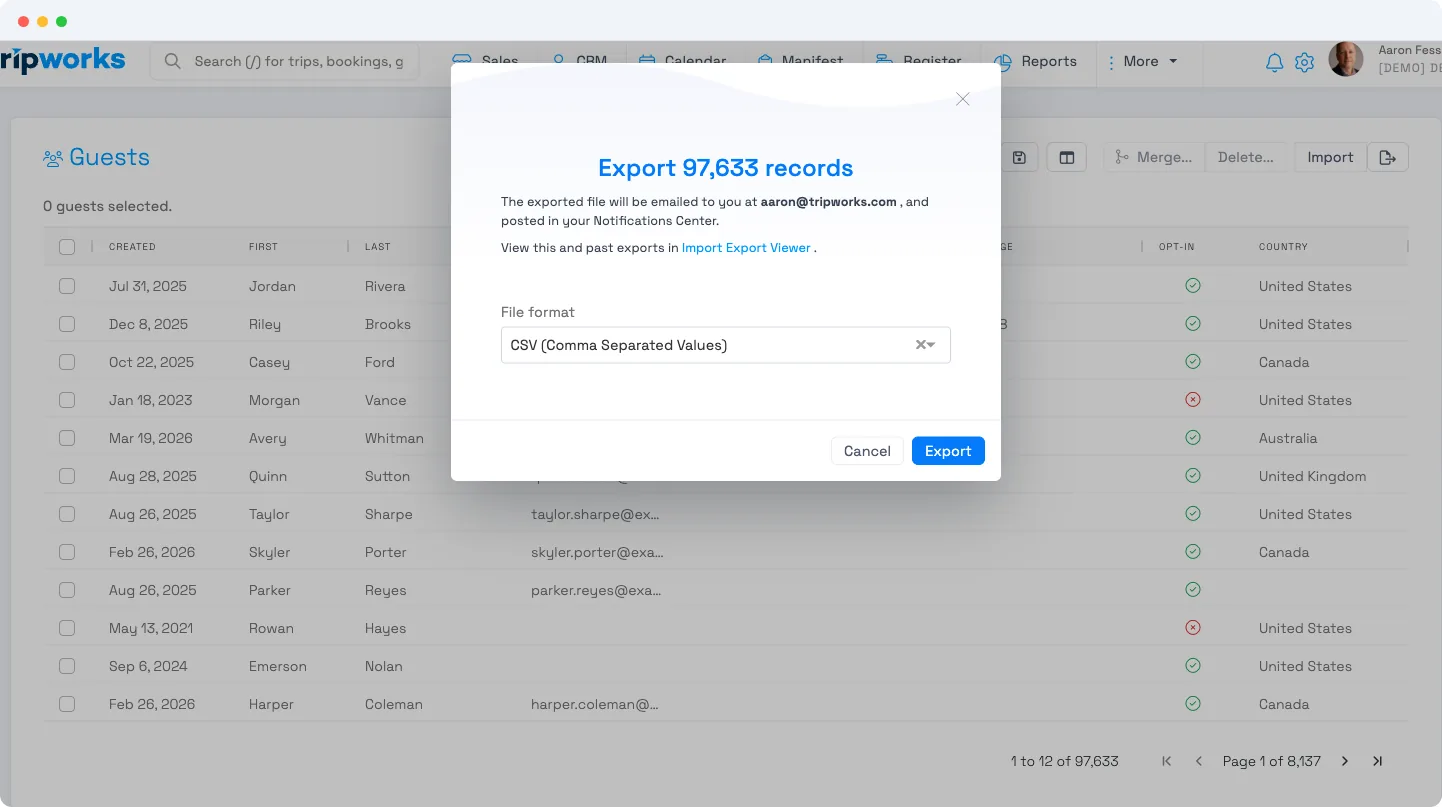
Export your customer list
- Open Customers from the main navigation.
- (Optional) Filter or search the grid first — your current filters carry into the export, so you get exactly the set you're looking at.
- Click the Export button in the top-right of the toolbar.
- Choose a format — CSV (the default), Excel (XLS), XML, or JSON.
- Click Export.
The export runs in the background. When it's ready, TripWorks emails the file to your account address and posts it in your Notifications Center — you can also find it (and past exports) in the Import/Export Viewer.
The export isn't an instant download — it's prepared and emailed to you, which is what lets it handle large lists reliably. Give it a minute or two and check your inbox and Notifications Center.
Other things you can export
The same Export button works on other list views — bookings/trips, gift cards, resellers, and more — each exporting the rows and filters you're viewing. For date-ranged, report-style output (for example a customer report by sign-up date), use the matching report under Reports and export from there.
Who can export
Exporting requires the Set Up Company permission (or Super Admin). If you don't see the Export button, ask an account owner to grant it — see permission groups.
Frequently asked questions
What's the best way to export our customer list?
Open Customers, click Export in the toolbar, choose a format (CSV is default), and click Export. The file is emailed to you and posted in your Notifications Center. Filter the grid first if you only want part of the list.
What file formats can I export?
CSV (default), Excel (XLS), XML, and JSON. CSV and Excel open directly in spreadsheet apps; XML and JSON are handy for feeding another system.
Can I export only some customers instead of all of them?
Yes. Apply filters or a search to the Customers grid before exporting — the export uses your current filters, so it matches exactly what's on screen.
Where does the exported file go?
It's emailed to your account's email address and posted to your Notifications Center. You can also open it — and re-download past exports — from the Import/Export Viewer.
Why didn't the file download immediately?
Exports are generated in the background rather than downloaded on the spot, so they work reliably even for big lists. Wait a minute or two, then check your email and Notifications Center.
Can I export my bookings and gift cards too?
Yes. The same Export button appears on those list views — open the Bookings or Gift Cards grid and export the same way. Each export reflects the filters you have applied on that grid.
I don't see an Export button. Why?
Exporting needs the Set Up Company permission (or Super Admin). If your role doesn't include it, the button is hidden — ask an account owner to grant the permission.
How do I get data into TripWorks instead?
Use the importer. See Using the importer tool to bring customers and other records in from a spreadsheet.
Related
Built for attractions, tours & activities
Your data is yours — take it anywhere
See how attractions, tours, and activities manage their data on TripWorks. Book a demo and make the switch.