
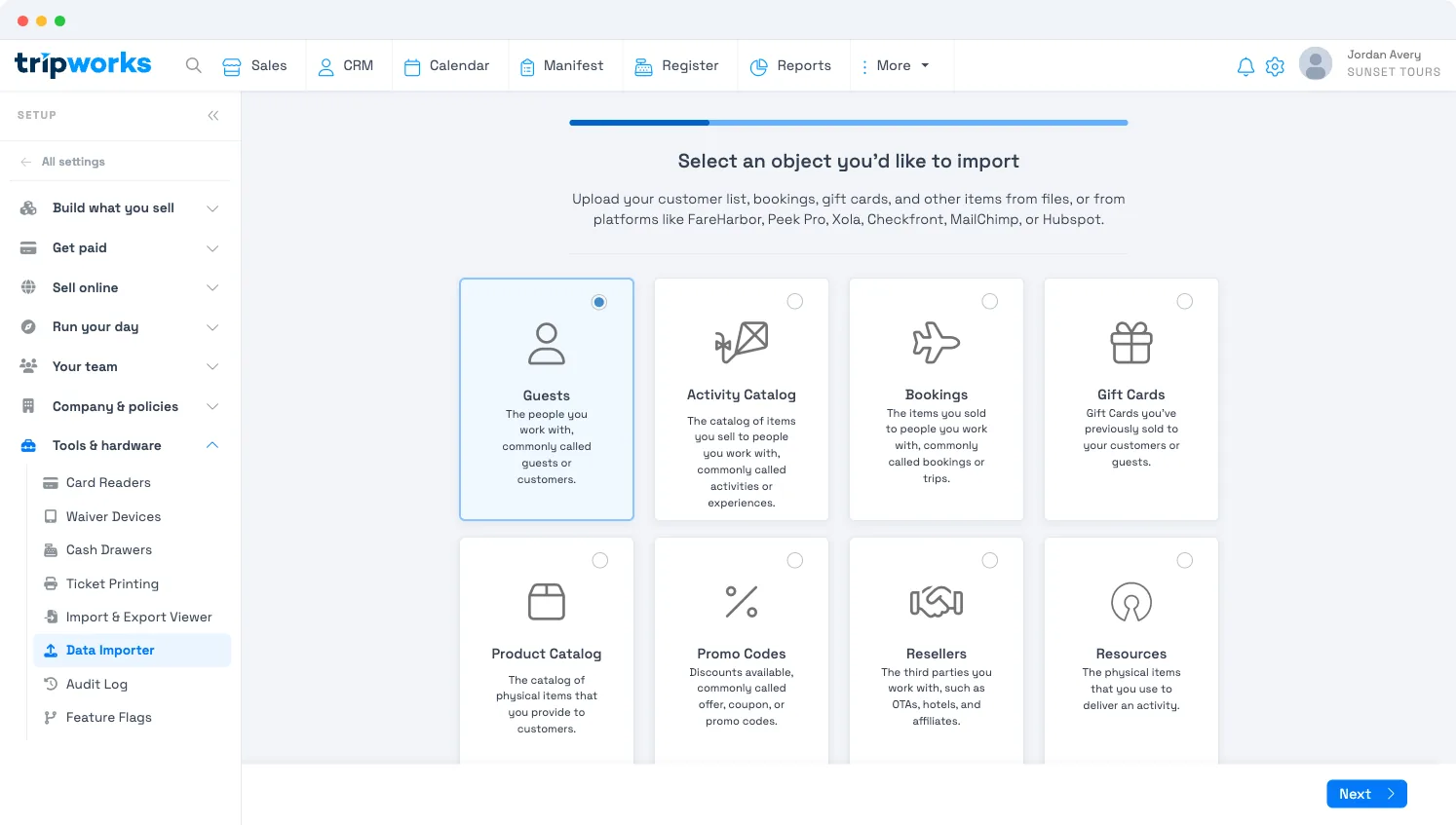
The Importer Tool moves data from a previous platform into TripWorks. You can import your Guests (customers), your Activity Catalog, Bookings (trips), Gift Cards, your Product Catalog, Promo Codes, Resellers, and Resources — one type at a time — from a CSV file.
In this article
Do I need a template?
For some import types, yes — TripWorks provides a downloadable sample CSV you can fill in:
- Customers
- Gift cards
- Promo codes
When you're importing one of those, a Download sample spreadsheet link appears on the upload step. Start from that sample and you'll know the columns line up.
For the other types — trips (bookings), catalog, products, resellers, and resources — there's no sample template. You don't need one: upload whatever CSV you already have, and map your columns to TripWorks fields during the import. So there's no fixed layout to match; any reasonable export works, and any columns you don't need you can skip.
How to import
- Go to Setup Tools Data Importer.
- Choose what you're importing (Customers, Catalog, Products, Resellers, Trips, Resources, Gift Cards, or Promo Codes).
- If a Download sample spreadsheet link is shown for that type, you can download it and fill it in.
- Upload your .csv file, and indicate whether the first row contains column headers.
- Under Choose how to import, pick Create and update items, Create new items only, or Update existing items only. See Re-running an import for what each does.
- Map your columns — match each column in your file to the matching TripWorks field. Skip any you don't need; the mapper lists every field available for the type you're importing.
- Give the import a name so you can find it later, then run it.
The mapper is the heart of the tool. For each column in your file it shows a live preview of your data, auto-matches columns it recognizes to the right TripWorks field (marked with a green check), and lets you re-point or skip any column from the Property dropdown. When you're updating records that already exist, Don't Overwrite keeps the current value instead of replacing it.
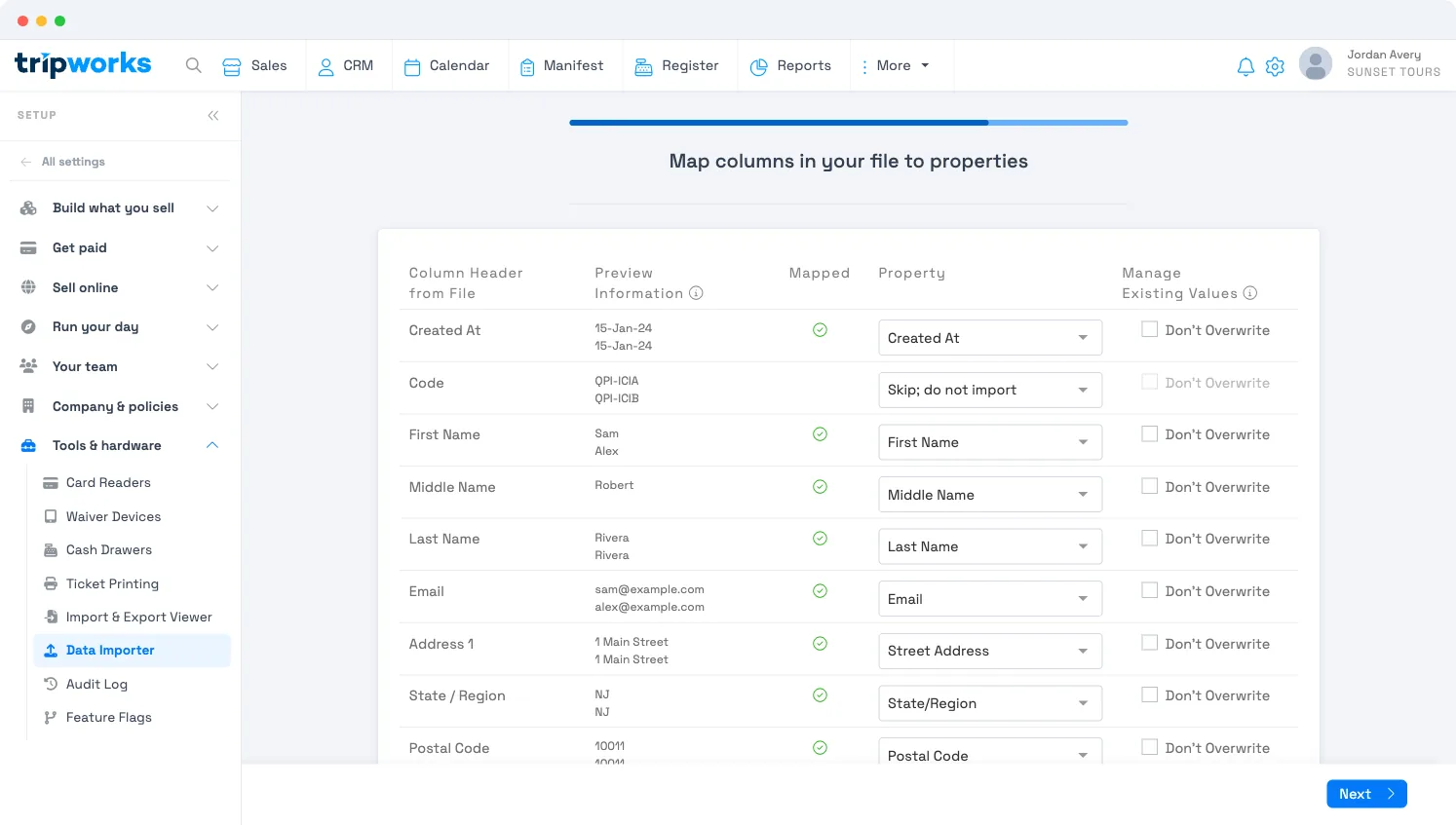
The mapper shows the full set of fields you can map for whichever type you choose — so that on-screen step is the authoritative list of what you can bring in for that type.
Bringing over bookings you already took (Xola, FareHarbor, and others)
Yes: the Bookings import type is built for exactly this, moving reservations you already took on a previous platform into TripWorks as real trip records, not just a customer list. Export your booking history from your old platform as a CSV, then run it through the same importer (Bookings as the type).
The bookings column mapper covers:
- Trip details: experience/activity name, resource, booking date & time, created date, ticket types and quantities, source
- Guest info: name, email, phone, address, pax count, notes
- Money: subtotal, guest & account fees, up to 20 tax lines, total, amount paid, amount due, refunds, promo code, and discounts
- Status & source tracking: booking status (so you can mark historical cancellations as Cancelled), payment status, reseller and reseller booking reference, and an External Booking ID field so each imported trip keeps a reference back to its original confirmation number
Importing a booking creates a historical record in TripWorks. It does not email the guest a confirmation or charge/re-charge a card, and Paid/Due amounts are recorded exactly as given in your file.
Examples
- Move a season's worth of Xola bookings into TripWorks, keeping guest names, emails, and amounts paid so booking history isn't lost in the switch.
- Bring over bookings that were already cancelled in Xola and mark them Cancelled on import, so TripWorks history matches what actually happened.
- Map Xola's confirmation number to External Booking ID, so you can still trace an imported trip back to its original record.
- Import bookings that came through a reseller by mapping the reseller and reseller booking reference, so they land under the right reseller relationship in TripWorks.
Re-running an import
Re-running an import is safe. TripWorks checks each row against what's already in your account before it writes anything, so a second run doesn't duplicate records from the first.
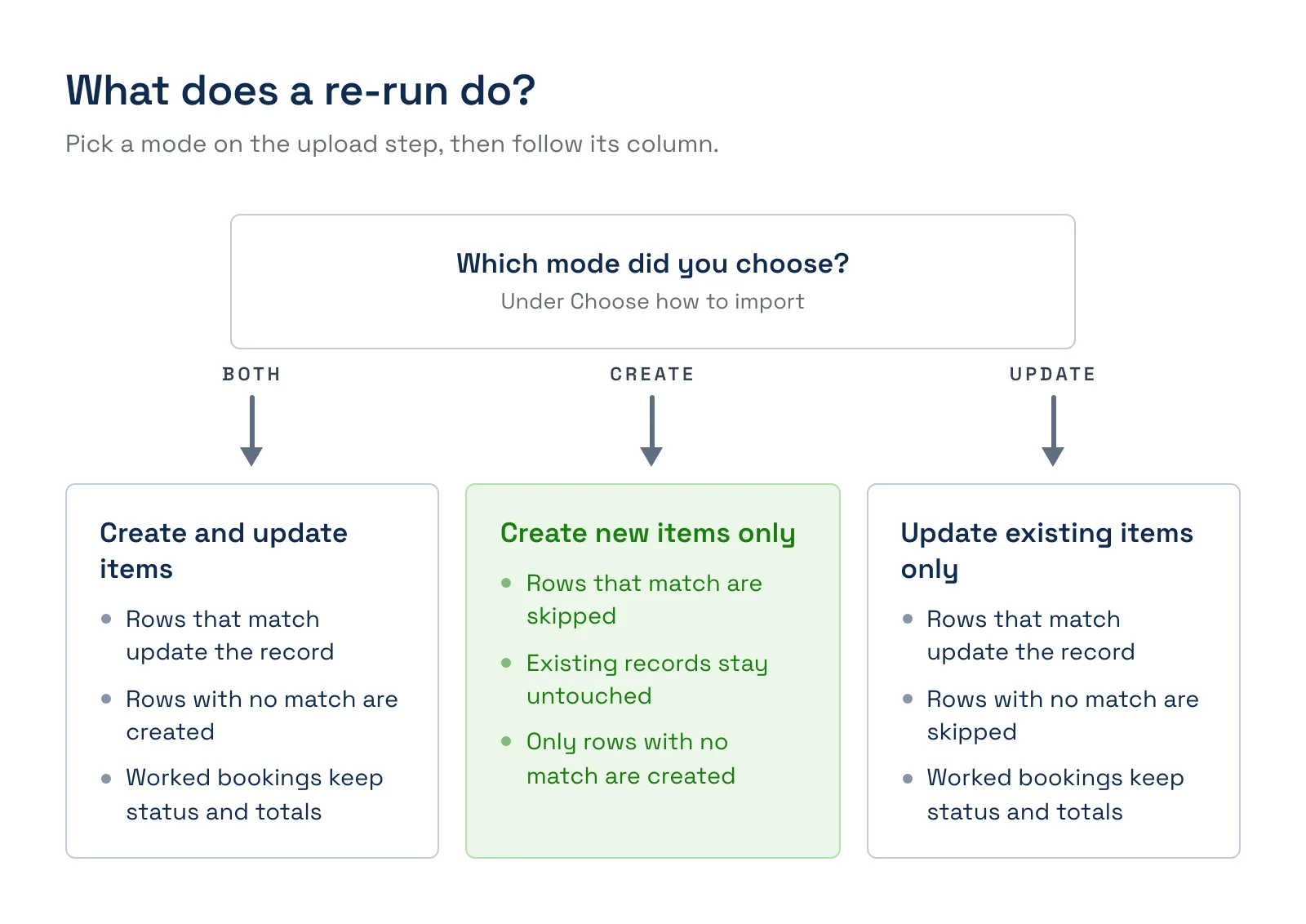
The mode you pick under Choose how to import decides what happens to a row that matches an existing record:
- Create and update items: matching rows update the existing record, and rows with no match are created.
- Create new items only: matching rows are skipped and the existing record isn't touched. Use this to protect what's already there.
- Update existing items only: matching rows update the existing record, and rows with no match are skipped.
How a row is matched
- Bookings (trips): by the External Booking ID if you mapped one. Without it, TripWorks matches a booking an earlier import created by the activity, the time slot, the lead guest's email, and the party size together. If more than one booking fits, or the amount paid is very different from what's recorded, the row is treated as a new booking rather than an update.
- Customers: by email together with first and last name.
- Promo codes: by the code.
- Resellers: by the external ID, then by name.
The mode applies to Customers, Activity Catalog, Bookings, Product Catalog, Promo Codes, Resellers, and Resources. It doesn't apply to Gift Cards.
Bookings your team has already worked are protected. A booking counts as worked once a resource is assigned, a waiver is signed, or a payment is taken. When you re-run an import in a mode that updates, a worked booking keeps its status (so a Cancelled row can't cancel it and free its resources) and its total, subtotal, and product totals. Other mapped columns still update unless you set them to Don't Overwrite. Promo codes that guests have already used keep their discount and use limit, and resellers that have been invoiced keep their commission and payment settings, the same way.
After importing
Once the import finishes, spot-check the results in the relevant area — Customers, your activity Catalog, or Sales / Bookings — to confirm everything came in as expected.
For a clean import: remove errors and duplicates from your file first, double-check the column mapping before you run it, and if you're unsure about the format, import a small sample first.
Undo an import (remove imported data)
Imported the wrong file, or created duplicates or test data you want gone? You can roll back the whole import in one step — much faster than deleting records one by one:
- Go to Setup Tools Data Importer and open the import history.
- Find the import you want to undo.
- If it finished within the last 24 hours, click Delete on that import and confirm.
This removes everything that import created — the imported bookings/records, and imported customers that aren't used anywhere else. It won't run if some imported records were reused afterward (for example, an imported customer later made a real booking); you'll get a message telling you what to clear first.
The rollback is only available for 24 hours after the import completes. After that, remove records individually (see Delete a booking) or contact TripWorks support for a larger cleanup.
Frequently asked questions
Do I need a template to import my data?
Only for some types. Customers, gift cards, and promo codes offer a downloadable sample spreadsheet on the upload step. For trips, catalog, products, resellers, and resources there's no template — you upload your own CSV and map its columns to TripWorks fields.
What can I import?
Guests (customers), your Activity Catalog, Bookings (trips), Gift Cards, your Product Catalog, Promo Codes, Resellers, and Resources — one type at a time, each from its own CSV.
My export doesn't match TripWorks' columns — is that a problem?
No. The column mapper lets you match each column in your file to the matching TripWorks field and skip any you don't need, so any reasonable export works. It also auto-matches columns it recognizes and previews your data as you go.
Will importing overwrite records that already exist?
Only if you let it. When you map a column, choosing Don't Overwrite keeps the existing value instead of replacing it — useful when you're updating records rather than adding new ones.
Is it safe to run the same import twice?
Yes. TripWorks matches each row to existing records before writing, so a second run doesn't create duplicate bookings, customers, promo codes, or resellers. To be sure nothing existing changes, choose Create new items only, which skips every row that already exists.
Can re-importing a file overwrite a booking my team already worked?
Not its status or totals. Once a booking has a resource assigned, a signed waiver, or a payment, a re-import can't change its booking status or its total, subtotal, and product totals. Choose Create new items only if you want no changes to existing bookings at all.
What does Create new items only do?
It creates records for rows that don't match anything in TripWorks and skips every row that does, leaving the existing record exactly as it is. It's the safest mode for re-running a file you've already imported.
I imported the wrong file — can I undo it?
Yes, within 24 hours. Open the import history under Setup → Tools → Data Importer, find the import, and click Delete to roll back everything it created. After 24 hours (or if some imported records were reused since), remove records individually instead.
Which platforms can I move data from?
The importer accepts CSV exports from platforms like FareHarbor, Peek Pro, Xola, Checkfront, Mailchimp, or HubSpot. Export from your old platform, then map the columns during import.
Can we transfer our existing bookings from Xola into TripWorks?
Yes. Export your booking history from Xola as a CSV, then run it through the Data Importer using the Bookings type. It brings over the guest info, trip date/time, ticket types, pricing (including amounts already paid and any refunds), booking status, and reseller details — one column mapping covers all of it. Imported bookings are historical records: nothing is charged or re-charged, and guests aren't emailed a confirmation for them.
Will importing bookings charge guests or send them confirmation emails?
No. Importing a booking just creates the record in TripWorks with whatever Paid/Due amounts you provide — it doesn't touch payment processing and doesn't trigger guest notifications.
Related
Built for attractions, tours & activities
Switch platforms without losing your data
See how attractions, tours, and activities move their customers, bookings, and catalog into TripWorks with the built-in importer. Book a demo and make the switch.