
Overriding an activity's capacity for a specific date lets you manage availability around demand, special events, or operational changes — without touching the activity's default capacity. Common reasons:
In this article
- Managing special events or large group bookings
- Adjusting availability during peak or off-peak seasons
- Handling temporary changes in staffing or resources
Who can edit capacity
Editing capacity is controlled by the "Manage availabilities on experiences" permission in a team member's permission group. Only team members with it (plus account admins) can change a timeslot's capacity.
Being able to see the calendar isn't enough. If a team member can open a timeslot but the Capacity box shows no pencil and isn't clickable, they're missing this permission — add Manage availabilities on experiences to their permission group.
Edit capacity for a single date
The quickest way to change one date is on the calendar:
- Open the Calendar and navigate to the date.
- Click the timeslot you want to change.
- In the timeslot panel, click the Capacity box (it shows a pencil icon).
- Enter the new number — this is an override for just this timeslot — and Save.
The panel shows Booked, Available, and Capacity for the slot, so you can see the impact before you save. The new capacity applies to that timeslot only; every other date keeps the activity's default.
You can also set a per-channel cap (e-Commerce or Reseller) in the same panel to limit how many of the slot's spots each sales channel can sell. A channel cap can't exceed the slot's total capacity.
Edit capacity for multiple dates
For a few timeslots, repeat the steps above. For many, use Edit capacity on the activity's timeslot list:
- Open the activity and select Dates & Times in the sidebar, then switch to the List view.
- Filter the list if you need to (for example to one date range), then check the timeslots you want to change. To take every timeslot that matches your filter, across all pages, select the Select all link that shows the count.
- Select Edit capacity in the bar above the list.
- Enter a number for each ticket type, or check Clear to remove an existing override. Leave a field blank to keep each timeslot's current value.
- Select Apply.
The number you enter applies to every selected timeslot. Bulk editing needs both the Manage availabilities on experiences and Setup activities permissions, and Edit capacity is greyed out on an activity with unlimited capacity. It's also greyed out in the Bulk Availability Editor, which spans all your activities, because activities can use different capacity models. Open the single activity's Dates & Times list instead.
Capacity can't be changed on a timeslot from a previous day. In a bulk edit, TripWorks skips those timeslots and changes the rest. If every selected timeslot is from a previous day, nothing changes and you see "Capacity can't be edited on timeslots from previous days." Later the same day, you can still adjust a timeslot that has already started.
Cap a timeslot on a resource-based activity
On an activity that uses resource-based capacity, your resources decide how many guests each ticket type can sell. Edit capacity adds a per-slot cap on top of that. The cap can lower what a timeslot sells and can never raise it: each ticket type sells up to the lower of the resource pool and your cap.
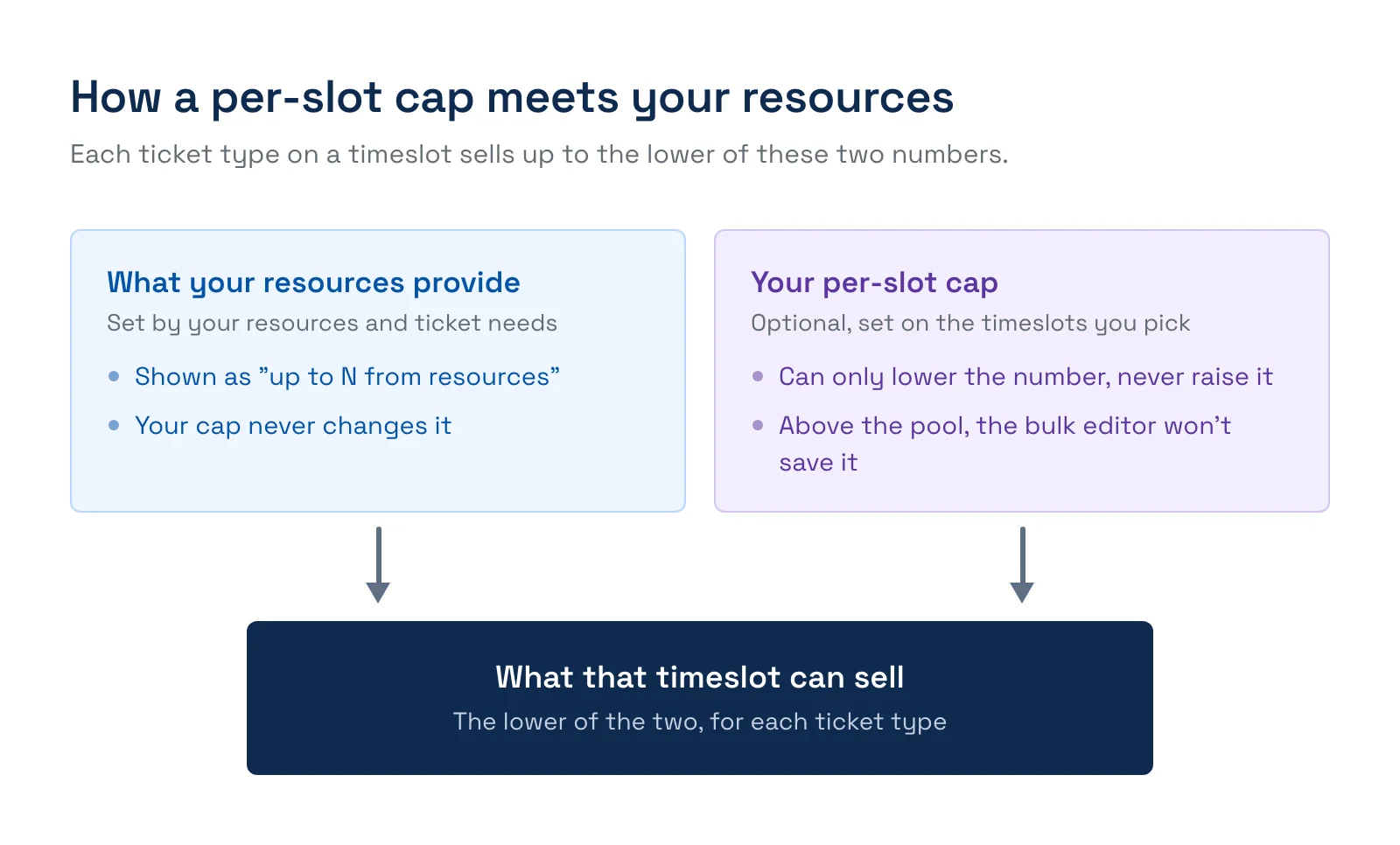
For a resource-based activity, the Edit capacity window says the capacity comes from the resource pool and shows "up to N from resources" beside each ticket type. Enter a number at or below N. A number above N shows "Only N available for this ticket type — lower the number to save" and Apply stays off until you fix it. Check Clear to remove a cap and go back to what the resources allow.
Example. A bike shop has 10 bikes and sells half-day rentals in the morning and afternoon. To stop afternoon rentals after 1pm without touching the rest of the fleet, filter the list to the afternoon timeslots, select them, choose Edit capacity, and enter 0 for the rental ticket type. Morning timeslots and every other activity that uses the bikes keep selling as before.
The single-timeslot Capacity box works a little differently. You can type a number above the resource limit and save it, but the editor warns "Will be capped at resource capacity of X." The higher number won't oversell: the timeslot sells no more than the resources provide.
Related
- Permission groups
- Reopen a cancelled timeslot
Built for attractions, tours & activities
Sell every seat, never oversell
See how attractions, tours, and activities fine-tune availability by the day on TripWorks. Book a demo and make the switch.