
Per timeslot gives each timeslot one shared pool of seats. Any mix of ticket types draws from the same pool until it's full — so an adult, a child, and a senior all count as one seat each toward the same limit.
In this article
Reach for it when a single headcount is your real constraint and the kind of ticket doesn't change how much room a booking takes.
Availability here is straightforward: Availability = Capacity − Booked − Holds.
Set it up
- On the activity's Capacity tab, choose Per timeslot.
- Set Maximum capacity per timeslot — the total seats any one timeslot can sell.
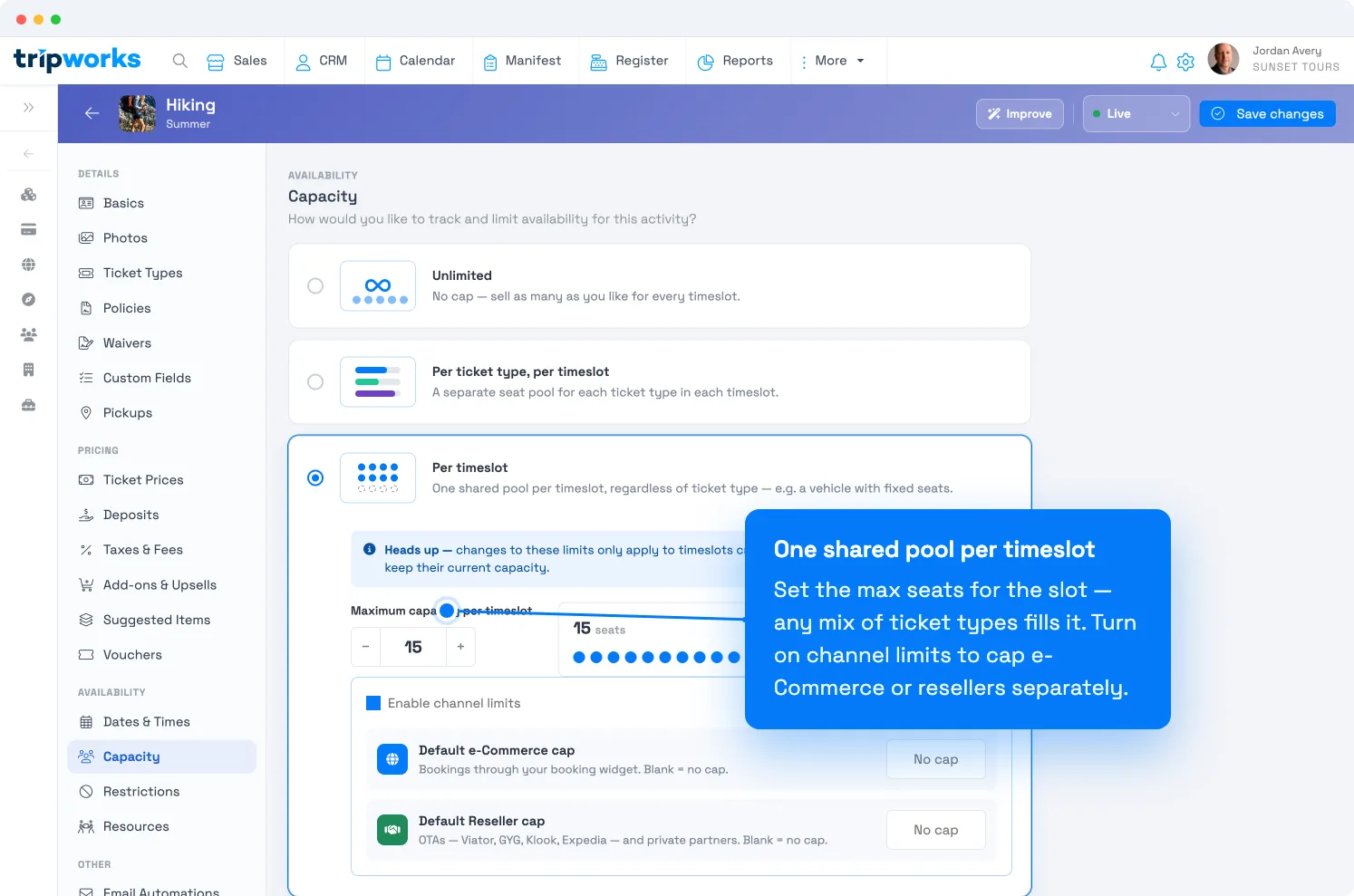
One shared pool per timeslot, with optional per-channel caps. - Select Save changes.
Changing this limit applies to timeslots created after the change. Existing timeslots keep their current capacity — to adjust those, edit capacity for those dates.
When to use it
- A vehicle or vessel with a fixed number of seats — a 12-seat van, a 20-person raft — where any passenger fills one seat.
- A venue with a hard headcount — a 100-seat auditorium for a movie night, regardless of who's in the seat.
- Any tour where "no more than N people at once" is the rule, full stop.
If instead you need different limits for different ticket types (say, cap children separately), use Per ticket type, per timeslot.
Tickets that don't use a seat
Some tickets shouldn't fill the pool, such as a lap-seat or infant ticket, a free guide, or a spectator. On the activity's Ticket Types tab, select More on that ticket type and turn off Reduces availability. This option only appears, and only takes effect, when the activity is on per timeslot capacity: on other capacity models every ticket type draws from its own pool.
Guests on those tickets still show on the guest list and in your headcount, but TripWorks leaves them out of the count it compares with capacity:
- Available doesn't drop when one is booked.
- The overbooked warning ignores them. A timeslot that is full but not over, with a lap-seat ticket on top, no longer shows OVERBOOKED on the Manifest or the "scheduled on an overbooked timeslot" banner on the booking.
- The timeslot panel explains the gap. It shows capacity minus booked equals available, with a note such as "12 booked · 1 not counted".
Channel ticket caps
Per timeslot also unlocks channel limits — a ceiling on how many of the shared seats each sales channel may sell. Turn on Enable channel limits, then set a default cap for each channel:
- Default e-Commerce cap — bookings through your own booking widget.
- Default Reseller cap — all OTAs (Viator, GetYourGuide, Klook, Expedia) and private partners, combined as one number.
Leave a field blank for no cap on that channel. These defaults apply to every timeslot, and you can override an individual slot from the trip modal.
A few things worth knowing:
- They're caps, not set-asides. All channels still sell from the same pool; a cap is a ceiling, not a reserved block. Caps don't need to add up to your total capacity.
- Your direct sales are never capped. Walk-up, phone, and point-of-sale can always sell right up to full capacity.
- Holds count. A cart in progress counts against a channel's cap, just like a confirmed booking counts against total capacity.
- Turning it on mid-season is safe. Existing bookings are counted toward the cap automatically — the counter starts from your real numbers, not zero.
- Resource-based capacity can't use channel caps — dynamic, resource-driven capacity and fixed channel ceilings don't mix.
Example. A sunset cruise seats 15. You set an e-Commerce cap of 10 and a Reseller cap of 5. Once online sales hit 10, the widget stops offering that slot even though seats may remain — holding the rest for your resellers and your own front desk.
Frequently asked questions
Do the channel caps have to add up to total capacity?
No. They're independent ceilings on a shared pool, so they can overlap or fall short of the total on purpose.
Can I change the cap for just one busy day?
Yes — the defaults apply everywhere, but you can override an individual timeslot's caps from the trip modal, and you can override total capacity per date too.
A ticket type isn't reducing availability — why?
Its Reduces availability option is turned off, so its bookings don't draw down the shared pool. Check the ticket type under More on the activity's Ticket Types tab. A lap-seat or infant ticket is a typical example, and it's usually what you want.
Why does my timeslot show more guests booked than its capacity, without saying overbooked?
Guests on tickets that don't reduce availability, such as lap-seat or infant tickets, are in the booked headcount but not in the count TripWorks compares with capacity. A timeslot is only flagged OVERBOOKED when the guests who use seats exceed capacity. The timeslot panel shows how many guests aren't counted.
Related
- Set activity capacity limits
- Capacity: per ticket type, per timeslot
- Capacity: by resources
- Availability vs. capacity
Built for attractions, tours & activities
One pool of seats, sold your way
See how attractions, tours, and activities cap a timeslot and throttle each sales channel — without phoning a single reseller — on TripWorks. Book a demo and make the switch.