
A booking restriction is a reusable set of rules for how guests can book: the party size you accept, how close to start time a slot stays open, how far ahead people can book, and what shoppers see when a slot is nearly or fully sold. You build a restriction once and apply it to as many activities as you like, so a museum with timed-entry rules, a kayak rental with a 2-person minimum, and a sunset cruise with a same-day cutoff can each run on their own rule without you re-entering settings per activity. This matters because most bookability problems ("why can't a guest book this," "why did the slot close early," "why won't it add more tickets") trace back to one of these settings. Getting them right once, in one place, keeps your online booking calendar behaving the way you actually operate.
In this article
Restrictions and capacity are different levers. Capacity sets the total a timeslot can sell. A restriction governs the individual bookings and timing, including the party-size cap that decides how many tickets one checkout can add.
Learn how to manage permission groups
Create a restriction
- Go to Setup Build what you sell Booking Restrictions and select New Restriction.
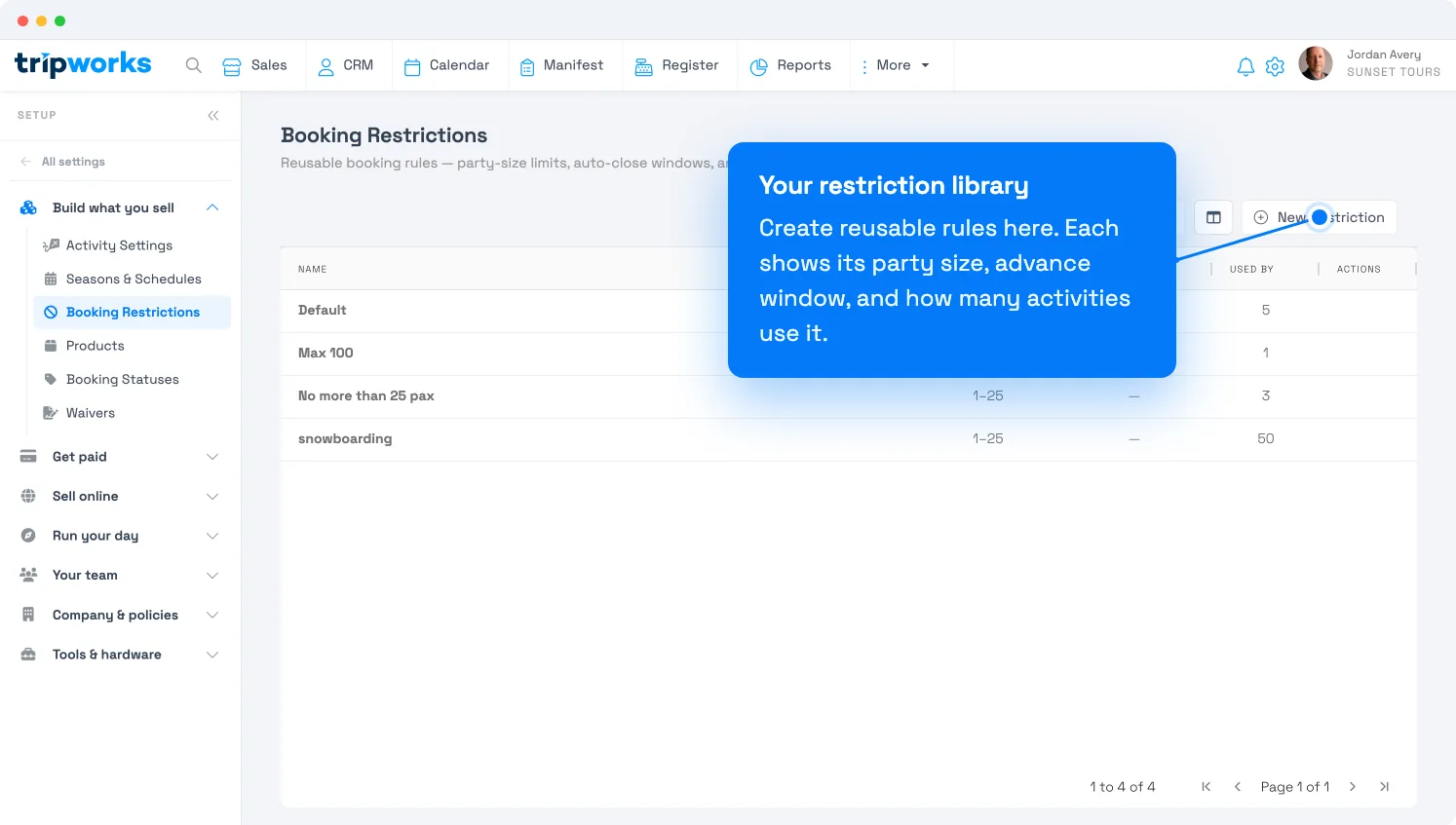
All your reusable rules live here. Each shows its party size, advance window, and how many activities use it. - Give it a clear name in Restriction name, after what makes it distinct (for example "Min 4, closes 24h" or "Peak season").
- Set the booking rules and online display options (below).
- Select Save changes.
Booking rules: how many, and when it closes
A restriction can treat a fresh timeslot differently from one that's already filling.
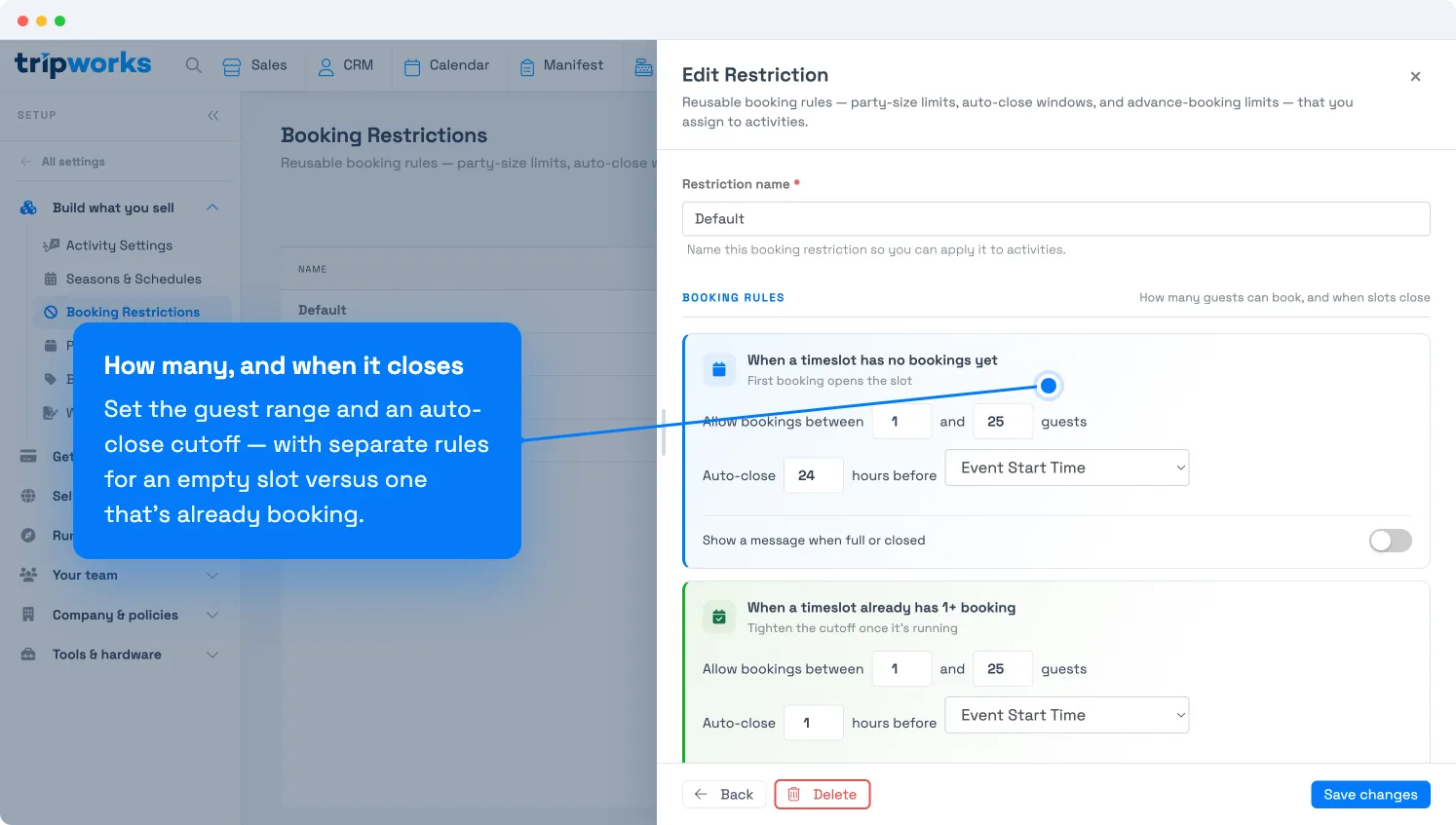
When a timeslot has no bookings yet. These are the rules for the first booking that opens the slot:
- Allow bookings between [min] and [max] guests. The minimum is the smallest first booking you accept. Use it when an activity is not worth running below a headcount, such as a boat that needs 4 or a guided walk that needs 2. The maximum caps how many tickets a single checkout can add (default 25). The minimum accepts 0 to 150; the maximum accepts 1 to 150.
- Auto-close [N] hours before a reference point stops online bookings a set time ahead so your team can prep. You choose the reference point, either Midnight on the Event Day or Event Start Time. See When a slot closes just below, with worked examples. New restrictions default to closing 4 hours before Event Start Time.
- Optionally show a message when full or closed with the toggle on the card.
When a timeslot already has 1+ booking. These are the rules once it's running. Minimum is usually 1 (the first booking already met your threshold), maximum is usually your capacity, and you can tighten the auto-close cutoff.
When a timeslot is full. No further bookings are taken; you can still show a message.
Why two sets of rules? A slot's bookability changes the moment someone is on it. An empty slot is a "will we even run this?" decision. If nobody has committed by your cutoff, you are not going out, so empty slots close on the empty rule. Once a slot has one booking, the activity is happening, so you keep selling on the (usually looser) not-empty rule.
For example, say a boat operator decides each day's departures by noon. Empty slots close at noon, since no one booked and the trip is not running. But if the 8 PM departure already has a guest by 11 AM, it stays open on its own rule: you will happily add more riders to a trip that is already going out.
The maximum here is a per-booking party-size cap, not the timeslot total. If someone can't add more tickets even though seats remain, this is why. See why can't I add more tickets during checkout?
A group ticket's guests count toward the minimum and maximum, not the ticket itself. If the activity sells a group ticket type, a guest buying one "party of 6" ticket satisfies a 6-guest minimum on their own — the restriction counts guests, not tickets purchased.
Sell tours on the same day
Same-day online booking is controlled by auto-close, not the advance-booking window. The advance window only limits how far ahead guests can book. To keep selling right up to the start time, set auto-close to 0 hours before Event Start Time, in both the empty-slot and booked-slot rules. To stop selling a few hours before the start, enter that number of hours instead.
When a slot closes: the two reference points
Auto-close asks for two things: how many hours before, and before what. That second choice, the reference point, is where most confusion comes from, so here is exactly how each works.
Midnight on the Event Day
The cutoff is counted backward from midnight at the end of the event day: the last moment of the trip date (just after 11:59:59 PM), which is 12:00 AM of the following day. This is the midnight that ends the event day, not 12:00 AM at the start of it. So "[N] hours before Midnight on the Event Day" lands N hours before that end-of-day midnight. Because it is anchored to the date and not to any one slot's time, every timeslot that day shares the same cutoff time. That is useful when your whole day's plan is decided in one go, regardless of individual start times.
Worked examples (all for an activity dated the 10th):
| You want bookings to stop… | Set hours before | Because 24:00 − N = |
|---|---|---|
| 10:00 AM on the day of the trip (book until 10 AM, all slots) | 14 | 10:00 AM, the 10th |
| 5:00 AM on the day of the trip (early boat; you make the day's go/no-go call first thing) | 19 | 5:00 AM, the 10th |
| 6:00 PM on the day of the trip | 6 | 6:00 PM, the 10th |
| 6:00 PM the evening before | 30 | 6:00 PM, the 9th |
| Noon the day before (you decide the next day's schedule at midday) | 36 | 12:00 PM, the 9th |
A quick way to reason about it: hours before midnight on the event day. 6 hours lands at 6 PM that day; anything over 24 crosses into the day before (30 lands at 6 PM the prior evening; 36 lands at noon the prior day).
Example: a 6:00 AM boat. You load early and decide the day's trips first thing in the morning. Set 19 hours before Midnight on the Event Day, and online bookings for every slot that day stop at 5:00 AM, before you push off, while still letting late-evening bookings come in the night before.
Event Start Time
The cutoff is counted backward from each timeslot's own start time, so it moves with the slot. "[N] hours before Event Start Time" closes a 9:00 AM slot at a different clock time than a 2:00 PM one. Use this when the lead time you need is relative to each start time (for example "stop 2 hours before every departure" or "close timed-entry 30 minutes before each session"), rather than a single daily cutoff.
| You want… | Reference point | Set hours before |
|---|---|---|
| Every start time to stop selling 2 hours before it begins | Event Start Time | 2 |
| A single daily cutoff at a fixed clock time for all slots | Midnight on the Event Day | (see table above) |
Online booking display: what guests see
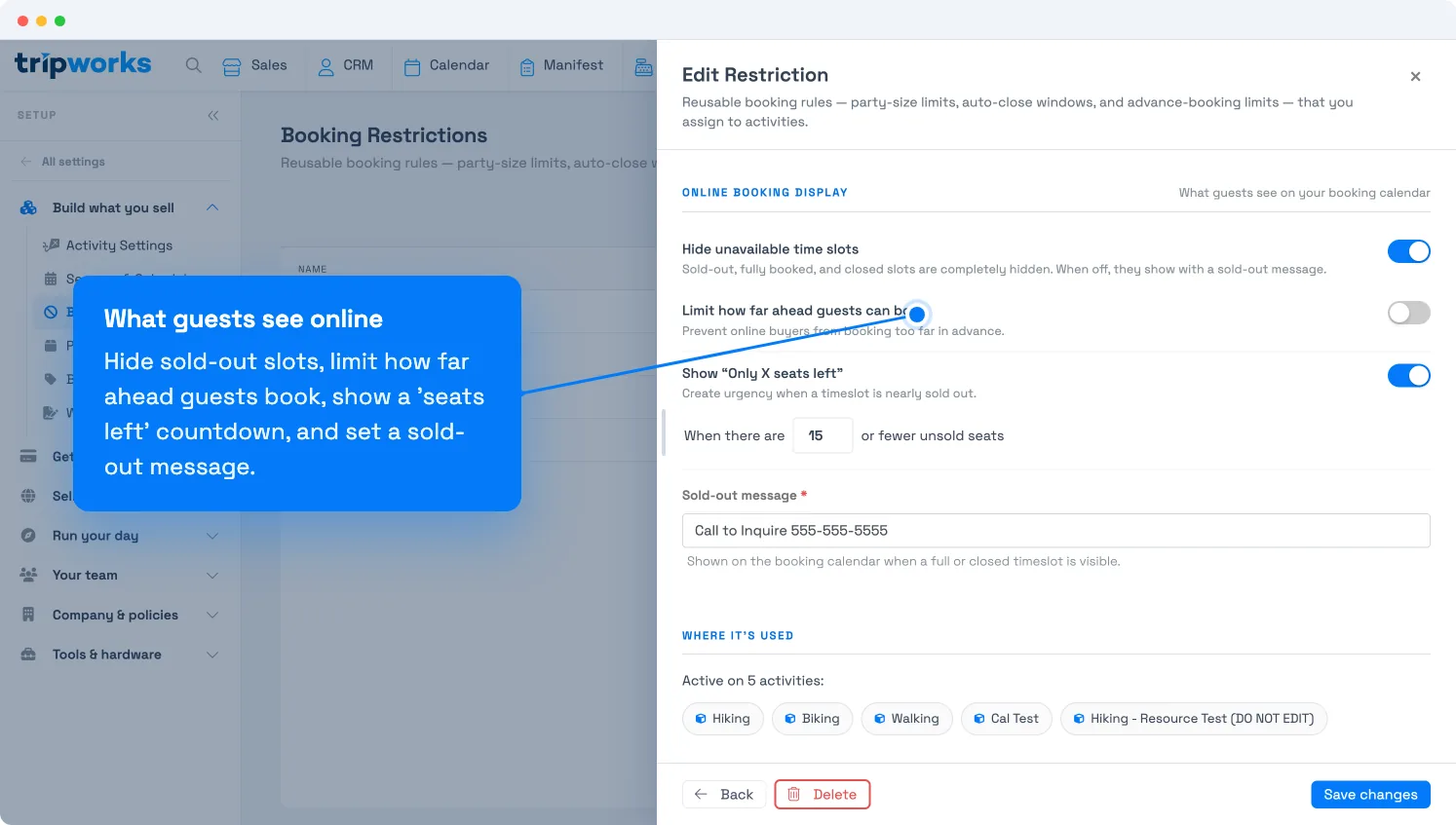
- Hide unavailable time slots. Off by default, so sold-out, fully booked, and closed slots stay visible with your sold-out message. Turn it on to hide those slots entirely instead.
- Limit how far ahead guests can book. Prevent online buyers from booking too far in advance. Turn it on and set a window in days and hours. It is off by default (a new restriction allows booking up to 365 days out). Applies only to your online booking calendar, not to bookings your team takes internally.
- Show "Only X seats left." A countdown that creates urgency, starting when a slot has X or fewer unsold seats. On by default with a threshold of 3; the threshold accepts 1 to 255.
- Sold-out message. What shows on the booking calendar when a full or closed slot is visible (for example "Call to inquire 555-555-5555"). This field is required and holds up to 45 characters.
Assign a restriction to an activity
Each activity uses one booking restriction. You choose it from the activity's own Restriction setting; a new activity starts on your default rule until you change it. To see everywhere a restriction is applied, open it and check Where it's used, which lists every activity on that rule.
Because one rule can be shared, editing it changes every activity that uses it. When that is not what you want, create a separate restriction for the outliers.
Delete a restriction
Deleting a restriction that's in use won't dead-end you. TripWorks first asks you to move its activities to another restriction, so no activity is ever left without a rule.
Frequently asked questions
What's the difference between a restriction and capacity?
Capacity is the total a timeslot can sell. A restriction governs the individual bookings and timing: party size, cutoffs, advance window, and display. They work together.
How do I require a minimum group size, like 6 people?
It depends on what you want to happen at checkout. To block any booking under 6 guests, however a guest splits their party across ticket types, set the restriction's minimum to 6. To sell that group of 6 as a single flat-rate item instead, for example a private charter priced as one unit, set up a group ticket type with Each ticket is set to A group. The two work together: a 6-guest restriction minimum plus a matching group ticket type lets a guest meet the minimum with one ticket, or by adding enough individual tickets to reach 6.
Can one restriction apply to several activities?
Yes, that is the point of a reusable rule. Remember that editing a shared restriction affects every activity on it, so check Where it's used before you change one.
Why can't a guest add more tickets even though the slot has room?
The restriction's maximum caps how many tickets one checkout can add (default 25). Raise it on the rule the activity uses. See why can't I add more tickets during checkout?
What does auto-close do?
Auto-close stops online bookings a set number of hours before a reference point, giving your team time to prepare. You set the number of hours and choose the reference point: Midnight on the Event Day (a single daily cutoff shared by every slot that day) or Event Start Time (a cutoff that moves with each slot's own start time). Full slots close on their own when capacity is reached, regardless of this setting.
What is the difference between Midnight on the Event Day and Event Start Time?
Midnight on the Event Day counts the cutoff back from midnight at the end of the activity date, so every timeslot that day closes at the same clock time. Event Start Time counts back from each slot's own start time, so a 9:00 AM slot and a 2:00 PM slot close at different clock times. Use Midnight for a single daily go/no-go call, and Event Start Time for a fixed lead time before each start.
What is the largest party size I can set?
The minimum party-size field accepts 0 to 150 and the maximum accepts 1 to 150 guests. The maximum caps how many tickets one online checkout can add to a single slot; it is not the slot's total capacity, which you set separately with capacity. New restrictions default the maximum to 25.
Can I use different rules for weekends, seasons, or specific activities?
Yes. Create a separate restriction for each set of rules you need (for example a stricter cutoff for peak season or a higher minimum for private charters), then assign each activity the restriction that fits. An activity uses one restriction at a time, so switching an activity to a different rule is a single change on that activity's Restrictions setting.
Does the advance-booking limit apply to bookings my team takes?
The Limit how far ahead guests can book setting applies to your online booking calendar, where it prevents online buyers from booking too far in advance. It is off by default, which allows booking up to 365 days out. Set the window in days and hours once you turn it on.
What happens when I delete a restriction that activities are using?
TripWorks first asks you to move that restriction's activities to another restriction, then deletes it. No activity is ever left without a rule. If a restriction is not in use, it deletes with a plain confirmation.
Related
- Set activity capacity limits
- Why can't I add more tickets to a booking during checkout?
- Availability vs. capacity
- Set up ticket types
Built for attractions, tours & activities
Book the way you actually operate
See how attractions, tours, and activities set minimums, cutoffs, and advance windows once and reuse them everywhere — on TripWorks. Book a demo and make the switch.