
Ticket types are the options a guest chooses at checkout for an activity — Adult, Child, Senior, a group ticket, and so on. You set them up per activity, and you decide how guests pick them and how many they can buy. Prices are set separately, on the Ticket prices tab.
In this article
Add and edit ticket types
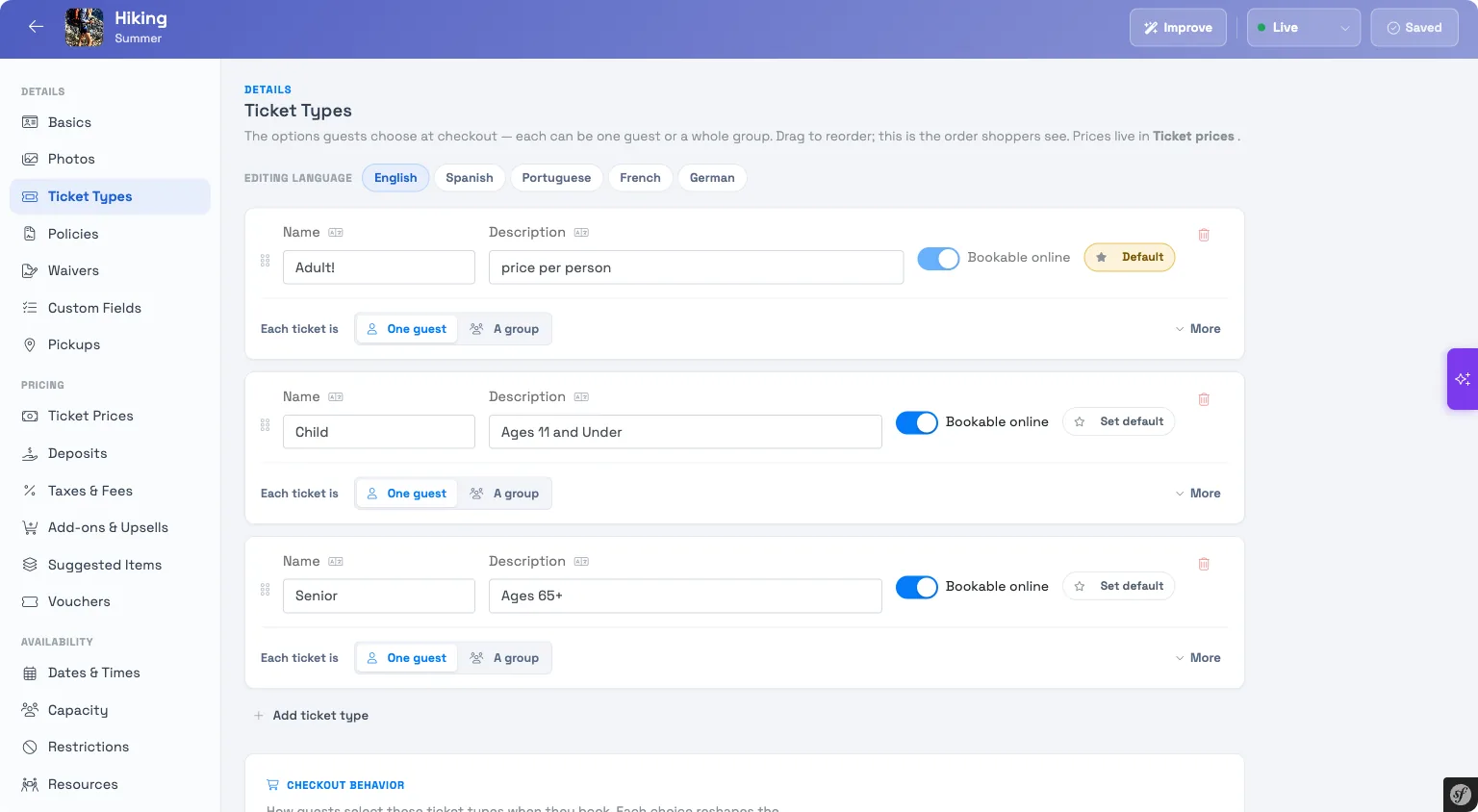
Open your activity and go to the Ticket types tab. Each ticket type is a card:
- Select Add ticket type.
- Enter a Name (for example, Adult) and an optional Description that shows under the name at checkout.
- Leave Bookable online on to offer it on your website, or turn it off to keep it for staff-booked orders only.
- Drag the handle to reorder — this is the order shoppers see.
One guest or a group
Under each ticket, Each ticket is sets what one ticket represents:
- One guest — one ticket = one person (the usual case).
- A group — one ticket covers several people, sold at a flat rate. Choose Exactly for a fixed size (say, a party of 4) or A range for a minimum and maximum (a fixed size must be more than 1; a range needs a minimum of at least 2, and the minimum must be below the maximum).
Group tickets are great for private tours, charters, and rentals — "2-passenger flight," "party bus (up to 20)." Clear labeling matters so guests know one ticket = the whole group.
A group ticket's size is a different setting from a booking restriction's minimum party size. The group ticket controls how many guests one ticket covers; the restriction controls the smallest (or largest) booking an activity accepts overall, across every ticket type. A guest can satisfy a restriction minimum by buying a single group ticket sized to match, or by adding enough individual tickets to reach it.
How each group mode behaves at checkout:
- Exactly (a set number) — TripWorks knows exactly how many people the ticket covers, so it collects details for each of them where needed (a 2-person ticket prompts for two guests, needs two waivers, two resources, and so on).
- A range — the guest is asked "How many {guests} in your group?" and picks a number within your min–max. This prompt appears whenever a range group ticket is selected, regardless of the quantity setting below.
Under More, you can mark a type Requires another ticket — it can only be bought alongside another type (handy for an add-on that shouldn't be sold on its own).
Control the checkout
Below your ticket types, Checkout behavior shapes how guests select them, with a live preview of what a guest sees:
- Can guests pick more than one ticket type per booking? — Multiple types lets them combine (2 Adult + 1 Child); Single type only limits a booking to one type.
- Show a quantity stepper for each ticket? — Show quantity gives each ticket a +/- stepper (how many tickets of that type); Hide quantity keeps it simple. When quantities are shown, Start every ticket at 0 decides whether the first ticket is pre-filled.
For group tickets, consider Hide quantity. Otherwise a guest buying a "2-passenger flight" can't tell whether to enter 1 (one flight) or 2 (two people) — hiding the stepper removes that ambiguity, and a range group still asks "how many in your group?" separately.
The quantity stepper (number of tickets) is a different question from a range group's group size (people in one ticket) — hiding the stepper never hides the group-size prompt.
Good to know
- The default ticket type can't be removed, and it must stay bookable online.
- A ticket type that has already been sold can't be deleted — you can turn off Bookable online instead.
- If your account uses multiple languages (your account manager turns this on for you), a language bar lets you translate the name and description per language; the other settings are shared.
Frequently asked questions
Where do I set the price for a ticket type?
On the Ticket prices tab, not here. Ticket types define the options; prices are set per type there.
How do I make a group or party ticket?
Set Each ticket is to A group, then choose Exactly (a fixed party size) or A range (a minimum and maximum number of guests per ticket).
Will guests be asked how many people are in their group?
Yes, when the group ticket uses A range. Once a guest selects it, they're asked "How many guests in your group?" and pick a number within your min–max — and this appears even if you've turned the quantity stepper off. An Exactly (set-number) group ticket doesn't ask, because the size is fixed.
Should I use a group ticket or a booking restriction to enforce a minimum party size?
It depends on what you're trying to sell. A booking restriction sets the smallest and largest booking an activity accepts overall — it doesn't change what a ticket costs or how many people it represents. A group ticket type sells a fixed or ranged headcount as one flat-rate item. Use a restriction to enforce a floor across all ticket types; use a group ticket to sell that headcount as a single purchase. Many activities that require a minimum group use both: a restriction minimum matching the group ticket's size.
Do I still collect each traveler's details on a group ticket?
For an Exactly (set-number) group, yes — TripWorks knows the count and collects per-guest details, waivers, and resources for each person the ticket represents. For a range group, it collects for the number the guest enters.
Why can't I delete a ticket type?
Either it's the default type, or it already has bookings. Neither can be removed. Turn off Bookable online to stop offering it going forward.
Can I hide a ticket type from my website but still sell it in person?
Yes. Turn off Bookable online — the type stays available for staff-booked orders but won't appear on your online checkout.
Related
Built for attractions, tours & activities
Sell exactly the way you price
See how attractions, tours, and activities set up their ticket options and checkout on TripWorks. Book a demo and make the switch.