
You can change the email you sign in with yourself, in under a minute. If TripWorks won't let you — usually an "email already in use" message — it's almost always because that email is already another TripWorks login; here's why, and what to do.
In this article
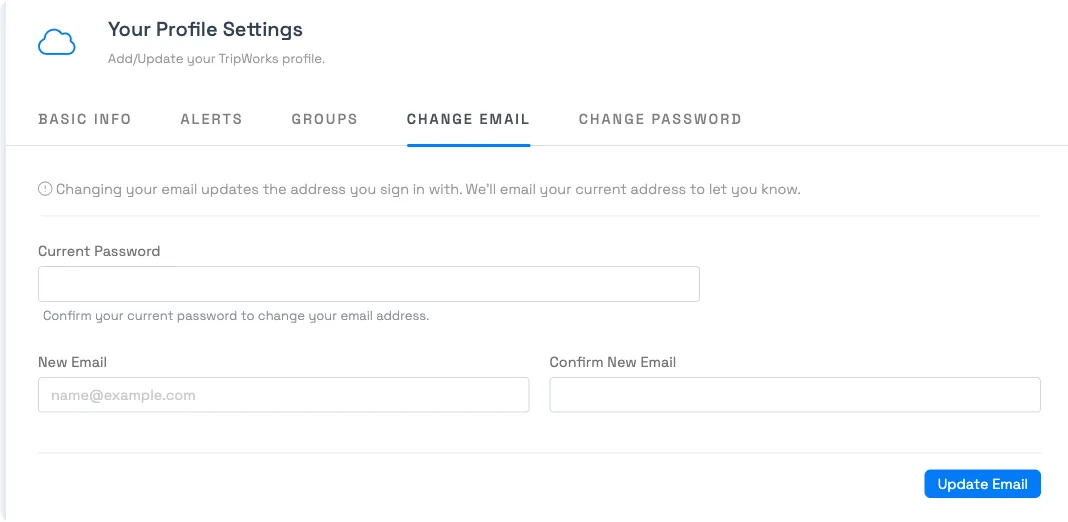
Change your own login email
- Open My Profile (from the main menu / your avatar).
- Go to the Change Email tab.
- Enter your Current Password, then your New Email and Confirm New Email.
- Save.
- Check the new email address's inbox for a confirmation link, and select it. Your login email doesn't change until you do this step.
Your login email doesn't switch right away. TripWorks holds the new address as pending and sends a confirmation link to the new address: you have 24 hours to open it before it expires and you'll need to request the change again. Until you confirm, you keep signing in with your old email. Once you confirm, TripWorks also sends a heads-up to your previous address so any unexpected change gets noticed. Your current password is required to request the change in the first place.
"That email address is already in use"
Login emails are unique across all of TripWorks — one email = one login. You'll see this message when the address you're trying to use already belongs to another TripWorks login (often your own login on a different company).
The good news: you usually don't need a second email. One login can belong to multiple accounts and switch between them:
- Invite your existing login's email into the second account (Setup → Your team → Team Members → Invite User). Because the email already exists, TripWorks adds that account to your existing login instead of creating a new one.
- Then use Switch Account (in the main menu) to move between companies with one email and password.
If you already have two separate logins (a different email for each company) and want them merged into one, that can't be done in the dashboard — contact TripWorks support to consolidate them.
Change a team member's email (admins)
To change someone else's login email: Setup → Your team → Team Members, open the member, edit the Email on their Basic info, and save. The same uniqueness rule applies — the address can't already belong to another login.
Frequently asked questions
How do I change the email I log in with?
My Profile → Change Email tab → enter your current password, new email, and confirm → Save. Then open the confirmation link sent to your new address within 24 hours: the login email doesn't switch until you do, and a notice goes to your old address once it does.
Why do I get "email already in use" when I try to change it?
That address is already a TripWorks login — logins are unique across the whole platform. Often it's your own login on another company's account. You can't point two logins at the same email.
I run two companies — can I use the same email for both?
Yes, as one login. Invite your email into the second account and TripWorks adds that account to your existing login (rather than making a new one). Then use Switch Account to move between them — one email, one password, both companies.
Do I have to verify the new email before it works?
Yes. After you save, TripWorks sends a confirmation link to the new address. Your login email doesn't change until you open that link, and you have 24 hours before it expires. Once confirmed, a notice also goes to your previous address so an unauthorized change is caught.
I saved a new email but didn't get a confirmation link — what now?
Check spam/junk in the new address's inbox first. If the 24-hour window passes before you confirm, the request expires and your login email stays unchanged. Go back to My Profile → Change Email and submit it again.
I already have two separate logins — can I merge them?
Not from the dashboard. Merging two existing logins into a single email requires TripWorks support — reach out and we'll consolidate them.
Will changing my email change my password too?
No — they're separate. Your password stays the same. To change it, use the Change Password tab (or reset your password).
Can two team members share one login/email?
No — each login must have its own unique email. Give each team member their own login; see Invite users to your TripWorks account.
Related
Built for attractions, tours & activities
One login, your whole operation
See how attractions, tours, and activities run their team on TripWorks. Book a demo and make the switch.