
Invite anyone who needs to sign in to your account — your own staff, or outside partners like an accountant, bookkeeper, or marketing agency. When you invite someone, TripWorks emails them to join: if they're already a TripWorks user, they're added to your account right away; if not, they're prompted to create an account and password.
In this article
Before you begin
You need the Create and manage other users permission (see the User permissions reference). It's also worth deciding which permission group they should join before you invite them.
Invite a team member
- Go to Setup → Your team → Team Members.
- Select Invite User.
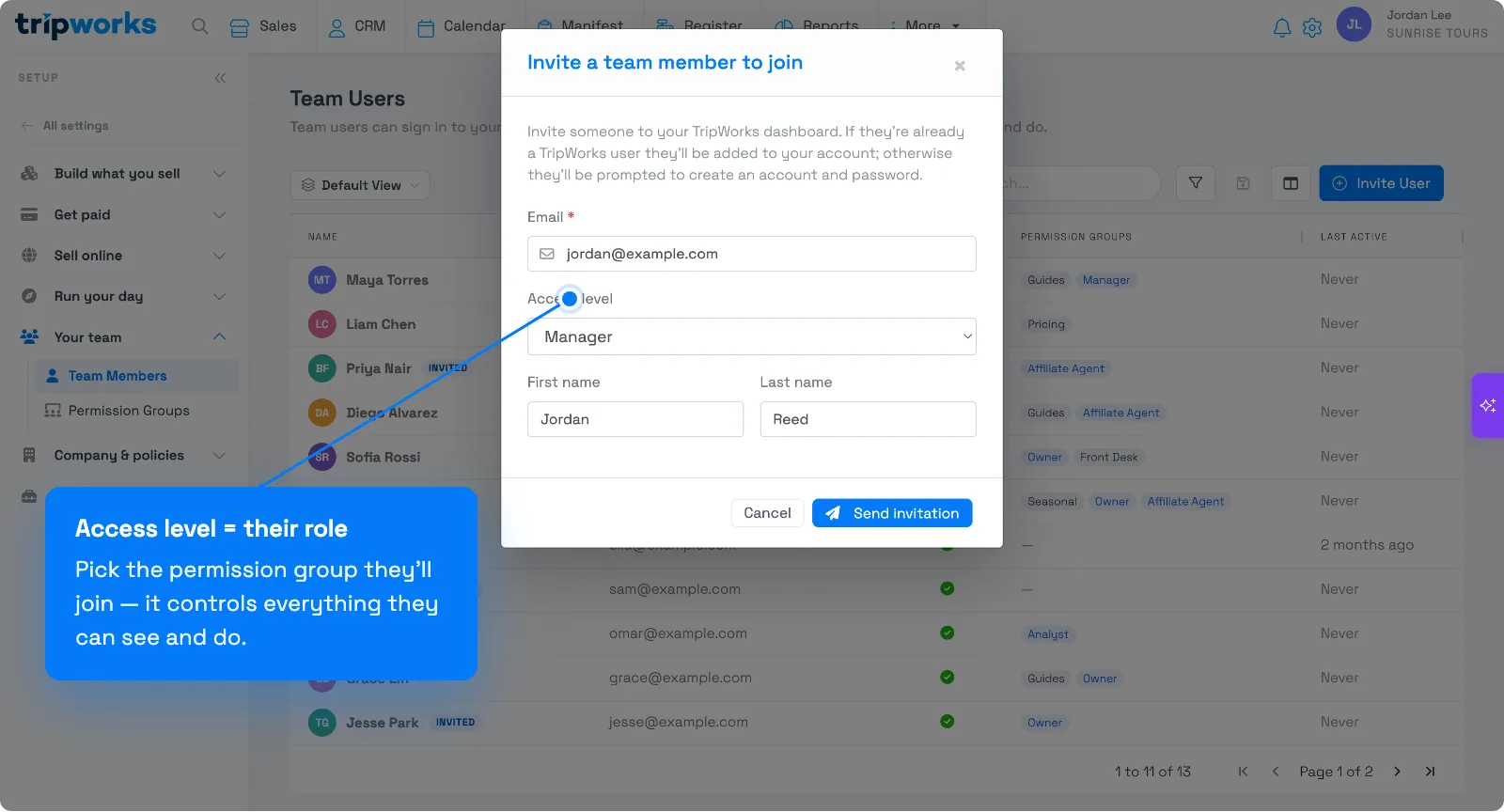
- Fill in the invitation:
| Field | What to enter |
|---|---|
| Email (required) | Where the invitation is sent. This becomes their login. |
| Access level | The permission group they'll join — this controls everything they can see and do. Not sure which? See the User permissions reference. |
| First name / Last name | Their name, so they're easy to recognize in your team list. |
- Select Send invitation.
What happens next
- The person appears in Team Members marked Invited until they accept.
- New users click the link in the email to set a password; existing TripWorks users are added to your account immediately.
- You can change their access anytime by moving them between permission groups, or remove them — see Add & manage team members.
Related
Built for attractions, tours & activities
Get your whole team on board
See how attractions, tours, and activities bring their staff and partners into TripWorks with the right access. Book a demo and make the switch.