
The TripWorks mobile app puts the tools you use most in your pocket — so you can check guests in at the dock, open a last-minute timeslot, take a booking, or check the day's numbers without opening a laptop. It's built for running operations on your feet.
In this article
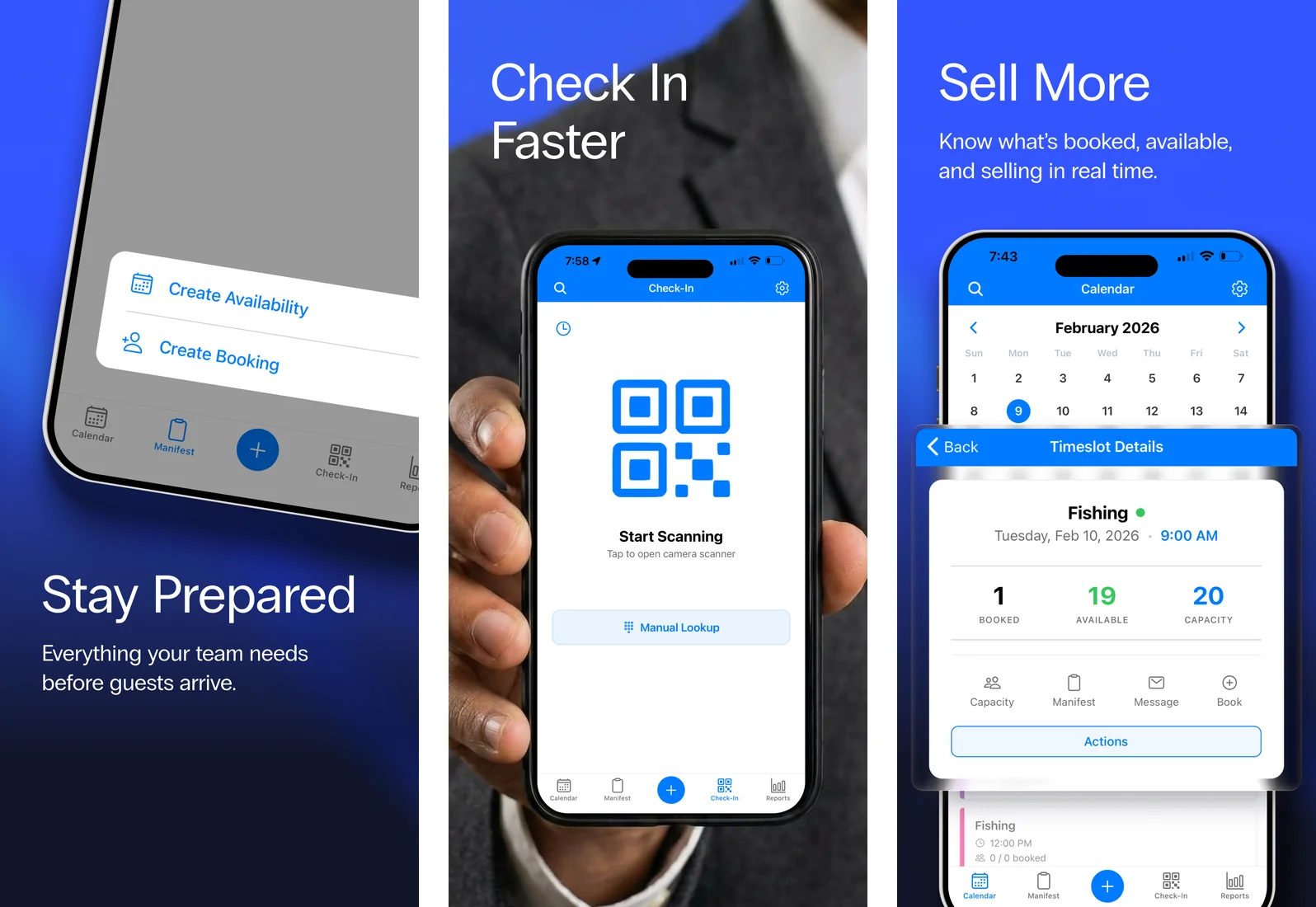
Get the app
Download TripWorks on the App Store for iPhone and iPad, then sign in with your usual TripWorks login. (For setup-heavy work like building new availability, a desktop or tablet is still the easier tool.)
Getting around
The app is organized around a bottom navigation bar on every screen, with a central "+" button for quick-create actions. A search icon sits in the upper left and a settings menu in the upper right.

Calendar
The Calendar is your day-at-a-glance view, and where the app opens by default. Tap any date in the strip at the top, or tap the header to jump across weeks and months. Scroll to see the day's activities; each card summarizes that timeslot.
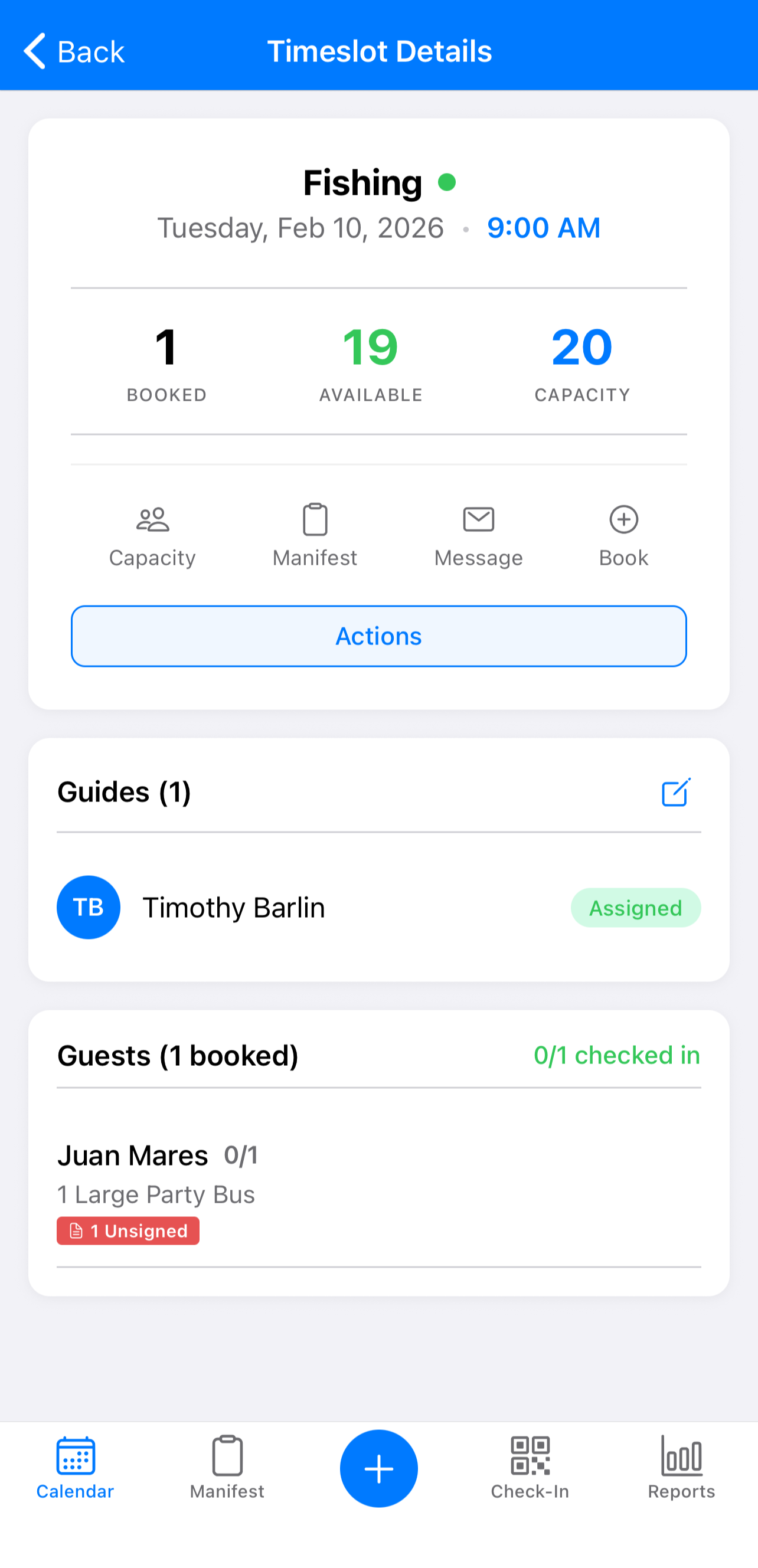
Open an activity for its timeslot actions:
- Change status — set Open, Open Unrestricted, Open Offline, or Closed (or close it in one tap).
- Edit capacity — adjust the timeslot's capacity on the spot.
- View manifest — jump to the manifest for that slot.
- Send bulk message — message everyone booked on the timeslot.
- Book — add a booking to the slot.
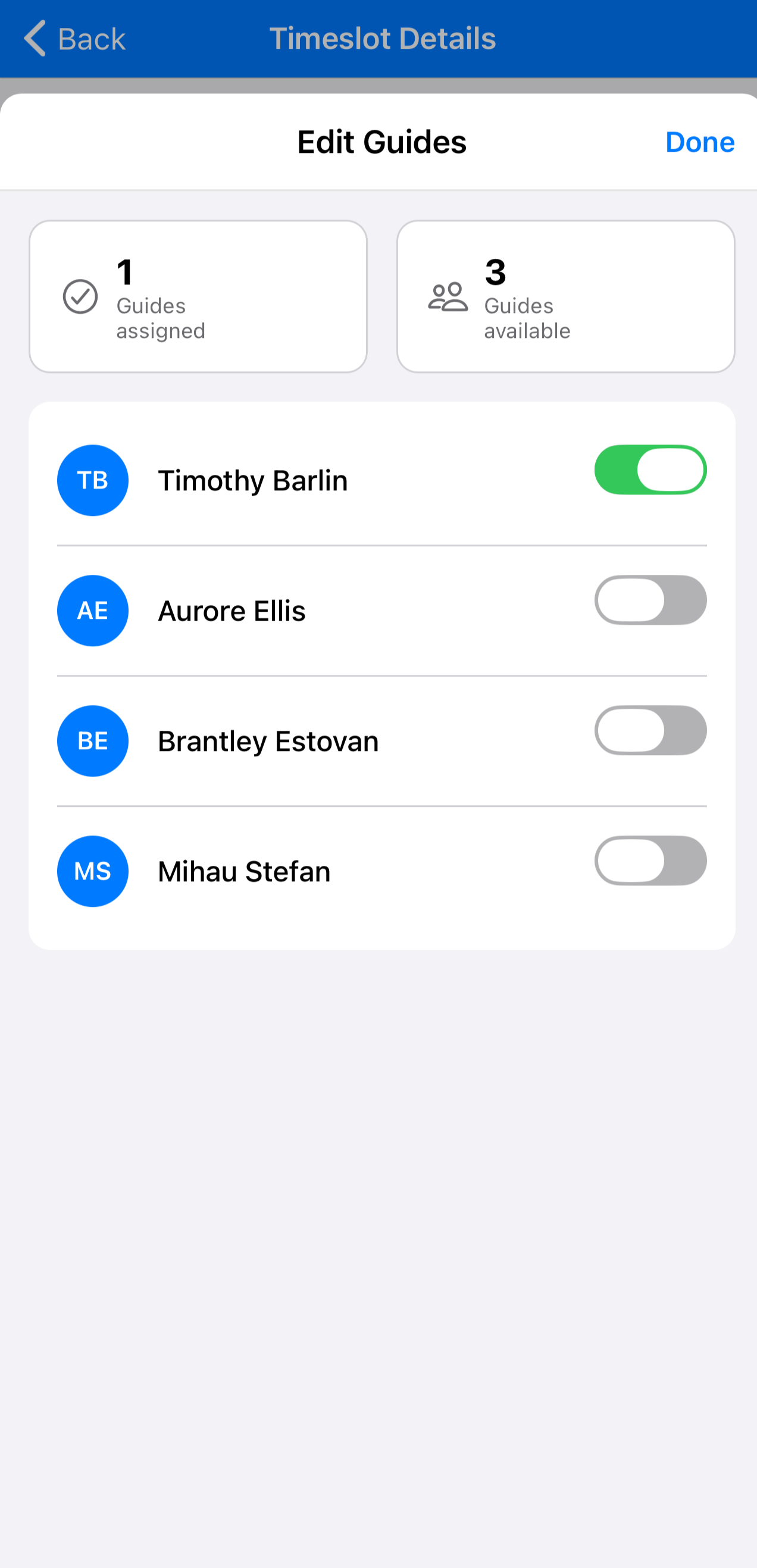
If your account uses guide management, you can assign guides right from the activity card.
Manifest
The Manifest tab switches to a booking-focused view of the day. Tap into an activity to see its guest list — each row shows the lead guest, the ticket-type breakdown, and, if you use them, waiver status. It's the fast way to work the floor.
Quick actions — the "+" button
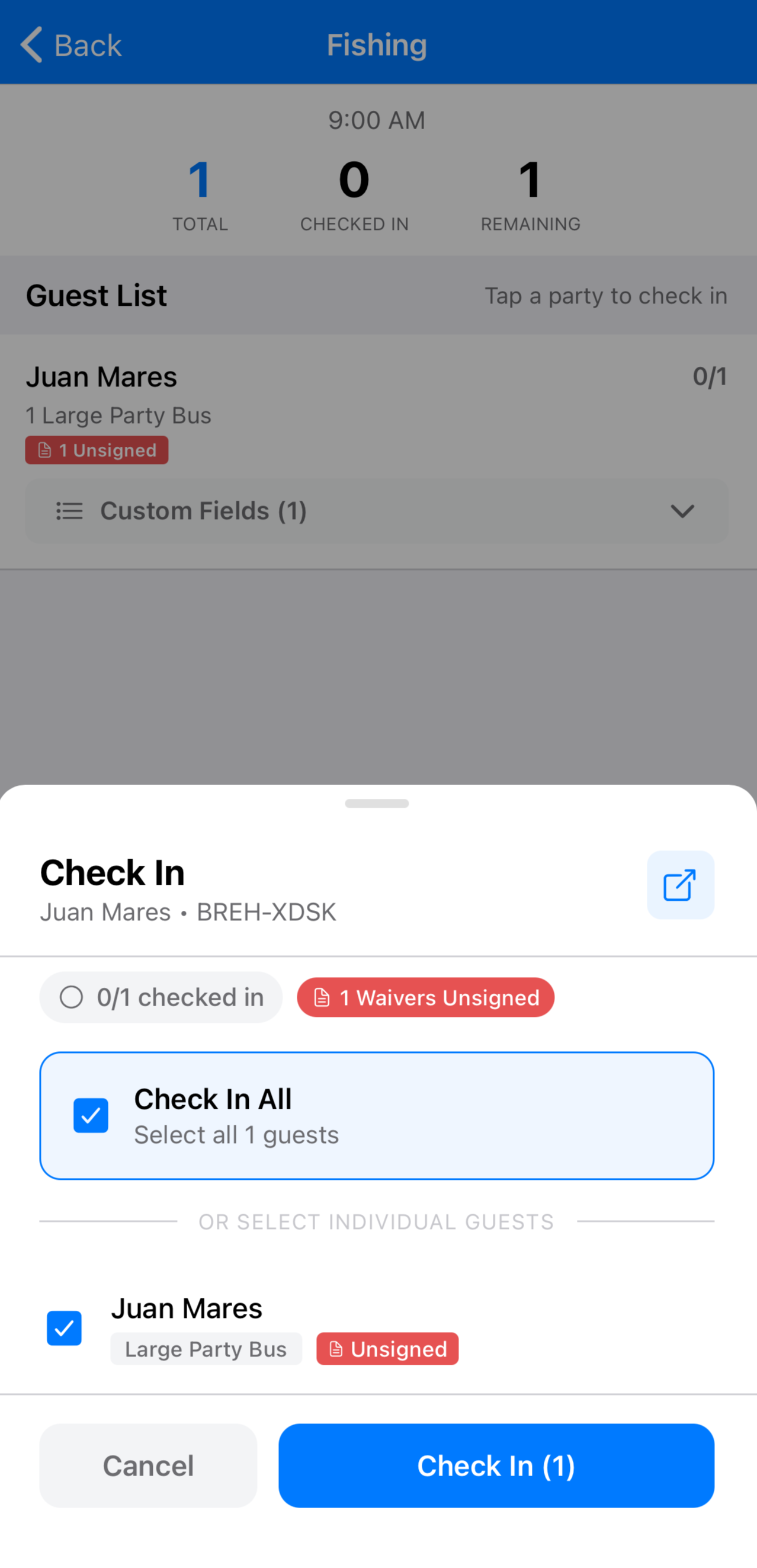
The central "+" opens the actions you reach for most: Create Availability, Create Booking, and Quick Check-In. Quick Check-In gives you three ways to check a guest in:
- Manual lookup — type a guest's name and tap the matching trip.
- QR code scan — tap the camera to scan a guest's QR code for instant check-in.
- Bluetooth scanner — pair a compatible scanner to scan physical tickets or wristbands (see Recommended devices & browsers).
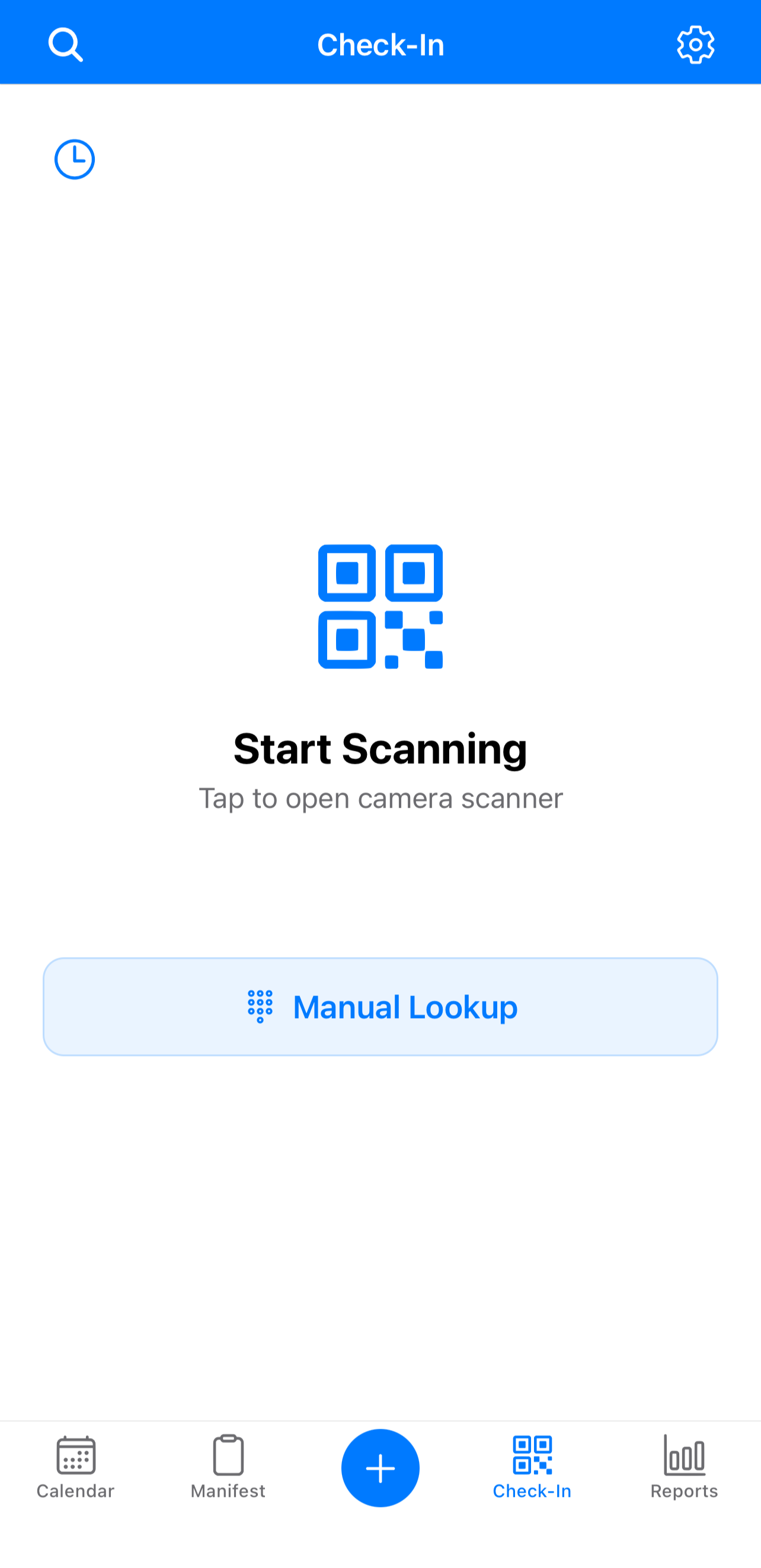
You can also pair a supported card reader to take in-person payments from the app.
Quick Reports
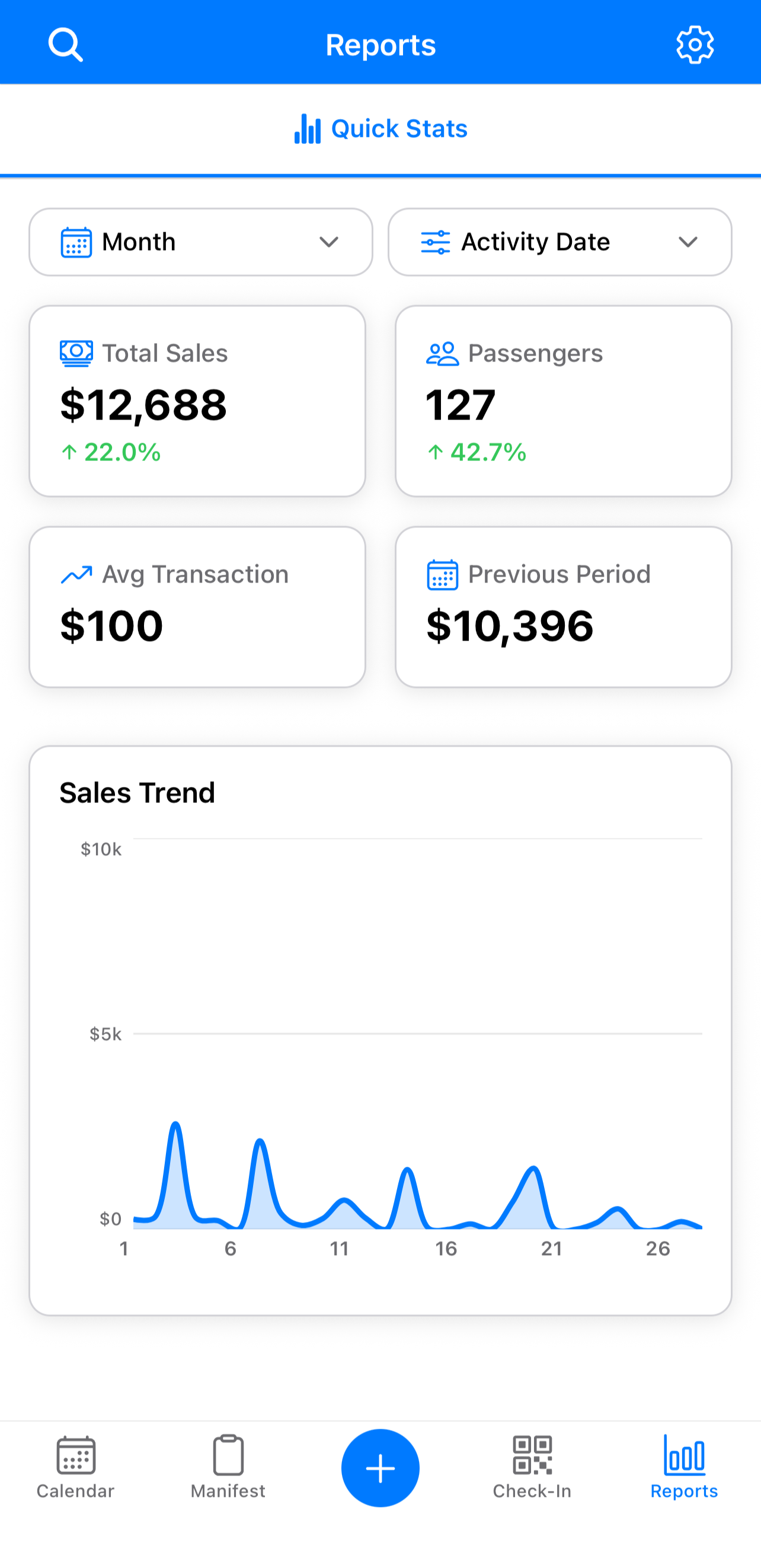
The Reports tab gives you a live read on the business. Use the time-period toggle (today, this week, this month, and so on) — each metric compares to the previous equivalent period so trends jump out:
- Total Sales — revenue across all bookings in the period.
- Passengers — total guests booked, for volume and staffing.
- Average Transaction Amount — sales divided by transactions, to see if upsells and pricing are working.
- Previous-period comparison — today vs. yesterday, this week vs. last, so you can spot the trend at a glance.
Search & settings
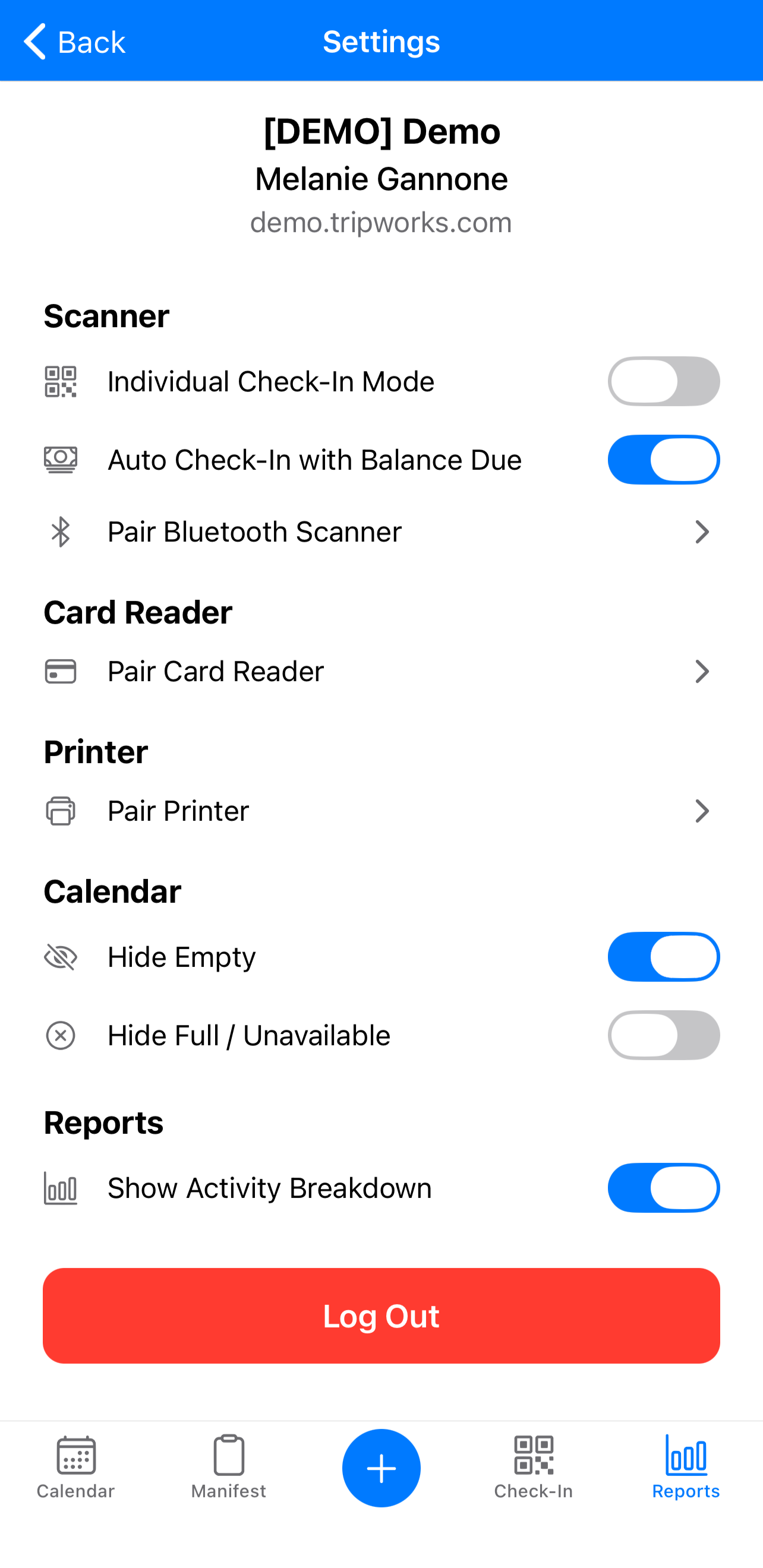
The search icon (upper left) finds trips and guests fast. The settings menu (upper right) is where you tune the app to your operation:
- Check-in — turn on individual check-in (one guest at a time) and choose whether guests with a balance due can still be checked in.
- Hardware pairing — pair a Bluetooth scanner or a card reader.
- Calendar display — hide empty or full/unavailable timeslots to cut clutter on busy days.
- Report display — break Quick Reports down by activity or by location.
Frequently asked questions
Where do I download the app?
From the App Store, for iPhone and iPad. Sign in with your normal TripWorks credentials.
Can I check guests in from my phone?
Yes — scan a QR code, look a guest up by name, or pair a Bluetooth scanner, all from Quick Check-In under the "+" button. You can also check in from a timeslot's manifest.
Can I do everything from the app?
The app focuses on day-to-day operations — calendar, manifest, check-in, quick bookings, timeslot actions, and live reports. For heavier setup like building availability, a desktop or tablet is easier.
Related
Built for attractions, tours & activities
Run your day from your pocket
See how attractions, tours, and activities operate on the go with TripWorks. Book a demo and make the switch.