
Add-ons let guests customize their experience — and lift your average order in the process. Unlike products (physical items), add-ons are optional enhancements or upgrades chosen during booking: VIP seating, a skip-the-line pass, a photo package, a drink upgrade.
In this article
Create an add-on
- From your dashboard, go to More Activity Catalog.
- Select the activity, then open Add-Ons.
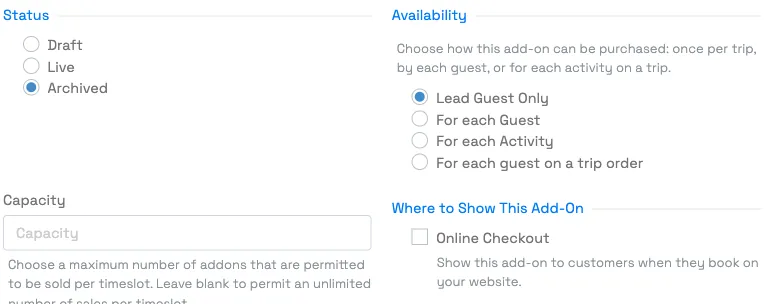
- Add a new add-on and set its name, price, and details — plus Availability (who it's for) and, optionally, a Capacity limit (below).
Once created, the add-on appears as an optional choice during booking, so guests can opt in without any extra work from your team.
Choose who the add-on is for (Availability)
The Availability setting controls how the add-on is offered and how many times it's charged:
- Lead guest only — offered once, to the lead guest. Charged once, no matter the party size. Good for a per-booking extra.
- For each guest — every guest can add it independently; each guest who opts in is charged. Good for a per-person upgrade (a VIP seat, a meal).
- For each activity — a single, group-wide selection that applies to the whole activity on the booking (one choice covers everyone).
You may also see an option worded "for each guest on a trip order." That mode is meant for pickup-location add-ons (where the price is multiplied by the applicable guests). For a normal per-person upgrade, choose For each guest.
Limit how many can be sold (or leave it unlimited)
Use the Capacity field to cap how many of the add-on can be sold per timeslot (for example, only 10 photo packages per departure). Leave it blank to allow unlimited sales per timeslot.
Note this is a per-timeslot inventory cap, not a per-booking limit — within a single booking, a per-guest add-on can be added up to once per guest.
What order do add-ons appear in?
Add-ons appear during booking in the order they were created, grouped by their Availability. The order isn't alphabetical. Reordering add-ons into a custom order isn't available right now.
Make them convert
Add-ons earn the most when guests see them at the right moment. Pair them with suggested products and add-ons at checkout so the upgrade is offered exactly when a guest is ready to buy.
Frequently asked questions
What's the difference between an add-on and a product?
Add-ons are optional upgrades to the experience (like VIP seating). Products are physical items. Both can be sold alongside a booking.
Where do guests choose add-ons?
During the booking flow. You can also surface them as suggestions at checkout to boost take-up.
How do I allow an unlimited number of an add-on?
Leave the Capacity field blank. Capacity caps how many can be sold per timeslot; blank means unlimited. (Within one booking, a per-guest add-on can still only be added up to once per guest.)
What does "for each guest" vs "lead guest only" vs "for each activity" mean?
Lead guest only = offered once and charged once for the booking. For each guest = every guest can add it and is charged individually (a per-person upgrade). For each activity = one group-wide selection that covers the whole activity.
What is "for each guest on a trip order"?
That option is intended for pickup-location add-ons, where the price is multiplied by the number of applicable guests. For a normal per-person upgrade, use "For each guest" instead.
Can I change the order add-ons appear in?
Not at the moment. Add-ons appear in the order they were created, grouped by their Availability (not alphabetically). Custom reordering isn't available right now.
Does an add-on reserve a resource, or extend how long a resource is used?
No. Add-ons don't have any resource or duration settings of their own — they're just an optional line item a guest adds to their booking. Resource reservations and usage duration (how long each resource is tied up per booking) come entirely from the ticket type, set separately as a resource requirement on the activity. So an add-on that implies extra resource time in real life — say, a longer boat rental add-on — doesn't automatically extend the resource's reserved duration; if you need the resource held longer when that add-on is selected, set that on the ticket type's resource requirement instead, or use a separate ticket type/activity variant that reflects the longer duration.
Related
- Create & publish an activity
- Suggested products and add-ons at checkout
- Resources and resource groups
- Require gratuity on a booking
Built for attractions, tours & activities
Raise every order with a click
See how attractions, tours, and activities grow order value on TripWorks. Book a demo and make the switch.