
When a guest's plans change, you don't start over — you adjust the existing booking. TripWorks gives you four ways to do that, all from one place, plus a bulk option for weather days and closures.
In this article
- Where these options live
- Who can do this
- When an option is greyed out or missing
- Reschedule — move to a new date and time
- Change Activity — move to a different experience
- Clear Date/Time — unschedule and rebook later
- Cancel — end the activity
- Cancel everyone on a timeslot or day
- Frequently asked questions
First, a quick note on terms, because they matter here:
- A trip is the whole reservation (one confirmation code). It can hold more than one activity.
- An activity is one experience at one date and time within the trip (for example, the 3:00 PM Biking slot). The actions below act on one activity at a time — every guest on that activity.
- A guest is one person (one ticket) on an activity.
Where these options live
Open the trip, select the activity you want to change, and choose Rebook (it reads Reschedule if the activity has no date yet). That opens the Cancel / Rebook window with four choices:
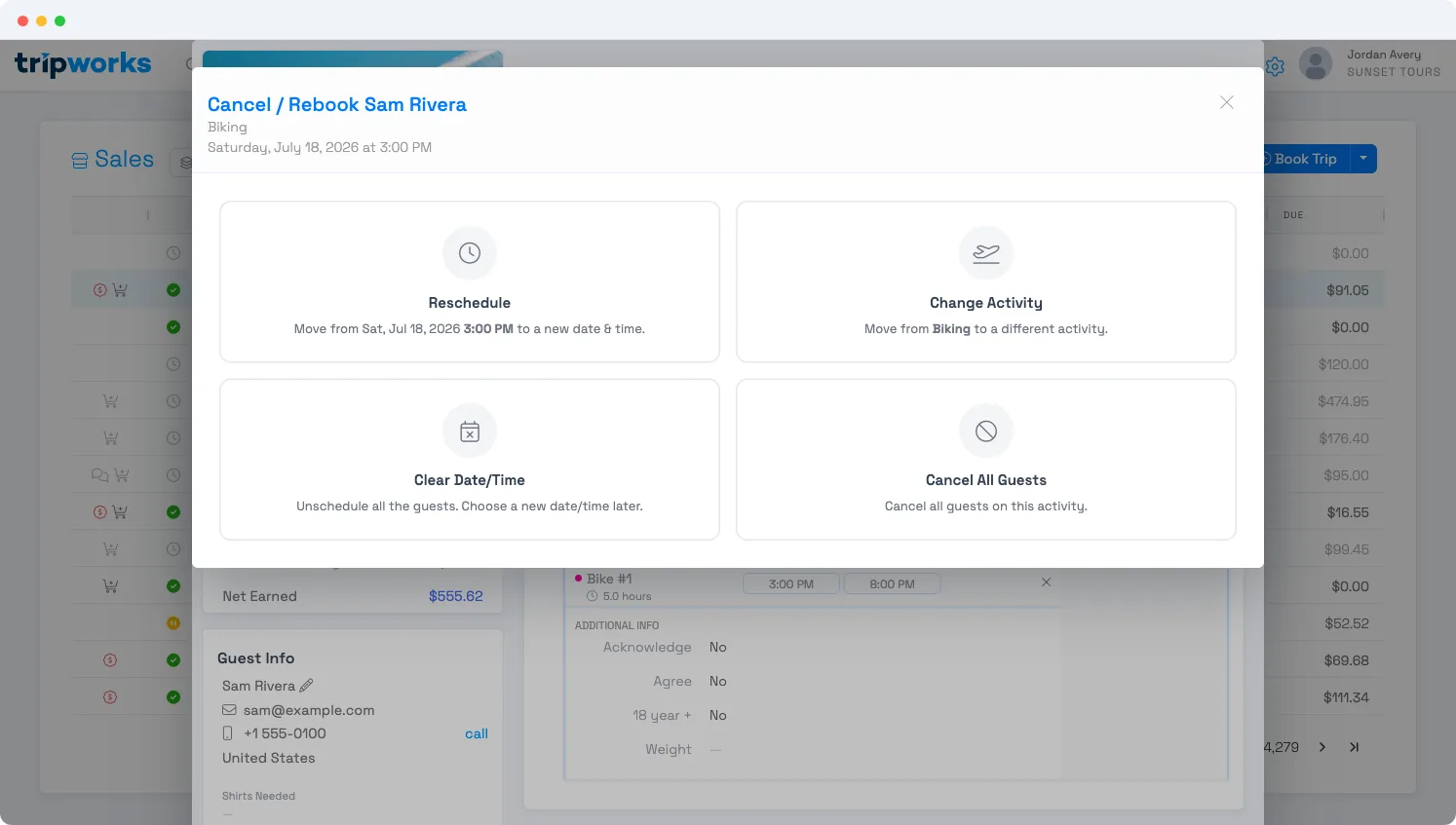
- Reschedule — move this activity to a new date and time (same activity).
- Change Activity — move these guests to a different activity.
- Clear Date/Time — unschedule: keep the booking but remove its date, to rebook later.
- Cancel All Guests — cancel this activity for everyone on it.
Who can do this
These actions are gated by your permission group:
- Reschedule, Change Activity, and rebooking need the rebooking permission.
- Clear Date/Time (unschedule) and Cancel need the booking-edit permission.
Account administrators have both. If you don't see the Rebook button or the Cancel option, ask an admin to check your permission group.
When an option is greyed out or missing
TripWorks hides or disables these actions when they don't make sense, and the rule is different for each:
- Cancel is unavailable when the activity's date is in the past (unless it's today), when the trip is not yet reserved, when the trip is locked, when the activity is already cancelled, or when an imported booking still needs review.
- Rebook (Reschedule and Change Activity) is not blocked by the activity's own date — you can rebook a guest off an activity that already happened. It's still unavailable when the trip is not yet reserved, locked, or an imported booking still needs review, and once the booking itself is cancelled.
Hover the disabled control to see the reason.
Reschedule — move to a new date and time
Use this when the guest wants a specific new time you can book now.
- On the activity, select Rebook, then Reschedule.
- Pick a date on the calendar, then choose an available time. If the day has no suitable slot, select Create… to add one on the spot.
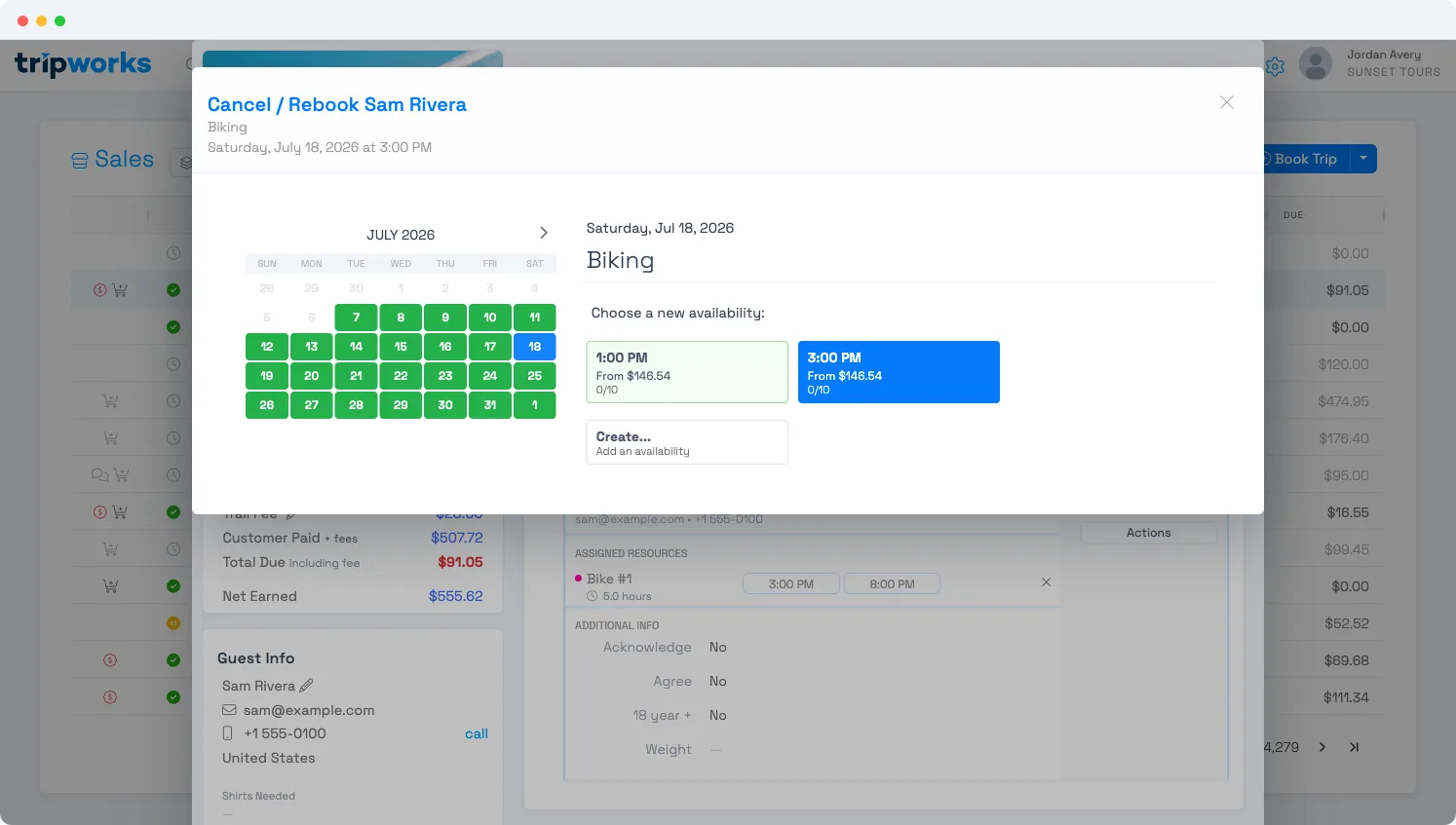
Available days are highlighted; each slot shows its remaining capacity. Use Create… if none fit. - Confirm. Everything on the activity — guests, payments, add-ons, products, and custom-field answers — moves with it. (Products always carry over; add-ons carry over automatically on the same activity, and are re-matched if you change activities.)
Behind the scenes, rescheduling releases the old timeslot's capacity, re-books the new one, and reassigns resources. Because it's a new date, guests are set back to not checked in.
The calendar only offers today and later as the new date. For today, it shows only upcoming times by default; if your permission group includes Allow trips to be booked on today's past timeslots, an option appears to also pick a time earlier today.
Rebook always moves every guest on the activity together — there's no way to pick just one guest out of a group booking and reschedule only them while the rest stay put. If one guest in a group wants to change and the others don't, cancel the whole booking (see "Cancel" below) and create a new, separate booking for the guest who's changing; the remaining guests need a new booking too if they're still going. It's more manual than an ideal single-guest rebook, but it's the current path.
Prompts you may see when you confirm:
- The price is different at the new time. You'll be asked to keep the original price or apply the new price. A different tax rate is flagged the same way.
- Not enough room. If the new slot (or an add-on on it) can't fit the party, you'll get a capacity warning. You can override it only if manual overbooking is allowed for that activity.
- A promo code no longer applies at the new date, or the trip is locked — either will stop the move with a message explaining why.
Rescheduling doesn't email the guest automatically unless you've turned on rebooked-trip messages. Otherwise, send them a note from the trip.
Change Activity — move to a different experience
Choose Change Activity when the guest wants something else entirely — say, moving from Biking to Kayaking. You'll pick the new activity from your catalog (browse by category, activity, or date), then choose its date and time. Guests and payments carry over; add-ons are re-matched to the new activity where they exist. The same price, capacity, and tax prompts as Reschedule apply.
Clear Date/Time — unschedule and rebook later
Use this when the guest wants to keep their booking but isn't ready to pick a new date — a rain-check.
Select Rebook → Clear Date/Time. The activity's date is removed, its timeslot and resources are released immediately, and the booking stays active. Because nothing is cancelled, the trip total doesn't change — the payment stays on file. When the guest is ready, open the trip and select Reschedule to place it on a new date. Unscheduling is fully reversible and never notifies the guest on its own.
To find bookings waiting to be rescheduled, use the Activity → Not Scheduled report.
Cancel — end the activity
Use this when the guest won't be rebooking. Select Rebook → Cancel All Guests (or Cancel This Booking from the activity's ⋯ menu).
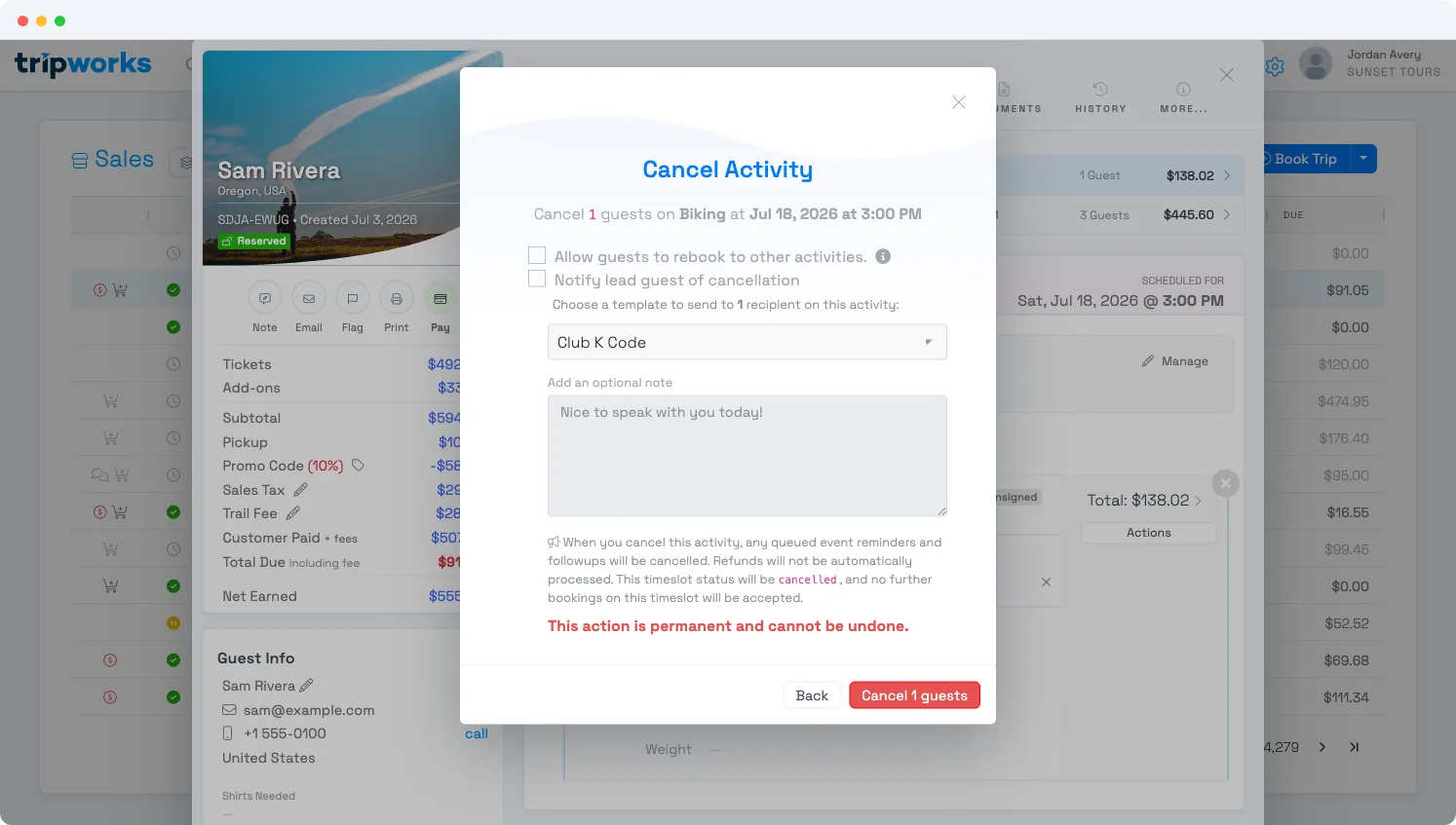
Two choices before you confirm:
- Allow guests to rebook to other activities. Off by default, guests are steered back to the same activity. Turn it on — good for weather cancellations — to let them rebook to any activity in your catalog from their customer portal.
- Notify lead guest of cancellation. Turn this on to email (and text, if the template supports it) the lead guest. Pick the message template and add an optional note. Leave it off if you'll reach out another way — nothing is sent otherwise.
When you confirm, TripWorks cancels the activity for everyone on it, releases its seats and resources, cancels any queued reminders and follow-ups for it, and reduces the trip total by that activity's amount.
Cancelling never refunds money on its own. Any payment stays on the trip as an unallocated credit — if a refund is owed, process it separately. And while the cancellation itself can't be undone, the guests aren't stuck: a cancelled activity shows a Rebook Now button so you can place them on a new date.
Cancelling one activity frees its seats but leaves the timeslot open for new bookings. Closing a whole timeslot to further bookings is a separate action — see below.
Cancel everyone on a timeslot or day
For a weather day, equipment failure, or closure, don't cancel trip by trip — cancel in bulk from the Manifest (by timeslot, by activity, or for the whole day). A bulk cancel does one thing a single-activity cancel doesn't: it sets the timeslot to Cancelled, so no new bookings are accepted on it until you reopen it.
See Cancel trips from the Manifest view for the full steps.
Frequently asked questions
Does cancelling refund the guest?
No. Cancelling releases the seats and reduces the trip total, but it never moves money. The payment stays on the trip as a credit; if a refund is owed, process it separately.
What's the difference between unscheduling and cancelling?
Unscheduling (Clear Date/Time) keeps the booking active and the payment on file — it just removes the date so you can rebook later, and the trip total is unchanged. Cancelling ends the activity, releases the seats, and reduces the total.
Will the guest be notified automatically?
Only when you choose to. Cancelling notifies the guest only if you check Notify lead guest of cancellation. Rescheduling and changing the activity email the guest only if rebooked-trip messages are turned on. Unscheduling never sends anything on its own.
Can I undo a cancellation?
The cancellation record itself is permanent, but the guests aren't lost — a cancelled activity shows a Rebook Now button that places them on a new date or a different activity.
Why can't I reschedule or cancel this booking?
It depends which action. Cancel is unavailable when the activity's date is in the past (unless it's today), the trip isn't reserved yet, the trip is locked, the activity is already cancelled, or an imported booking still needs review. Rebook (Reschedule and Change Activity) isn't blocked by the activity's own past date, but is unavailable when the trip isn't reserved yet, is locked, still needs import review, or the booking is already cancelled. Either way, you also need the right permission — rebooking permission for Rebook, booking-edit permission for Cancel. Hover the disabled control to see which applies.
Can I move just one guest out of a group booking to a different date, and leave the rest where they are?
Not directly. Rebook always moves everyone on the activity together, so there's no built-in way to reschedule a single guest out of a group. The workaround is to cancel the whole booking and create separate new bookings, one for the guest who's changing and one for the guests staying put.
Is there a cutoff for how close to the trip staff can move a booking?
No minimum-notice window on the move itself — as long as the trip isn't locked, cancelled, or awaiting import review, Rebook stays available (see "When an option is greyed out or missing" above). The one time-based limit is on the destination you're picking: the calendar only offers today and later, and for today it only shows upcoming times unless your permission group can book past timeslots — a past calendar day isn't offered at all. This is separate from a guest's own self-service rebooking link, which can carry its own notice-before-departure window that doesn't apply to staff-side moves.
Related
Built for attractions, tours & activities
Handle changes without the headache
See how attractions, tours, and activities reschedule, move, and cancel bookings — releasing seats and resources instantly — on TripWorks. Book a demo and make the switch.