
Some partners pay you after the fact on invoice terms — they send you business, and you bill them monthly rather than charging the guest at checkout. TripWorks handles this: mark the reseller as Invoice, their bookings hold a balance instead of collecting from the guest, and you generate one invoice covering a period.
In this article
1. Set the reseller to "Invoice"
- Go to Settings Resellers and open (or create) the reseller.
- Set Payment Method to Invoice.
- Save.
From now on, each reserved booking for that reseller carries a balance pending (the trip total, unpaid) instead of charging the guest's card — so your staff won't try to collect it at check-in. (Collection Type — Retail vs Wholesale — is a separate setting that affects pricing, not billing; see reseller revenue & commission.)
2. Generate the invoice
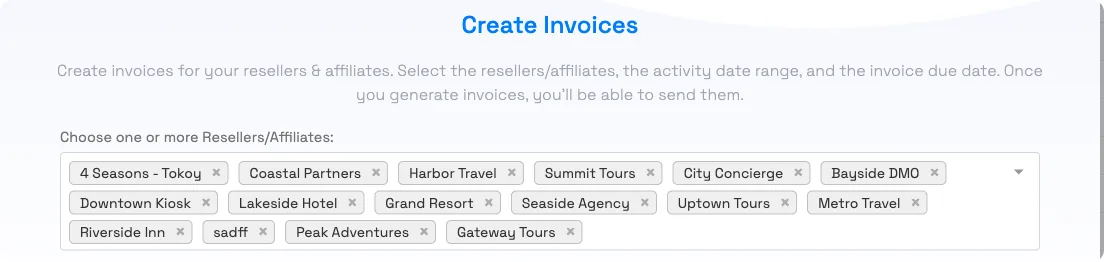
- Open Invoices from the More menu (or the reseller's Invoices tab) and click Create Invoices.
- Choose the reseller(s) to bill. (Only resellers set to Invoice appear here.)
- Pick the date type (activity date or date booked) and the period — it defaults to Last Month.
- Set the due date (defaults to 30 days out). A live preview shows the eligible passenger count and amount.
- Click Generate.
TripWorks creates one invoice per reseller, bundling all their un-invoiced reserved bookings in that window — each line is that booking's outstanding amount. Bookings already on an invoice are skipped, so you can't double-bill.
3. Send it and track payment
Open the invoice to:
- Send it — emails the reseller a PDF and marks it Sent. If you email the invoice yourself, choose Change Status → Mark as Sent instead.
- Download the PDF or CSV, or add a discount.
- Record payments as the reseller pays. Choose the payment type (Check or Wire/ACH), the date, and an optional note such as a check number. A payment can't be larger than the balance remaining.
The status moves along on its own: Unsent → Sent → Partially Paid → Paid, and flips to Overdue if it passes the due date. Track balances in the Invoices grid and under Reports Resellers Invoices.
Viewing invoices needs the reseller/affiliate permission. Recording invoice payments is manual — it's how you mark what the reseller has paid you, separate from any guest payments.
Frequently asked questions
How do I bill a reseller monthly instead of charging the guest?
Set the reseller's Payment Method to Invoice. Their reserved bookings then hold an outstanding balance instead of charging the guest. Once a month, go to Invoices → Create Invoices, pick the reseller and last month's period, and generate the invoice.
Why doesn't a reseller show up when I create an invoice?
Only resellers whose Payment Method is set to Invoice are invoiceable. Open the reseller and set Payment Method to Invoice, then it'll appear in the Create Invoices picker.
What period does an invoice cover?
Whatever you choose — it defaults to Last Month. You pick whether to match on the activity date or the date booked, and it bundles all of that reseller's un-invoiced reserved bookings in the window.
Could I accidentally bill the same booking twice?
No. Bookings already included on an invoice are excluded from new invoices, so re-running for an overlapping period won't double-bill them.
How do I record that the reseller paid?
Open the invoice and add a payment for the amount received. The invoice moves to Partially Paid or Paid automatically, and the amount due updates.
How do I send the invoice to the reseller?
Open the invoice and click Send — TripWorks emails them a PDF and marks the invoice Sent. You can also download the PDF or a CSV to send yourself.
What happens if an invoice isn't paid by the due date?
It automatically flips to Overdue after the due date, so you can spot unpaid invoices in the Invoices grid and follow up.
Where do I see all of a reseller's invoices?
Two places: the reseller's own Invoices tab, and the account-wide Invoices grid (More → Invoices). There's also a Reports → Resellers → Invoices report.
Related
- How OTA & reseller bookings connect
- Report on reseller revenue & commission
- Recording payments on a trip
Built for attractions, tours & activities
Bill partners on your terms
See how attractions, tours, and activities manage reseller billing on TripWorks. Book a demo and make the switch.