
Guests entering a promo code themselves at online checkout is the usual path. But for a phone or walk-up booking, you can apply a promo code to the trip yourself — and remove one that was added by mistake.
Apply a code
- Open the trip and go to the Payments tab.
- Select Promo to open the Apply Promo Code window.
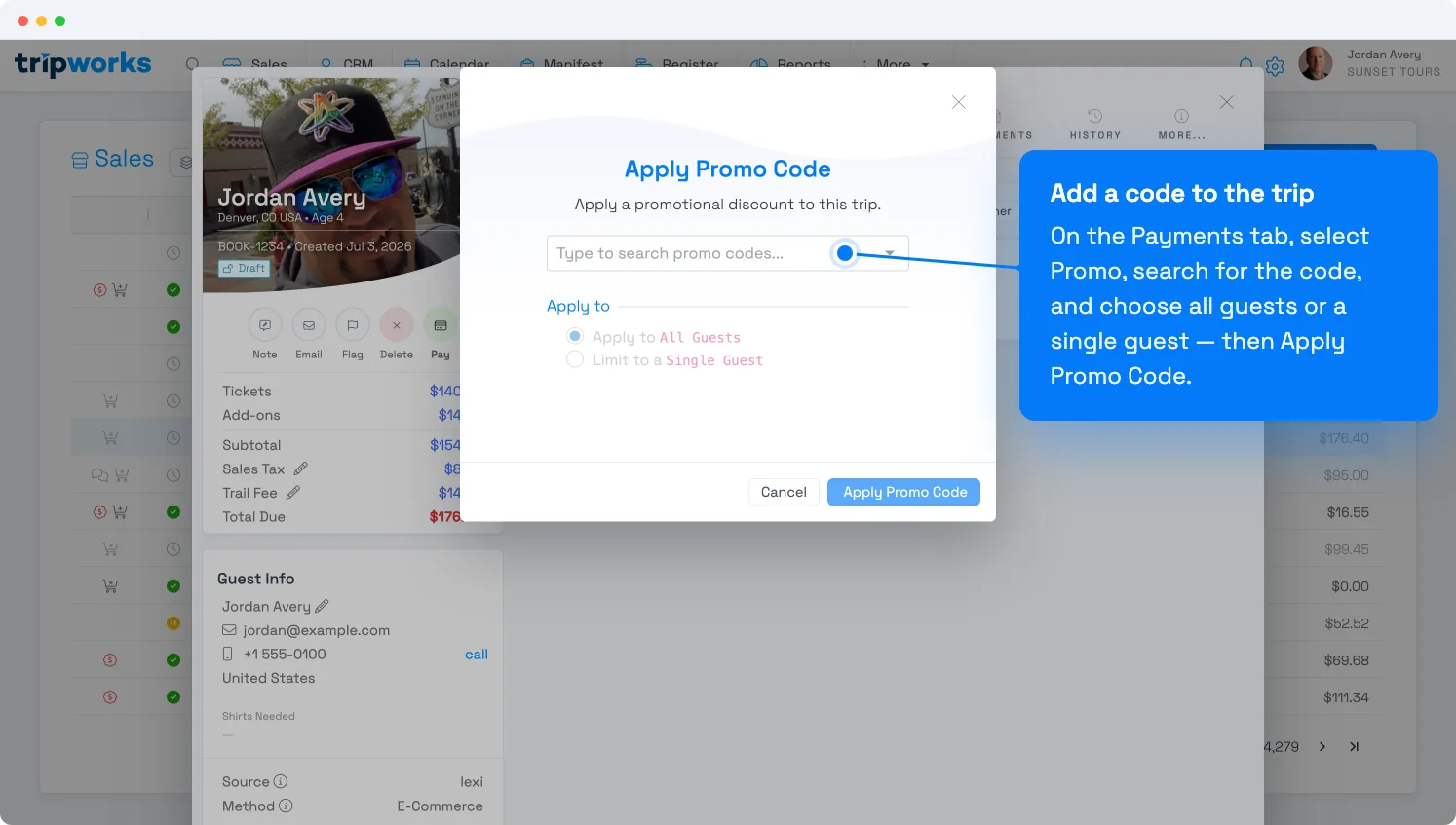
Search for the code, then choose whether it applies to all guests or one. - Type to search for the code and select it (codes aren't case-sensitive, but spelling counts).
- Choose Apply to All Guests or Limit to a Single Guest, then select Apply Promo Code.
The discount appears on the order — the code, its public description, and the amount taken off. A trip takes one promo code at a time; once one is applied, the Promo button is disabled (see why the promo field is greyed out). The code's discount and rules are configured under Promo codes.
Guests can also enter a promo code themselves at online checkout — this back-office flow is for phone, walk-up, and staff-applied bookings.
Remove a code
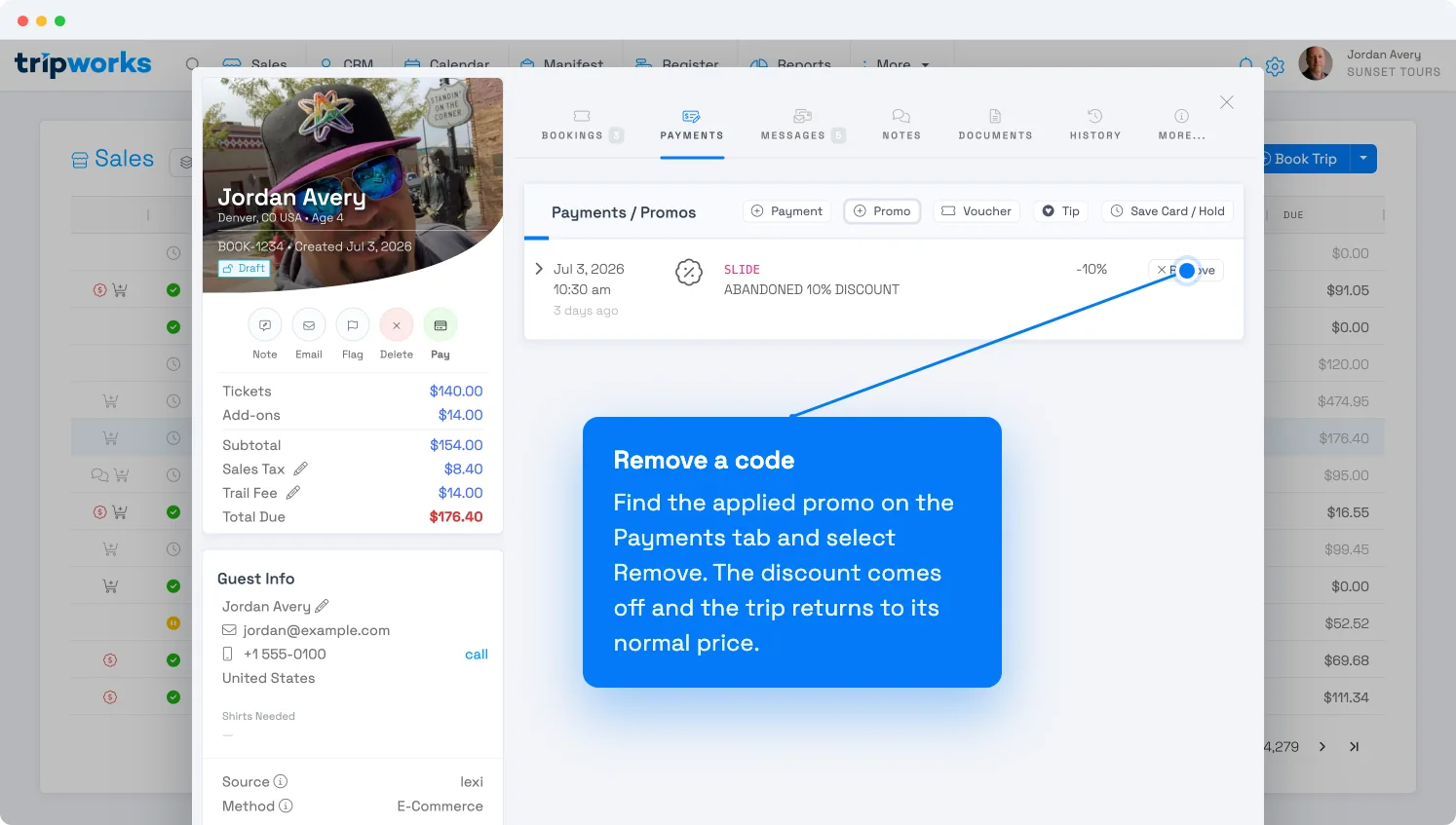
Applied a code by mistake? On the trip's Payments tab, find the promo under Payments / Promos and select Remove. The discount comes off immediately and the trip returns to its normal price.
Frequently asked questions
Why won't my promo code apply?
A code only applies when it's Available (not Inactive), the booking falls inside the code's valid dates, and the trip's experiences and products match what the code is restricted to. Check those on the code under Setup → Sell online → Promo Codes — see Promo codes.
Why is the promo code option greyed out on a trip?
A trip that's already fully paid or closed won't accept a new discount, and a trip with no eligible tickets has nothing for a code to adjust. Reopen or adjust the trip first, then apply the code.
Does the discount scale with the number of guests?
It depends on the code's Redemption Frequency: a code set to apply once per booking-guest scales with the guest count, while one set to apply once per trip is a single flat amount. That's configured on the code itself — see Promo codes.
Built for attractions, tours & activities
Give every guest the right price
See how attractions, tours, and activities apply discounts across web, phone, and walk-up bookings — consistently — in one place on TripWorks. Book a demo and make the switch.