
Connect Google Analytics 4 and TripWorks reports every booking as an ecommerce purchase — with revenue and the exact activities booked — so you can see which campaigns, pages, and channels actually drive sales. It works right through your booking widget, no tag-manager wiring required.
In this article
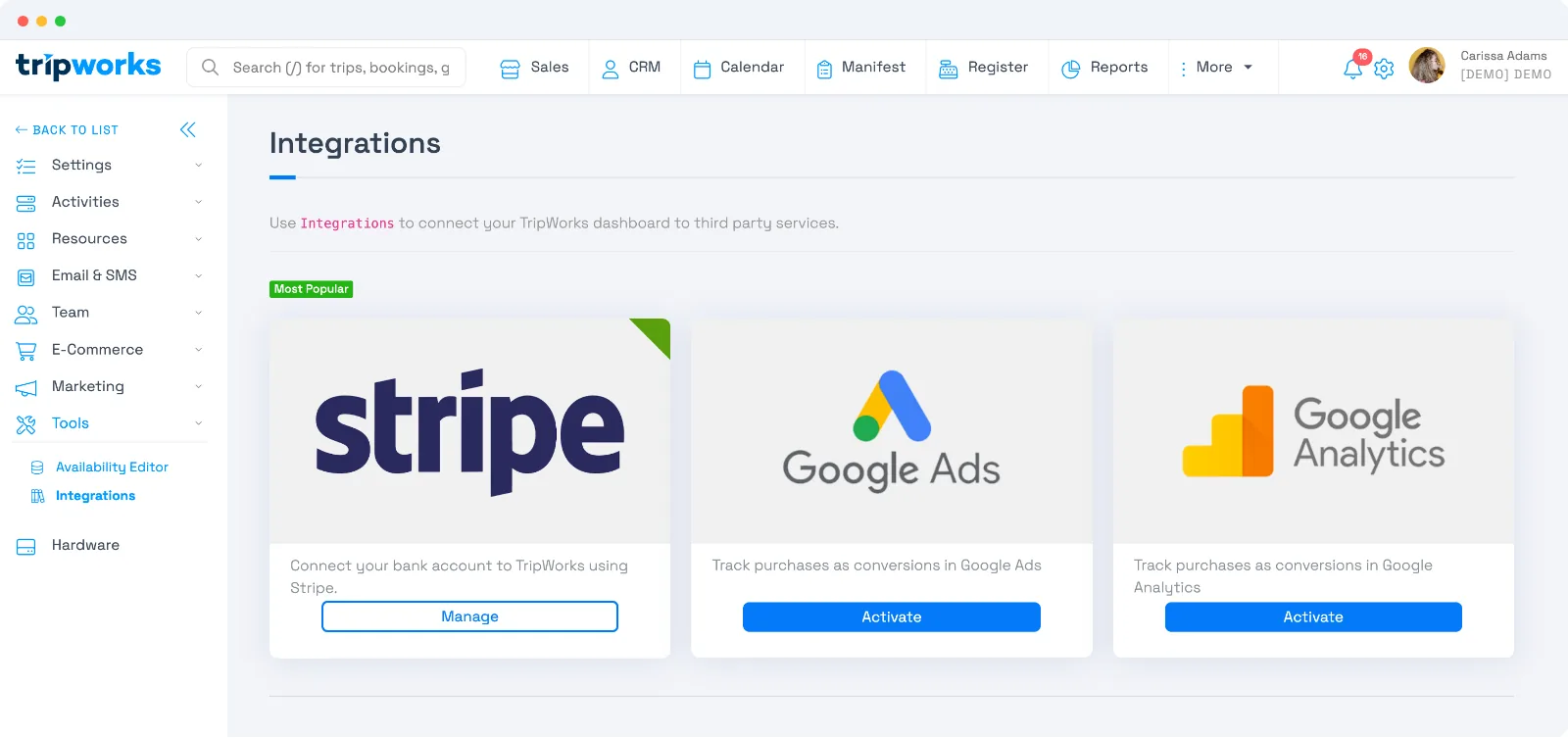
Connect Google Analytics
- Go to Setup Integrations and select Google Analytics.
- Enter your Measurement ID (it looks like
G-XXXXXXXXXX, from your GA4 property). - Activate the integration.
To send data to more than one GA4 property, enter multiple Measurement IDs separated by commas — useful when you report into both your own property and an agency's.
What TripWorks sends to GA4
When a guest completes a booking online, TripWorks fires:
- A
purchaseevent — with the transaction ID (confirmation code), total value, currency, and the items booked (activity name, price, quantity). - A
conversionevent you can mark as a key event. - Standard pageviews through the booking flow.
TripWorks also enables enhanced conversions and links the GA4 client and session, so bookings tie back to the original visit even across your website and the booking widget.
Conversions fire for online (guest) bookings, once per booking. Staff-entered and point-of-sale bookings don't fire conversion events, so your online marketing numbers stay clean.
Track individual widgets
Each event carries the widget's name and ID, so you can break performance down by widget in GA4 — see which embed or landing page converts best. TripWorks also pushes these events to your page's dataLayer if you run Google Tag Manager.
Troubleshooting
- Turn on Debug Mode in the integration to watch events land in GA4's DebugView in real time.
- Remember conversions only fire for online guest bookings — testing a booking while logged in as staff won't send one.
- Give GA4 a little time; ecommerce and conversion data can take up to 24–48 hours to fully process.
Frequently asked questions
Can I connect more than one GA4 account?
Yes — enter multiple Measurement IDs separated by commas in the Google Analytics integration. TripWorks sends the events to each property.
Do I need a special landing URL to track conversions?
No. TripWorks handles the client/session linking between your site and the booking widget automatically, so conversions attribute back to the original visit without a special landing page.
Why don't my test bookings show as conversions?
Conversion events fire only for online guest bookings, once per booking. A booking you place while logged in (or at the register) won't fire one. Use Debug Mode + DebugView to confirm a real online booking is tracked.
Related
- Google Ads conversion tracking
- Add conversion pixels (Meta, TikTok & more)
- Marketing attribution & UTM tracking
Built for attractions, tours & activities
Know exactly what drives bookings
See how attractions, tours, and activities measure marketing ROI with GA4 on TripWorks. Book a demo and make the switch.