
When someone leaves or no longer needs access, remove them from your team. They lose access immediately.
TripWorks protects your records while doing it: if the person owns account history that can't be reassigned — trips they created, actions in the audit log — TripWorks disables their sign-in instead of deleting them, so nothing they touched is lost. Either way, they can no longer log in.
Before you begin
You need the Create and manage other users permission (see the User permissions reference). Without it, the Team Members screen is hidden.
Remove a team member
- Go to Setup → Your team → Team Members.
- Find the person in the list and select them.
- Choose Remove.
- In the confirmation, select Remove [name].
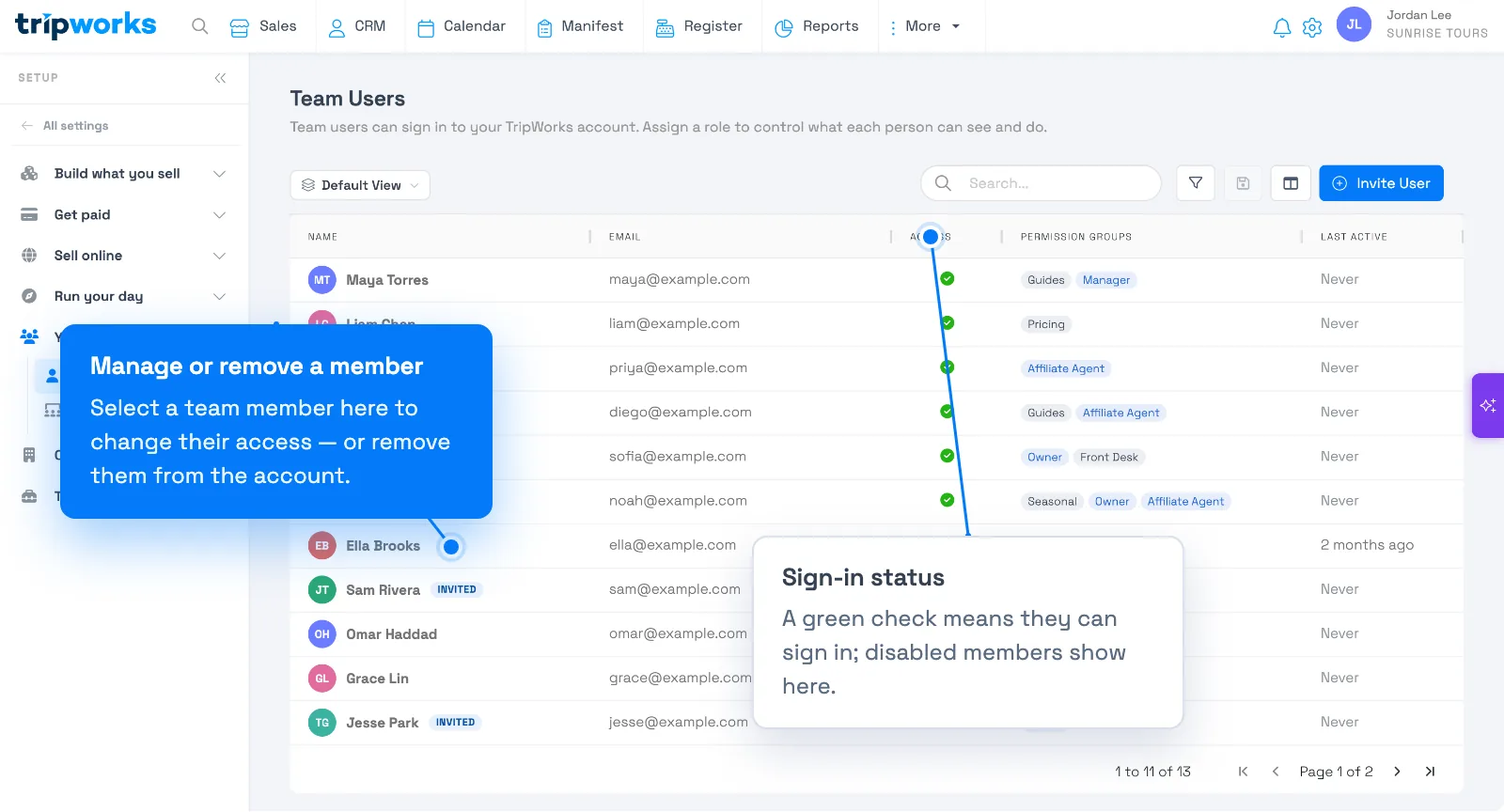
They lose access right away. If they own records that can't be reassigned, TripWorks disables their login instead of fully deleting them — they stay in the list marked as disabled, and their history is preserved.
Remove vs. disable
- Remove is the action above. It deletes the person if they have no history, and falls back to disabling them if they do.
- Disable keeps the person on the account but blocks sign-in — useful for seasonal staff who'll return, so you can re-enable them later instead of re-inviting.
You can tell who can still sign in from the Access column: a green check means they can log in; disabled team members are flagged there.
What happens to their work
Removing or disabling someone doesn't erase anything they did. Bookings they created, comments, and audit-log entries stay on your account. That's exactly why TripWorks disables (rather than deletes) anyone with history — your reporting and records stay complete.
Related
Built for attractions, tours & activities
Keep your account access tidy
See how attractions, tours, and activities manage team access on TripWorks — add, remove, and control what everyone can do. Book a demo and make the switch.