
The Audit Log gives you a chronological record of every change and action made in your TripWorks account — who did it, when, and what changed. Use it to investigate unexpected changes, verify staff actions, or understand the history of a specific booking or customer.
How to Access the Audit Log
There are three ways to access audit log data, depending on what you're investigating:
- Full account log — Go to Setup → Tools → Audit Log to see all changes across your entire account, filterable by date, user, object type, and more.
- Per-record History tab — Open any Trip, Customer, or Reseller and click the History tab to see only the changes made to that specific record.
- Per-team-member Audit Log tab — Open a team member's profile under Setup → Team Members and click the Audit Log tab to see all actions that person has taken across your account.
History Tab on Trips, Customers, and Resellers
The quickest way to see what happened to a specific record is to open it and click History. This shows a timeline of every change to that record — status updates, field edits, payments, and system events — without needing to filter the full account log.
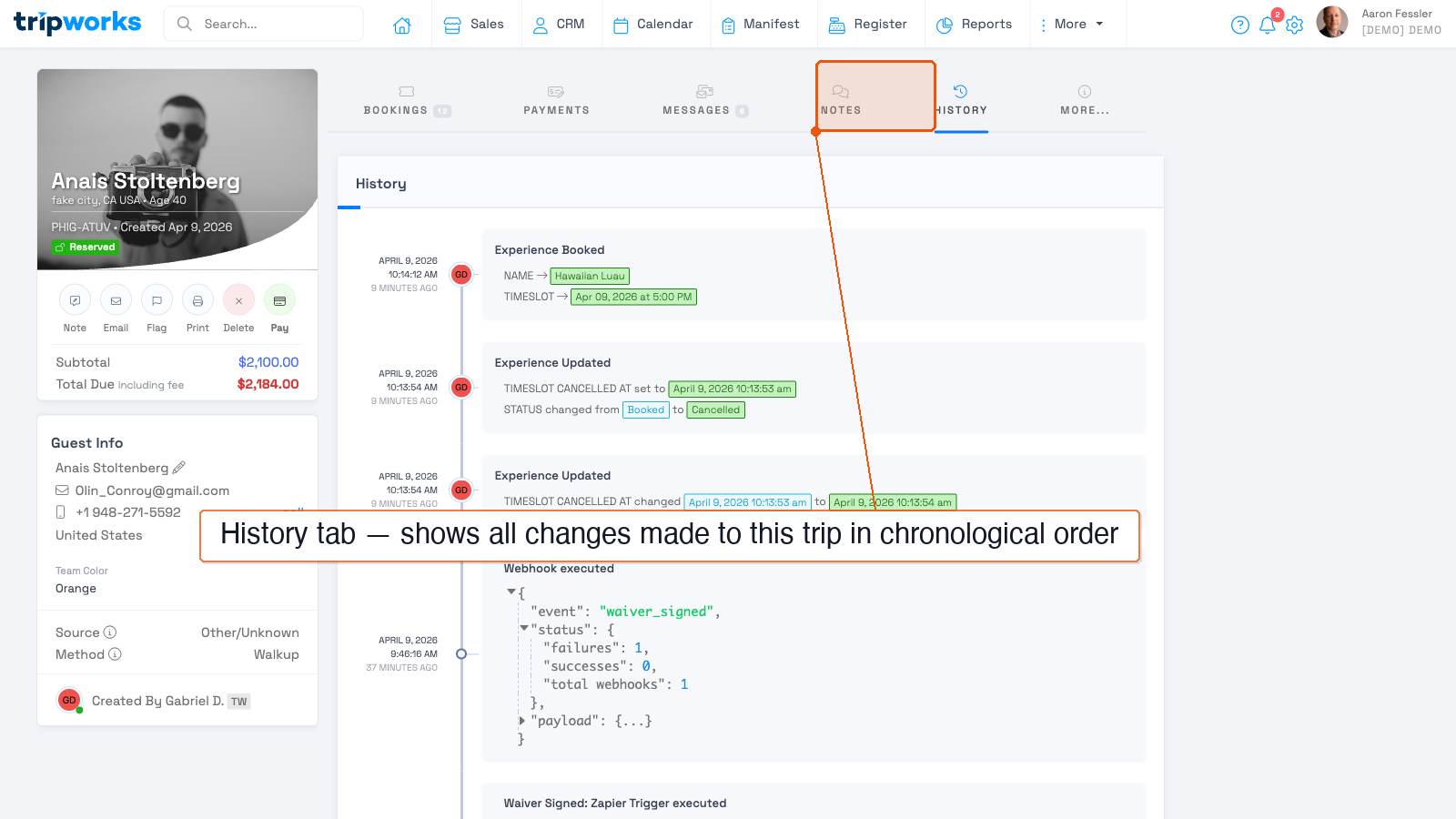
The timeline shows each event in order with the user who made it, the exact fields that changed, and before/after values. System events (like webhook executions or waiver signatures) also appear here.
Audit Log Tab on Team Members
To review everything a specific staff member has done, open their profile under Setup → Team Members, then click the Audit Log tab. This shows all changes that person made across any record in your account — useful for account reviews or investigating unexpected edits.
Full Account Audit Log
For a complete view across all records and all users, go to Setup → Tools → Audit Log.
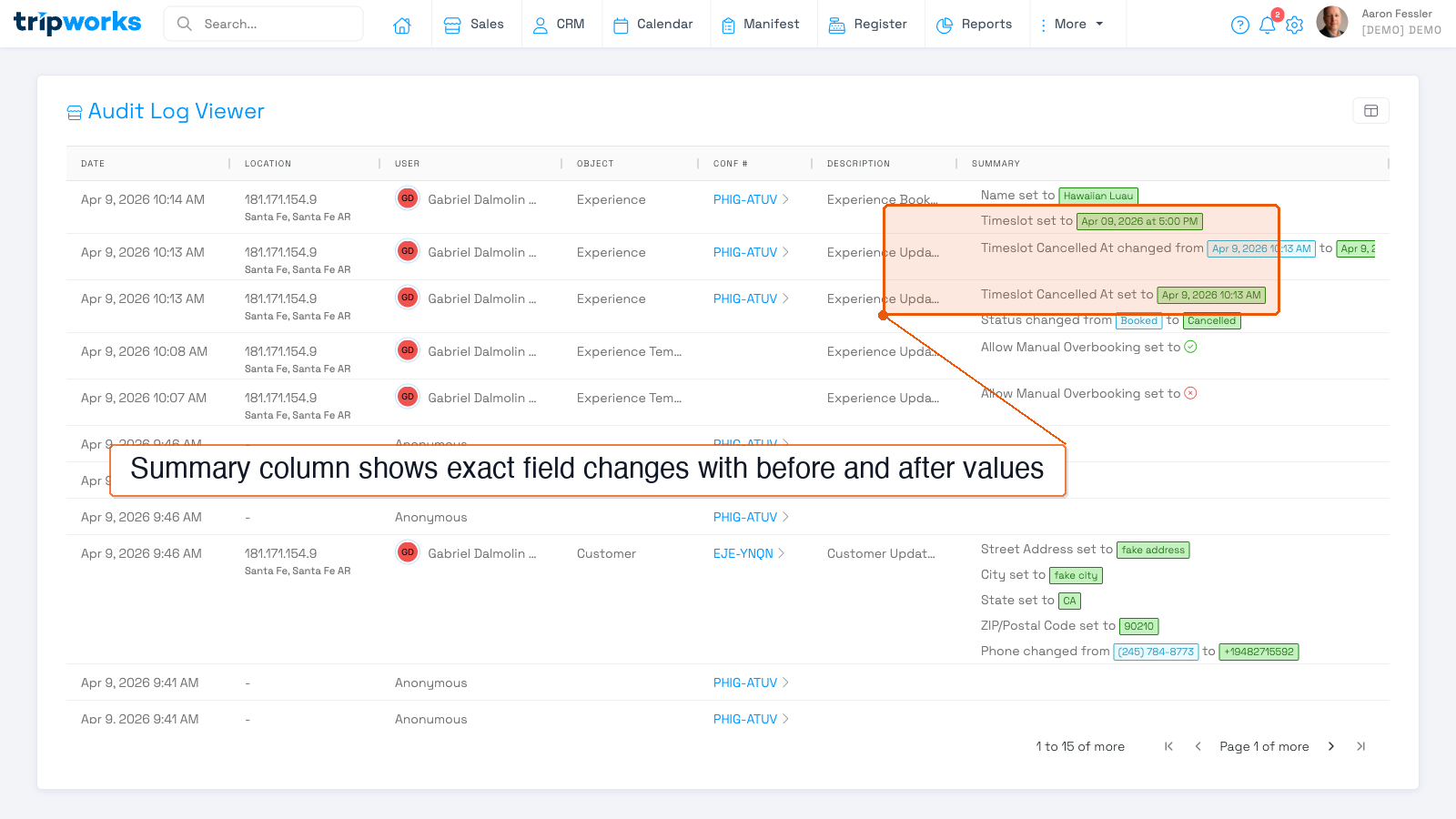
Each row shows the date, the user who made the change, the type of record affected, the related confirmation code, a description of the action, and a Summary column with the exact fields that changed — for example, "Status changed from Booked to Cancelled".
What Gets Logged
The Audit Log captures two categories of events:
Field Changes
Any time a record is created, updated, or deleted, the log records exactly what changed — including the before and after values. This covers:
- Trips & Bookings — status changes, date modifications, capacity updates, cancellations
- Customers — contact info updates, profile changes
- Activities (Experiences) — pricing, capacity, availability, and settings changes
- Payments — payment records created or modified
- Team Members — user account creation, role changes, deactivations
- Account Settings — company info, CRM settings, and configuration changes
- Waivers, Resources, Gift Cards, Custom Fields — configuration changes
Events
System and integration events are also recorded, such as webhook executions, a customer's first visit to your booking page, OTA integration activity, and data imports.
Filtering the Full Account Log
Hover over any column header and click the filter icon to narrow results. The Object column filter is especially useful — it lets you show only one record type at a time.
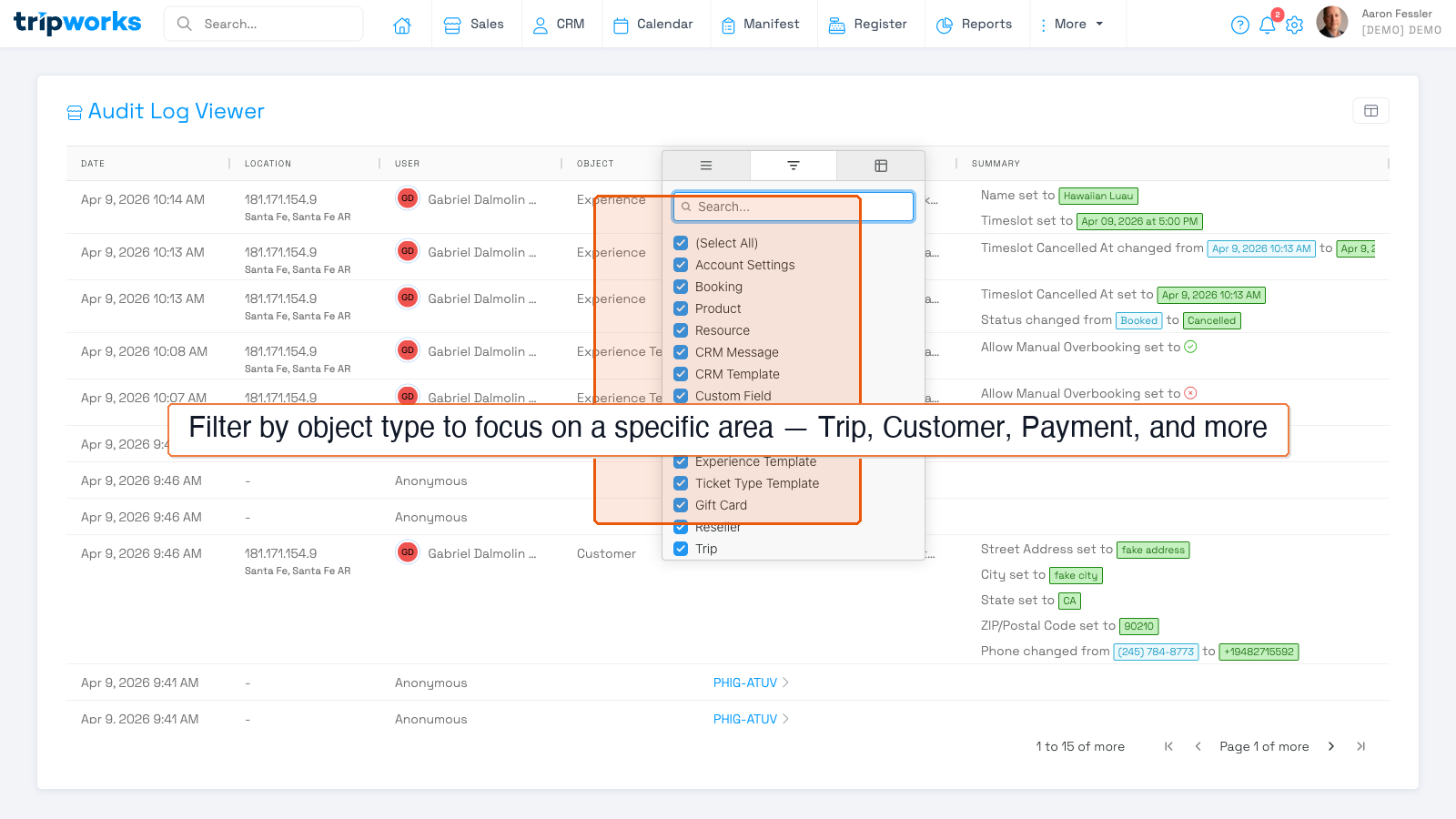
You can filter by:
- Date — a specific date or date range
- User — a specific team member
- Object — limit to one record type (Trip, Customer, Booking, Payment, Experience, etc.)
- Location — the IP address and geographic origin of the request
Use the Show Columns button (top right) to customize which columns are visible.
Common Use Cases
- Who changed this booking? Open the trip and click the History tab.
- What has a staff member been doing? Open their profile under Setup → Team Members and click Audit Log.
- Why did a price change? In the full Audit Log, filter Object by Experience and look for pricing field changes.
- When was this customer record last updated? Open the customer and click History, or filter the full log by Object → Customer.