
Beacon is the AI assistant built into TripWorks. It answers how-to questions, looks up details in your own account, and points you to the right setting, all in a panel next to whatever page you're already on.
In this article
An overview of the five AI tools in TripWorks: the Chatbot on your site, the Callbot on your phone, call intelligence, Beacon, and the Lead Center, and how they fit together.
Open Beacon
Beacon is on for every account. Select the Help tab on the edge of the screen, available on any page (drag it to move it). You can also type a question into global search and choose Ask Beacon. Beacon opens as a panel on the right side of the screen, and suggests a few starter questions based on the page you're on.
What you can ask Beacon
Beacon handles two kinds of questions: how-to questions about TripWorks, and lookups of your own account data.
How-to questions
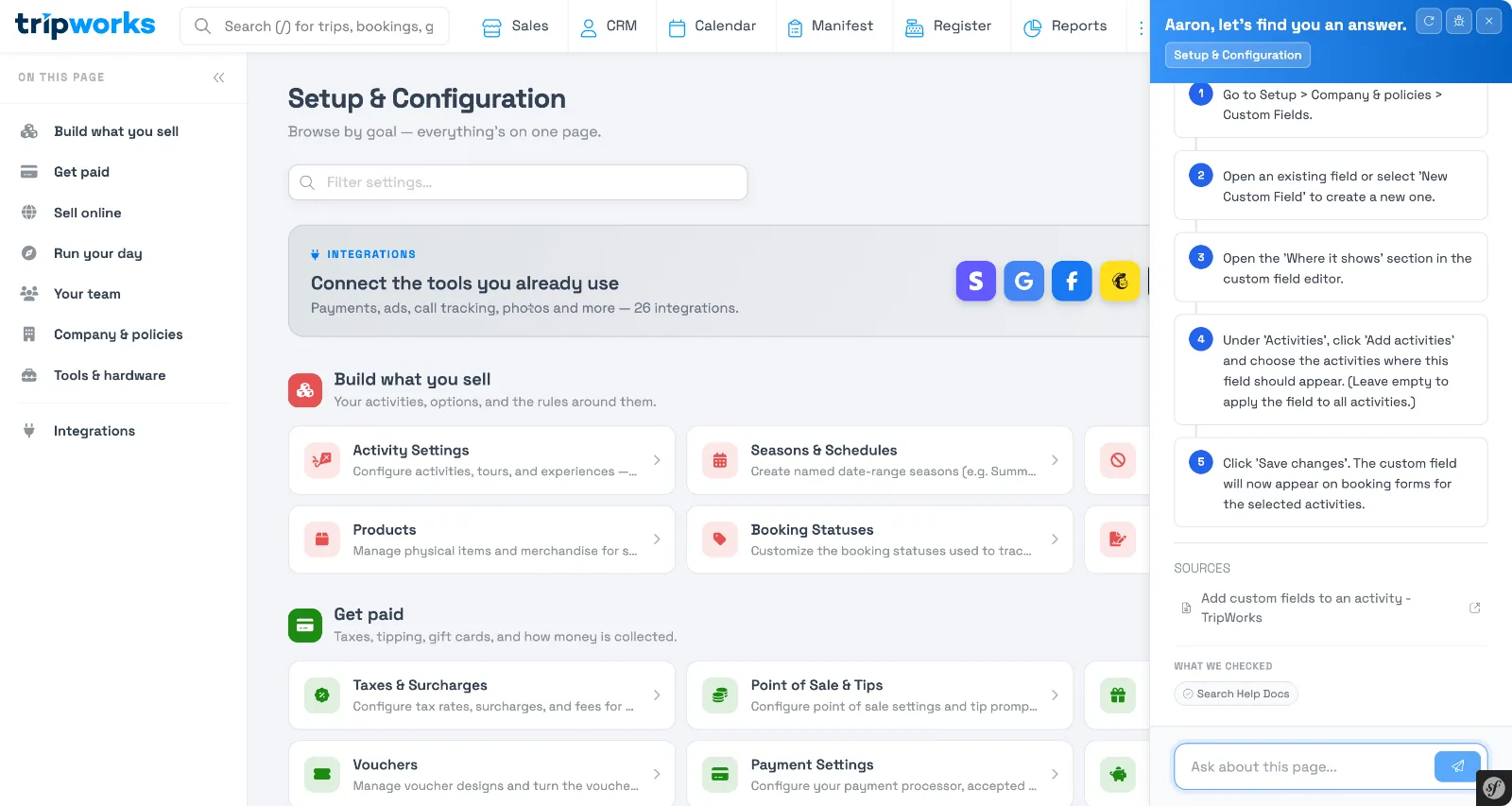
Ask anything you'd otherwise search the help center for. Beacon answers from the TripWorks help articles and cites the source it used:
Look up your own data
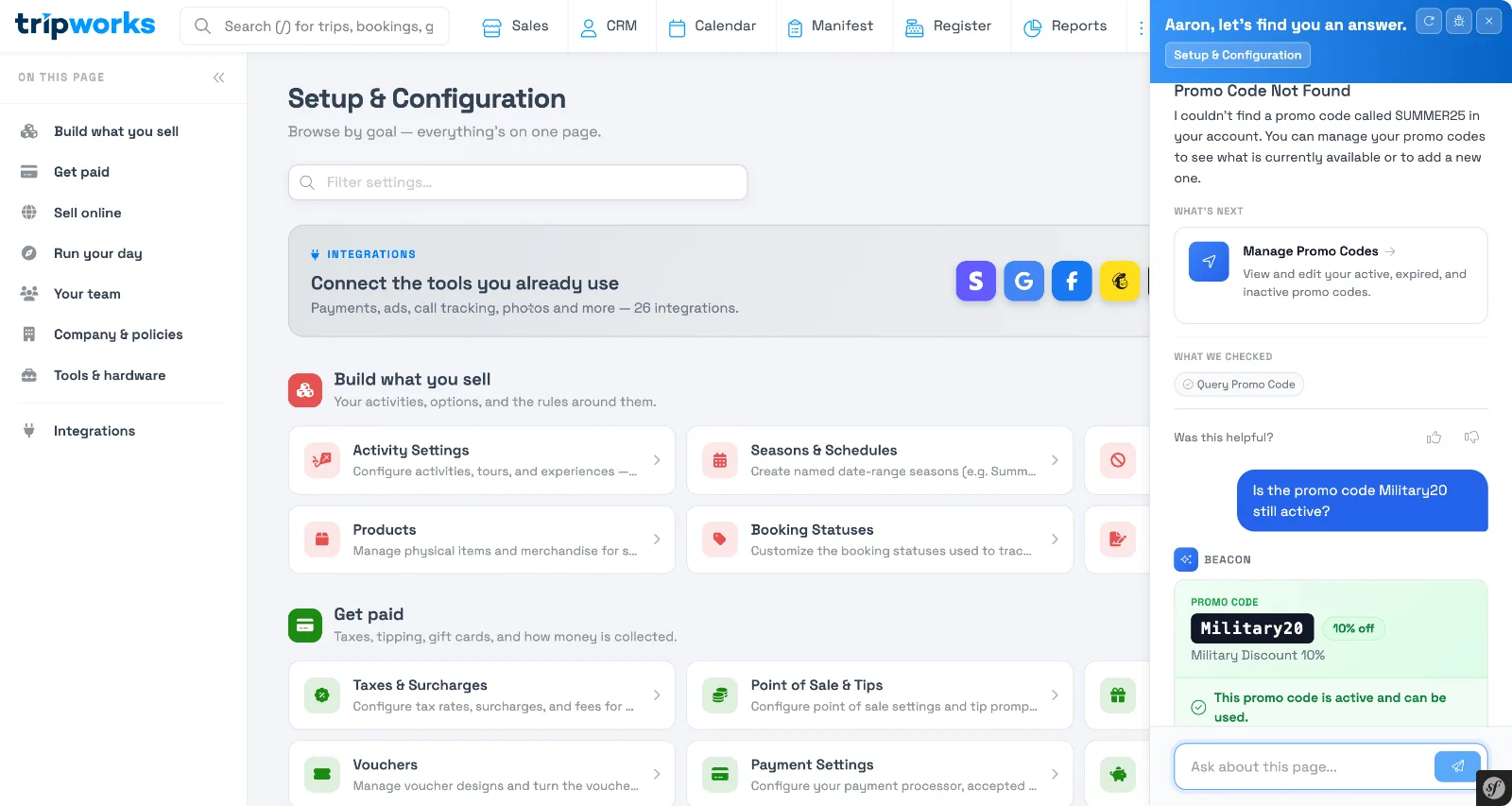
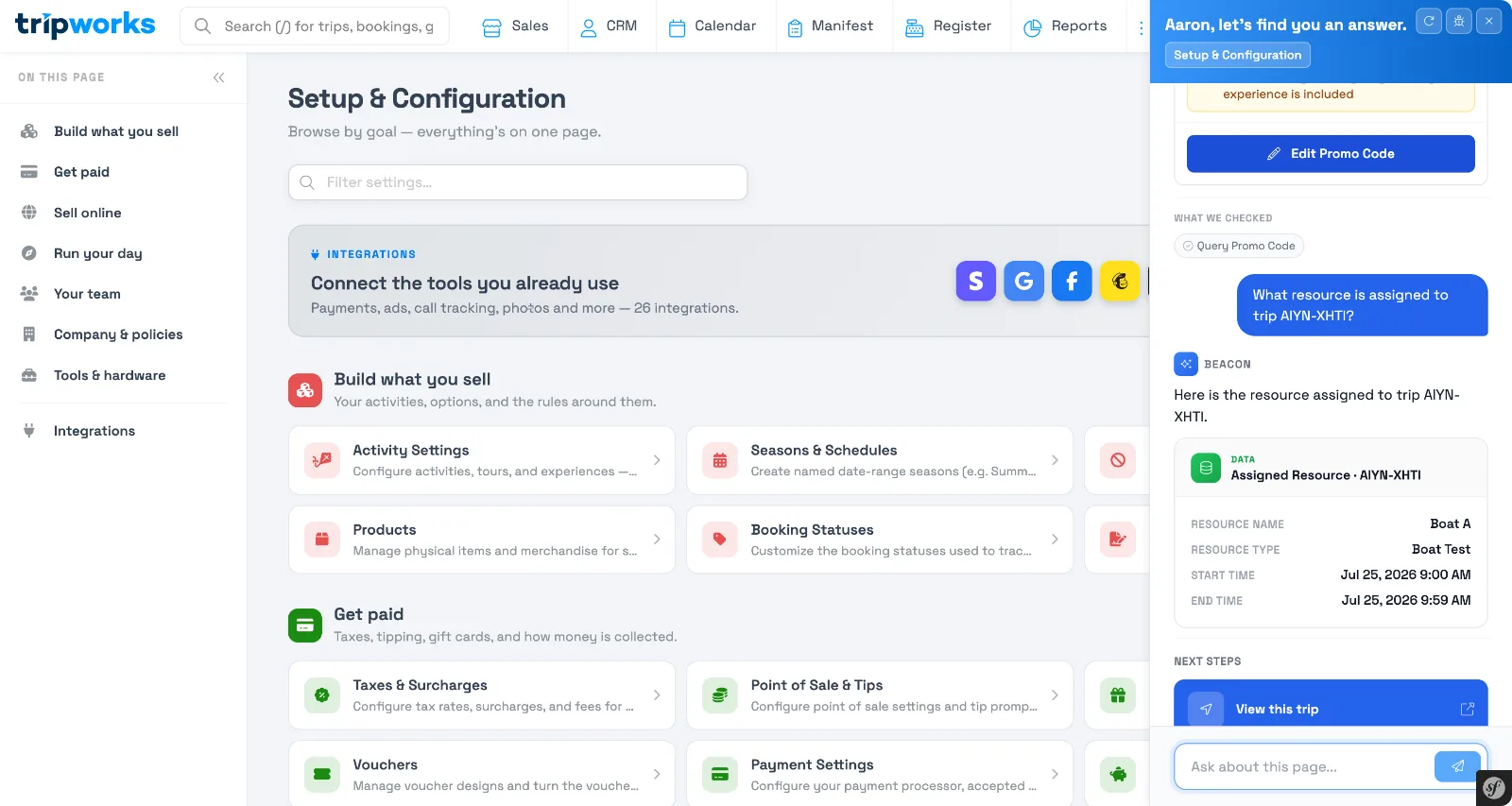
Beacon can check a promo code, find an experience, or pull up the resource assigned to a trip:
Troubleshoot hardware
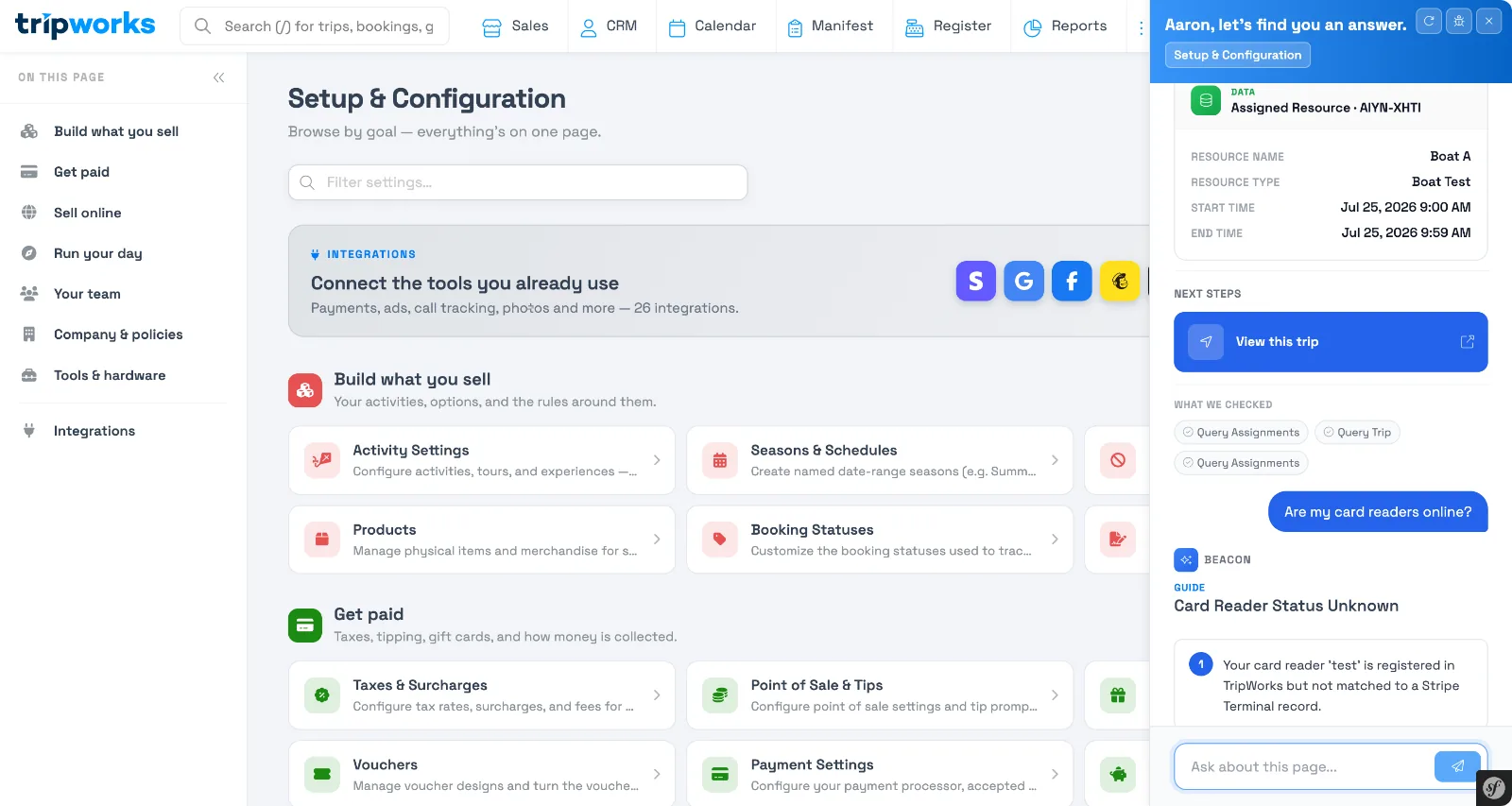
Beacon can check whether your card readers are connected and explain why one might be showing as offline:
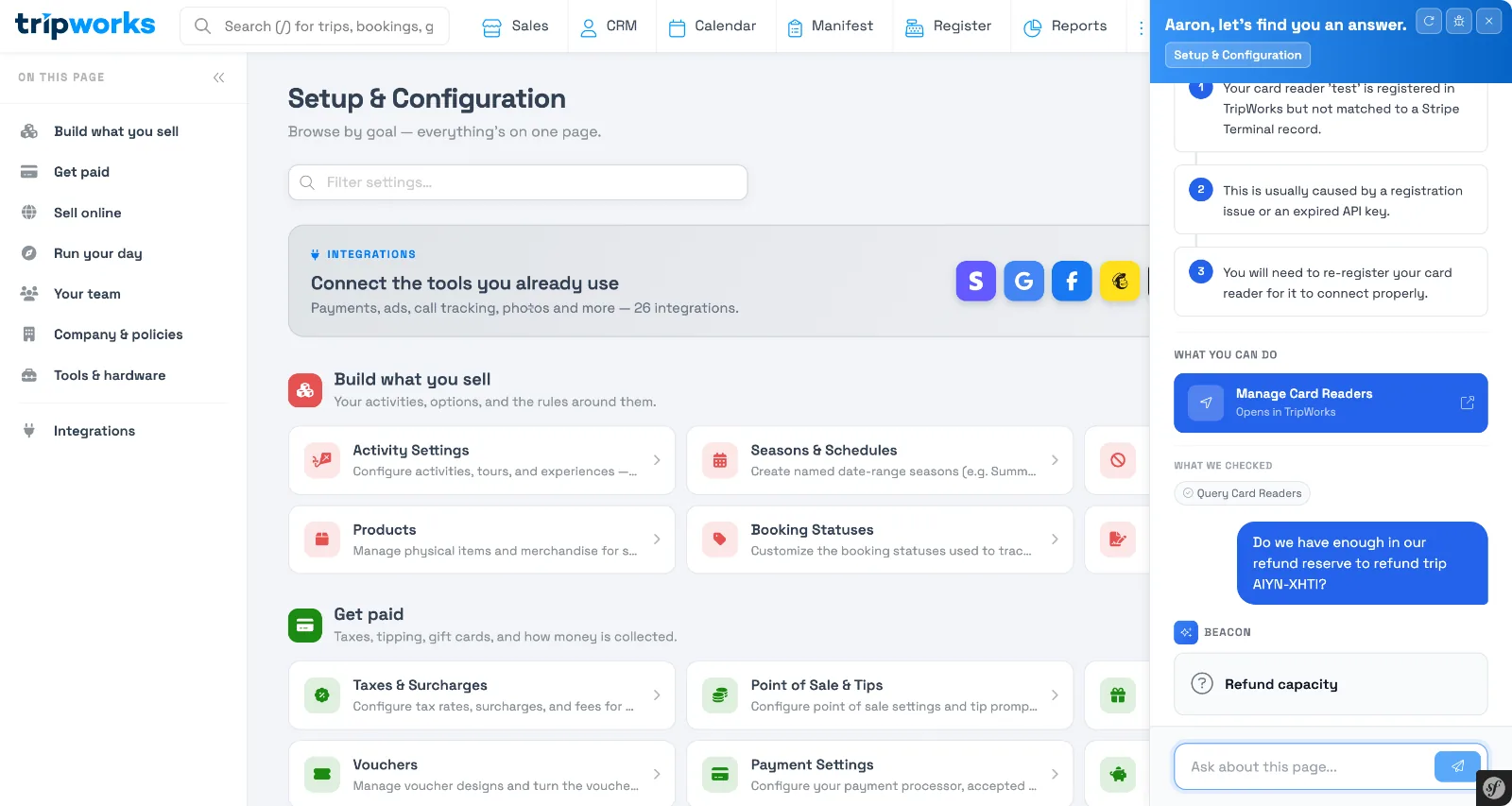
Check refund capacity
Before you refund a guest, ask Beacon whether you have the reserve to cover it:
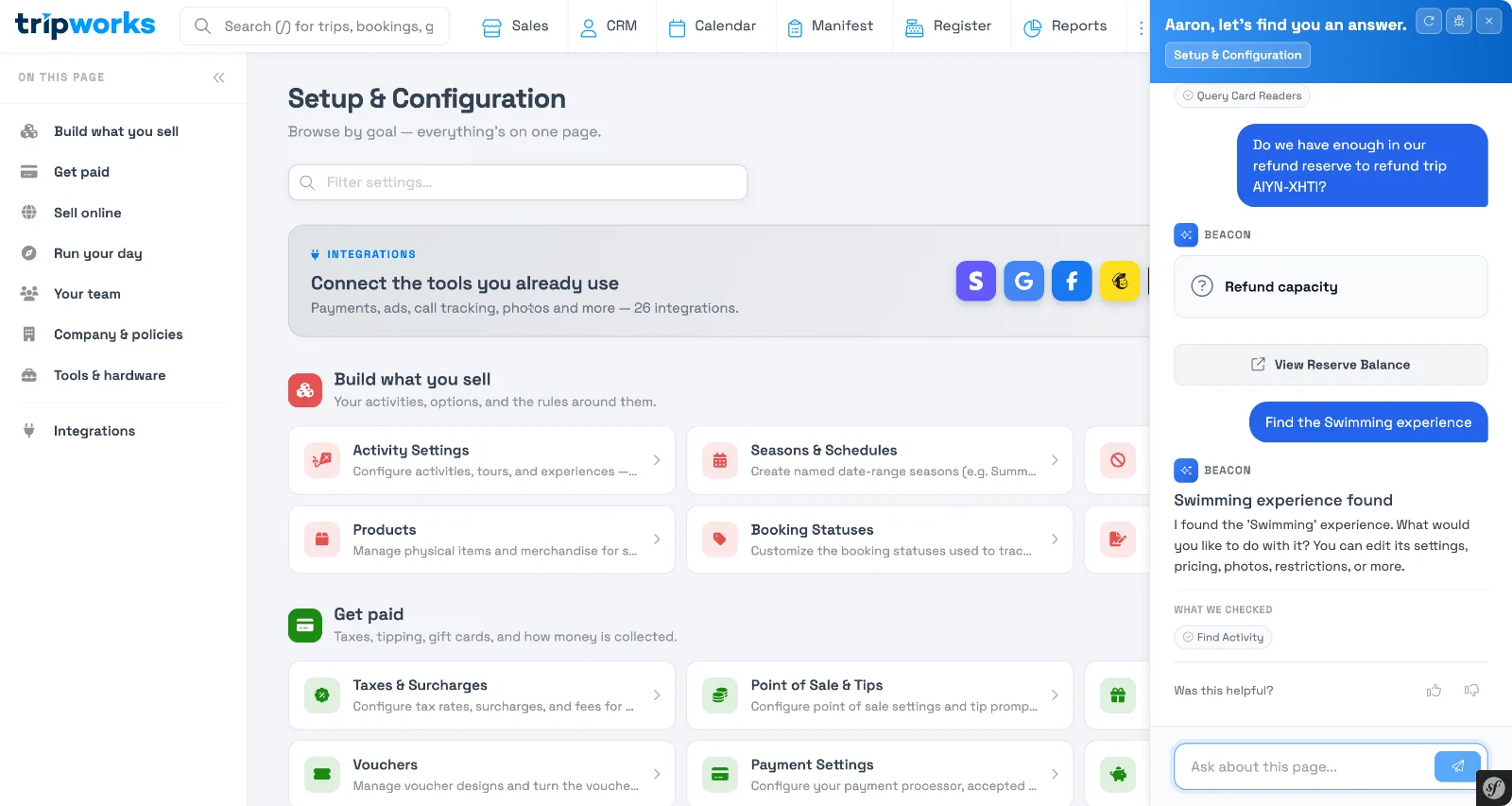
Find and go to a setting
If you're not sure where something lives, describe it and Beacon finds it:
Examples
- Find "Is the promo code Military20 still active?" and see its discount, eligible experiences, and status.
- Find "What resource is assigned to trip AIYN-XHTI?" to see the guide, vehicle, or boat on a booking without opening the trip.
- Find "Are my card readers online?" to check hardware status before a shift starts.
- Find "Do we have enough in our refund reserve to refund this trip?" before you process a refund.
- Find "How do I add custom fields to an activity?" to get the exact steps, sourced from the help center.
Frequently asked questions
Can Beacon make changes to my account for me?
No. Beacon looks things up and points you to the right page, but you make the actual change. It won't edit a promo code, process a refund, or update a setting on its own.
Can Beacon see data from other TripWorks accounts?
No. Beacon only sees data in your own account, the same as your own login.
What happens if Beacon can't answer my question?
If Beacon can't find a promo code, trip, or setting you asked about, it says so directly and suggests where to check instead, rather than guessing.
I don't see the Beacon icon anywhere. Why?
Beacon is on for every account, so there's nothing to turn on. Look for the Help tab on the edge of the screen, or ask from global search. The tab doesn't appear on a phone or in the guest customer portal.
Related
Built for attractions, tours & activities
An assistant that already knows your account
See how Beacon answers real questions about your bookings, resources, and setup without leaving the page you're on. Book a demo and make the switch.