
TripWorks lets you add up to 20 taxes and surcharges to what you sell — a percentage like sales tax or VAT, or a flat surcharge like a trail, dock, or fuel fee. You control which items and channels each applies to, and whether it's shown separately at checkout or baked into the price. Find them under Setup Get paid Taxes & Surcharges.
In this article
You have a fixed set of 20 slots — you don't add new ones, you configure and turn on the slots you need.
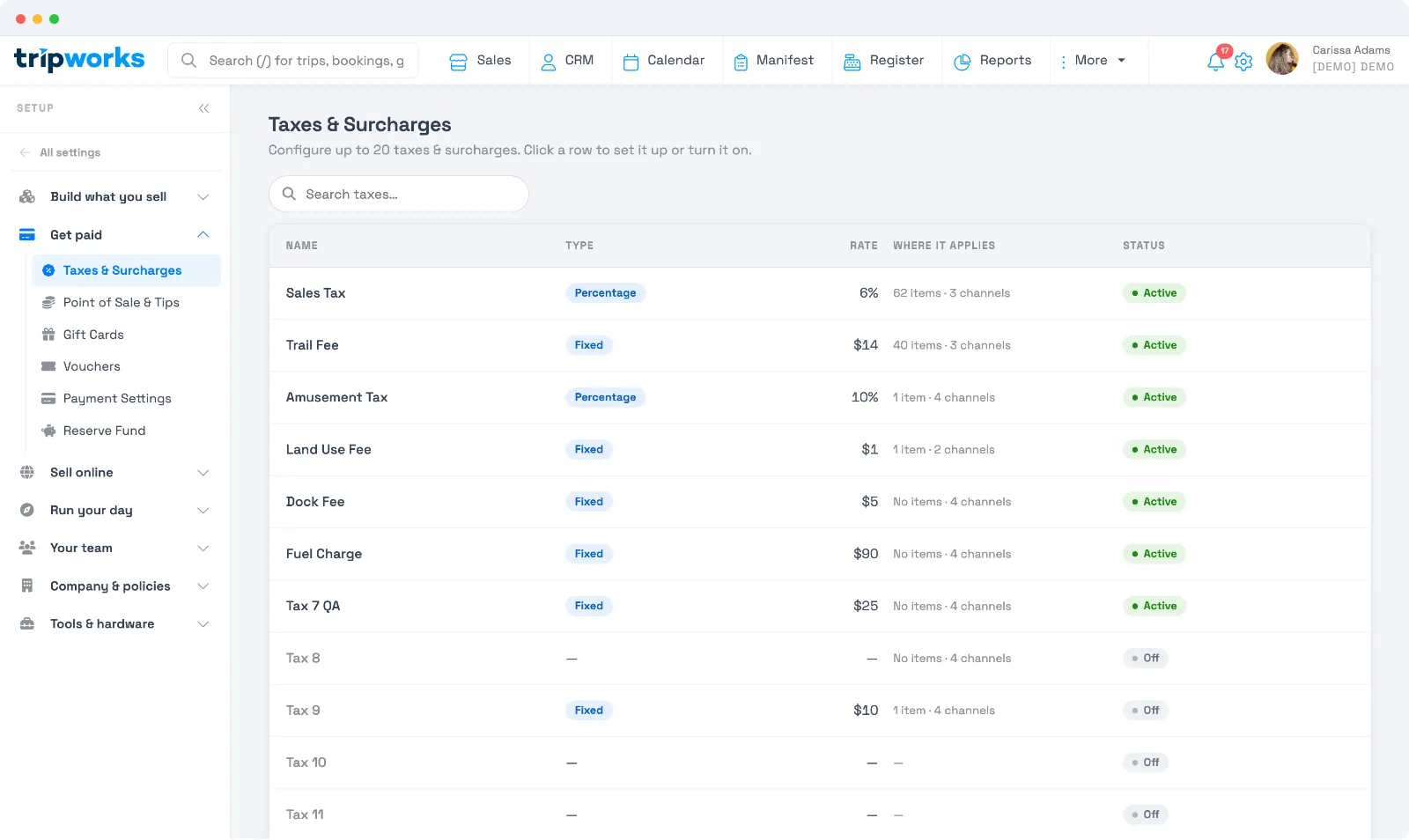
Configure a tax or surcharge
Select a row to open its settings:
- Enable this tax — turn it on to start collecting. Turning it off keeps the configuration but stops collecting it.
- Label — the name shown on receipts and during checkout (for example, Sales Tax).
- How it's calculated — choose one:
- Percentage — a variable percentage of the price, like sales tax or VAT.
- Fixed amount — a flat charge. Choose whether it applies once per trip or once per booking/guest.
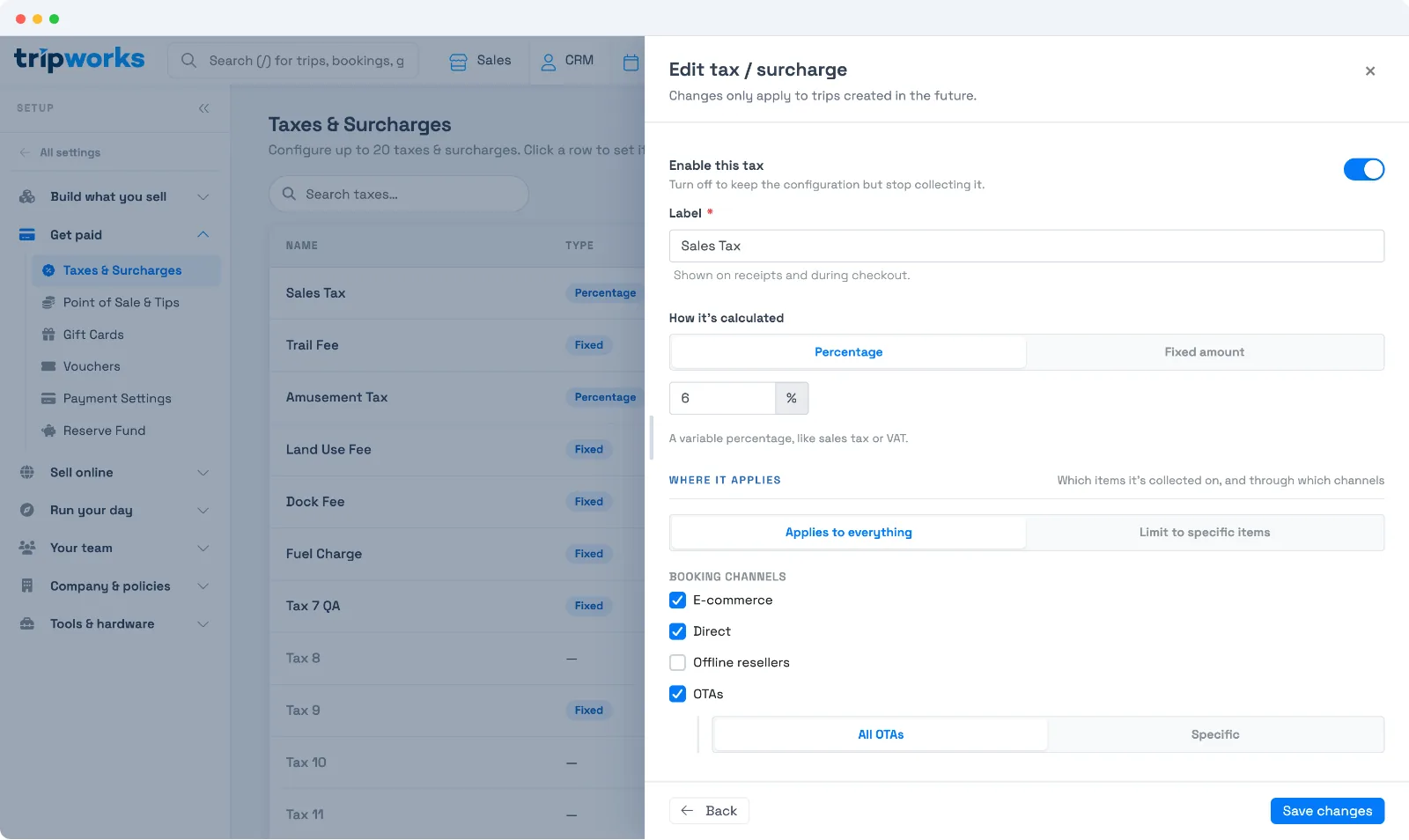
Where it applies
Each tax or surcharge can apply broadly or narrowly:
- Applies to everything, or Limit to specific items — pick the exact activities, products, and add-ons it's collected on.
- Booking channels — E-commerce, Direct, Offline resellers, and OTAs, each all-or-specific. So you can collect a tax on your website and direct bookings but not through an OTA, for example.
How it's shown and counted
A tax's accounting options control how it appears to guests and in your reports:
- Display all-inclusive pricing — bake this tax into the ticket price shown from the start of checkout, instead of adding it at the end. Guests see the full price upfront (see below).
- Don't itemize — include it in the total without a separate line item.
- Include in revenue — count it as part of your business income (common for VAT) rather than a pass-through amount collected on behalf of a tax authority.
- Exempt by default on new trips — new bookings are created exempt from this tax, and you enable it manually per trip when it applies.
By default a tax is added on top at checkout. Turning on Display all-inclusive pricing for a tax bakes it into the shown price instead.
Why all-inclusive pricing matters
Showing the full price upfront — rather than surprising guests with fees at the end — builds trust and helps you meet price-transparency rules in many places (California SB-478, FTC guidance, EU consumer-protection law). A $50 ticket that becomes $57.50 at checkout can drive complaints and chargebacks; an all-inclusive $57.50 shown from the start avoids that.
Turn taxes on for an activity
Which taxes apply is also set per activity — each activity opts in to the account-level taxes it should assess. You set up the tax once (above), then enable it on the activities it applies to.
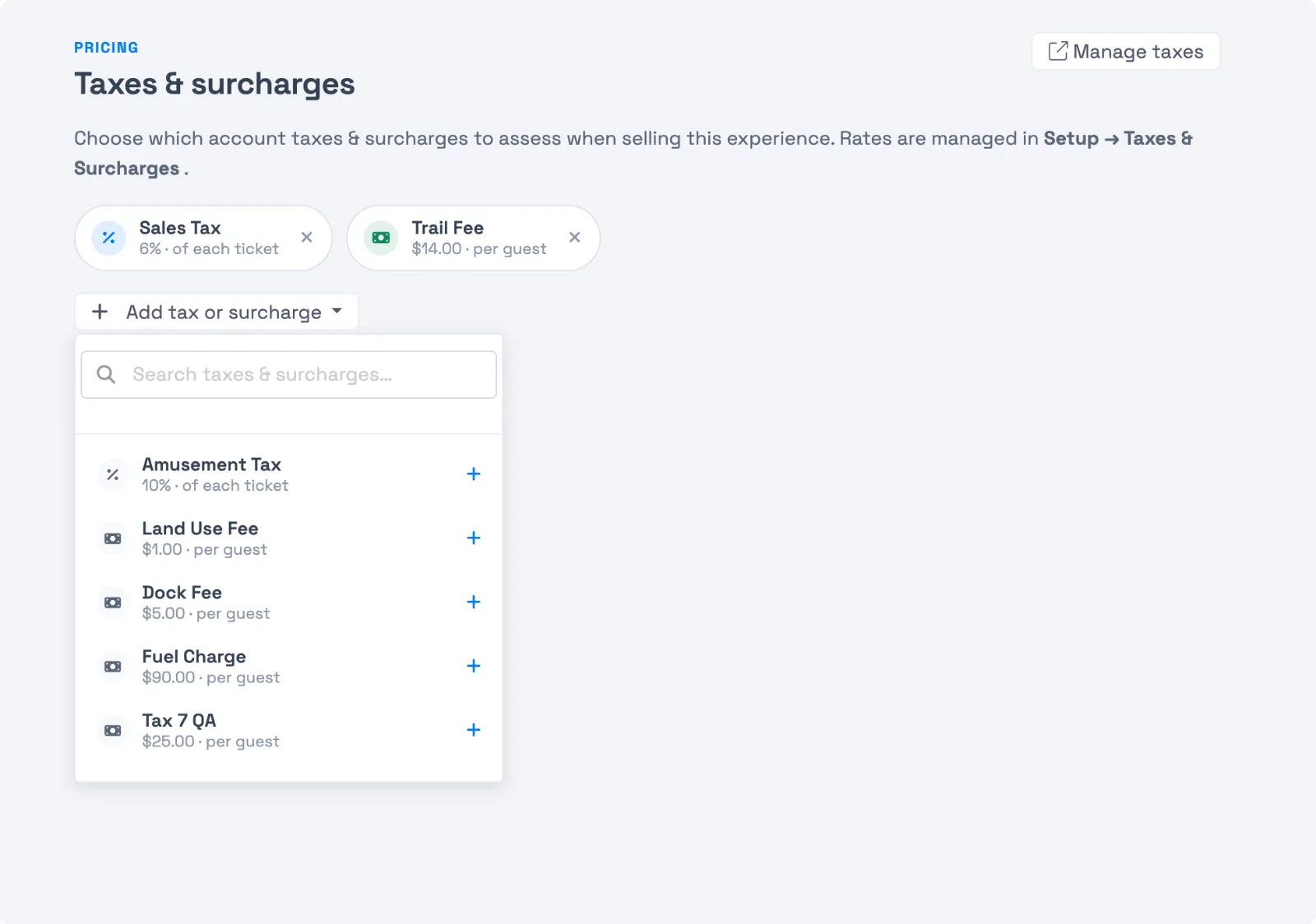
- Go to Setup Activities and open the activity.
- In the left sidebar under Pricing, select Taxes & Fees.
- Select Add tax or surcharge and pick the ones to assess — each appears as a chip showing its rate. Remove one with the × on its chip.
- Select Save.
GST, HST, PST, VAT, and other regional taxes
There's no separate toggle for a specific tax by name: every slot is a generic Label + Percentage tax, so GST, HST, PST, VAT, or any other region's tax is set up the exact same way as sales tax. Open a slot, label it (for example, GST or GST/HST), set How it's calculated to Percentage, enter your rate, choose where it applies, and enable it.
Canadian operators generally follow one of two patterns:
- One combined line: label a single slot something like GST/PST (or GST/HST) and enter the combined rate, if you'd rather guests see one line at checkout.
- Separate lines: a GST slot and a separate PST slot, each at its own rate, if you want them broken out individually on receipts and in reports.
If you sell both activities and retail items (gift shop, merchandise) and want GST tracked separately for each, you're not limited to one slot: set up a second GST slot labeled for the other revenue type (for example, GST (Activity) and GST (Retail)) and limit each to the right items under Limit to specific items.
Leave Include in revenue off for GST/HST/PST, the same as VAT: it's tax you collect on behalf of the government, not income, so it shouldn't count toward your revenue reports.
Examples
- Set up a single GST slot at 5%, applied to everything, shown as its own line at checkout (not baked into the price): the common setup for a Canadian operator that only sells activities.
- Combine GST and PST into one GST/PST slot at your province's combined rate, so guests see one tax line instead of two.
- Add a second GST slot to separate what you collect on activities from what you collect on retail/merchandise sales, for cleaner bookkeeping.
Frequently asked questions
How do I set up sales tax?
Open a tax slot, label it (e.g. Sales Tax), set How it's calculated to Percentage, enter your rate, and choose where it applies. Enable it and save.
Can we charge GST as a Canadian operator?
Yes. Set it up the same way as any sales tax: open a tax slot, label it GST (or GST/HST if your province combines them), set How it's calculated to Percentage, enter your rate, and choose which activities and booking channels it applies to. If your province also charges PST, set that up as a separate slot.
What's the difference between a tax and a surcharge?
It's just how you configure the slot: a Percentage behaves like a tax (sales tax, VAT), and a Fixed amount behaves like a flat surcharge or fee (a trail fee, fuel charge). Both are set up the same way.
Can I show prices with tax already included?
Yes. Turn on Display all-inclusive pricing for each tax you want baked into the ticket price. Guests then see the all-inclusive price from the start of checkout instead of fees added at the end.
Can I make a single booking tax-exempt?
Yes. Open the trip, edit its taxes (the pencil next to the tax), and toggle the tax off before payment is collected. You can also set a tax to be exempt by default on new trips and enable it only when needed.
If I change a tax rate, does it affect existing bookings?
No. The rate in effect when a trip is created is locked to that trip. Changing a rate only affects trips created afterward.
Related
Built for attractions, tours & activities
Collect the right taxes, cleanly
See how attractions, tours, and activities handle taxes, surcharges, and transparent pricing on TripWorks. Book a demo and make the switch.