
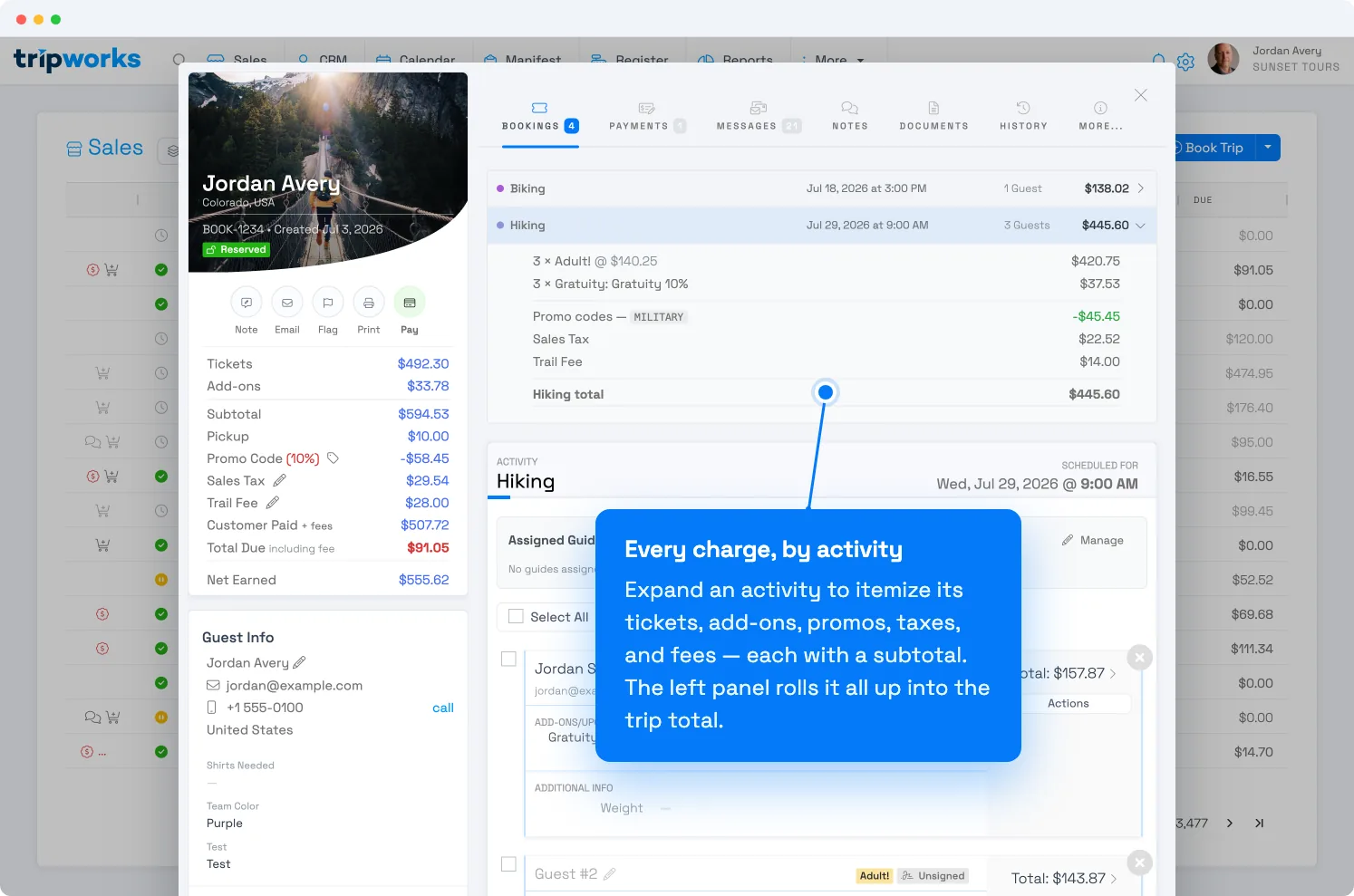
Every trip itemizes exactly what a guest paid for — tickets, add-ons, promo codes, taxes, and fees. The breakdown works at three levels: a roll-up for the whole trip, an itemized subtotal for each activity, and a line-by-line total for each guest. So when someone asks "what did I pay for?", you have the answer without opening every booking.
In this article
Where to find it
Open any trip and stay on the Bookings tab. The trip's pricing lives in two places on this screen:
- The left panel shows the trip-level totals.
- The activity rows at the top show each activity's total — select the chevron on a row to expand its itemized breakdown.
Trip totals (left panel)
The left panel summarizes the whole trip:
- Tickets — the total for all ticket types across every activity.
- Add-ons — optional add-ons and upgrades (gratuity, rentals, photo packages).
- Subtotal — tickets plus add-ons, before adjustments.
- Fees — any operator fees on the trip (for example, a pickup or trail fee), each on its own line.
- Promo Code / vouchers — any discount applied, shown as a negative amount.
- Sales Tax — tax collected on the trip.
- Customer Paid — what the guest has actually paid so far, including fees.
- Total Due — what's still outstanding.
- Net Earned — what you keep after pass-through amounts like taxes and third-party fees.
Itemized by activity
Each activity on the trip has its own row with a total. Select the chevron to expand it and see the itemized charges — ticket types (with quantity and price), add-ons, promo codes, taxes, and fees — ending in that activity's subtotal.
On a trip with more than one activity, every activity has its own expandable breakdown, so you can compare them side by side without opening each booking separately.
Itemized by guest
Inside an activity, each guest's booking shows a Total. Expand it to see that guest's own line items — their ticket, any discount, tax, and fees — down to their individual total. This is the level to use when one person on a group booking has a question about their charge.
Common ways to use it
- Explain a charge to a guest. The line items match what the guest sees in their confirmation email, so you can walk through it with them directly.
- Reconcile a refund. Expand the activity or guest that was refunded to see what was returned versus what remained billable.
- Check a multi-activity trip fast. Every activity's subtotal is one click away — no need to open each booking.
Frequently asked questions
What's the difference between "Customer Paid" and "Net Earned"?
Customer Paid is what the guest has handed over so far, including fees. Net Earned is what your business keeps after pass-through amounts such as taxes and third-party fees are removed.
Why doesn't the total match the sum of the ticket prices?
The trip total also reflects add-ons, fees, taxes, and any promo code or voucher discount. Expand an activity to see each of those line items and how they add up to the subtotal.
Can I see the charge for just one person on a group booking?
Yes. Inside the activity, expand that guest's Total to see their individual ticket, discount, tax, and fees.
Where do discounts show up?
Promo codes and vouchers appear as a negative line item — both in the activity's breakdown and in the trip totals on the left. See how promo code discounts are calculated.
Related
- Comp, uncomp & reprice tickets
- Apply a payment to a trip
- How promo code discounts are calculated
- Voucher codes
Built for attractions, tours & activities
Answer "what did I pay for?" in one glance
See how attractions, tours, and activities read every charge on a booking — tickets, add-ons, promos, taxes, and fees — without digging through bookings, all on TripWorks. Book a demo and make the switch.