
VQuip provides rental protection and insurance verification for land, water, and snow-based rental vehicles and equipment. The TripWorks integration automatically sends reservation data to VQuip right after checkout, so every rental booking has accurate customer and equipment details for coverage, without any manual entry.
Learn how to manage permission groups
Connect VQuip
You'll need an active VQuip account before you start. If you don't have one yet, sign up at vquip.com.
- Get your API credentials from the VQuip API Clients settings page. You'll need your Client ID, Client Secret, and Token URL. If you don't see these, contact your VQuip account manager.
- In TripWorks, go to Setup Integrations and select VQuip.
- Enter your Client ID, Client Secret, and Token URL into the matching fields, then select Save.
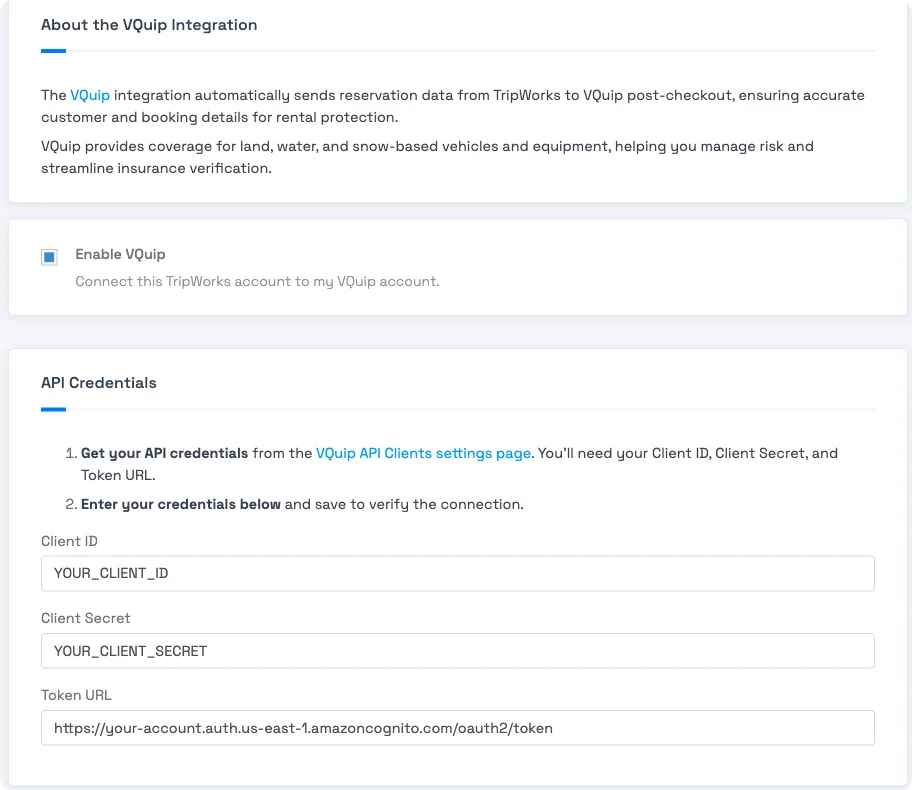
All three fields are required — VQuip validates them as soon as you save. - TripWorks checks your credentials against VQuip immediately. A Connected to VQuip badge confirms it worked; a Could not connect badge means one of the three values is wrong, so double-check them and save again.
- Once connected, an Experience → VQuip Inventory Type Mapping table appears. Map each TripWorks experience to the matching VQuip inventory type, one row per experience. An experience left as — Not mapped — still syncs to VQuip, just without an inventory type attached.
Once everything's mapped, TripWorks sends reservation data to VQuip automatically after every checkout. You can confirm the data arrived by checking transaction logs in VQuip's own dashboard.
Example: what this looks like in practice
- A jet ski rental gets covered automatically — a guest books a jet ski rental online; the moment checkout completes, TripWorks sends VQuip the guest's details and the mapped inventory type, no staff involvement needed.
- A new rental category rolls out cleanly — you add a new snowmobile experience; until you map it in the Inventory Type Mapping table, its bookings still sync to VQuip, just without a specific inventory type, so nothing's dropped while you get around to mapping it.
- Bad credentials get caught immediately — if you paste the wrong Token URL, the "Could not connect" badge tells you right away instead of silently failing on the next real booking.
Frequently asked questions
Where do I get my Client ID, Client Secret, and Token URL?
From the VQuip API Clients settings page in your VQuip account, or from your VQuip account manager if you don't see them there.
What does "Could not connect — check your credentials" mean?
TripWorks tried your Client ID, Client Secret, and Token URL against VQuip and the request failed. Re-check each value for typos (the Token URL is easy to get wrong) and save again.
Do I have to map every experience to a VQuip inventory type?
No. An unmapped experience still syncs its bookings to VQuip, just without an inventory type assigned. Mapping just makes the data land in the right VQuip category.
How do I know the data is actually reaching VQuip?
Check the transaction logs inside your VQuip dashboard after a booking. They'll show the reservation data TripWorks sent.
Related
Built for attractions, tours & activities
Rental protection that keeps up with every booking
See how attractions, tours, and activities automate rental protection on TripWorks. Book a demo and make the switch.