
Fotaflo is a photo and video delivery platform. Connecting it to TripWorks automatically links guest media to the right reservation, so photos and videos from an activity land with the correct guest without anyone matching them up by hand.
In this article
Learn how to manage permission groups
Every time an activity is created, reserved, or cancelled in TripWorks, a webhook sends guest names, contact details, and activity information (date, start time, end time) to Fotaflo. Fotaflo uses that to generate a reservation label your team can use inside the Fotaflo app to organize media for each activity, and to auto-complete guest emails when it's time to deliver photos and videos.
Step 1: Sign up for Fotaflo
If you don't have a Fotaflo account yet, visit Fotaflo's website to create one.
Step 2: Generate an integration key in Fotaflo
-
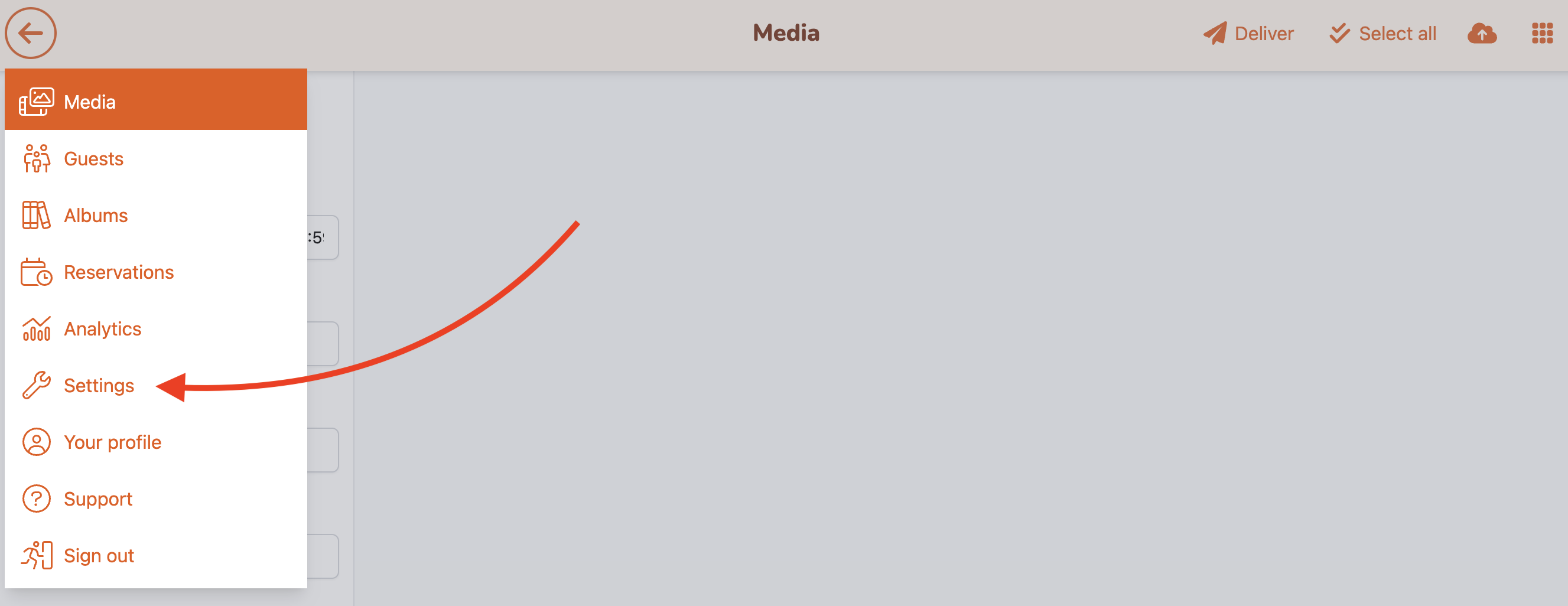
Log in to your Fotaflo account, select the menu icon in the upper left, then go to Settings.
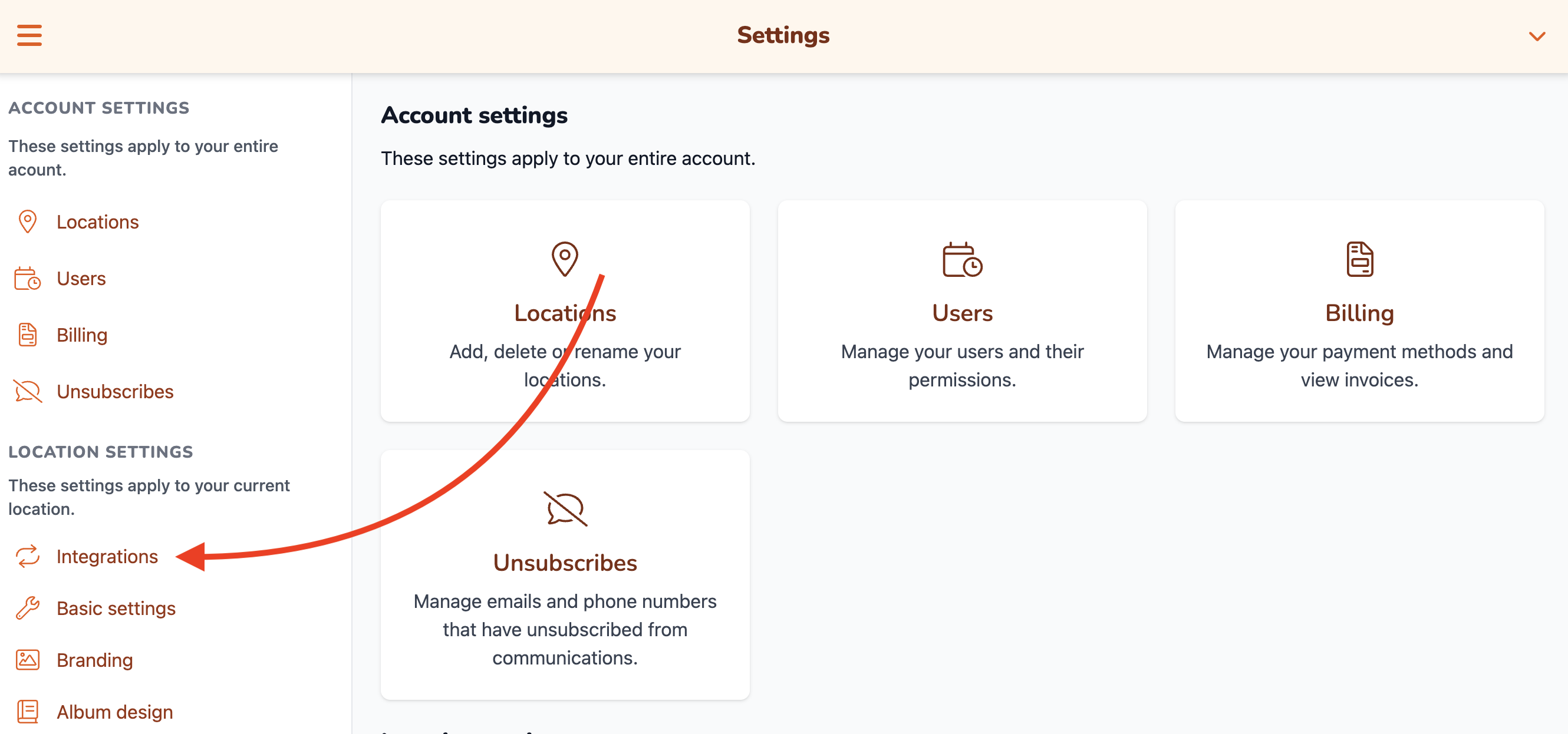
- Choose Integrations from the left menu, then select Add TripWorks Integration.
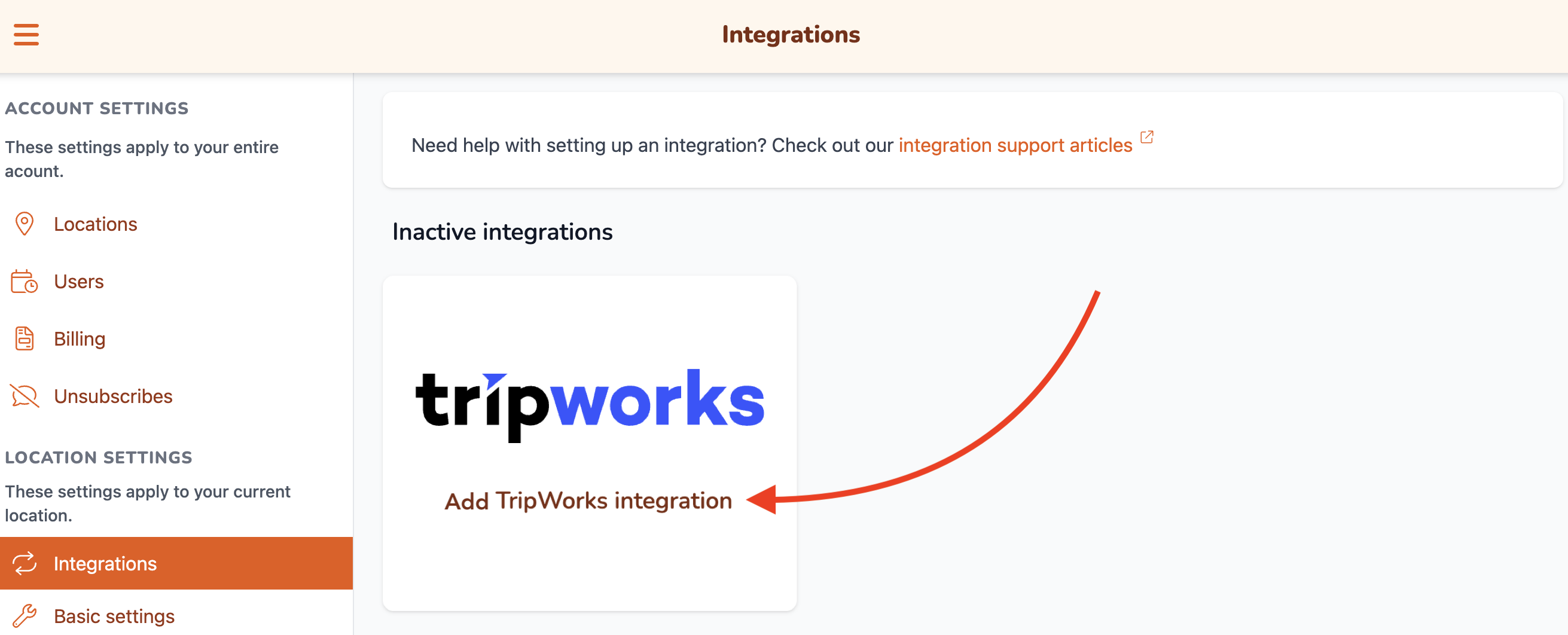
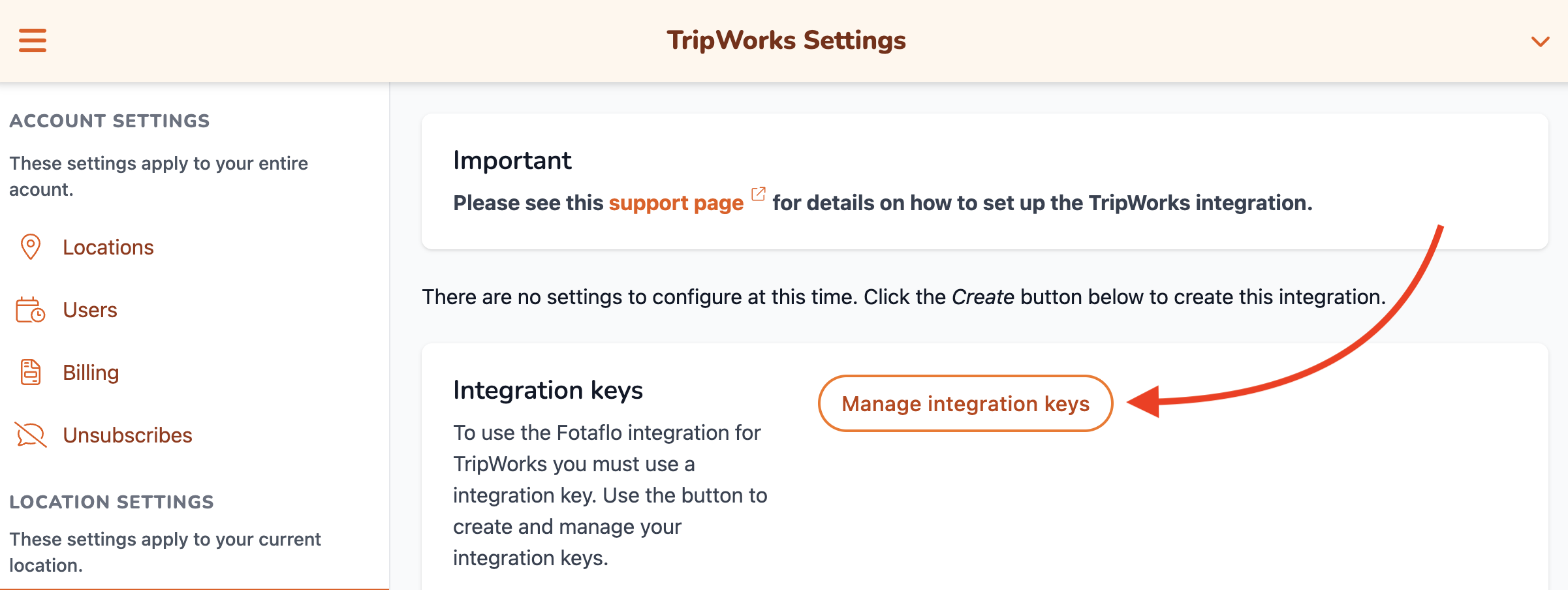
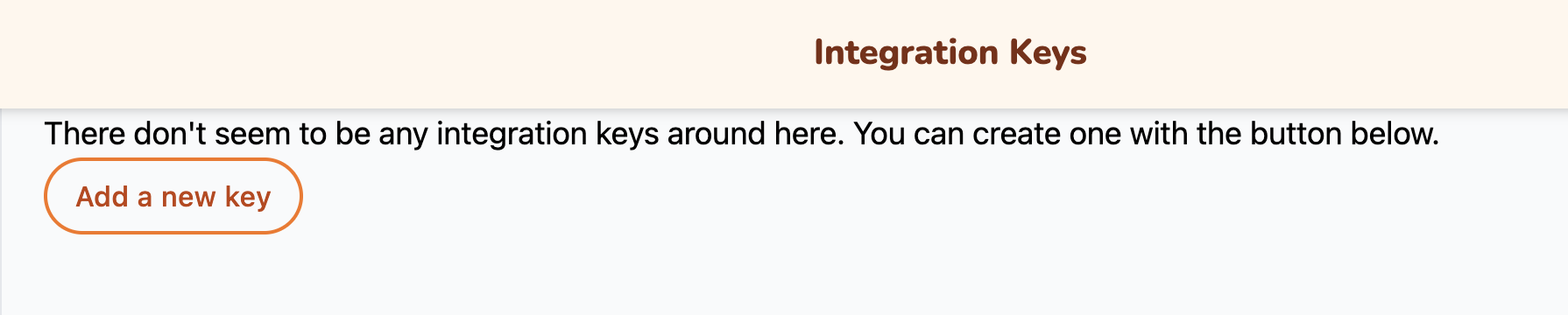
- Select Manage Integration Keys, then Add a New Key.
- Copy the key Fotaflo generates, then use it to build your webhook URL:
https://app.fotaflo.com/reservations/trip_works/[YOUR INTEGRATION KEY]. Copy that full URL for the next step.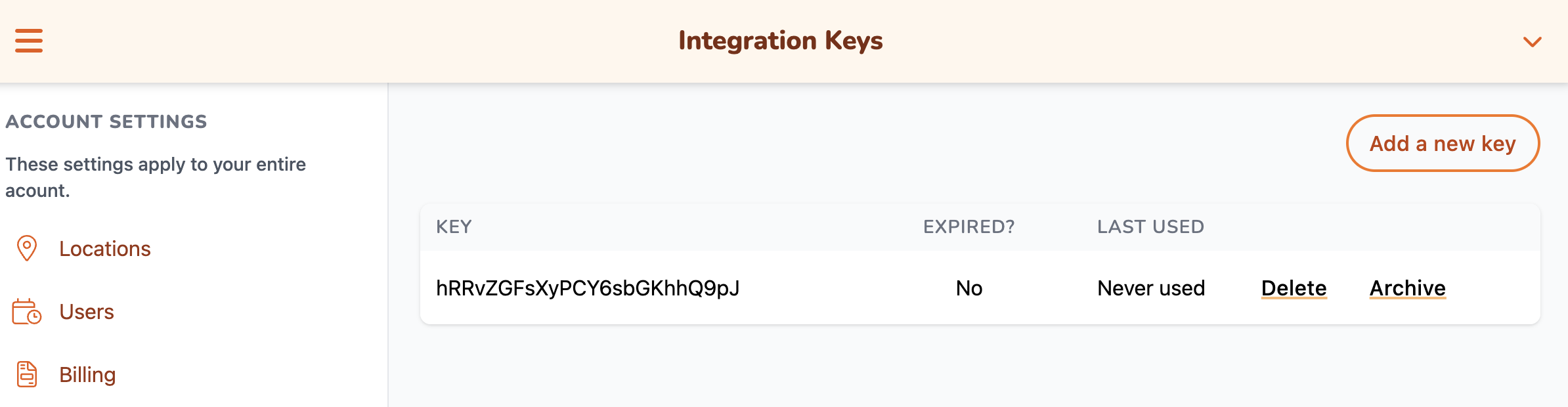
Step 3: Add the webhook URL in TripWorks
- In TripWorks, go to Setup Integrations and select Fotaflo.
- Paste the webhook URL you built in Fotaflo into the Fotaflo webhook URL field.
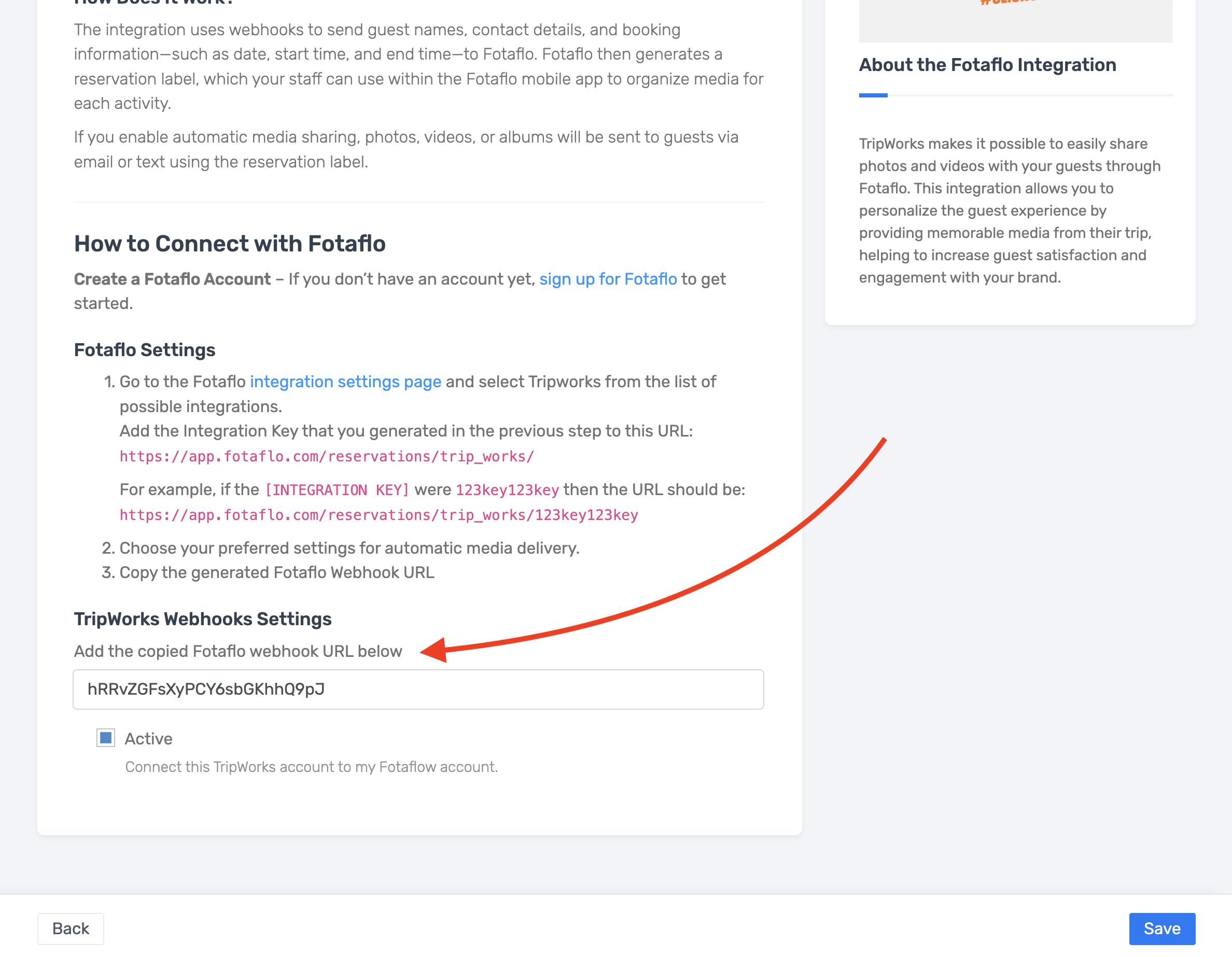
- Check Active, then select Save.
From then on, activity details flow to Fotaflo automatically whenever a booking is created, updated, or cancelled.
Example: what this looks like in practice
- A guest gets their photos without asking — a snorkeling group finishes their trip; because the reservation was already linked, Fotaflo can send their photos straight to the email on file, no staff lookup needed.
- A last-minute cancellation doesn't leave stale media hanging around — when a booking is cancelled in TripWorks, that update reaches Fotaflo too, instead of Fotaflo still expecting a reservation that no longer exists.
- Your team finds the right activity fast — inside the Fotaflo app, staff sorting photos see the reservation label TripWorks generated, instead of guessing which folder matches which group.
Frequently asked questions
What exactly do I paste into TripWorks — the integration key, or a URL?
A full URL. Fotaflo gives you an integration key, which you use to build a webhook URL (https://app.fotaflo.com/reservations/trip_works/[YOUR KEY]). Paste that whole URL into TripWorks's Fotaflo webhook URL field, not the bare key.
What data does TripWorks send to Fotaflo?
Guest names, contact details, and activity information like date, start time, and end time, sent every time an activity is created, reserved, or cancelled.
Do I need to do anything each time I get a new booking?
No. Once connected, every create, update, and cancellation syncs to Fotaflo automatically.
Related
Built for attractions, tours & activities
Guest photos, delivered without the manual matching
See how attractions, tours, and activities automate photo and video delivery on TripWorks. Book a demo and make the switch.