
Connecting your Meta (Facebook) Pixel to TripWorks lets you measure the bookings your Facebook and Instagram ads generate. Once connected, TripWorks reports booking activity to Meta automatically, so you can see conversions and let Meta optimize your campaigns. Setup is a single field — your Pixel ID — and there's no pixel code to install on your booking flow.
In this article
What TripWorks sends to Meta
When your pixel is connected, TripWorks fires two standard Meta Pixel events directly on your booking pages:
- PageView — when a customer opens your booking page.
- Purchase — on the confirmation page after a booking is completed. Includes the booking's value, currency, and confirmation code, so Meta can attribute revenue to your ads.
TripWorks uses the browser-based Meta Pixel. It does not use Meta's server-side Conversions API (CAPI), and it does not send other events such as InitiateCheckout or AddToCart.
Before you start
- A Meta Business account with a Pixel created in Meta Events Manager.
- Your Facebook Pixel ID (a numeric ID from Events Manager).
- Access to Setup → Integrations in TripWorks.
Step 1: Find your Pixel ID in Meta
- Go to Meta Events Manager (business.facebook.com/events_manager).
- Select your data source (your Pixel) — or create one if you don't have it yet.
- Copy the Pixel ID — the numeric ID shown at the top of the page.
Step 2: Add your Pixel ID in TripWorks
- Go to Setup Integrations and open the Facebook Ads card.
- Paste your Facebook Pixel ID into the field.
- Turn on Enable Facebook Ads.
- Select Save.
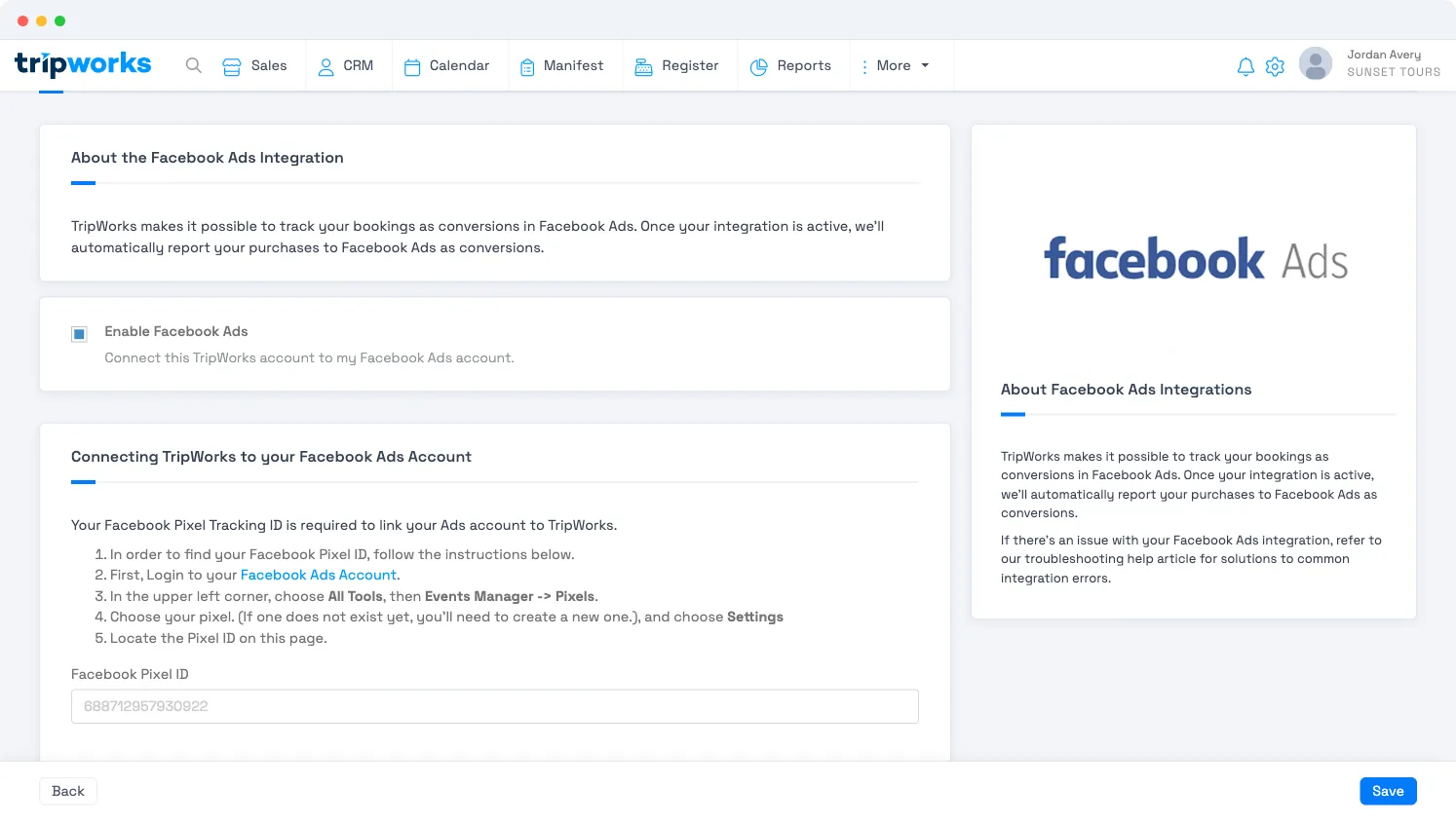
Both are required. Tracking only runs when the Pixel ID is entered and the Enable Facebook Ads toggle is on. Entering the ID without enabling the toggle is the most common reason nothing is tracked.
You don't install the Facebook pixel yourself for TripWorks bookings — entering the Pixel ID is all it takes. TripWorks loads the Meta Pixel on the booking widget and fires the events for you. (Tracking on the other pages of your own website is separate and still up to you.)
Verify your setup
The Meta Pixel is designed to run only for real customers on your live booking site, so verify it the way a customer would experience it:
- Install the Meta Pixel Helper Chrome extension.
- Open your live booking page in an incognito window (so you're not logged into TripWorks).
- Accept the cookie / consent prompt if one appears.
- The Pixel Helper should show a PageView event on the booking page.
- Complete a test booking. On the confirmation page, the Pixel Helper should show a Purchase event with a value and currency.
In Meta Events Manager, events may take a short time to appear under your Pixel's activity.
Troubleshooting: conversions aren't tracking
Work through these in order — most cases come down to one of the first three:
- Confirm the integration is enabled. In Setup → Integrations → Facebook Ads, check the Pixel ID is correct and Enable Facebook Ads is on.
- Test as a customer, not while logged in. The pixel does not fire for logged-in TripWorks users (operators/staff), and it does not run on staging or preview links. Always test in an incognito window on your live booking site, signed out.
-
Check cookie / ad consent. If your booking site uses a consent banner and the visitor hasn't granted advertising (
ad-storage) consent, the pixel is intentionally blocked and no events are sent. If you use a consent management platform, make sure it's integrated with TripWorks so advertising consent passes through. - Confirm which event is missing. With the Pixel Helper, note whether PageView fires but Purchase doesn't. Purchase only fires once a booking reaches the confirmation page — and only once per booking.
- Confirm expectations with your marketing team. If your team or agency expects events beyond PageView and Purchase, or a server-side (Conversions API) connection, those aren't part of the TripWorks Meta integration.
Advanced: fire your own Meta events
The built-in integration covers standard PageView and Purchase tracking. To fire additional Meta events or track custom steps, add your own JavaScript with custom widget JavaScript.
Related
- Set up your Google Ads integration
- Custom widget JavaScript
- Marketing attribution and URL tracking
- Third-party integrations
Built for attractions, tours & activities
Turn ad clicks into tracked bookings
See how attractions, tours, and activities measure their Meta and Google ad spend against real bookings on TripWorks. Book a demo and make the switch.