
Staffing one departure at a time is fine for a swap, but not for a season. The Guides tab of the schedule grid works on many timeslots at once: select a block of departures and assign someone to all of them, set a standing weekly pattern, or mark a guide unavailable for a stretch of dates.
In this article
Open it from the Calendar: select the edit (pencil) icon in the top right, then the Guides tab. See See who's working for how to read the grid.
Assign a guide to many departures at once
- Select the cells for the departures you want to staff. Click one cell, then hold ⌘ (Mac) or Ctrl (Windows) and click to add more.
- Check the Guide Assignments bar that appears at the bottom: it confirms how many timeslots you've selected.
- Select Assign guide.
- Choose one or more people in Guides, then confirm.
Bulk assignment is additive. It adds the guides you picked to the selected departures and leaves anyone already assigned in place, so you can layer a support guide across a week without disturbing the leads.
Bulk assigning doesn't send a separate alert for every trip. When many assignments happen at once, TripWorks bundles them into a single notification per guide rather than filling their inbox.
Set a recurring weekly schedule
Use a recurring schedule when someone works the same slots week after week, for example "Marcus runs the 9:00 AM and 1:00 PM kayak tours every Saturday and Sunday through the summer."
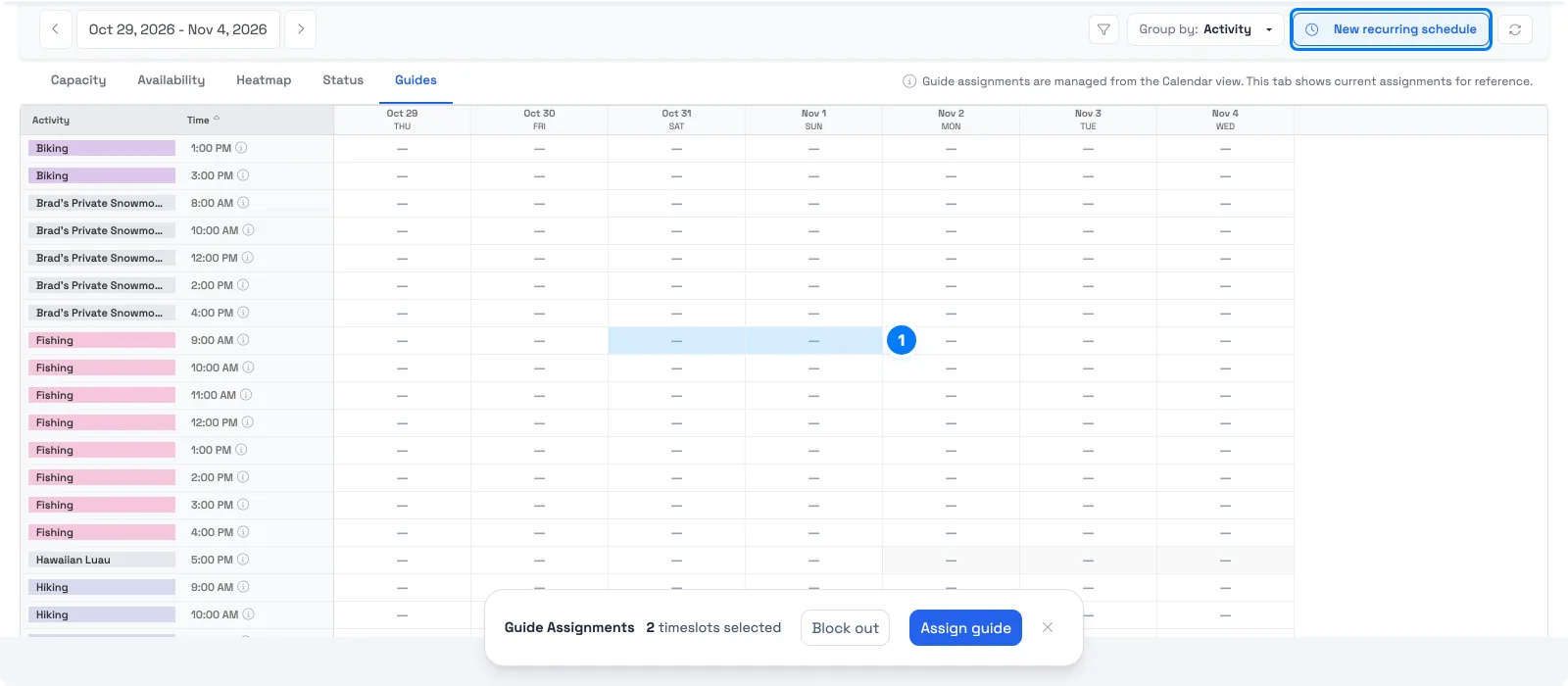
- Select the cells for the departures the pattern covers, so TripWorks knows which activities and start times you mean.
- Select New recurring schedule in the top right.
- Pick the people in Guides.
- Under Repeat on, choose the days of the week. The days from your selection are pre-selected; adjust them as needed.
- Set From and Until to bound the pattern.
- Select Create schedule.
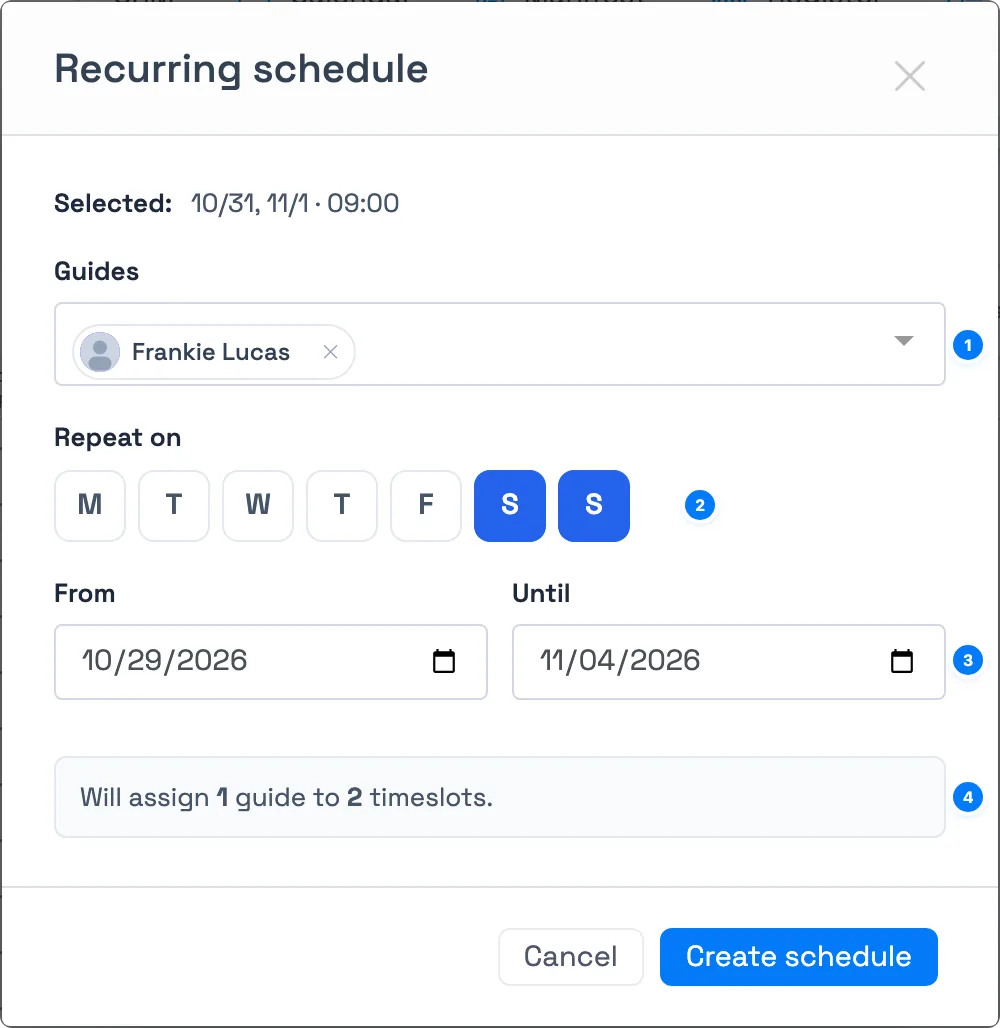
Before you commit, the window tells you exactly what it's about to do, in the form "Will assign N guides to N timeslots." That count updates as you change the days or the dates, so you can sanity-check the scope before anything is written.
A recurring schedule assigns guides to the matching timeslots that exist when you create it. It isn't a standing rule: departures you add later, or an extension of your season, won't be staffed automatically. Re-run it after you build out new dates.
Set up and remove recurring schedules on the Guides calendar
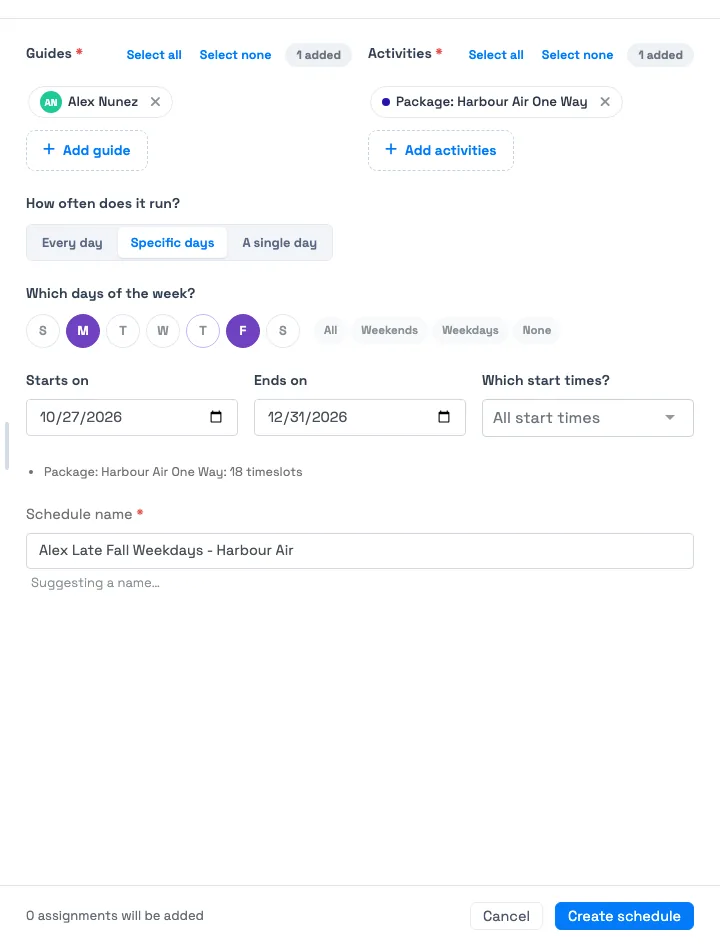
On the Calendar's Guides tab, New recurring schedule opens a panel where you choose the Guides and the Activities, then How often does it run? (Every day, Specific days, or A single day), the days of the week, Starts on and Ends on, and which start times it covers. Name the schedule, and the footer shows how many assignments will be added before you select Create schedule.
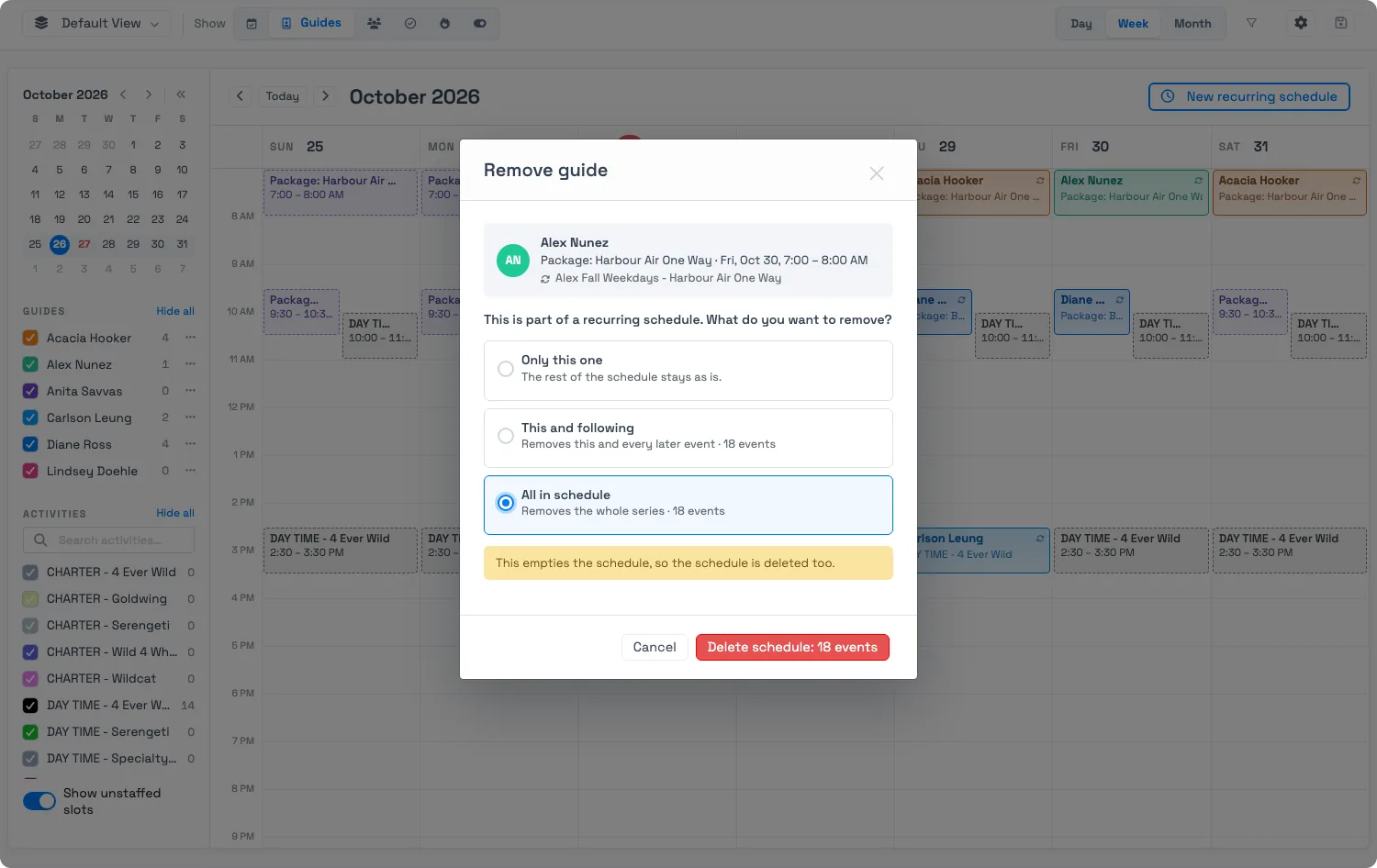
When you remove a guide from a departure that belongs to a recurring schedule, TripWorks asks how much of the schedule to remove:
- Only this one removes that single departure and leaves the rest of the schedule as it is.
- This and following removes this departure and every later one in the schedule.
- All in schedule removes the whole series. This empties the schedule, so the schedule is deleted too.
Block out a guide's time off
- Select cells covering the dates the guide is away.
- Select Block out in the Guide Assignments bar.
- Choose the person in Guide.
- Leave All day ticked for a full day off, or clear it to block only the hours your selection covers.
- Add a Reason if it's useful for the rest of the team, for example "Conference," "Vacation," or "Doctor."
- Select Block out.
The time off shows in the Time off column on the Guides roster and on that guide's Availability tab, where you can edit or remove it later.
Time off is a record, not a lock. It does not stop anyone assigning that guide during those dates, it does not remove assignments they already have, and it does not trigger the double-booking warning. Check the roster's Time off column before you staff a date.
Which tool for which job
- Swapping a guide on one departure: open that timeslot and use its Guides tab.
- Staffing a week, or a specific block of departures: select the cells and use Assign guide.
- Setting a standing weekly pattern for a season: use New recurring schedule.
- Recording that someone is away: use Block out, or Add time off on their profile.
Frequently asked questions
Will bulk assigning remove the guides already on those trips?
No. Bulk assignment is additive: it adds the guides you selected alongside anyone already assigned. To take someone off, open that timeslot's Guides tab and turn their Assigned toggle off.
How do I schedule a guide for every Saturday?
Select the departures they run, choose New recurring schedule, pick the guide, tick Saturday under Repeat on, and set a From and Until date. TripWorks assigns them to every matching timeslot in that range and tells you the count before you confirm.
Does a recurring schedule keep applying to new dates I add later?
No. It assigns guides to the timeslots that exist at the moment you create it, then it's done. When you extend your season or add departures, run the recurring schedule again over the new dates.
Does blocking out a guide stop them being scheduled?
No. A block-out records that the guide is away and shows on the roster and their Availability tab, but it doesn't prevent an assignment or raise a warning. Treat it as a note to the person building the schedule.
Does blocking out a guide cancel trips they're already on?
No. Existing assignments stay exactly as they are, and the guest-facing trip is untouched. If someone books time off after being scheduled, unassign them from those departures yourself.
Will a bulk assignment flood guides with emails?
No. When many assignments happen together, TripWorks consolidates them into a single message per guide instead of one per trip. Each guide's channels and events are set on their own Notifications tab.
Can I bulk-assign more than one guide at a time?
Yes. The Guides field in both Assign guide and Recurring schedule takes several people, so you can put a lead and a support guide across the same block of departures in one action.
What happens if a bulk assignment double-books someone?
TripWorks flags the clashing departures and asks you to confirm, the same as a single assignment. Overlaps are allowed once you confirm, because they're sometimes deliberate.
Related
Built for attractions, tours & activities
Staff a season in a few clicks
See how attractions, tours, and activities schedule their team on TripWorks. Book a demo and make the switch.