
Once an activity is connected to a published seat map, you'll assign guests to specific seats before each trip using the Seat Assignment view, opened from the Manifest.
In this article
Learn how to manage permission groups
Make sure you've created and published a seat map and connected it to your activity first. See Seat maps: overview & setup.
Accessing seat assignment
- Navigate to Manifest
- Select the date you want to assign seats for
- Choose the Seats tab, next to Table and Timeline

Creating a seat assignment view
The first time you open Seats for a day, or whenever you need a new one, choose + Create New View:
- View Name: Give it a descriptive name (e.g., "9:00 AM - VIP Section")
- Select Activities: Only activities that share a seat map with your selection can be added together
- Select Time Slots (optional): Leave empty to include every time slot for the selected activities, or narrow it to specific ones
- Repeat daily (optional): Reuse this view automatically on future days
- Base Seat Map: Pick the seat map to use (only maps shared by all the selected activities appear)
- Choose Create View
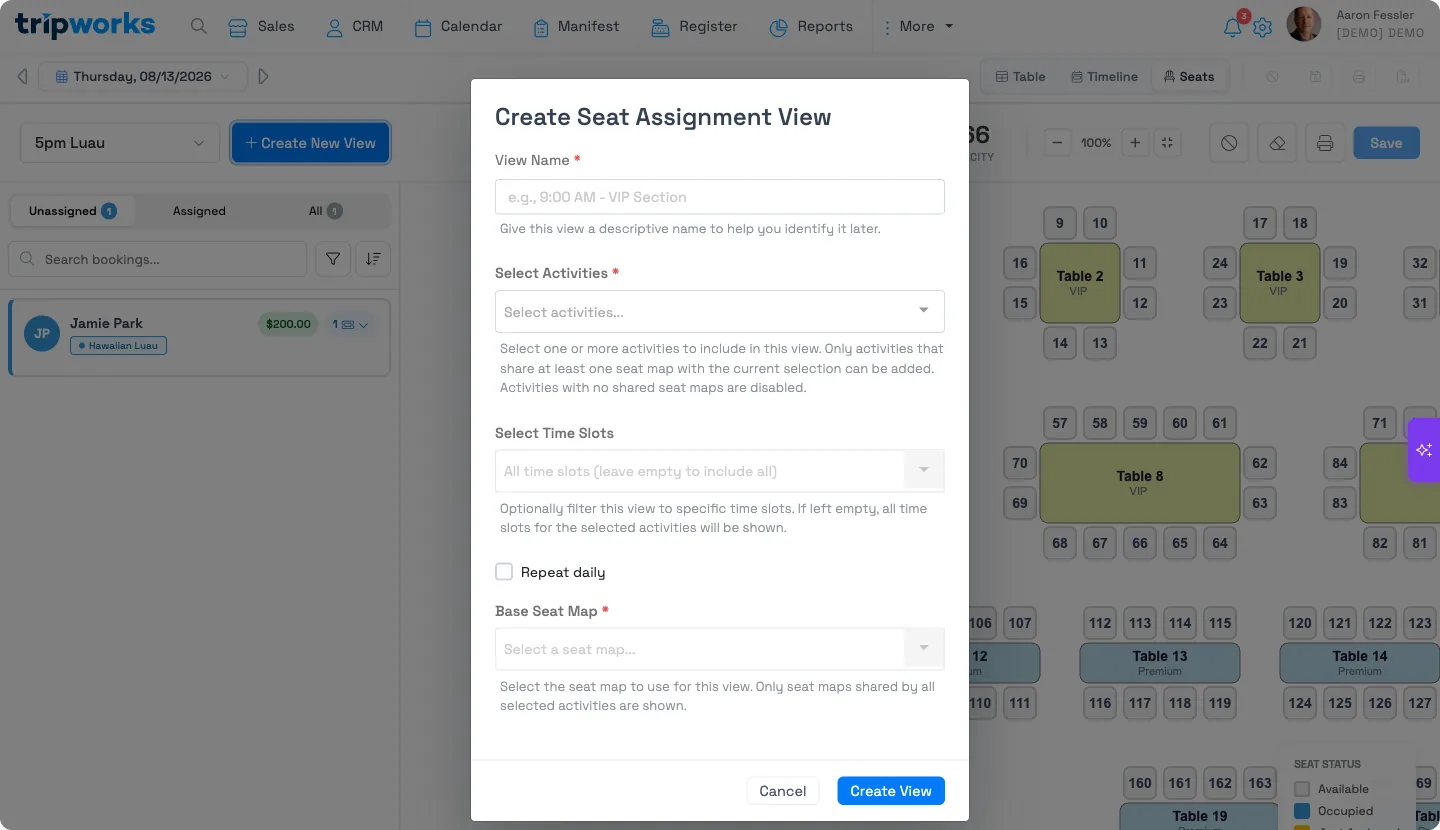
Saved views appear in the dropdown at the top left, so you can switch back to one without recreating it.
The seat assignment view
The view is divided into two panels:
Left panel: bookings
- Lists all bookings for the selected activity
- Shows lead guest name, trip total, and ticket count
- Filter by assigned/unassigned status or by time slot
- Search by guest name
Right panel: seat map
- Visual representation of your seating layout
- Color-coded seat status:
- Gray: Available
- Blue: Occupied
- Yellow: Just Assigned
- Red: Blocked
Assigning seats
Manual assignment
- Select an unassigned booking in the left panel
- The booking is highlighted and ready to assign
- Select an available table or seat on the map to assign the party to it
- Repeat for remaining bookings
- Choose Save in the upper right once you're done
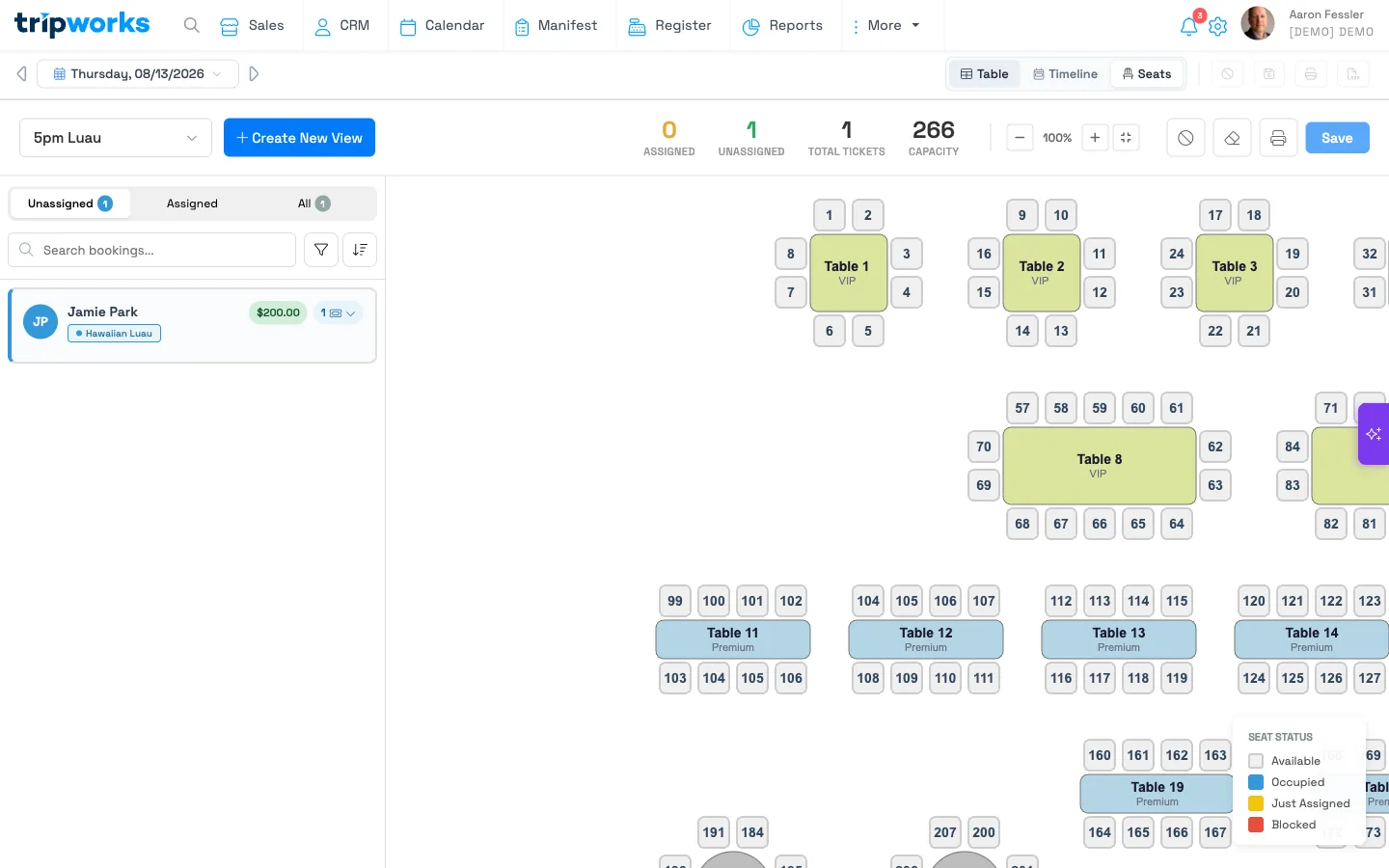
There's no bulk auto-assign option today — every booking is seated one at a time.
Managing seats
Blocking seats
Block seats for maintenance, VIP holds, or other reasons:
- Choose the Block Seats icon in the toolbar
- Select individual seats to block/unblock them
- Blocked seats appear in red and cannot be assigned
Clearing assignments
- To free up a single seat, select the assigned booking and unassign it from the seat
- To start over for the whole view, choose the Clear All Assignments icon (the eraser) in the toolbar. This clears every seat assignment in the current view. It doesn't cancel or change the bookings themselves
See Troubleshooting seat maps for what to do if a seat map won't delete, or seats and ticket capacity have drifted out of sync.
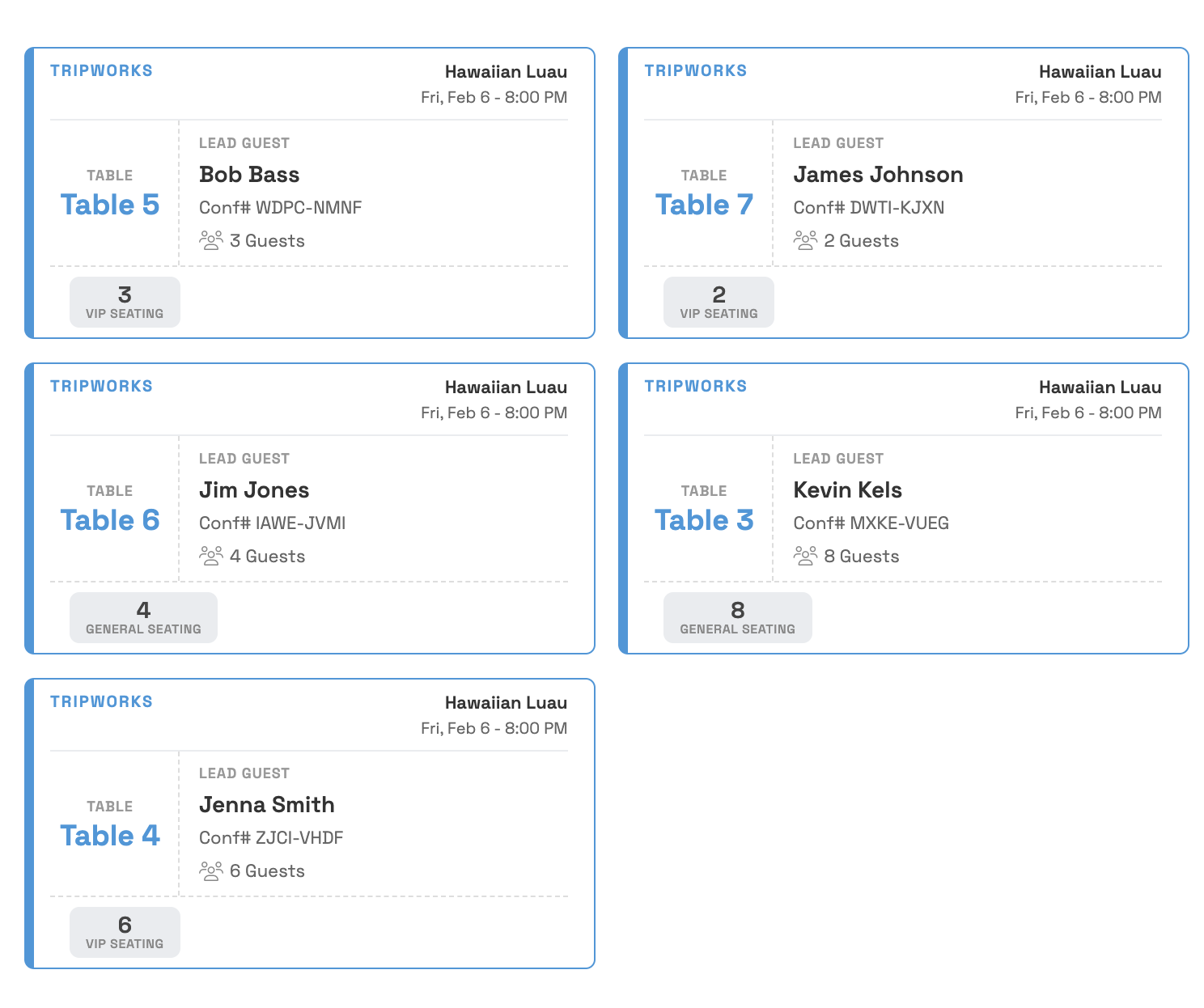
Printing seat tickets
Print tickets to hand to guests at check-in:
- Assign all bookings to seats
- Choose the Print button in the header
- Review the print preview (10 tickets per page)
- Select Print Tickets

Each ticket shows:
- Table/seat number
- Lead guest name
- Confirmation number
- Guest count with breakdown (Adult, Youth, Child, etc.)
Tips for efficient seat assignment
- Assign larger parties first: Easier to find them a contiguous block of seats while more of the map is open
- Use filters: Focus on unassigned bookings to track progress
- Check special requests: Review custom fields like dietary restrictions before assigning
- Block problem seats: Mark any seats that are out of service before you start assigning
Seats assigned this way apply to storefront and manually entered bookings the same way. OTA/reseller bookings (Viator, GetYourGuide, and similar) show up in the same view and can be seated manually too — they're just never auto-seated through the OTA connection itself. If an OTA guest cancels or rebooks, their seat is freed automatically.
Example uses
- Create a view scoped to just the 5 PM luau time slot, then seat each party by hand
- Block three seats near the kitchen ahead of a private event before assigning the rest
- Print seat tickets for a luau so front-of-house staff can direct guests to Table 4 by name
- Filter to unassigned bookings only to track progress seating a large group tour
FAQ
Is there a way to auto-assign everyone at once?
Can I seat OTA bookings from Viator or GetYourGuide?
What happens if I block a seat that's already assigned?
Does Clear All Assignments cancel the bookings?
Can I reprint seat tickets after I've already printed once?
Setting up seating for the first time?
We can walk you through it
Talk to our team about configuring seat maps for your activities.