
A reseller agent is an individual — a staff member at one of your resellers — who logs into TripWorks and books on that reseller's behalf. Giving each person their own agent login (rather than sharing one) lets you see who made each booking and track commissions per agent. This article shows you how to invite an agent under an existing reseller and confirm they can log in.
In this article
What a reseller agent can do
An agent logs into the Agent Portal, where they can book directly with you and manage the reservations tied to their reseller.
- They can create bookings and process payments for the reseller they belong to.
- They can see all bookings made under that reseller — not only the ones they made themselves — and run reports on that activity.
- They cannot see other resellers' bookings or your direct bookings.
Every reseller agent is added to TripWorks' Affiliate Agent permission level automatically, so you don't choose a role when inviting one. Their access is always scoped to their parent reseller.
Before you begin
- The reseller must already exist. Agents are created under a reseller, so set up the reseller profile first. See Set up a reseller if you haven't yet.
- You need permission to invite users. Inviting an agent creates a login on your account, so your role must allow user management. If you don't see the Add… button on the Agents tab, ask an account admin to add the agent or adjust your permissions.
- Use a unique email address for each agent. The email is the agent's login and how TripWorks attributes their bookings. Don't reuse one address across multiple people.
Add and invite an agent
- From the main menu, select More > Resellers.
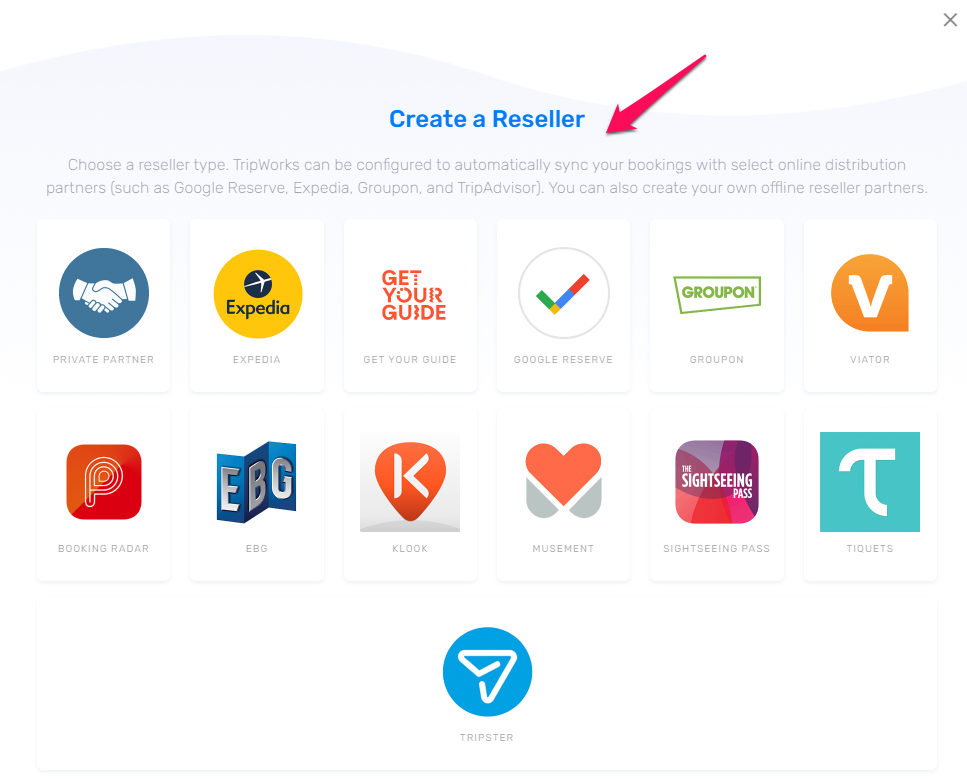
- Select the reseller you want to add the agent to. (If the reseller doesn't exist yet, create it first — choose New…, then Private Partner or the relevant OTA.)
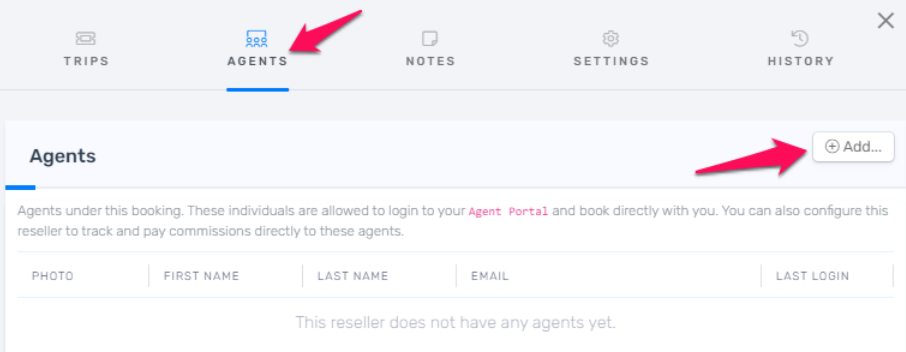
- Open the Agents tab.
- Select Add… in the top-right corner. The Invite an Agent to Join window opens.
- Enter the agent's First Name, Last Name, and Email Address. All three are required, and the email must be a valid, reachable address.
- Select Send Invitation.

TripWorks emails the agent an invitation and adds them to the reseller's Agents list right away, marked as invited until they accept.
What the agent receives
What happens next depends on whether the email is already a TripWorks user:
- New to TripWorks — the agent gets an invitation email and is prompted to create an account and set a password. Once they set it, the invitation is complete and they can log in.
- Already a TripWorks user — the same email is simply granted access to this reseller. The agent logs in with their existing password; there's nothing new to set up.
Either way, the agent lands in the Agent Portal on their next login. See How to Navigate the TripWorks Platform as a Reseller Agent for what they'll see there.
Verify it worked
- The agent appears in the Agents tab for that reseller with their name and email.
- Until they accept, the row reflects a pending/invited state. Once they set a password (or, for existing users, on their next login), they're active.
- Ask the agent to confirm they can log in and reach the Agent Portal.
Example
A kayak tour operator partners with a local hotel that sends guests on trips. Two concierge staff, Dana and Marco, book on the hotel's behalf. The operator creates the Riverside Hotel reseller profile, opens the Agents tab, and invites Dana and Marco with their individual work emails. Marco already has a TripWorks login from a previous partner, so he's added instantly and books with his existing password. Dana is new, so she sets a password from her invitation email. Because each has a unique login, the operator's reseller commission report shows exactly how many trips each concierge booked.
Troubleshooting
Problem: You see "Please verify this email address" when sending the invitation.
Why it happens: TripWorks checks that the email is correctly formatted and that its domain can receive mail. A typo in the domain (for example gmial.com) fails this check.
How to fix it: Correct the address and resend. Confirm the domain is real and active.
Problem: There's no Add… button on the Agents tab. Why it happens: Your role doesn't include permission to invite users. How to fix it: Have an account admin add the agent, or ask them to grant you user-management access.
Problem: The agent never received the invitation email. Why it happens: The message was filtered as spam, or the address had a typo you didn't catch. How to fix it: Ask the agent to check spam and search for a message from TripWorks. If it isn't there, confirm the address on the Agents tab and resend the invitation.
Problem: An agent says they can see bookings they didn't make. Why it happens: This is expected. Agents see all bookings under their reseller so managers and teammates can cover for each other. How to fix it: No action needed. If you want per-person attribution, confirm each agent has their own unique login.
Related articles
- How to Navigate the TripWorks Platform as a Reseller Agent — what agents see and do once they log in
- Set up a reseller — create the reseller an agent belongs to