
The payout report is where you track the money actually landing in your bank account — both recent deposits and upcoming ones still in transit. It's the report to reach for when you're reconciling your bank statement or answering "when is that money arriving?"
In this article
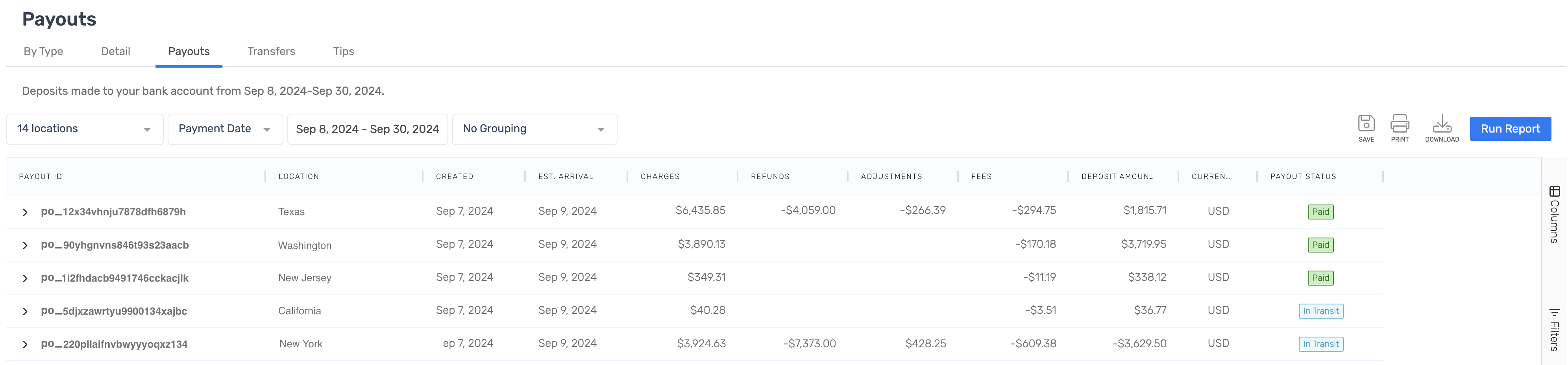
What it shows
For each payout you'll see:
- the total deposit amount being delivered,
- a breakdown of the charges, refunds, adjustments, and fees that make up that total,
- the transactions included in the payout,
- a unique Payout ID,
- the business location receiving it (useful if you run multiple locations),
- the creation date and estimated arrival date,
- the currency, and
- the status — Paid or In Transit.
How to open it
- Select Reports from the toolbar.
- Choose Finance in the sidebar, then Payouts.
- Set your date range. You can include future dates to see upcoming and in-transit payouts — for example, from the start of this month through the end of next month.
To see the individual transactions behind a payout, expand it in the list.
Why a payout total won't match your sales
A payout is a batch of transactions from a few days earlier, and it excludes things like cash, checks, and reseller payments while including adjustments like fees. So payout totals deliberately differ from your Sales and Finance reports for the same dates — this is expected. See Why don't my report totals match? and the Reports overview.
Frequently asked questions
Can I see payouts that haven't arrived yet?
Yes. Include future dates in the report's date range to see upcoming and in-transit payouts.
How do I see what's inside a payout?
Expand the payout in the list to see the individual transactions and any adjustments — like service credits or fees — that make up the total.
Related
Built for attractions, tours & activities
Always know what's landing in your bank
See how attractions, tours, and activities track payouts on TripWorks. Book a demo and make the switch.