
The Guest Contacts report pulls every guest's contact details into one downloadable list. Use it to build a mailing list, check who's opted in to marketing, or look up a guest's address without opening each booking individually.
In this article
Learn how to manage permission groups
Open the report
- Select Reports from the toolbar.
- In the left menu, expand Customers.
- Select Guest Contacts.
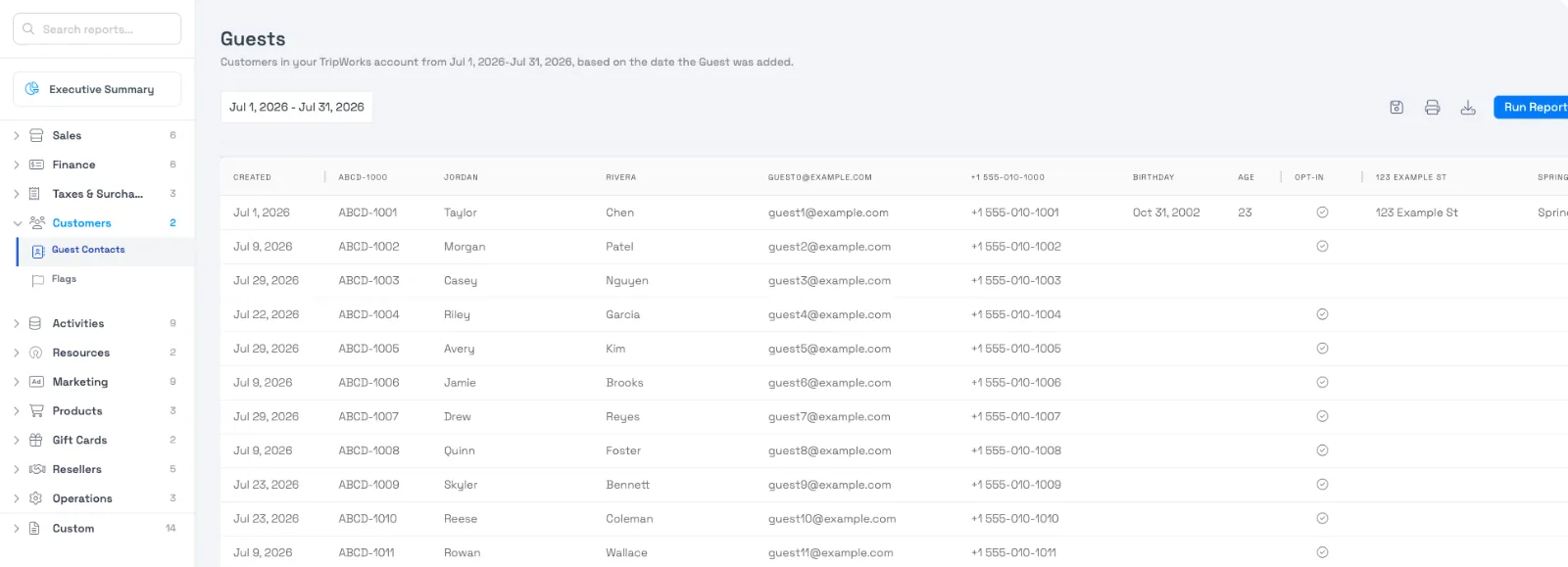
If your account uses different terminology for guests (for example, "Customer" instead of "Guest"), the report is labeled to match, so you may see it as Customer Contacts instead.
What's in the report
For every guest added to your account in the selected date range, the report shows whatever contact information they've provided:
- Created: when the guest was added.
- Code: their guest profile code, linked to their profile.
- First name / Last name
- Phone
- Birthday and Age (calculated from birthday)
- Opt-In: whether they've agreed to receive marketing.
- Address, City, State/Province, ZIP/Postal, Country
A field is only filled in if that guest actually provided it. A guest who only gave a name and email won't have an address or birthday to show.
Filter, save, and download
- Adjust the date range to change which guests are included (based on when they were added).
- Use Save, Print, or Download in the top-right to export the report or save your current view.
- Use the Columns and Filters tabs on the right edge of the grid to show/hide columns or filter the list, for example, filtering to only guests who are opted in to marketing.
Frequently asked questions
Why is a guest missing from the report?
The report only includes guests added within the selected date range, based on when they were added to your account, not when they booked or traveled. Widen the date range if you're looking for an older guest.
Why are some fields blank for a guest?
A field only appears if the guest actually provided it. If a guest only gave a name and email at checkout, their address, birthday, and phone fields stay blank rather than showing a placeholder.
Does this report show a guest's city or country based on their phone number?
No. The address, city, and country fields in this report come from what the guest entered as their address, not from their phone number. TripWorks doesn't derive a guest's location from their area code anywhere in the product.
Can I export this report?
Yes. Use the Download button above the grid to export the current view, including any filters you've applied.
What does the Opt-In column mean?
It shows whether the guest agreed to receive marketing communications when they provided their information. Use it to build a compliant marketing list rather than messaging every guest in the report.
Related
Built for attractions, tours & activities
Know your guests, not just their bookings
See how attractions, tours, and activities use TripWorks' guest reports to build richer customer profiles and smarter marketing lists. Book a demo and make the switch.