
Test a price answers one question for any booking: why this price? You set a real scenario — a date, a sales channel, a ticket type, a group size — and TripWorks shows which of your rate sheets wins, the price it produces, and why every other rate sheet was ruled out. It's both a preview (see prices before a guest does) and a troubleshooter (explain a price that looks wrong).
In this article
You'll find it on any experience's Ticket prices tab, alongside your seasonal pricing and rate sheets.
What it shows you
A booking's price comes from your priority ladder: TripWorks checks your rate sheets from the top down and applies the first one whose conditions match; if none match, it falls back to the channel's base rate. (For the conditions a rate sheet can use, see Dynamic pricing.) Test a price makes that decision visible for any day and scenario, so you never have to guess which rate sheet is in play.
Run a test
- On the Ticket prices tab, select Test a price.
- Set the scenario at the top: Channel (Ecommerce, Direct, or a specific Reseller), Ticket type, Seats left, and Pax (the guest count).
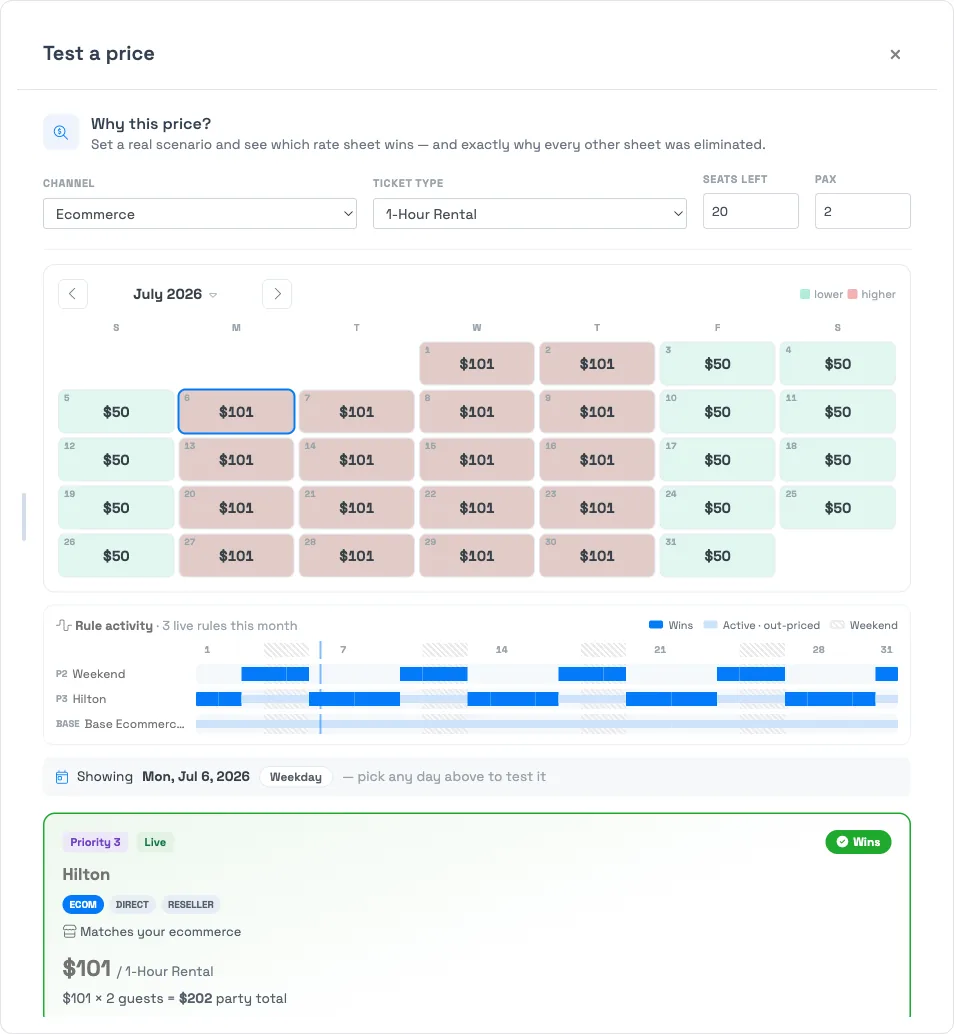
- In the price calendar, pick any day to test it. Use the arrows or the month name to move between months.
Read the result
Three parts work together:
- Price calendar — every day shows the winning price for your scenario, heat-shaded from lower to higher, so seasonal peaks and dips jump out at a glance.
- Rule activity — one lane per live rate sheet across the month, marking each day where it wins, is active but out-priced by a higher rule, or doesn't apply. This is the fastest way to see two rules competing.
- Winner card — for the selected day, the rate sheet that won: its Priority, that it's Live, the channels it covers, why it matched, and the math (price per ticket × pax = party total).
Troubleshoot with it
Reach for Test a price whenever a price surprises you:
- A seasonal rate isn't applying. Test a day inside the season — if the base rate wins instead, the season's rate sheet is Draft, doesn't match the channel, or sits below a rule that out-ranks it.
- An unexpected price shows up. The winner card names the rate sheet responsible, so you can open and adjust the right one.
- A channel looks off. Switch the Channel input and confirm each one resolves to the rate you expect.
Frequently asked questions
Does testing a price change anything or charge anyone?
No. Test a price is read-only — it previews how a booking would be priced. It never creates a booking, changes a rate sheet, or charges a guest.
Why does a rate sheet show as "active but out-priced"?
Its conditions match the day, but a rate sheet higher in the priority ladder also matched and won. Only the top matching rate sheet applies; the rest are shown so you can see what was in contention.
What does the base rate row mean?
The base rate is the fallback for each channel. If no rate sheet matches a day, the booking is priced at the base rate — so it "wins" on any day your other rules don't cover.
Why does the price change when I change the guest count or channel?
Rate sheets can be limited by guest count and published to specific channels. Changing the scenario changes which rate sheets match, so a different one may win. See Dynamic pricing for the full list of conditions.
Built for attractions, tours & activities
Know the price before your guests do
See how attractions, tours, and activities preview and prove every price — across seasons, channels, and group sizes — in one place on TripWorks. Book a demo and make the switch.