
Tips give guests a natural moment to show appreciation — and TripWorks can surface that moment automatically, whether they're paying on a card reader, a mobile device, or through your customer portal.
In this article
Configure tips
Go to Setup Point of Sale & Tips and open the Tips tab. Three settings shape how tipping works:
- Tip type — a shared pool for the whole team, or assigned to individual guides. This affects how tips are tracked and distributed.
- Where the prompt surfaces — which payment moments show a tip prompt.
- Suggested amounts — the percentage options guests see.
Your choices here control how the prompt appears to guests and how tip data shows up in your reports.
Collect tips
Once configured, the tip prompt appears automatically in the payment scenarios you enabled — card reader, mobile checkout, or the customer portal — so guests can add a tip without any prompting from your team.
Add a tip to an existing booking
When a guest wants to tip after the booking is made, add the tip from the booking. The Tip button on the Payments tab appears when tips are turned on for your account.
Collecting a tip by card requires the Charge credit cards permission, the same one you need to charge a card for a booking. It comes with the built-in Owner group, or any custom permission group that includes it. If you don't see the Tip button, or a card charge is refused, ask an account admin to grant it to you.
The window opens by asking how you want to collect the tip.
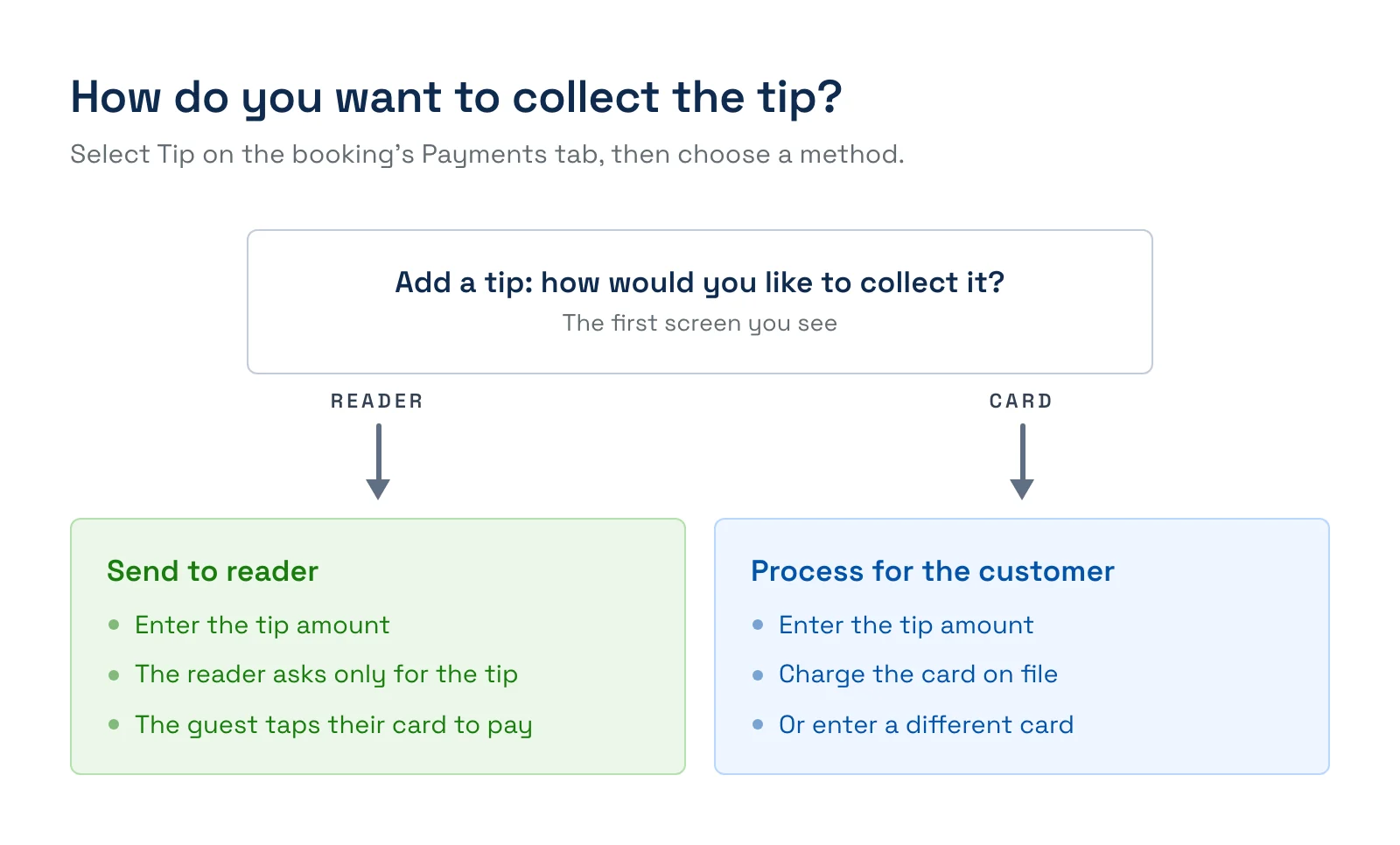
- Open the booking, go to the Payments tab, and select Tip.
- Choose Send to reader or Process for the customer.
- Pick one of your suggested percentages, or select Other amount and type the tip. The percentages are calculated from what the guest has paid, shown at the top as Total purchase, and the middle one is selected to start.

Choose a percentage or Other amount, then the card to charge. - For Send to reader, wait for the reader to connect, then select Send Payment Request to Reader. The reader asks only for the tip amount, and the guest taps their card to pay. For Process for the customer, choose Card on file or A different card and select Charge. Card on file only appears when the booking has a saved card.
Once the tip is collected, the next screen depends on your tip type. If tips go to individual team members, you select who the tip is for and choose Assign Tip. If tips go to a shared pool and notes are turned on, you can add an optional note about who it's intended for. Otherwise the window closes and the tip appears on the booking's payments.
Change who gets a tip
If your tip type is assigned to individual guides, you can set or change the recipient after the tip is taken. Open the booking's Payments tab, find the payment with the tip, and select Assign recipient (or Change if someone is already assigned) next to the tip. You need the Charge credit cards permission, and the payment must have gone through. Tips guests leave in the customer portal always arrive unassigned, so this is how you credit them. See Assign a tip to a team member for the full steps with screenshots.
View collected tips
To review tips — by date range or by team member — run the Tips report: Reports → Finance → Tips. It's the basis for distributing pooled tips fairly and seeing which guides are earning them.
A note on processing fees for tips
When a guest tips by card, that tip is processed like any other card transaction. The good news is that the fee on a tip transaction is typically just the card processor's own rate (a lower, one-to-one cost) rather than your full service fee — so more of each tip reaches your team. For how platform fees relate to tips, see Are tips subject to platform fees?
Frequently asked questions
Can tips go to individual guides instead of a pool?
Yes. Under Tip Type, choose to assign tips to individual guides instead of a shared team pool.
Where do I see tips collected?
In the Tips report under Reports → Finance → Tips, filterable by date range and team member.
Who can charge a tip to a guest's card on file?
Only team members whose permission group includes Charge credit cards. A team member without it can't charge a tip to a card on file or to a different card, and the charge is refused with a message that they don't have permission. An account admin can add the permission to their group.
Can I send a tip to the card reader?
Yes. When you add a tip from a booking, choose Send to reader, enter the amount, and send it. The reader prompts the guest for the tip amount only, and the guest taps their card to pay.
Why am I asked to pick a team member after the tip is collected?
Your tip type is set to individual team members, so each tip needs an owner. Select the team member and choose Assign Tip. With a shared pool, you aren't asked who the tip is for, apart from an optional note when notes are turned on.
Related
- Assign a tip to a team member
- Are tips subject to platform fees?
- Add a tip button to your post-activity follow-up email
Built for attractions, tours & activities
Make tipping effortless for guests
See how attractions, tours, and activities collect tips on TripWorks. Book a demo and make the switch.