
Offer codes let you give customers a promotional discount they enter at checkout — a military discount, a holiday promo, a referral reward. Unlike a manual price adjustment, offer codes work automatically: you define the rules once and the system enforces them. You can restrict codes by date range, day of week, activity, ticket type, booking window, the number of guests the discount applies to per booking, or the total number of uses.
If you just need to give a one-off discount on a specific booking, use a manual price adjustment instead.
Step 1: Create the code
- From the main navigation, select More > Discover More.
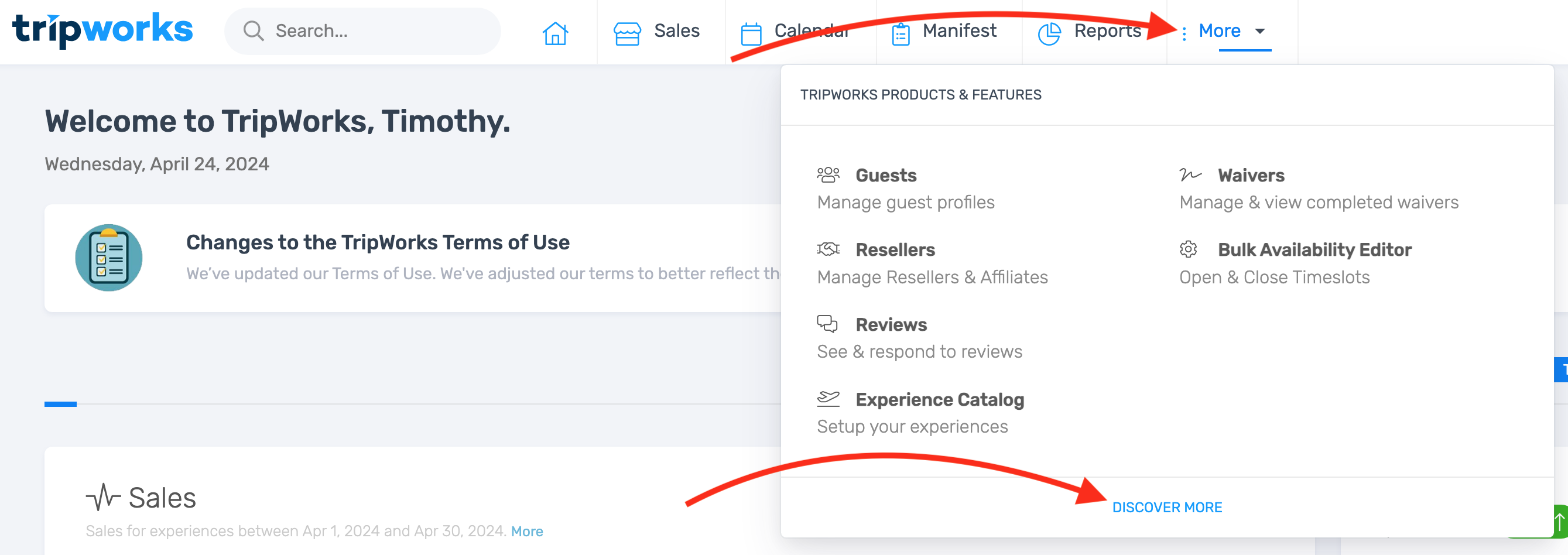
- Select Offer Codes, then select Create.


- Enter a Code — this is the string your customer types at checkout (e.g.,
MILITARY10). Keep it short and easy to type. It is case-insensitive.

- Enter an Internal Name — this appears on your dashboard, reports, and the customer order. Use something descriptive enough to identify it in a list, like "Military Discount 10%".

- Enter a Public Description — this appears on your website and on customer receipts. Write it as the customer will read it, e.g., "10% discount for active military and veterans."

- Set Choose how the code sets the price — a dollar amount off, a percentage off, or a set price (pick one):
- Dollar amount — a fixed discount regardless of booking size (e.g., $10 off).
- Percentage — a discount that scales with the total (e.g., 15% off).
- Set price — overrides the per-person price to an exact amount instead of discounting. For example, make any tour $50 per person no matter its normal price, so one code works across activities that are priced differently.

Discounts are applied to the trip total before sales tax, reseller commissions, manual discounts, and fees.
- Choose a Redemption Frequency:
- Once per booking on the trip — the discount applies per guest. Use this for per-person discounts like a 10% military discount where each ticket is discounted.
- Once per trip — the discount applies to the trip total once, regardless of how many guests are booked. Use this for flat-fee promotions like "$20 off your booking."

- Set the Status to Available to make the code active immediately. Use Inactive to save a code you're not ready to launch yet.

- Select Save.
Step 2: Assign activities (required)
An offer code will not work until you assign it to at least one activity. This is the most common reason a code appears to be set up correctly but fails at checkout.
- Select the Activities tab within the offer code editor.

- Select the activities this code should apply to. If it should apply to all your activities, select all of them.

- Select Save.
Your offer code is now live. Customers can enter the code at checkout for any of the assigned activities.
Optional: Restrict how and when the code can be used
The settings below are all optional. Use them to narrow when and how the code applies — for example, limiting a holiday promo to December bookings, or capping a launch discount to the first 50 uses.
Rules & Restrictions
Select the Rules & Restrictions tab to access these settings.

Advanced booking window
Require that the code is used a minimum number of days before the activity date. Use this to encourage early bookings — for example, set 7 days to ensure the code can only be used more than a week in advance.
Minimum booking quantity
Require a minimum number of guests on the booking before the code can be applied. Use this for group-rate promotions — for example, set 4 to only allow the code for parties of 4 or more.
Maximum booking quantity
Set the largest party size the code can be applied to. If a booking has more guests than the maximum, the code is rejected at checkout with a clear message. Use this to keep a code scoped to the booking it was meant for — for example, if you issue a one-time, full-value code to make good on a 4-guest booking, set the maximum to 4 so the same code can't be applied to a new 8-guest booking and cover four extra spots. This is different from Maximum tickets per booking below: maximum booking quantity decides whether the code can be used at all (based on total guests), while maximum tickets per booking caps how many tickets receive the discount.
Maximum number of uses
Set how many times the code can be redeemed in total before it automatically deactivates. Use this for limited-time promotions — for example, set 50 for a "first 50 customers" launch offer.
Prevent online use
Restrict the code to staff-applied use only — customers cannot enter it during online checkout. Use this for codes you apply manually at point-of-sale, such as a walk-up discount.
Ticket type restrictions
By default, a code applies to all ticket types. To limit it to specific ticket types — for example, Adults but not Children — use the Applications settings (alongside Activities and Products) and choose which ticket types the code should apply to. Leave it set to All Ticket Types to keep the default. In a mixed booking, the discount applies only to the ticket types you selected — so a code restricted to Adults discounts only the Adult tickets, even when the booking also includes Children.
Maximum tickets per booking
Cap how many tickets within a single booking receive the discount. Set a maximum and the discount applies only to that many tickets — any additional tickets in the same booking are charged full price (leave it blank for no limit). This is different from Maximum number of uses above, which caps total redemptions across all bookings. For example, a code giving $10 off with a per-booking maximum of 5 discounts the first 5 tickets ($50 off) on a 10-ticket booking; the remaining tickets pay full price.
Select Save when done.
Dates
Control when the code is valid by setting availability windows, blackout periods, or day-of-week restrictions. If you set no date rules, the code works for any booking date.
Select the Dates tab to access these settings.

Availability windows and blackout dates
Each rule can either make the code Available for a date range or Blacked out for a date range. You can add multiple rules to build complex patterns — for example, available in December but blacked out on Christmas Eve and Christmas Day.
For each rule, choose whether the date range applies to:
- Experiences scheduled between — the date the activity takes place. Use this to control which activity dates the code is valid for.
- Bookings created between — the date the customer made the booking. Use this to run a purchase-window promotion, like "book before December 31st."


Select Add… to stack additional date rules.

Day-of-week restrictions
Block the code from being used on specific days of the week — for example, blackout Saturdays and Sundays to limit a weekday-only promotion.

Select Save when done.
Gift cards and products
By default, offer codes apply only to activity bookings. Enable these options if you also want the code to work on gift card purchases or product add-ons.
Gift cards
Select the Activities tab, scroll down to Gift Cards, and check the box to allow the code on gift card purchases.

Products
Select the Products tab and check the box to allow the code on product purchases.


Select Save when done.
Troubleshooting
Offer code not working at checkout?
The most common cause is that no activities have been assigned. Go to the offer code, open the Activities tab, and confirm at least one activity is selected. Also check that the code status is set to Available and that any date or restriction rules aren't excluding the booking in question.
The code applies but the discount amount looks wrong.
Check whether Redemption Frequency is set to "once per booking" vs. "once per trip." If a customer with 4 guests expects 10% off each ticket but the code is set to once per trip, the discount will be smaller than expected.
The code was valid yesterday but stopped working.
The code may have reached its Maximum # of Uses limit and automatically deactivated. Go to the offer code and check the current redemption count and status.