
Connect Mailchimp and TripWorks will add your customers to a Mailchimp audience automatically, so your list grows as you take bookings. Connecting takes one click — you don't paste an API key.
In this article
You don't need an API key
TripWorks connects to Mailchimp with a secure login (OAuth), not a pasted key. You click Login to Mailchimp, authorize TripWorks, and the connection is made for you — there's no API key to find or enter, and no server prefix to worry about.
Connect it
- Go to Setup Integrations and open the Mailchimp card (Activate).
- Click Login to Mailchimp and authorize TripWorks in the Mailchimp window.
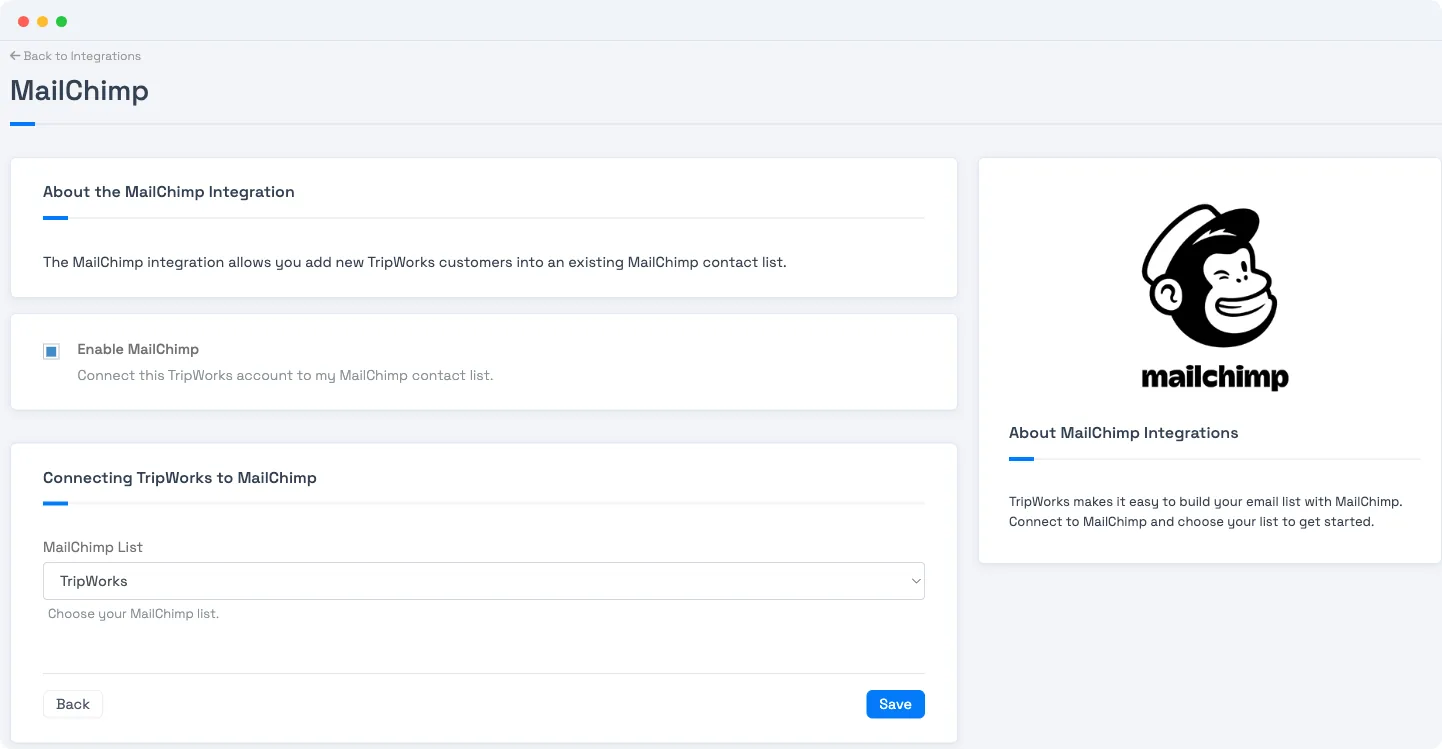
- Back in TripWorks, turn on Enable Mailchimp and choose your Mailchimp List (audience) from the dropdown.
- Click Save.
Editing integrations requires the Set Up Integrations permission.
What syncs (and what doesn't)
Once connected, when a customer is created or updated in TripWorks, they're added to your chosen Mailchimp audience as a subscribed contact. It syncs their email, first name, and last name — that's it. A few things to know:
- One-way: TripWorks → Mailchimp. Changes you make in Mailchimp don't flow back.
- Contacts, not bookings: it syncs the person (name + email), not trip or purchase details.
- New activity, not backfill: it adds customers going forward as they come in; connecting doesn't bulk-push your existing customer history.
Respect your guests' consent and Mailchimp's terms — contacts are added as subscribed, so use this for audiences you're permitted to market to.
Frequently asked questions
Where do I enter my Mailchimp API key?
You don't. TripWorks connects with a secure login (OAuth) — click "Login to Mailchimp" and authorize TripWorks, and the key is handled automatically. There's no API-key field to fill in.
What data does TripWorks send to Mailchimp?
The customer's email address, first name, and last name — added to your selected audience as a subscribed contact. It doesn't send phone numbers or booking/trip details.
Does it sync both ways?
No — it's one-way, TripWorks to Mailchimp. Updates you make in Mailchimp (or unsubscribes there) aren't pulled back into TripWorks.
Will connecting import my existing customers?
No. The sync adds customers as they're created or updated after you connect. It doesn't back-fill your existing customer list into Mailchimp.
When exactly does a customer get added?
When a customer record is created or their name/email changes. The contact is upserted into your chosen audience shortly after (it runs in the background).
How do I choose which audience they go into?
After you log in to Mailchimp, the Mailchimp List dropdown on the integration page loads your audiences — pick the one you want and Save. You can change it later on the same screen.
How do I disconnect or pause it?
Turn off the Enable Mailchimp switch on the integration page and Save. New customers will stop syncing until you re-enable it.
Related
Built for attractions, tours & activities
Your guest list, in your marketing tools
See how attractions, tours, and activities grow their audience with TripWorks. Book a demo and make the switch.