
When someone wants to join a booking that's already made — "can my friend come too?" — add them to the existing trip instead of starting a separate booking. Everyone stays on one reservation and one order, which keeps the manifest and payment clean.
In this article
There are two ways to do it, and the right one depends on whether the new guest matches an existing one:
- Add Guest — adds fresh, blank tickets you fill in. Best when the newcomer is different or simpler (a different ticket type, no add-ons). You skip copying details you don't want.
- Clone Booking — copies an existing guest's ticket, add-ons and all. Best when the new guest is a near-duplicate (same ticket type and extras), so you don't re-enter the same choices.
Add a guest
- Open the trip and find the activity you're adding to.
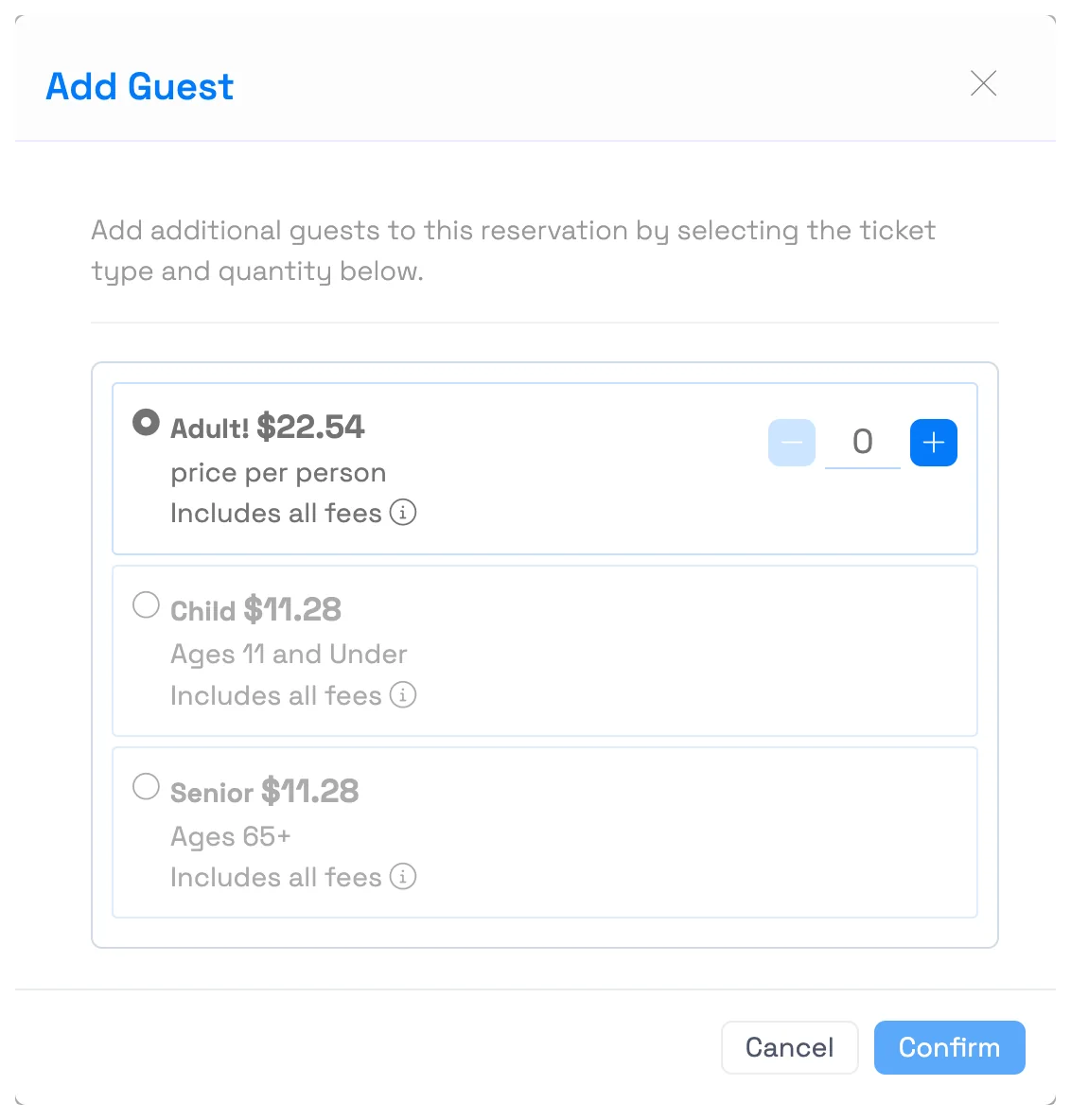
- Select + Add Guest.
- In the Add Guest window, choose the ticket type and quantity for the people you're adding. Each type shows its current per-person price (fees included).
- Select Confirm.
- The new tickets appear on the trip. Open each one's pencil to fill in that guest's details — name, email, phone, and ticket type.
Clone an existing guest's booking
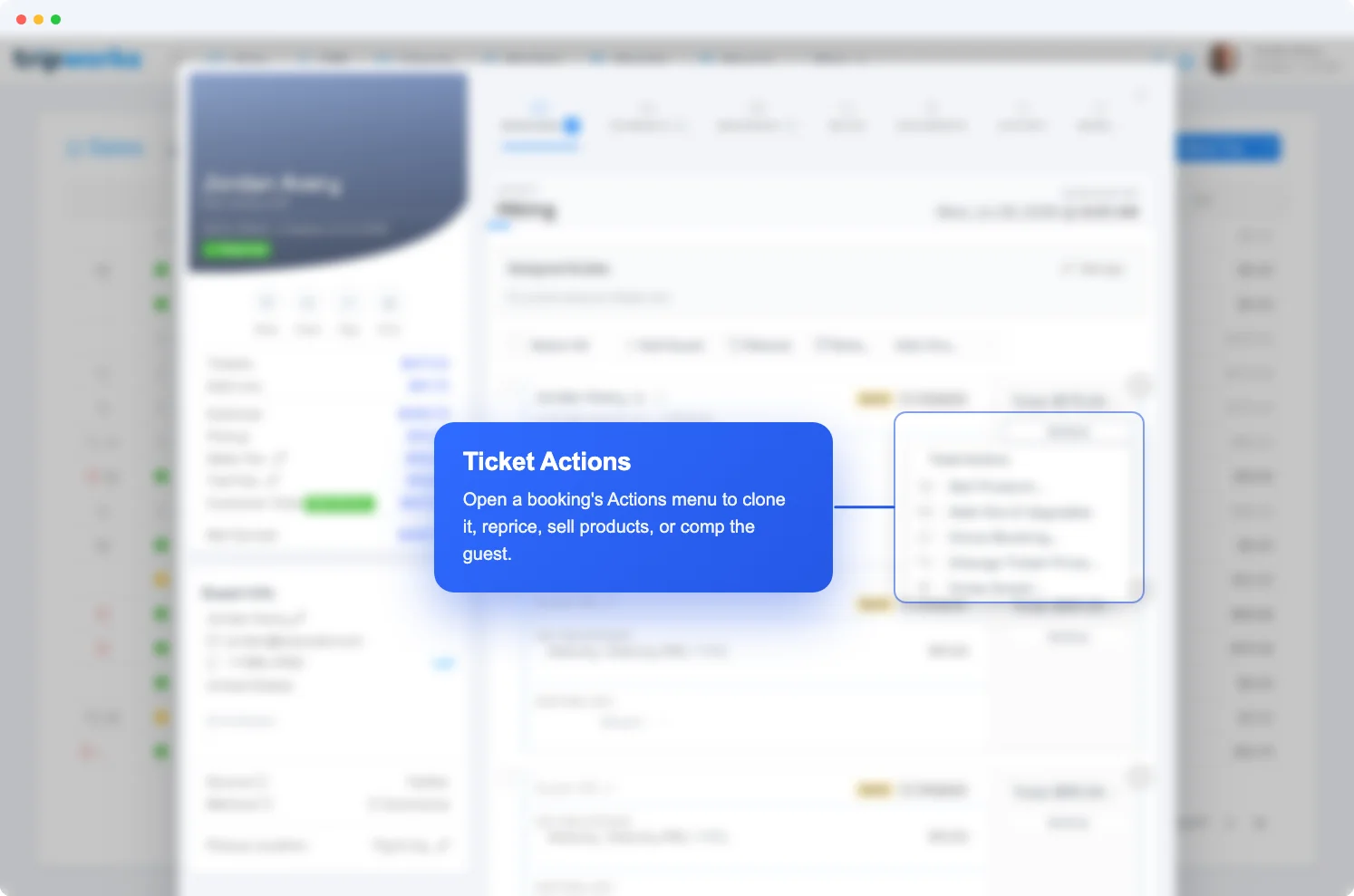
- On the guest whose details you want to copy, open the Actions menu.
- Choose Clone Booking…, pick how many copies to add, and confirm.
- Fill in the new guest's details on each cloned ticket.
Cloning copies the ticket type plus any add-ons and products from the original, so it's the fast path when the new guest wants the same thing. Adjust anything afterward from the same Actions menu.
Adjust a ticket after adding
Whichever method you use, a ticket's Actions menu is where you fine-tune it afterward — Change Ticket Price to reprice, Sell Product, Add-ons & Upgrades, or Comp Guest. See comp, un-comp, and reprice tickets for those.
Pricing and capacity
A couple of things happen behind the scenes when you add a guest:
- Pricing — added tickets are priced at the activity's current rates for that date (the Add Guest window shows the per-person price). Reprice any of them with Change Ticket Price if you need to.
- Payment — the new tickets raise the order's balance; collect payment the same way you would on any booking.
- Capacity is enforced. If the timeslot is oversold, TripWorks warns you and lets you add anyway. If the activity's capacity is limited by resources (kayaks, seats) and none are free, the add is blocked — "no remaining capacity on the assigned resource" — until you free one up or adjust capacity.
Frequently asked questions
Should I use Add Guest or Clone Booking?
Use Add Guest when the new person is different or simpler than the others (a different ticket type, no add-ons) — you get blank tickets to fill in. Use Clone Booking when they want the same thing as an existing guest — it copies that ticket's type, add-ons, and products so you don't re-enter them.
Can I add a different ticket type than the rest of the group?
Yes — choose any ticket type in the Add Guest window. That's exactly when Add Guest beats cloning.
What if the timeslot is full or oversold?
You'll see a warning and can still add the guest if you choose to. One exception: if capacity is driven by resources and none are available, TripWorks blocks the add until a resource frees up.
How is the added ticket priced?
At the activity's current rate for that date. If you need a different price, use Change Ticket Price on the ticket's Actions menu after adding it.
Do the added guests go on the same order?
Yes — they're added to the existing trip and order, so there's one reservation, one manifest entry set, and one balance to collect.
Related
Built for attractions, tours & activities
Handle "can my friend come too?" in seconds
See how attractions, tours, and activities add guests, reprice, and keep everyone on one order without re-booking — in TripWorks. Book a demo and make the switch.