
A location is a physical venue your activities take place at — a park, a dock, a ticket office, a trailhead. You create your venues once here, and then each activity points at the location where it runs. It's the list of places you choose from when you set up an activity.
In this article
More than an address, a location carries the timezone that venue runs on — which is what makes locations matter for anyone operating in more than one city (see below).
Add a location
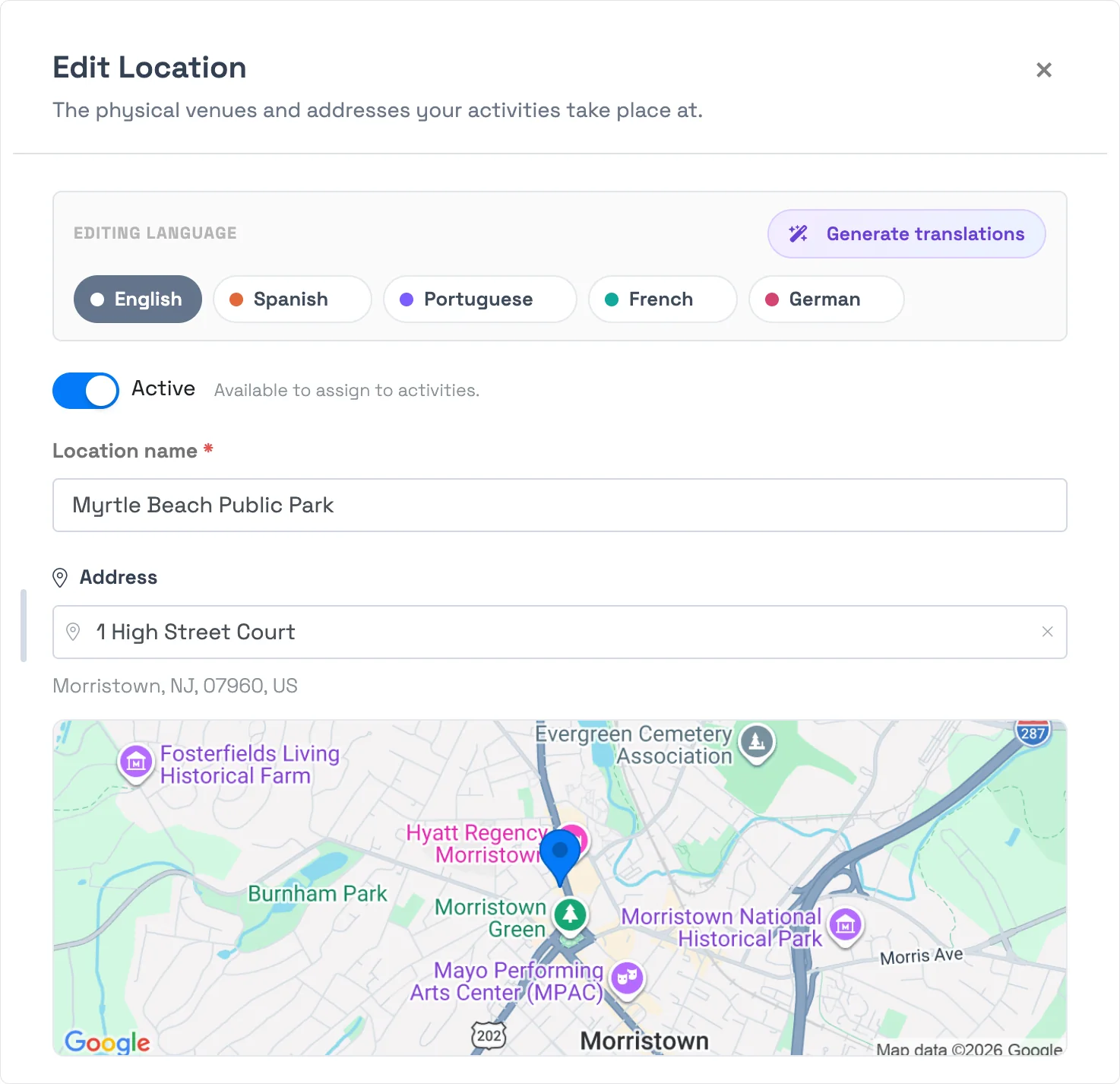
Go to Setup Run your day Locations and select New Location.
- Give it a Location name your team will recognize (e.g. "Harbor Dock" or "Downtown Ticket Office").
- Start typing in Address and pick the match. TripWorks fills in the city, state, postal code, and country, drops a map pin, and sets the timezone from the address automatically.
- Add optional Directions — a note shown to staff and guests about finding the place ("Park in the rear lot and check in at the front desk").
- Leave Active on and select Save.
The location's timezone runs its activities
This is the part that isn't obvious from the form. The timezone on a location is the clock every activity at that location runs on. It's not a display preference — TripWorks uses it to interpret:
- Availability and start times — an activity's timeslots are read in its location's timezone. A 9:00 AM tour means 9:00 AM at the venue, regardless of where your staff or guests are browsing from.
- Booking cutoffs — same-day and advance-booking cutoffs are calculated against midnight in the location's timezone, so "no bookings after today" ends at the venue's midnight, not yours.
- What partners receive — the times sent to connected distribution channels (GetYourGuide, Viator/OTA feeds, and similar) use the location's timezone.
That's why the field auto-fills from the address, and why it matters: if you run activities in more than one city, give each location its own correct timezone so every venue's schedule and cutoffs land right. Your account has a default timezone; each location overrides it for the activities assigned to it.
Active vs. archived
The Active toggle controls whether a location appears in the picker when you assign a location to an activity:
- Active — available to choose when setting up an activity.
- Archived — hidden from that picker. Activities already assigned to it, and their existing bookings and history, are unaffected — you just can't pick it for something new.
Archive a venue you no longer use (or one you only run seasonally) instead of deleting it. It stays on file and you can flip it back to Active anytime.
Deleting vs. archiving
A location can only be permanently deleted if nothing uses it. If it's assigned to any activities, or referenced by existing trips or orders, TripWorks blocks the delete and tells you what's holding it — for example, "This location is in use by 3 tours, 12 bookings and can't be deleted. Archive it instead."
This is deliberate: deleting a venue that historical bookings point to would break that history. So archive in-use locations; delete is reserved for ones you added by mistake or never used.
See where a location is used
Open any location and the Where it's used section lists the activities currently assigned to it. It's the quick way to answer "what would move if I changed or retired this venue?" before you touch it.
Frequently asked questions
Why can't I delete a location?
It's in use. A location assigned to any activity — or referenced by past trips or orders — can't be deleted, because removing it would break that history. TripWorks tells you what's using it. Archive it instead (turn off Active): that hides it from the assignment picker while keeping everything on file.
What does a location's timezone actually control?
It's the clock the venue's activities run on. Activity start times and availability are read in the location's timezone, same-day and advance booking cutoffs are calculated against midnight there, and it's the timezone sent to connected distribution partners. If you operate in multiple cities, set each location's timezone correctly so schedules and cutoffs are right for every venue.
Do I need a separate location for every venue?
Create one per distinct venue and timezone. Activities in different cities (or timezones) should point at their own locations so times and cutoffs are correct. Activities at the same address can share one location.
What happens to bookings if I archive a location?
Nothing changes for existing activities, bookings, or history — archiving only removes the location from the picker for new assignments. Set it back to Active whenever you need it again.
Related
- Create a new activity — where you assign a location to an activity
- Change an activity's start location
- Seasonal pricing
Built for attractions, tours & activities
Run every venue on the right clock
See how attractions, tours, and activities manage venues, timezones, and schedules across cities in one place on TripWorks. Book a demo and make the switch.