
Every lead in Lead Center sits at a status that tells you, at a glance, how far along the guest is toward booking. The status is what turns a flat list of near-misses into a pipeline you can actually work: the leads nobody has touched, the ones you've reached, the ones with a payment link out, and the ones that closed one way or the other. Most of these moves happen on their own as you and the automation do the obvious things, so the pipeline stays honest without you keeping it up by hand.
In this article
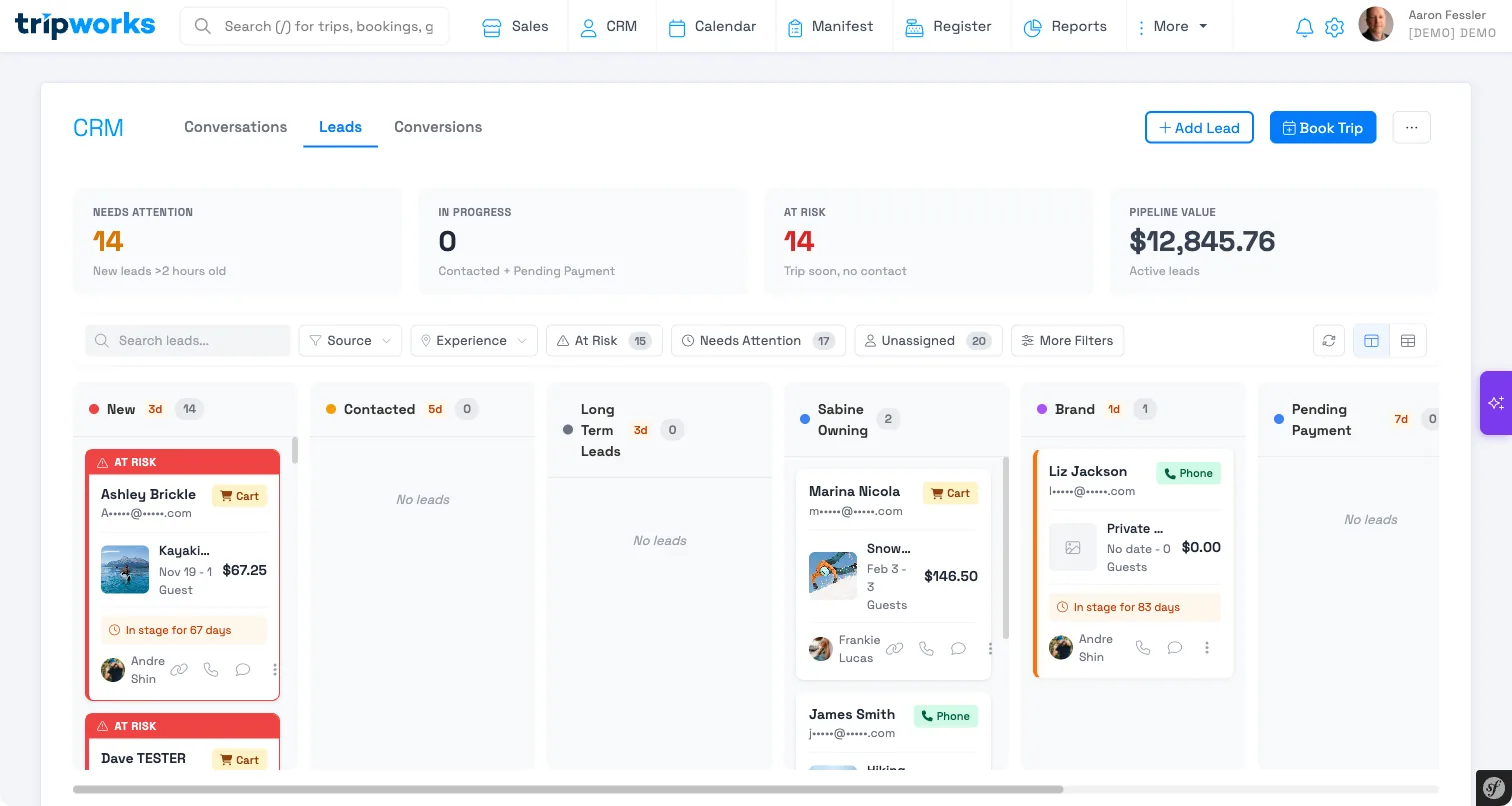
The five statuses
Leads flow left to right through five built-in statuses:
| Status | What it means |
|---|---|
| New | The lead just came in. Nobody has reached the guest yet — this is your to-do pile. |
| Contacted | The guest has been reached at least once, by an automatic recovery email or by you logging a call, email, or meeting. |
| Pending Payment | You've sent the guest a payment link and are waiting for them to pay. |
| Converted | The guest finished booking. This is the win. |
| Lost | The opportunity didn't come back — the tour date passed without a booking. |
Converted and Lost are the two terminal statuses: once a lead lands in either, TripWorks stops moving it automatically. Everything before them is live pipeline you're still working.
What moves a lead forward
Most status changes happen automatically, triggered by the normal work of following up:
- New → Contacted. A lead leaves New the moment the guest is reached. That happens two ways: TripWorks sends an automatic recovery email for the cart, or you log a call, email, or meeting on the lead yourself. Either one advances a New lead to Contacted. (Logging a plain note doesn't — a note is for your own records, not proof the guest was contacted.)
- → Pending Payment. When you send the guest a payment link from the lead, TripWorks moves it to Pending Payment — unless it's already Converted or Lost — so you can see at a glance who's been asked to pay and hasn't yet.
- → Converted. When the guest completes their booking, the lead flips to Converted and TripWorks stamps the conversion date. This is what you're working toward.
- → Lost. If a lead never converts and the tour date and time pass while the booking is still unfinished, TripWorks marks it Lost automatically. There's no manual cleanup: leads that ran out of runway close themselves so your active pipeline only shows real, live opportunities.
The automatic moves never drag a lead backward. If you've already advanced a lead by hand — say, to Pending Payment — a later automatic recovery email logs its activity but leaves your status where you put it. And once a lead is Converted or Lost, automation leaves it alone entirely.
Changing a status by hand
You're never locked into the automatic flow. From a lead you can set its status directly to any stage in your pipeline — mark a lead Lost because the guest told you they booked elsewhere, or move one to Converted for a booking you completed outside the normal checkout. When you set a lead to Converted or Lost by hand, TripWorks stamps the matching date just as it would automatically, so your reporting stays consistent no matter how the lead got there.
Custom stages for your pipeline
The five built-in statuses fit most operators, but you can add your own custom stages to match how your team actually works a lead — for example, a "Quote Sent" or "Following Up" stage. Custom stages slot into the middle of the pipeline, between Contacted and Pending Payment, so the anchors stay put: leads still start at New, and Converted and Lost remain the terminal outcomes. The automatic moves described above continue to work around whatever custom stages you add.
Frequently asked questions
What's the difference between New and Contacted?
New means nobody has reached the guest yet — it's your untouched to-do pile. Contacted means the guest has been reached at least once, either by an automatic recovery email or by you logging a call, email, or meeting. So the leads sitting at New are exactly the ones that still need a first touch.
Does logging a note move a lead to Contacted?
No. Only logging a call, email, or meeting advances a New lead to Contacted, because those represent actually reaching the guest. A note is for your own records and leaves the status unchanged.
How does a lead become Lost?
Automatically. If a lead never converts and the tour's date and time pass while the booking is still unfinished, TripWorks marks it Lost so your active pipeline only shows live opportunities. You can also mark a lead Lost by hand at any time — for instance, if the guest tells you they booked elsewhere.
Can I move a lead backward or set any status I want?
Yes. You can set a lead to any stage in your pipeline by hand. The automatic moves never override a status you set yourself, and setting a lead to Converted or Lost stamps the matching date just as the automatic transition would.
Can I add my own statuses?
Yes. You can add custom stages between Contacted and Pending Payment to match your team's workflow. The built-in anchors stay in place: leads still start at New, and Converted and Lost remain the terminal outcomes.