
Deposits let you collect a partial payment when a guest books and defer the rest to later. With a deposit configured, the guest pays only the deposit at checkout; the remaining balance is collected separately, before or after the activity. Deposits are set per activity and are optional — activities without one collect the full amount at checkout as usual.
In this article
Choose a deposit type
There are two structures — pick based on whether the deposit should scale with group size or stay flat.
Amount per ticket
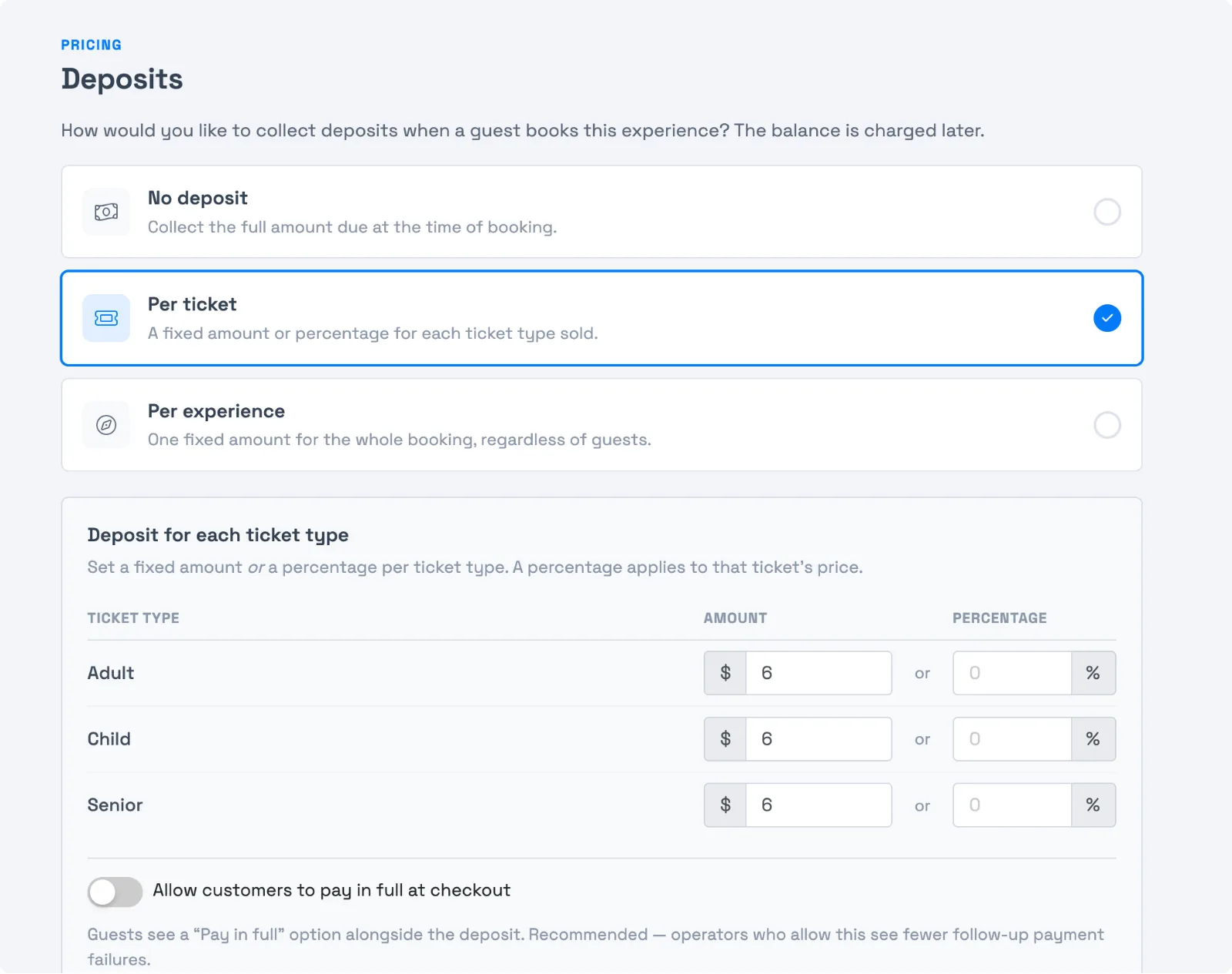
The deposit multiplies by the number of tickets. Use it when each guest contributes to the deposit — e.g. a $50-per-person deposit on a group activity. You can set it as a fixed dollar amount or a percentage of the ticket price.
Example: a $200 ticket with a $50 per-ticket deposit — a group of 3 pays $150 today, with a $450 balance remaining.
Amount per experience
A flat deposit charged once per booking, regardless of ticket count. Use it for private or chartered experiences priced per group. Example: the same 3-person, $600 booking with a $50 per-experience deposit pays $50 today, with $550 remaining.
Let guests pay in full at checkout
If you collect deposits, you can still give guests the choice to pay everything up front. Turn this on and online shoppers see two clear options — Pay in Full or Reserve with Deposit:
- Open the activity editor and go to the Deposits settings page.
- Enable Allow customers to pay in full at checkout (it appears under both deposit styles — per ticket and per experience).
Letting guests pay in full when they want to means fewer balance payments to chase and fewer failed payments later — and operators who allow it tend to see a lift in revenue on higher-value bookings.
Set up a deposit
- Go to Setup → Activities and select the activity.
- In the left sidebar under Pricing, select Deposits.
- Choose a deposit type — Per ticket or Per experience.
- Enter the deposit amount or percentage (for Per ticket, set it on each ticket type).
- Optionally turn on Allow customers to pay in full at checkout, then Save.
New bookings then show only the deposit due at checkout; the balance appears on the trip record to collect later. To turn deposits off and collect the full amount again, choose No deposit and Save.
Change the deposit on one trip
To change the deposit for a single booking, open the trip and find Deposit Due. Select the pencil next to it, enter the New Deposit Amount, and select Change Deposit. Entering 0 doesn't set a zero deposit. It clears your change and puts the deposit back to the default amount. The pencil only shows while nothing has been paid on the trip, and it needs the Change Tax & Surcharge Exemption on Trips permission.
Can I set a $0 deposit or a free item?
- $0 deposit: there's no separate "$0 deposit" setting. A deposit is an amount or percentage you enter; to take nothing upfront and collect the full amount at checkout, choose No deposit rather than a zero deposit.
- Free ($0) item or ticket: yes — set the ticket type's price (or a product's price) to $0. That's done in pricing, not here; a free ticket has no price minimum.
Troubleshooting
Guests are charged the full amount instead of the deposit. Confirm the deposit saved — the Per ticket or Per experience card should be selected, not No deposit — and remember deposits apply only to new bookings; trips booked before you saved the change aren't affected.
The deposit amount looks wrong at checkout. Check whether you chose Per ticket vs Per experience — a $50 per-ticket deposit on 10 guests is $500 today; $50 per-experience is $50.
Related
Built for attractions, tours & activities
Lock in bookings, reduce no-shows
See how attractions, tours, and activities take deposits and collect the balance later on TripWorks. Book a demo and make the switch.