
Activity Categories group your experiences into named collections that appear as a Shop by Category option in both the booking widget and the dashboard. Use them to help guests quickly find the type of experience they're looking for.
Navigate to Activity Categories
Go to More > Discover More in the toolbar, then select Activity Categories.
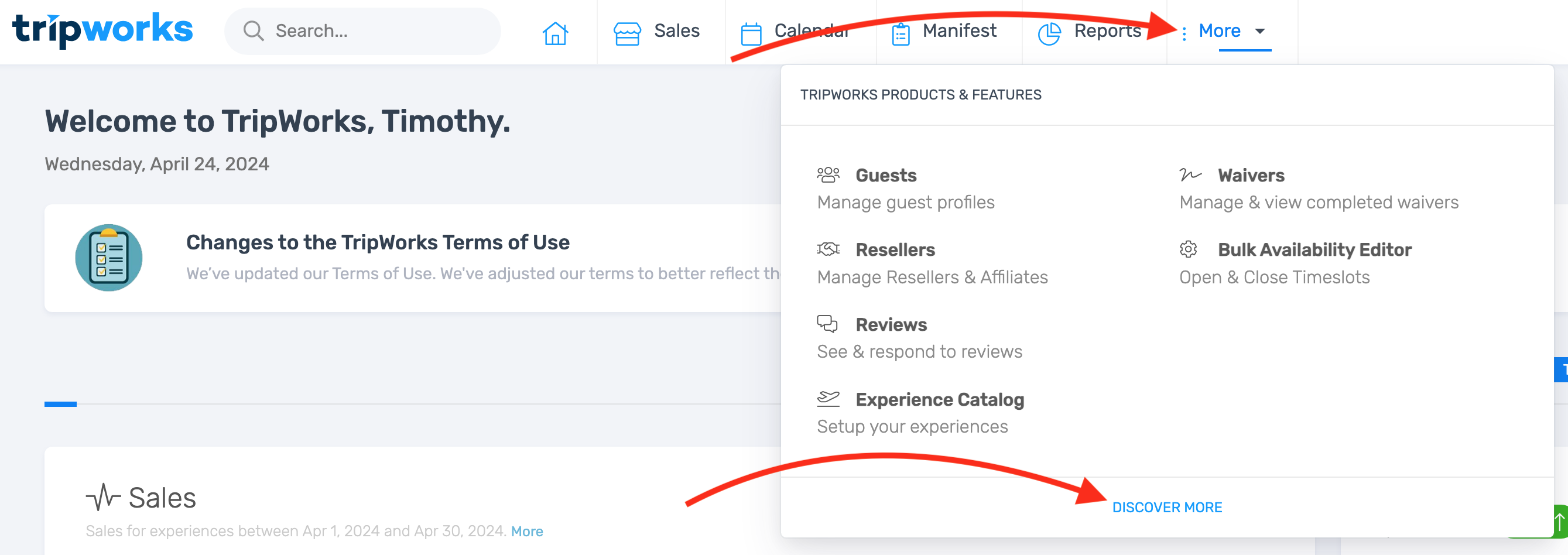
Don't see Discover More? Navigate directly via Setup → Activity Categories. If that page isn't visible either, you may not have the Setup: Activities permission — contact your account owner to request access.
Create a Category
- Click Create a Category.
- Enter a Name and Headline for the category.
- Set a Position to control the order categories appear in your catalog. Lower numbers appear first — for example, set Winter Activities to 1 and Summer Activities to 2 to display winter first.
- If this category should only be visible to logged-in team members (not to customers in the booking widget), check Private: Only show to logged in users. This is useful for internal or promotional experiences.
- Select the experiences you want to include in this category.
- Click Save.

What Happens Next
Once saved, the category appears in your catalog and booking widget under Shop by Category. Customers can select it to filter your experiences. You can edit or reorder categories at any time from the Activity Categories list.